
Clip Videos on the Go with OpusClip
39sDemonstrates a quick, efficient mobile workflow for clipping YouTube videos, appealing to busy content creators.
▶ Play Clip"The tutorial covers all key features in under 3 minutes, delivering exactly what the title promises."
This video provides a comprehensive tutorial on using the OpusClip mobile app for clipping and editing video content on the go. It covers how to share links from YouTube, customize captions, and save clips directly to your phone.
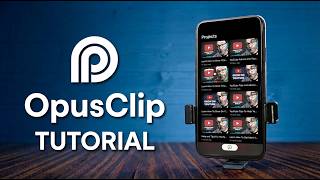
OpusClip mobile app displays a grid of previously clipped content, similar to the desktop version.
Users can add video links via the plus icon or choose a file from their library.
To share from YouTube, tap the three-dot menu, select share, scroll to 'More', and tap OpusClip.
OpusClip offers options for clipping mode, clip length, aspect ratio, and templates.
After selecting a template, tap 'Get Clips in One Click' to generate clips automatically.
Clips are accessible from the home tab; tap any video to preview generated clips.
Tap the right-hand side to save a clip to your phone; use the pencil icon to edit captions.
Edit caption style, position, animation, text, AI highlights, lines, and emojis. Presets are available.
Tap 'Edit Text' to correct typos or remove words; tap a word then edit.
Adjust highlight colors by tapping the color option on screen.
Preview the clip by tapping the middle and hitting play; then back out and save.
After saving, tap the clip to download or share via the share button.
OpusClip is available on Apple Store; Android version is coming soon.
The OpusClip mobile app streamlines video clipping and editing, making it easy to repurpose content on the go. With features like one-click clipping and caption customization, it's a powerful tool for content creators.
How do you share a YouTube video to OpusClip on mobile?
Tap the three-dot menu, select share, scroll to 'More', and tap OpusClip.
00:29
What options are available when clipping a video in OpusClip?
Clipping mode, clip length, aspect ratio, and template selection.
00:41
How can you edit caption text in OpusClip?
Tap the pencil icon, then tap 'Edit Text' to correct typos or remove words.
02:17
What platforms is OpusClip available on?
Available on Apple Store; Android is coming soon.
03:09
Mobile Clipping Workflow
Demonstrates a seamless mobile workflow for content creators on the go.
00:02One-Click Clipping
Highlights the efficiency of generating clips with a single tap.
01:10Caption Customization
Shows detailed caption editing options including style, animation, and AI highlights.
01:50[00:02] clipping on the go. And it's really easy to use. Let me show you. Okay, so once you open up the app, you're going to see a grid of the content that you've previously clipped, just like you see on desktop computers. If you hit the plus
[00:15] icon, you'll see the option to add a video link or to choose a file from your library or your files. Actually, there's an even better way to share your links Let's say you're in the YouTube app and you are looking through your videos and
[00:29] haven't clipped yet. All you have to do is click on the three dot menu over on the right hand side and then you go down into the share option. You click on that. Scroll all the way over to the right and
[00:41] click more. Here you're going to see Opus clip up at the top right. Tap on and then it gives you all the options you need. So, you can select your clipping mode. You can select your clip length. You can choose your aspect ratio
[00:56] this video. If you have templates already set up inside of your Opus clip and you can choose whichever template that is or you can choose from the quick In my case, I'm going to choose my template and then I'm going to hit get
[01:10] clips in one click at the very bottom. For this, I'm going to allow OpusClip to when it's updated. From there, you can go back to the YouTube app and just keep sending videos over to OpusClip. This is perfect for a mobile workflow to help
[01:23] busy. Once you get the clips you want sent over to the Opus Clip app, simply open it up again and you can access your clips directly from the home tab in the app. Just like on the desktop version, if you tap into any of the videos listed
[01:36] to preview the clips that Opus Clip has generated. From there, you can tap any the clip and want to save it to your phone so you can publish it, you can tap right hand side of the screen. If you need to edit the caption, just click the
[01:50] pencil icon and it will take you into the clip. From here, if you want to caption style down here at the bottom of the screen. And here you're going to see the options for position, animation, text, AI, highlights, how many lines you
[02:04] want, and the option to enable or disable the emojis. In this area, you presets if you don't want to set up your own. If you want to edit the caption text because let's say that there's a typo or there's a word that you want to
[02:17] remove, just tap the edit text option at the bottom of the screen. From there, if you need to make any adjustments, like correcting a spelling error or removing a word, you can tap on the word and then click the edit button to make
[02:29] need to make any adjustments to the highlight colors, like in this example, you can see my highlight colors are red. You can do that by tapping on this the screen. Once you have everything set up the way that you like, you can tap
[02:42] middle of the screen and then hit play to make sure it displays how you want. If everything's how you want it, click the full screen option again to minimize the video preview. And then you can back out of this area by clicking the back
[02:55] side of the screen and then click save up in the top right. Once you're back in you're working on, you can tap into the one that you just edited and you can right hand side or you can click the share button over on the left. You can
[03:09] download the Opus Clip app right now in the Apple Store and Android is coming with everything you're doing as a content creator, click into this video right here. It shares five tools that are going to save you a ton of time. You
[03:21] can go ahead and click into that now. Happy clipping.
⚡ Saved you 0h 03m reading this? Transcribe any YouTube video for free — no signup needed.