
80% Watch Without Sound!
42sReveals a shocking stat that 80% of Instagram viewers watch muted, making text essential.
▶ Play Clip"Delivers a solid tutorial on AI text addition, though the title oversells the 'AI' aspect slightly."
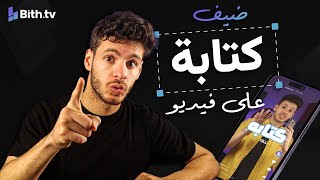
This video is a tutorial on how to add text to videos using an AI-powered online video editor. The creator explains four key reasons why adding text is essential for engagement and accessibility, then demonstrates the step-by-step process of using the tool, including AI-generated captions and manual text editing.
Most viewers watch videos without sound, especially on platforms like Instagram where 80% of viewers watch muted. Adding text ensures they understand the content.
Text adds visual movement to the video, making it more engaging and preventing viewers from getting bored or forgetting the content.
Using distinctive fonts, colors, or animations helps your videos stand out and makes your brand recognizable even without showing your face.
Text helps viewers focus on important information and understand the message better, especially when there is a lot of information.
When adding text, consider the size, color, and the color around the text to ensure readability and visual appeal.
The creator introduces a browser-based video editing website that is easy to use and includes AI features. He demonstrates how to import a video from YouTube or device.
The editing screen allows adding media, text (manual or AI-generated), audio, images, and videos. You can also edit audio by selecting it.
The AI can automatically generate text captions for your video. The process is fast, taking only seconds for short videos. You can select the language of the video.
You can edit the text properties such as font, color, and size. You can choose to edit all text at once or individual text elements.
If the AI makes mistakes, you can manually correct the text sentence by sentence. You can delete lines or adjust timing, saving hours of manual editing.
The creator shows how to cut the beginning of the video to remove empty space, using the trim tool.
After editing, you click the video button to export. The export time depends on the video length and edits made.
You can also add text manually using the text icon. You can choose the language and click to add it instantly.
The creator demonstrates how to position text, change its color, and resize it. He suggests placing text in the middle or at specific areas for better visibility.
You can duplicate text by clicking the checkmark icon, which is useful for creating multiple text elements. You can also add effects to text.
Adding images or icons related to the words can enhance the video. Sounds can also be added to make text more engaging.
The most important thing is to make your text unique. The creator encourages viewers to try the site and check out more content on their YouTube page.
Adding text to videos is crucial for engagement and accessibility, and AI tools make it quick and easy. By following the steps and making text unique, you can significantly improve your video content.
What percentage of Instagram viewers watch videos without sound?
80%
00:29
What are the four reasons to add text to videos?
1) Most viewers watch without sound, 2) Text adds movement, 3) Text makes videos unique, 4) Text helps viewers understand better.
00:02
What are the four things to consider when adding text?
Size of the text, color of the text, and the color around the text.
01:24
How does the AI text generation feature work?
You select the language of the video and click a button; the AI automatically generates captions, taking only seconds for short videos.
02:33
What can you do if the AI generates incorrect text?
You can manually correct the text sentence by sentence, delete lines, or adjust timing.
03:28
80% of Instagram viewers watch muted
This statistic underscores the critical need for text overlays to reach the majority of social media audiences.
00:29Text as a branding tool
Distinctive text styles can make videos recognizable even without showing a face, a key strategy for faceless content creators.
00:44AI-generated captions in seconds
Demonstrates the time-saving potential of AI, reducing hours of manual work to seconds.
02:33Manual correction of AI output
Highlights the practical need to review and refine AI-generated content for accuracy.
03:28Uniqueness is key
The final advice emphasizes that standing out is the ultimate goal, tying the tutorial back to broader content strategy.
06:50[00:02] way to add text to your videos, just like this, with only one click. And let me tell you why it's so important to add text to your videos and how your videos will change after adding text. There are four reasons why you absolutely must add text. The first reason is that most people watch
[00:15] watching your videos are out and about, on the street, on the bus, at school, university, or work. These people spend their time watching your videos without sound. So, if there's no text, how will they understand what you're saying? And the number of people who watch without sound or with low volume is
[00:29] not small at all. On Instagram, they make up 80% of viewers. That was the first reason. The second reason is that text adds movement to the video. When I talk to you like this, to what I'm saying, like this, the video becomes much more engaging. So, text... You add
[00:44] movement to the video, making the viewer feel engaged and prevent them from getting bored and forgetting what the video was about. That was the second reason. The third reason is that it makes your videos unique. The word "unique" is English and means something special. One of the best ways
[00:57] to make your videos stand out from everyone else's is to use distinctive text, whether it's unique fonts, colors, or animation. When you have distinctive text, people will always be able to recognize who you are, even if you don't show your face. That was the
[01:09] third reason. The fourth reason is that text helps people understand you better. You can do what you want. If there's information in the video that you want people to focus on, you can add text to that specific four reasons why you should add text. The key to effective text is that it's very simple. There are
[01:24] just four things to consider when adding text: the size of the text, the color of the text, and the color around the text. So, let me explain. I'll show you how to easily add text to your videos. I'll start with a browser and a website called [website name].
[01:37] This is the easiest and simplest video editing website in the world, and it even has artificial intelligence. Now that I've logged into old videos I've worked on before. Below that, it gives me a tutorial on
[01:49] how to do anything on the site, and I can learn directly. But now I want to start editing, so I'll put it on a video. Here, I can put the link to the video I want to edit. I can take it directly from YouTube, Twitch, Facebook, or if it's downloaded to my device, like this. Once you
[02:06] here and put it here. Now, after I put the video link, it will take you to the first screen, which is called the resize screen. On this screen, you can make the video normal like this, or portrait like this, or any other format you want. But I'll leave the video as it is. I'll go to the
[02:19] next screen, and here's how it works. Simply put, we've entered the editing screen where you can add media from your device—meaning you can import files from your device—or add text manually, or add AI-generated text, or add audio, images, or even videos. If you
[02:33] also want to edit the video's audio, you just click on it and select it to edit it from there. So now I want to add AI-generated text, so I go to the option with the "select" icon. But what language is the video in? It was in English, featuring Steve Jobs. This guy speaks very eloquently.
[02:48] This is the same guy who did it before and after selecting the language with your name, but with a single click. This is called "depending on the video length." So if the video is only two minutes long, it will output in a minute or two. Or, it will only take seconds, so it outputs it faster than
[03:02] I imagine. But I'm not very happy with the text here; I want to change the text properties. So, if I want to and change it from there. Okay, let me tell you something important. If you want to edit all the text, leave this one lit. But if you only want to edit this one,
[03:16] leave this one off. Even after you've correctly formatted the text,
[03:28] artificial intelligence. You know, artificial intelligence can be a bit silly in some areas, but if you have any problems with the text, if a sentence is said incorrectly or doesn't look right to you, you can easily correct it from here. When you start the video, it will automatically show you sentence by sentence from here on the left. If you
[03:42] sentence by sentence from here on the left. If you if you want to delete a line you don't like, just put it in its trash. This is to adjust the timing of the text if there's a mistake. This feature will save you hours of
[03:54] editing because if you were adding the text manually, it would take you a whole hour. The AI just pressed one button and within ten seconds it was there. So now I'm done with the video. I like it, but I remembered one thing: I need to cut the beginning of the
[04:06] extra part—the first four seconds of empty space. I just pressed on all of them. When I'm done, I've finished editing. I go to the video button, and from there I choose the
[04:21] edits you've made. So now I've put in a video that's about two minutes long and filled it with text, so it might also take two minutes to edit. But it's okay. While it's editing, I can go back to the studio like this and put it in. From here I press the clock button to choose the
[04:34] file, or I pick up the file and drag it from my device like this. And like this, I put in a video from my device. I want to make videos quickly, so try to do it in a long way. There's one button on the Here in the editing screen, I'm not going to add the text manually using AI. This
[04:50] text icon lets you add text manually. You just choose the text, whether in Arabic or English, and click on it. It's added instantly, like this. Now, let's go in and click on it—I mean, double-click, click whatever you want. So, to figure out what to add to the text, let me listen to the
[05:11] dragging them like this. Okay, here I'll click on the trash to remove all the extra parts. Here, the guy said, "We have 30 seconds. Write 'We have 30 seconds.'" But the one who said "We have 30 seconds" isn't the same one who's playing around here. This one is a different color, and the one who said "playing around" is green. Let's make the green color like this and widen it
[05:27] a bit. Now, after I added the text and fixed its shape, position, and size, there's a way to make it bigger. I the writing fixed. Always make sure you put the text not in the middle, but in the middle of this first text
[05:40] and this one like this. These two places are excellent for writing. You can put text here and text there. Many people do this, I don't know why. Now, after I fixed the text, I changed its size and put it here. You also have effects that can add it.
[05:55] Let me tell you something important so you do n't have to do this. If you like any text, like a text you want to use, just click on it and click the checkmark icon. That way, you'll feel like there are two pieces of text, so you can put the feel like there are two pieces of text, so you can put the first one and then the second one, and continue normally. And don't forget to
[06:09] sometimes add pictures because pictures are like... for example, if you say the word " TikTok," put the "TikTok" icon, it's nicer. Or if you say anything, there are pictures here for anything you want. In other words, pictures are a type of writing. So if you say something wrong, you can
[06:24] put... don't do that. You can put an X instead of the whole sentence, but don't do that. Even with sounds, if they're really nice, put them with the text. For example, if you put this baby sound and then add any swear word and make it sound 200%, how would it sound? You put
[06:37] how would it sound? You put it on top of any swear word. There are many the text even better. And that's how you simply learn how to put text on your videos
[06:50] and make the text any way you want. Don't forget, in the end, the most important thing is to make your text unique. And if you want to learn more about editing and how to create organized content, check out our YouTube page, which has videos like how to create content without showing your face or
[07:03] YouTube tips and shorts. There are also people who explain how to use the site, or this guy explains how to create content. Don't forget to follow us and try the site and tell me how it went for you.
⚡ Saved you 0h 07m reading this? Transcribe any YouTube video for free — no signup needed.