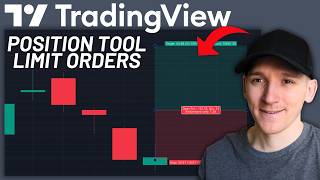

How to Place Trades on TradingView
45sHigh educational value for beginners wanting to learn TradingView's order placement.
▶ Play Clip"Delivers exactly what the title promises: a clear, practical guide to placing limit orders with the position tool."
This video provides a step-by-step guide on how to place limit orders, stop losses, and take profits using the position tool on TradingView. It covers selecting the correct asset and brokerage, configuring the order parameters, and executing the trade, including using paper trading for practice.
Find the asset you want to trade, preferably at your brokerage (e.g., Binance). For paper trading, choose a brokerage to get live price feeds.
On the left-hand side, click the position tool icon, select 'Long Position', and click on the chart to place it. You can then manipulate the limit price, stop loss, and take profit.
The risk-reward ratio updates based on your stop loss and take profit levels. It represents the difference between max potential loss and max potential gain.
Click the trade icon to open the order panel. If you haven't connected a brokerage, do so now. Paper trading is available for practice without real funds.
The stop loss and take profit levels from the position tool are automatically input into the order panel. You can still adjust them manually.
You can drag the stop loss and take profit lines on the chart, and the values on the right-hand side update accordingly. The limit price can also be changed.
You can undock the order panel for convenience. Press 'Buy' or 'Sell' to execute the trade. Additional resources and links are in the description.
The video effectively demonstrates how to use TradingView's position tool to set up and execute limit orders with stop loss and take profit, emphasizing the importance of risk-reward ratio and offering paper trading for practice.
What is the purpose of the position tool on TradingView?
It allows you to place and visualize limit orders, stop losses, and take profits directly on the chart.
00:56
How does the risk-reward ratio change when you adjust stop loss and take profit?
It updates based on the distance between your entry, stop loss, and take profit levels, representing the ratio of potential loss to potential gain.
01:38
What is paper trading on TradingView?
It is a practice mode where you can trade with virtual funds using live price feeds without risking real money.
02:16
When you place a long position with the position tool, what happens to the stop loss and take profit in the order panel?
They are automatically input into the order panel, but you can still adjust them manually.
02:56
What is the final step to execute a trade after setting up the order?
Press the 'Buy' or 'Sell' button in the order panel.
03:50
Risk-Reward Ratio Explained
Clearly explains how the risk-reward ratio is calculated and why it's important for trade planning.
01:38Paper Trading for Practice
Highlights the availability of paper trading as a risk-free way to practice, which is valuable for beginners.
02:16Auto-Fill of Order Parameters
Demonstrates a time-saving feature where stop loss and take profit are automatically populated from the position tool.
02:56[00:00] In this video, I'll show you how to use the long and short position tool to actually place trades and limit orders on TradingView. There's a few steps we have to go through. Firstly, go ahead and find the asset that you want to trade. Now, if you're using paper trading on
[00:12] TradingView, which is completely fine, which is where you can practice your trading, this is easy. If you're using an actual brokerage that you've linked to TradingView, then I'm sure you know you have to find the actual listing of the asset you want to trade because you'll be placing live
[00:26] orders here. So go up to the top left and find the asset that you want to trade at the brokerage that you're using. For example, if I want to use Binance, I can go ahead, let's say to crypto. And what I want to do is go ahead and find all sources. I want to find the Binance listings,
[00:42] right? If I'm using Binance or anything else, you can see them all here. So we actually want to choose the actual trading pair that we want to go ahead and trade. Or if you're using paper trading, it doesn't matter too much, but you want to find a brokerage so that paper trading can
[00:55] actually get the live price feed as well and actually trade it. Whatever you choose go ahead and do that now Now we can use the long and short position tool to actually place the order and manipulate our limit price any stop loss that we have and a take profit On the left hand side choose this icon click the drop down and then choose long or short position I show you the
[01:12] long position. Click it on the chart once and then you can manipulate the order. This midline here is your limit price wherever you want that to be. You can place that anywhere you want. If you want to place your limit order above the current price you can do. You would trade immediately at whatever
[01:26] the market price is for the most part with limit orders if you're a buyer you'll be placing your limit price below the current market price now stop loss and take profit you can put this as whatever you want notice the risk reward ratio in the middle will change dependent on where your
[01:40] potential loss is from the trade and your potential profit so if i have a very big loss in relation to my profit the risk reward is not very good i can obviously move this up let's say that i want to take a stop loss at the previous support here and i want to take a take profit
[01:55] above the resistance, then the risk reward ratio will be calculated. This isn't the actual risk reward of the trade. We can control where the price will go This is just the difference between your max potential loss when you stop yourself out and your max potential gain if you going to take profits here if that works out So from here what we want to do is get the brokerage and actually go ahead and trade So you click this icon
[02:18] this box should be here for you, click this. I've not connected a brokerage so go ahead and connect now if you haven't already. All of the main brokers are supported as you can see. I'll leave some links below to the exchanges I use if you want some good deposit and trading bonuses on
[02:30] those you can see the links in the description. I'll show you paper trading though which is where you can trade on paper in trading view just to test out your strategies. So press connect here. If you need a video guide on paper trading and on using trading view I'll link all of those down in
[02:45] the description as well. From here what we need to do now we've got our brokerage connected is just click this again and this gives us the pop-up. Now notice that where I put the limit stop loss and and take profit,
[02:57] all of those have automatically been input right here. And you can manipulate these now. In fact, what happens now is that you can get rid of this long and short position tool, exactly the price stop loss and take profit that I put on the tool That exactly what is input here However we can get rid of this now Notice that the actual trade tool is here and we can manipulate these
[03:19] This is my stop loss which I can move around. Notice that on the right hand side the stop loss is now changing. So I can move that around to anything I want. You can see that change and you take profit again. If I want to move this around notice on the right hand side that the take profit
[03:33] right here is also moving so you can put your limit price again you can change that around if you want drag that around and the limit price right here that also changes wherever you want
[03:45] that to be you can now go ahead and press the buy button if you want to pop this out you can do as well so you can just undock it and that will have it wherever you want so that is how you can place your buy your limit and your stop loss and take profit that will manipulate this order right here
[04:02] If you want to turn these off, you can do as well. So you don't have to have them or you can manipulate them right here as you want. Press buy or sell. If you need more info on TradingView or how to trade and some deposit and trading bonuses to the exchanges I use, all of that will be in the description below.
[04:15] I'm James, this is MoneyDG. Cheers for watching and I'll see you in the next one.
⚡ Saved you 0h 04m reading this? Transcribe any YouTube video for free — no signup needed.