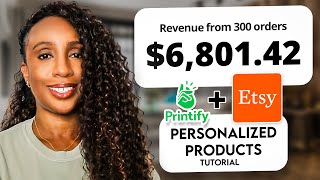

The Secret to Etsy Sales: Personalization
42sReveals a high-value strategy (personalization) linked to six-figure sales, sparking curiosity and desire for quick wins.
▶ Play Clip"Title accurately promises a tutorial on selling personalized items, and the video delivers a step-by-step guide."
This tutorial explains how to sell personalized print-on-demand items on Etsy, using a family reunion t-shirt as an example. The creator, an Etsy seller with over $250,000 in revenue, walks through designing in Canva, setting up a template in Printify, creating an Etsy listing, and handling custom orders by editing the design for each customer.
Etsy buyers seek personalized items; offering customization can increase sales and visibility among competitors.
Use Canva to create a design with customizable elements (e.g., family name, year). Save as a template for future edits.
Upload the Canva design to Printify, choose a product (e.g., t-shirt), select colors, and configure the listing.
Printify creates an Etsy listing automatically. Then edit the listing in Etsy: update title, tags, description, and personalization settings.
In Etsy listing, turn on personalization, set instructions (e.g., 'Enter family name and year'), and make it required.
Remove SKUs from the Etsy listing to prevent Printify from auto-fulfilling the template design. Orders appear in 'Other Orders' tab.
Duplicate the Canva template, edit for the customer, upload to Printify, duplicate the product, replace the design, and fulfill the order.
If SKUs removed, order appears in 'Other Orders' – manually select product and import. If SKUs kept, order appears in 'Orders' – replace product with customized version.
By offering personalized print-on-demand items, Etsy sellers can increase sales and stand out. The key is to set up a system that prevents auto-fulfillment of template designs and allows manual customization for each order.
Why should Etsy sellers offer personalized items?
Etsy buyers look for custom gifts; personalization increases sales and visibility.
What design software is used in the tutorial?
Canva.
02:04
What is the purpose of removing SKUs from the Etsy listing?
To prevent Printify from auto-fulfilling the template design instead of the customized version.
09:45
Where do orders appear in Printify if SKUs are removed from the Etsy listing?
In the 'Other Orders' tab.
17:00
What should you do in Canva when a custom order comes in?
Duplicate the template page, edit the customizable elements (e.g., name, year), and download the new design.
13:55
How do you ensure the customer's personalization is required?
In Etsy listing, turn on personalization and set it as required (not optional).
09:10
What tool is used for keyword research in the tutorial?
Everbee (a Chrome extension).
12:13
Personalization Drives Sales
Explains the core strategy: offering custom items meets buyer demand and improves search visibility.
SKU Removal Prevents Errors
Critical technical step to avoid sending the template design to customers.
09:45Efficient Customization Workflow
Demonstrates a repeatable process: duplicate template, edit, upload, and fulfill.
13:55Two Fulfillment Scenarios Explained
Clarifies how orders behave with and without SKUs, helping sellers choose their preferred method.
17:00[00:00] dollars in sales on Etsy six and seven figure Etsy sellers are on YouTube right market how did they start seeing those record sales their secret is selling
[00:17] adding personalized products into your Etsy shop and by doing so increase your sales if you're new here welcome my name is Shan shaliz and my channel is all
[00:29] about that ultimate quest of living your dream life I help entrepreneurs start grow and scale their online businesses so they can live the life that they want to live and do it without being overwhelmed or burnt out I'm an Etsy
[00:42] seller that sold over $250,000 in revenue and I love helping Etsy sellers turn their passions into profit if you're new here or if you've seen a button so you can get more tips on how to grow your online business and I want
[00:58] to thank you in advance for subscribing because it really helps my channel grow items you've got Etsy Tik Tok Amazon or you can use Shopify and have your own
[01:11] sell on all of them when you sell on a Marketplace it's good to know what type of buyers frequent that Marketplace this helps you create the type of products that those buyers are looking for Etsy is known as a marketplace where you can
[01:26] buy personalized items if you're looking for a custom gift or something that you can't find in a regular store Etsy is one of the first places you go to look as print on demand sellers on Etsy if we aren't offering personalized items we're
[01:39] potentially losing thousands of dollars and we're potentially missing out on a way to be seen on Etsy in the mass SE of other products this is why adding personalized items to your SC shop can help you make more sales if you're
[01:52] already selling print on demand on Etsy you might be wondering how exactly do you sell personalized print on demand items I'm going to walk you through that process right now if you're new to print on demand I recommend you watch my print
[02:04] on demand video for beginners which I'll have Linked In the card above me and in the description let's hop over to my laptop for the tutorial the first step in our process is to create our design template and I'm going to do this in
[02:17] this tutorial using canva I decided to go with a family reunion shirt so all I did was look around on Etsy see what kind of designs were out there which
[02:29] designs were for selling and then created my own design using the features and the clip art that was available in canva so here you see me working through my design and again you can do this using KD you can do this using Photoshop
[02:45] any design software you choose is okay just remember you'll have to come back to this template every time a new customer places an order because you'll need to come in and change the portions of the design that are customizable so
[02:59] in this design is it's going to be the family name and the year that the family move to our next step and this is where we use this design to create a template
[03:11] in printify so we can create our Etsy listing at this point of the process we're going to create our template listing in printify so I'm now showing my printify account and I'm going to go in and create my product so I'm going to
[03:26] use the template that I created in canva put P it over into printify and create my listing in Etsy let's go ahead and walk through that I'm going to go in and
[03:38] I'm going to go to the catalog I like to choose Tik Tock ready because I do sell on Tik Tok so I like to choose print providers on printify that are Tik Tock
[03:50] approved or we'll get the items out fast enough um for Tik Tok shipping I'm going to choose Tik Tock vendors I like to use the Bell canvas t-shirts and then I'm going to choose manually because I know I want to go
[04:06] with Monster Digital now I'm going to go in and hit start designing once I'm here I'm going to go and upload my template that I created in canva from the upload
[04:18] menu I'm going to choose my device and then I'm going to choose my canva template here is the template that I made on canva I'm going to arrange it on the shirt the way I want it to appear I do have some empty space around the
[04:33] sides of my design so I'm going to account for that so I think I'm going to leave it at 15 I'm going to do a little preview so I can see how it's going to look on the shirt and I like to use the people just
[04:47] so I can see if it's a little big so I feel like that's a little big make so I'm going to make it 12 position at the top I mean Center
[05:00] like okay I think that is almost where I want it I want to go slightly bigger so
[05:12] let's go with 13 okay I think that's pretty good all right so now at this point I can go in and I can choose variants I'm going to click on select variants and then choose the colors that I want to
[05:24] offer my t-shirt in so I usually go with the athletic Heather red or Heather R that's a little bit lighter let's go to
[05:45] Yellow I'm going to do a mint green because right now I have the design outline in Black I would also go in and do another version in canva this design in white so I could choose some of the darker colors but for this tutorial this
[05:59] will work work and then I'll do a baby blue another color that will work on the with this black design so I'm okay with those variants I can click through my variants and make sure the design looks okay on
[06:14] those colors and there's just some pretty cute and bright colors again I would go in and do a another design so I could do some of the darker colors like Navy which is a popular color um a true red and not a Heather red and maybe a
[06:29] darker green so I'm okay with my design at this point so I'm going to hit save product PRI is going to take me to the mockup library ask me to pick my mockups and I'm just going to stick with
[06:44] the colors and not the backs of the shirts and I would probably go in and designs or you can use some of the models that are available in
[06:57] printify which work nicely but I usually create my own mockup so for right now I'm just going to use the individual shirt designs I'm going to say save selection and then I'm going to go in and configure my listing so it appears
[07:11] how I want it to appear on Etsy
[07:31] I have my listing configured the way I want it and now I'm going to go ahead and hit publish so this is going to create my listing automatically on Etsy so now let's go over to Etsy and edit the
[07:46] listing we're now in the Etsy listing that was created by printify we're going to scroll through the listing and make some corrections or Updates this is where you want to update your title if you need to and I suggest you do some
[08:01] keyword research and make sure you have your title f with the right keywords that's going to get you found in Etsy search you can also do things like add additional mockups so for me I'm going to go in later and change out these
[08:14] mockups to some that I create myself I'm going to add a size chart and then maybe even a video to the listing I'm going to scroll down and then this is where I might update my thumbnail and that is just going in and adjusting it so it
[08:30] could be seen better when the listing pops up in Etsy search and I might even change the color of that shirt just so it's brighter so I'm going to change my thumbnail image to be the yellow shirt because it's nice and bright and then
[08:44] I'm going to update that thumbnail going to hit done and then apply those changes so now that's going to be the thumbnail that shows when my listing pops up in Etsy I could also go in here and add a little
[08:57] bit more to my description but for this tutorial we're going to make that okay personalization because we want the customer to be able to tell us what year
[09:10] and their family name in the instruction section I'm going to type in enter your family name and family reunion year and I'm going to make sure this is
[09:29] off because I don't want personalization to be optional I want it to be required so I just leave this as is going to scroll down everything looks okay here and now we're going to talk about the skew so this part is very
[09:45] important this skew this long number right here is how this Etsy listing is connected to printify so when a person orders and let's say they order an athletic Heather small Etsy is going to send this Cube over to printify and
[10:01] printify is going to know that's the shirt that they should create but for our case here we don't want printify to automatically create the shirt because we're going to customize these shirts we want the order to hold until we can go
[10:14] in and update the image so there are two options here you can leave these SKS in but in printify you can't let it autof fulfill your orders you have to be able
[10:26] do later and then send the orders into production for fulfillment or you can go in and take the SKS out of this listing and then printify will not go ahead and
[10:39] autof fulfill the orders you can go in and make the changes that you need to do so because we're new to this we're going to go in and just take these skes out and this will keep us from making the mistake of sending the customer our
[10:52] template order or template design and not their personalized design so I'm all of my SKS are now removed so I'm going to stop here and tell you an
[11:04] alternate way you could have done this and then you can go into Etsy and create your listing which means that the listing that you create won't have your SKS so you can create a normal listing in Etsy and then go in and pick up from
[11:17] the point of editing Your Design inside of printify using the template the reason why I start with printify is because printify does a lot of the work for me when it creat Crees the listing it puts in the color variations the
[11:32] sizes and it's even quick for me to edit the pricing so I like to do that inside removed let's go down and see if there are any other changes we need to
[11:45] make as physical the category is set correct I like to go in and choose my sleeve length which is short and then I'm going to go in and
[11:57] put in my tags so what I'm going to do is quickly go into everb do some quick tag research and come in and drop in my tags I have my tags and I'm just going to go ahead and paste those in and if you're not familiar with everb
[12:13] everb is a Chrome extension that allows you to research Etsy listings you can go into any Etsy listing and look at the tags and information about those listings and you can find out if they are selling so that is how I do a lot of
[12:28] my keyword research and how I know if people are actually looking for the type of design that I'm choosing to make on Etsy so I am okay with those tags and then we have materials I'm going to skip
[12:43] through that my shipping option is already set from printify so that's okay I'm going to go down I am not going to accept returns and exchanges because this is a custom item so I'm going to fix that I'll
[12:58] choose a shop section and for this I'm going to put it in my personalized shirt to manually renew the listing I want it to automatically renew every time
[13:10] someone makes a purchase or if the listing expires so I am good with this and I'm going to go ahead and publish my changes here's my listing on Etsy it's all set a buyer can come in and select one of the colors they can choose a size
[13:28] and because this is a family reunion listing I would also go back in and add some youth sizes maybe some toddler sizes and even maybe onesies for the babies of the family we want our buyers to be able to come in here and order a
[13:43] large group of shirts for everyone in their family so I would go in and add those different sizes to the listing so now that we have our listing created I'm going to show you what you can do when someone placs an order for this listing
[13:55] so you can go in and modify the family name and the year of the Felon reunion so here I'm back in canva I'm on my template the first thing I'm going to do is duplicate the page and then I'm going to make my
[14:10] edits so let's say the family's name is not Jackson I will double click in here and let's use another name let's use let's use
[14:27] Williams now typed in the name and it fits in perfectly and let's say this is going to be for family reunion in 2025 so we'll just change the four to a
[14:39] five and in about 30 seconds we created our custom graphic so now I'm just going to give this graphic a name and I will say Williams and sometimes I use order numbers for my image files anything that
[14:55] I can go back and find them if I need to if I need to redo a shirt but for this tutorial we'll just use Williams 2025 and then I'm going to download that from
[15:09] canva and now we're going to go over to printify and bring in our customized design so here we see our template that we made in printify and all I'm going to do is go in and duplicate that once I have a duplication of that
[15:26] product I'm going to go in and edit the by clicking on the edit design icon now the one that we just created for our customer so I'm going to go into upload
[15:40] my device I'm going to pick on my Williams 2025 image I'm going to delete the old one I'm going to make this one 13 in size and to center it move it to
[15:54] the top now I'm going to scroll up to the variants I know that my customer ordered a yellow shirt so I'm going to remove the variants that don't
[16:06] apply so when deselecting my variants I'm going to make sure the only thing that's unchecked is the yellow and the baby blue so then we're going to go back care much about the markers because I won't be publishing this product to my
[16:25] site and when it comes to the title I usually do something like do not publish and then I put the name of the design so Williams
[16:43] 2025 okay and now I don't care about any of these other things that are in this listing all I want to do is save it as a draft once I have my draft I can go in and fulfill my order so I'm going to go over to orders
[17:00] and then you can see I have one order that's requiring action that's under my name because I'm acting as the test customer and then you'll also see if I go over here in other orders there's an order with my name I wanted to show you
[17:14] what would happen in the two scenarios that we talked about earlier so in the scenario where I removed all of the skews from the listing an order would show up under other orders this is because PRI can't tell what that order
[17:27] is because it's not associated with the skew and it places any orders that it doesn't recognize in the other orders tab so if you remove those SKS the order would show up here but let's say you decided to keep the skus in your listing
[17:42] then the orders would show up here in the printify orders and I have mine set to manual approval so I can go in and edit any custom orders but let's say
[17:55] your printify account is set up to where you want to Auto approve then you have to definitely remove those SKS so you don't print a template order for a customer so I'm going to show you how it looks both ways so let's go to the other
[18:09] orders and this is the case where you removed all the SKS from your listing in Etsy so printify does not recognize what the order is to fulfill the order all you have to do is click on the order in the other orders tab you'll see that it
[18:26] was not imported in the printify and you see the name so this is our personalized family reunion t-shirt and all you have to do from this point is select the product I'm going to click on select product and then from here we're going
[18:39] to see our do not publish or do no publish Williams 25 listing and we're click on this and I see the customer order a baby blue large so I see baby
[18:53] blue and then I'm just going to find the size large and now I'm telling printify that this customer wanted to order a baby blue large of this design and I'm
[19:05] going to click confirm so now all I have to do is click on import order so let's go back and look at the other scenario I'm going to go back to my orders and my order where I did have the SKS attached so you'll see my order here
[19:25] it to to printify so I'm going to click on that order and you can see personalized friendly reunion t-shirt the yellow option but this is the option
[19:39] with my template name on it but I want to replace this with the correct option that the customer ordered so I'm going to go up here to the top and I'm going order and then I'm going to add a product to this order so I'm going to
[19:55] click on this plus sign and then then I'm going to find my real order that I created for my customer so again we have our do know published Williams 2025 I'm going to click on that my customer ordered yellow
[20:11] in the size medium and I'm going to say select and then all I have to do here is remove the original one so I'm going to click on this trash can icon here and
[20:23] now we have our do not publish Williams 2025 and now you can see where I usually name them with something that represents the customer's order like a customer number or a design name just so I can make sure I'm adding the right product
[20:39] to the orders when I go in and edit them so at this point I would move on with the shipping information calculating the shipping and then I could go ahead and place this order by hitting submit and if you weren't ready to
[20:54] submit the order you can click on save for later but you can see see here now do is press submit to send the order to print five for it to be fulfilled so
[21:07] that's it you now know how to offer personalized print on demand items in your Etsy Shop don't lose any momentum go right now and start researching personalized items in your Niche that you can add to your shop take your time
[21:20] and add a few designs each week and don't forget that you can add the same design to multiple types of products so you can add the same Custom Design to a t-shirt a mug and maybe even a tote bag if you're feeling overwhelmed or a
[21:34] little bit unsure if you're going in the right direction with your SE shop I can help all for personalized SE shop critiques where I deep dive into your Shop's SEO product presentation and overall branding you'll get actionable
[21:47] insights tailored specifically to your shop so you can increase your visibility and your sales to book a critique all you have to do is click on the link in the description thank you for watching and don't forget to like this video if
[21:59] you found it helpful and subscribe for more SC tips leave any questions you have in the comments and I'll see you in the next video
⚡ Saved you 0h 22m reading this? Transcribe any YouTube video for free — no signup needed.