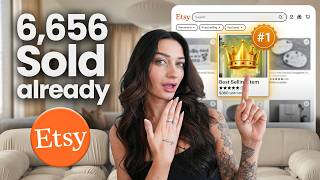

Etsy Seller Making $6,656/Month with Custom Blankets!
43sReveals a lucrative Etsy niche with high demand and low competition, sparking curiosity and desire to replicate the success.
▶ Play Clip"Delivers a solid step-by-step tutorial, but the title's '6,656 sales' is a specific claim not directly verified in the video."
This video demonstrates how to create personalized pet blankets and other custom products for Etsy using Printify for print-on-demand and Kittl for AI-powered design. The tutorial covers researching trending products, using Kittl's AI artboards to transform customer photos into unique designs, and setting up Etsy listings with personalization options.
A seller with an Etsy pick badge is making consistent sales by offering custom pet blankets where customers upload their own images. This personalization is a key driver of demand and allows for print-on-demand without holding inventory.
The Everbee Chrome extension shows sales data, conversion rates, favorites, and monthly reviews for Etsy listings. This helps identify high-demand, low-competition niches like 'pet thanks blanket' and 'cat photo blanket'.
Choose a blanket (e.g., sherpa fleece) on Printify and note the exact design dimensions (e.g., 4875 x 6375 pixels) to ensure your design is sized correctly. The markup is high because personalized items command higher prices.
Kittl's AI artboards allow you to create designs in seconds. You can input a customer's photo, use AI to generate variations (hand-drawn, watercolor, etc.), and then customize with text, backgrounds, and textures.
Instead of copying existing designs, combine trends from different products. For example, add a sentimental phrase like 'Whenever you miss me, snuggle this' to a dog face blanket to create something unique.
Use Kittl's tools to remove backgrounds, crop, upscale, or enhance customer-provided images. This ensures high-quality results and maintains good reviews.
From one customer image, you can create multiple AI image boards with different styles (hand-drawn, watercolor, black and white) to offer customers choices and expand your product range.
Add the AI-generated image to your design, remove the background, add a custom background color or texture, and include personalized text (e.g., the pet's name). This becomes your template for future orders.
Export the design from Kittl in the correct dimensions and upload it to Printify. The design will be perfectly sized, and you can preview the final product before listing.
The same technique works for engraved jewelry, mugs, and more. For example, use AI to create a black-and-white high-contrast drawing for laser engraving on necklaces, which are selling $11,000/month.
Since each order is custom, create a new Etsy listing with personalization enabled, not linked directly to Printify. Provide clear instructions for customers to email their photo and order number.
Use Kittl's AI to create mock-up images and videos for your Etsy listing, such as a blanket being held with an 'Etsy aesthetic'. You can also use ChatGPT to generate prompts for similar mock-ups.
When an order comes in, navigate to Printify, select the product, and upload the custom image the customer provided. This manual step is necessary because the listing isn't linked automatically.
By combining Printify's print-on-demand with Kittl's AI design tools, you can create a scalable Etsy business selling personalized pet products. The key is to research trending niches, use AI to streamline design, and set up clear personalization instructions to minimize customer messages.
What is the key to making personalized pet blankets sell well on Etsy?
Personalization: customers upload their own images, making each product unique and highly demanded.
00:02
Which tool shows sales data and conversion rates for Etsy listings?
Everbee Chrome extension.
00:41
Why is it important to note the design dimensions from Printify?
To ensure your design is sized correctly for the product, saving time and avoiding errors.
01:22
What is the purpose of Kittl's AI artboards?
To generate multiple styled versions of a customer's image (e.g., hand-drawn, watercolor) in seconds.
02:14
How can you make your design stand out on Etsy?
Combine trends from different products, e.g., adding a sentimental phrase to a dog face blanket.
03:08
What should you do if a customer's image needs enhancement?
Use Kittl's tools to remove background, crop, upscale, or enhance the image.
04:28
How can you create multiple design options from one customer image?
Use Kittl's AI artboards to generate different styles (e.g., watercolor, black and white) from the same image.
05:20
What is the recommended way to handle custom orders on Etsy?
Create a separate Etsy listing with personalization enabled, and manually upload the customer's image to Printify when an order comes in.
11:37
How can you generate mock-up photos for your Etsy listing?
Use Kittl's AI to create mock-up images, and use ChatGPT to generate prompts for similar mock-ups.
12:17
Personalization drives Etsy sales
Shows that personalized products have high demand and allow print-on-demand without inventory.
00:02Design dimensions are critical
Emphasizes the importance of using exact product dimensions to avoid design errors.
01:22AI artboards speed up design
Demonstrates how AI can generate multiple design variations in seconds, saving significant time.
02:14Combine trends to stand out
Encourages innovation by merging popular elements from different products.
03:08Expand to other personalized products
Shows the scalability of the technique to jewelry, mugs, etc., with high sales potential.
09:36[00:02] times and has consistently had an Etsy pick badge and not because the design is special or unique, but because it is personalized. Etsy customers are able to upload their own custom image, whether it's of their pet, of themselves, or a
[00:16] loved one, and personalize a gift, which is a known thing on Etsy that people come here for gifts. So, in today's video, I'm going to show you how you can create something similar and get this design style that people are actually
[00:28] demand, so you don't have to hold inventory. And you can see consistently across the board here that all these custom blankets are doing really great sales. I have an Everbee extension, so that's what you're seeing here pop up as
[00:41] tool because it shows me how much people are actually making with these listings. new products that Printify just launched. And like I said, there's this seller is most likely just taking the customer's image and placing it
[00:56] directly on the product and making, again, a very good amount of income doing this process. And with over 3% of conversion rates, these products sell results, how many favorites, monthly reviews. And if you scroll down, I can
[01:09] even see what other searches are popular. So, clearly, pet thanks blanket is very searched for and does not have a ton of competition. Same with cat photo blanket, dog photo blanket, and I'm sure with other types of animals as well if
[01:22] say we want to design a blanket. First, we're going to go to Printify and pick the blanket. This is important because we need the actual design dimensions to create something similar. Now, as I said, Printify actually has a lot of
[01:35] options for the blanket, but this woven blanket was a very trending. And this seller. I actually own a few of them and love it. But there really are a lot of different options, and the markup for these is pretty high because people are
[01:47] expecting to pay more when something is personalized. I'm going to select this sherpa fleece blanket, mainly because it's not as seen as much on Etsy, so angle. Now, once I click start designing, this is where Printify is
[02:00] I said, this is important so we can make sure that our design is sized correctly. sure that our design is sized correctly. So, this says it's 4875 by 6375, and and create an artboard in that exact design dimension. So, Kittle is my
[02:14] using them for years now and I absolutely love it, and I haven't found that I'm going to show you than on Kittle. Their AI is just unmatched, and and so many cool things on the platform. I'll leave a tutorial below if you've
[02:29] never used Kittle before because there is an endless amount of opportunity, but today you'll see how I utilize their AI artboards to make designs in literally just a few seconds. So, when I hit start designing, now I'm going to put in my
[02:41] paste that directly from Printify on the blanket. Okay, now I'm going to hit create, and this artboard is in that exact size of what the blanket is going to print, and we can start designing. So, I don't want to fully copy these
[02:55] designs here. I want to make something unique. A great way to know that the sell is by doing your research and seeing what's selling and what types of trends or things you can combine from different types of products. So, for
[03:08] example, this one here, it says, "Whenever you miss me, snuggle this That's a perfect example of someone taking a trend of a dog face on blankets, but actually adding some more oomph or excitement to it. Here's
[03:22] style. Doing that type of thing can really help you to stand out on Etsy. Again, this is a beautiful example of this. They're actually creating like something interesting and new to the market that's not the same blanket every
[03:36] single time. So, I'll leave that up to you to do your own research, but I'll creating this. So, normally, your customer would have to provide a photo of their pet. I'm going to just grab a random photo of an animal here um just
[03:49] to show you. So, if I type in a dog on Kittle, we'll get a lot of different animals here. Make it a bit bigger, and then I'm going to use Kittle's remove impressive and will immediately remove
[04:01] photo. And then I'm going to go over here, and I'm going to create a new sense in just a moment, and we're going to paste our doggy friend on this bigger. Now, if your customer provides their image and it needs to be enhanced
[04:15] taken out, that is when you would do this. You can go to this option of six more. They have an eraser tool, a crop, and upscale if you need to make the there. Again, we are selling this product, and you'll have to do this each
[04:28] make sure that they look good so we keep our reviews and everything in check. So, I'm going to select my artboard and click this button that says add image board. This is what's going to create an AI version of this image, and we could
[04:41] ask this to create virtually anything we want it to. So, if we want that hand-drawn effect, watercolor, we could put flowers on the dog. You really can get creative with this and the options you can offer your customers. I'm going
[04:53] basically just enter a prompt of what exactly I'm looking for. I'm going to be pretty vague and just say, "Make it look hand-drawn with high detail." And down here, too, you can also select which AI image model you'd like to use. I really
[05:08] like the nano bananas and the chat GPT one, but whichever one that you prefer, you can absolutely use and then just click generate. And some of them take a really just depends on the model that you choose. And it will start creating
[05:20] an AI image board off of that image that you initially gave it. So, your customer's image will go here, and then the new AI creation will start making itself here. Now, here's what our AI creation looks like. This happened in
[05:33] just a few seconds, and we can now use this in our actual design. And what's cool, too, is you can make multiple image boards off of your one image and just keep asking it to create new things for you. So, I could say, "Make it look
[05:45] watercolor, make it black and white," so on and so forth to really create as many images as I want to of the same dog. This can also give you style options, as I mentioned, to your actual customer. So, I can do another one of make it look
[05:58] hand-painted with similar colors. And then even while that's loading, I can do an additional one and ask for something else. Make it look hand- drawn, but [music] stenciled in with
[06:13] colors. Okay, and then those will all generate and give us multiple different options for our creation. Now, just like that, we have all three different types and versions for this design that we can use on our design. I think this is so
[06:26] fun and so cool. I really love the high detail that it's giving in this one here. It literally looks hand-drawn, but I also think this one's super unique as people were selling. I'm just going to select a random one here. Let's just go
[06:41] with this one. I'm going to flatten this, and then I'm going to take it over here and add it to my actual design. And this is where we can start actually So, I'm just going to remove the background cuz we're going to add a
[06:54] different background for the blanket and just make the dog a little bit different things as you could add sparkles, you could add literally anything you want, but just to keep it super simple, here's where we'll add in
[07:06] box, which is really easy to do on Kittle. Everything to control is down here on the bottom, and then all of your elements, graphics, fonts, and textures can be found on the left side. And we'll just type a mock name for the dog. Let's
[07:18] say his name is Buster. Make the text large, center it, and then we're going to pick our font. And remember, this is like the first design that you make for this is really the bones for what all of your designs will be going forward. So,
[07:33] you can either choose to offer customization here with different fonts to offer your customer or just keep it super simple and only offer one. [music] Now, for the background, you can do a color or an image. All this stuff for
[07:45] your images or elements are on your left side. You can make something with AI, or you could do a photo and add in a texture. Like if I wanted a grass background, I could type that in and put this on here and then change the
[07:59] that doesn't look great, but just to give you the idea that you can really customize this any way. For colors, I'm just going to go over here and pick like a custom color on the color wheel. And then I'm going to go to this option on
[08:13] about, but it's called texture. So, if you select your artboard and click one of these textures, you can give your whole artwork a unique texture, which I think can really add a customized element to your design. So, look at
[08:27] >> [music] >> pattern textures, which are really cute. little blanket starting to come together. You can kind of see the vision here. And anything else custom that you want to add. And then now, our design is
[08:41] finished, and we can use this, copy it, and make multiple versions. So, let's say we have another dog, right? And then we would switch out the photo, custom blanket, right? So, you can just keep doing this and doing this over and
[08:55] that your customers give you. So, the process will become faster and easier. you what this looks like uploaded on an actual Printify product. So, I'm going to go to quick export, export this, and like I said, we're already in that
[09:10] correct design file because we grabbed the dimensions from Printify earlier. I can't stress how much of an important stuff that is, and it can really save you time. And then that new artboard on Kittle just becomes what you use every
[09:23] time as your template. All right, so I'm just going to drag and drop in our design, and it's sized perfectly. We'll go ahead and preview. Look how cute. And we already have our blanket that Printify will print to us as our
[09:36] blankets that you can sell. There's actually so many different products that in this niche. One of them being engraved jewelry. As you see here, again with the Everbee Chrome extension, these
[09:49] are selling really well. This one here is doing $11,000 a month, and it's an engraved pet necklace. Here's another one, too, $5,000 a month. It just keeps going. And there's really so many that you can do this engraved-like texture
[10:02] there's a lot of different listings. And Printify has a necklace that's very similar to this that can be engraved and create that same look that you see here. And all you'd have to do is again make a smart board, use a prompt like this one
[10:16] like I said here, turn it to black and white drawing for laser engraving, high detail, high contrast. And then I can download this specific image of the dog, download this specific image of the dog, upload it on my product on Printify,
[10:29] upload it on my product on Printify, get a preview. very similar to start selling engraved jewelry. And we did not have to actually make this design ourselves. We just used AI to change out our customer's image.
[10:44] You can do this with mugs. You see here, this one has a kid and a puppy on it. Or situation. Just putting someone's [music] pet with watercolor on a mug. around with this AI tool. As you see, there's so many different things that
[10:59] ways to play around with it and give different options for your customers and really make a lot of money doing [music] this exact technique. And Kittl's great because they have so many features on here. It's not just using AI. You can
[11:11] add in different elements, text, graphics, all of that in the platform. you're really going to find everything you need in there. Of course, I'll leave a link to Kittl in the description along with a free plan where you can get
[11:23] tokens to do your AI. You can absolutely try out using the AI smart boards for free. [music] I do use an expert plan on this though to be transparent. So I will really help you out to get started and start making the most of all of these AI
[11:37] you're doing this, because it's so customized and you will have to create a new image every time for a customer, you're going to want to create a new Etsy listing that when you do it through Printify, you don't want it to be fully
[11:50] linked. You can use [music] Printify to get your customized description and title and even suggested price for your product. But you will have to make a separate Etsy listing that has your personalization checked off. And most of
[12:02] these listings that do really well are going to give lots of customization details. You want to make sure that you give all the instructions here or even a customers understand and it will really help you to get less messages on your
[12:17] actual Etsy account. For your photos, you can create mock-up photos in Kittl the same way I showed you. Here's an example of one that I just made using the AI and smart boards. I asked it to make it a mock-up image of the blanket
[12:29] being held and asked it to have like an Etsy aesthetic. And you can create all of your mock-up photos within this as well and get multiple angles and views and close-ups and all of that. And if you need help trying to think of images
[12:43] to create, there's two tips I can give you. One is that on the left side is ChatGPT is in here. Something I do often is insert a photo that I like a mock-up of and I ask it for a similar prompt so that I can utilize that and create a
[12:57] similar picture and mock-up for my actual Etsy listing. So you can get prompts just from there and then immediately insert them in here and start creating a bunch of different photos for your listing. And then drag
[13:11] Etsy listing just like this. So that's an example of how you could get your thumbnail image. And then you could even add text on top of this to say your pet you can see, it says add your personalization. So then this is where
[13:25] we'll give [music] them instructions later on to email you with the photo that they have, which is the best way to do it. And to encourage them to give you their order number within that email so that you can make them an order on
[13:39] Printify and ship it to them. Then of course, you can generate a video as well utilizing your photo. So I can just say make this a video, uh add movement to [music] the blanket. And then you'll have a video that you can
[13:53] like I said, because we're creating a new custom listing for this on our Etsy shop, it's not going to be linked directly with your Printify account. But all that's going to happen is when you get an order on your Etsy shop, it will
[14:06] inside of your Printify account. This is where you'll be able to navigate and that you can upload the custom version that your customer ordered. And all cuz it's imported [music] from Etsy. It just won't have a product selected. So
[14:21] you'd like to see a full tutorial on that, let me know in the comment section. I'd be happy to create a full step-by-step method on how to set up course, Printify does now offer a personalization option. However, being
[14:35] fully transparent, because you're going to be doing custom artwork, it's not the best way to offer cuz you have to make edits for it. I will leave a link on how to do the Etsy personalization through Printify. It is a bit different, but
[14:47] that video out if you're interested in that. I highly encourage you to check this out. There's so many opportunities as I said to even add personalization to offer in your store. And it's really something that can just appeal to a
[15:01] wider audience in your Etsy shop and can get you more sales that you may have not had on there if you do choose to offer personalization. I really hope this video was helpful. I hope to see you in the next one and happy selling and good
[15:13] the next one and happy selling and good luck on your Etsy journey.
⚡ Saved you 0h 15m reading this? Transcribe any YouTube video for free — no signup needed.