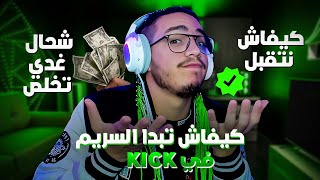
Start Streaming from Scratch
44sDirectly addresses aspiring streamers with a clear promise of A-to-Z guidance, tapping into a high-demand niche.
▶ Play Clip"The title promises a beginner's guide to streaming like Ilyas Elmaliki, and the video delivers a thorough walkthrough of hardware, software, and settings."
This video provides a comprehensive, step-by-step guide for beginners on how to start streaming, covering hardware requirements, software setup, and platform-specific instructions. The host emphasizes the importance of a good PC, internet connection, webcam, and microphone, and demonstrates how to configure OBS for streaming on platforms like Kick and Twitch.
The video aims to explain streaming from A to Z, including hardware, software, and settings needed to start streaming content.
A minimum PC budget of 5000 dirhams is suggested for basic streaming without gaming; for gaming and streaming, 8000-9000 dirhams is recommended. A dual-PC setup (one for gaming, one for streaming) is ideal for high quality.
A stable fiber optic connection of at least 100 Mbps is crucial. At least two monitors are recommended: one for gameplay, one for chat, and optionally a third for monitoring.
A webcam (e.g., Logitech C920 for 800 dirhams or Logitech Brio 4K for 2200 dirhams) and a dedicated microphone are essential for good audio and video quality, which keeps viewers engaged.
OBS (Open Broadcaster Software) is the primary streaming tool. Steps include adding Display Capture and Video Capture Device sources, and configuring stream settings like resolution (1920x1080), FPS (60), and bitrate (10000 kbps for good quality).
To stream on YouTube, Twitch, or Kick, obtain a stream key from the platform and paste it into OBS under Settings > Stream. For unsupported platforms, use Custom and enter the RTMP server and stream key.
Streaming is a growing trend in Morocco, but it requires building a community first. The host advises treating streaming as a career and being consistent.
The video concludes that successful streaming requires the right hardware, stable internet, proper OBS settings, and a focus on building a community. The host encourages viewers to start with the basics and gradually improve their setup.
What is the minimum PC budget recommended for basic streaming without gaming?
5000 dirhams.
01:37
What internet speed is recommended for stable streaming?
At least 100 Mbps fiber optic.
04:06
Name two webcams recommended in the video and their approximate prices.
Logitech C920 (800 dirhams) and Logitech Brio 4K (2200 dirhams).
05:27
What is OBS and what is it used for?
OBS (Open Broadcaster Software) is a program used to stream and record content.
07:30
What resolution and FPS does the host recommend for streaming?
1920x1080 resolution and 60 FPS.
10:28
What bitrate does the host suggest for good streaming quality?
10000 kbps.
10:44
How do you add a stream key in OBS for a platform like Kick?
Go to Settings > Stream, select Custom, and paste the RTMP server and stream key from Kick.
12:09
What is the host's advice on building a streaming career?
Build your community first before focusing on monetization.
15:40
PC Budget for Streaming
Provides concrete budget figures for beginners to plan their hardware purchase.
01:37Internet Requirement
Emphasizes the critical role of a stable, high-speed internet connection for streaming.
04:06Webcam and Microphone Importance
Highlights that audio and video quality directly affect viewer retention.
05:27Bitrate Settings
Explains the trade-off between bitrate and quality, giving a specific recommended value.
10:44Community First
Advises new streamers to prioritize building an audience over immediate monetization.
15:40[00:01] even though it's not meant to be a big deal, it's only for people who are already streamers and stuff, those who want to start streaming, we know there are a lot of streamers these days, and many people want to start too, channel, they don't know how to write, you know? There are people who
[00:16] want to learn, they want this and that, and we're here as usual, you know? Every time I'll show you many things I can do for you, how to start YouTube, that and that. With time, before we start, don't forget to check out my Instagram. We're almost at 10!
[00:30] put a little bit of content, like, sometimes a button, sometimes I throw in some tips and stuff related to the setup and stuff. Anyway, guys, let's not make the introduction too long, let's get straight to the point because we'll have a lot of things to
[00:42] talk about in this video. Guys, I'm going to explain streaming from A to Z, what you need in terms of hardware, what you need to install on your PC, and what settings you need to stream in need to install on your PC, and what settings you need to stream in
[00:54] your content. Because it's like being in a park and watching something while I'm talking, it's not the same as watching a game, for PC is a semi-autonomous one, meaning how much The important thing is that I'm going to explain a lot of things to you, even how you can start streaming on Kik. Many people don't know how to stream on Kik, they get lost, and I'm going to
[01:09] and tricks. That's the plan. But guys, it's not just Kik; there are many platforms, many streaming platforms. But Kik has become popular in Morocco because, as you money is right now, it's what supports streamers, it's what gives streamers their due,
[01:22] even though I don't think it's always the case. But the important thing is that it makes a splash, you understand? A person streams there for a bit and then leaves. They can on Kik, if Kik stops paying them well, they can switch to Twitch. Or, switch to Twitch. That's the plan. Anyway, guys, how do you start streaming for the first time? What do
[01:37] you need first? Materials, for example, hardware, etc. You need a PC. The PC that you'll buy, for example, if you want to stream, is a PC. If you want to start streaming, for example, and just want to sit around, like on
[01:50] example, and keep going in and replaying your story time a few times, sometimes reacting, you need a PC that won't have the power you understand, because there are a lot of people. Also, the dirhams will get you a PC that you can sit around on, chat
[02:04] with people on, etc., but to play, you'll find a lot of people. You can play some games that don't have it, but a PC for 5000 dirhams will tempt you and won't let you stream something that's popular. For example, if you want to play GTA RPG or FIFA, a PC for 5000 dirhams won't let you play. So, I mean...
[02:16] I gave you the minimum of 5000 dirhams. I just wanted you to start streaming, log in, leave, upload, and so on. But if you want to play, the minimum is what I'm saying. I'm not going to give you anything extra. The minimum is 8000, 8500, or 9000 dirhams. That will get you a
[02:31] PC that you can play some games with good quality, and some games with average quality, so you can play well and show people a good picture. But there are people who, for example, have a PC that's dedicated to gaming. For example, they buy a PS5 and dedicate that
[02:43] one to gaming, and they keep another PC open with only the OPS app on. That app is responsible for sharing your screenshots with those people. So they use two PCs, or a PC and a PS5, or two PCs and a PS5, for example. I want to play FIFA, so I
[02:56] need that PS5 and connect it to that streaming PC so I can play without good quality, and so on. It looks great, like the game's name, " Kat." Anyway, I'll explain everything to you later, guys. I'll be able to add another PC and show you how it works.
[03:10] use. I sometimes stream on it, sometimes we've talked about the PC. Regarding the configuration, for those asking about it, my advice is not to rush into buying a PC. Do your research, check the PC's specifications, and see if it will fit.
[03:24] I'll make some videos for you. For example, I'll show you how to play this game. Here's a configuration for a certain price. Do you understand? those who want to start streaming, for those who want to start YouTube, for those who want to
[03:37] configuration so you can start YouTube and record, and so on. I'll give you one, two, or three, and one or two different prices, or three, and that's easy, depending on your budget and what you want to do. Anyway, we said now, the minimum PC you want to play and stream is around 8000 or 9000 dirhams, right? But if you
[03:52] in streaming, and for the content to come out in good quality with a good PFS, and for it to reach people as you see, you need two PCs. One should be dedicated solely to gaming, and one dedicated to streaming. That's it. And most likely, you'll choose the first PC to start with, and then switch to another one,
[04:06] important is having a good Wi-Fi connection. For example, you could use 100 Mbps fiber optic. That would be enough to cover your network without any lag or anything else. Some connections have varying speeds, like a bit of ...
[04:46] struggling with the stream, you'll get screwed, you'll get screwed. You know why streaming is? Because, for example, if you want to play, we know every streamer has to play, not just stream. Don't tell me you'll just log in and keep talking. I need three screens. You have to want to get lost in a game and have people keep you busy playing. So, when you
[04:59] want to play, you want to see the chat, you want to see your likes here, and the chat definitely needs a double screen or at least three screens. Why? One screen is for the gameplay and what you're playing, one is for the chat, and one is for the backup so that if something goes
[05:15] your camera lags or something, you can see what's happening without having to switch screens every time. Anyway, I'm currently using Two of the security cameras, I'm thinking of adding a third, and I'm also thinking of replacing one of the liqueurs. Anyway, with time, with time, I'll explain the setup to you. When I make a
[05:27] video about the setup, I'll explain the fourth thing, which is important, but not important to everyone, because I know many streamers who do live streams without a webcam. A webcam is essential, and the price starts from the lowest. A webcam that will give you good quality is around 800 dirhams.
[05:40] Acceptable quality is what they use. For example, I can advise you to get the Logitech C920 if you want to start. This one will give you good quality, and people will be able to see you in good colors. So invest that 800 dirhams in a webcam. If you want something better, get the Logitech Brio For Ka, the 922. It seems to me that it's not much more
[05:55] than this one, and it 's only about 200 dirhams more. Even so, it's not a big deal. You understand? Take the Logitech Brio4K, for example. This is the quality you see me with. I'm recording with it now, not streaming with it. It's the Logitech Brio4K. It
[06:07] settings like this. I told you about it in the previous video. Before this one, I explained how to set it up, and so on. Its price is around 2200 dirhams. It's new in Morocco now. If you look at all the Moroccan websites, you'll find it for around 1200, no, 2200 dirhams, not just 1200. You'll
[06:22] like that so people can see you. We said a good PC, good Wi-Fi, at least two Wi-Fi adapters, and a webcam. You absolutely need a microphone that will pick up your sound well because one thing The thing that's not good about it is that, for example, a koshari headset is good
[06:37] and works with the headset's microphone. For example, this one will keep working with this one. Sometimes you'll hear a different sound, you'll hear a different sound. This one is bad, not bad. There are headsets that are professional and good, they have this one,
[06:50] but it will never be like a headset whose function is to work with this one. You need a headset on Discord, for example, to play a certain headset. You want people to hear you. This one is good, but this one has to be essential. Why? Because the better the sound and picture quality, the more
[07:02] people will listen to what you're doing. That's the plan. Keyboard, keyboard, and all that nonsense, it's want. If you're going to play FPS, you need a good headset. Its price will be around 300-400. 500 dirhams, may God bless you, that's enough for you, understand? As for the background, I'd like you to adjust it
[07:16] a bit because the better it is, the better it looks, the more people will like what you're doing, and the more professional the work will appear. You understand me, you understand everything related to the materials and stuff like starting to stream. Now I'll move on to the PC,
[07:30] although everyone has their own approach. You don't necessarily have to do all of this. You can start streaming without a webcam, you can start streaming, but the more of these things you have, the better the results will be. You don't necessarily have to have them; you can just use a green screen and cut and
[07:44] Logitech settings, I showed you how to cut yourselves off from the background OPS. I can add more now. Let me explain what OBS is. There are some who still don't know what OBS is. Come on, come on, come on, follow me. I'm going into the desktop. Here you are, you can't
[07:58] see me right now. Wait, I'm currently in OBS. You see, we'll do this. You see, we'll do this. Click here. Here I am. Wait, let me do something. I'll do the "t" button. Remember what this is like. For example, put your camera here. You'll click on the "t" button and do this. Click here and set up
[08:14] put myself here so I can explain what this is. This is OBS. OBS is the program you stream with. It's what lets you share your run and lets you record something you do. I was just messing around in my head, wondering where to go and where to go, and we'll come
[08:26] first. Something from me that you're going to enter, look, it will be like this. There's nothing there, I'll remove, for example, if there's no webcam, if there's no camera, you'll enter. The first thing that will come here, you'll press plus, and then you'll see Display Capture. You'll click on it like this, then you'll press OK, and this
[08:39] will appear. This is your screenshot. So, if you remove it here like this, there's nothing left except the blurry image. We'll come here, we'll activate it, and here it is, hidden, I'm not using a camera. If I'm hidden, you'll be seeing my screen. If
[08:54] I want to turn off the camera, it will come here, right? And it will come to Video Capture Device. My advice is to make it black, meaning your OPS should be black, and whatever you were working on on your PC should be black. Why the English? Because any tutorial or anything you want to know, you'll search for it and find it in English.
[09:08] Or you'll find someone explaining in Arabic, and the words are in English. It's better to keep that stuff to yourselves. Don't use French. You 'll come here, for example, here, here, I didn't tell you, Brio for Ka, I've set up Nvidia Broadcast, which is this. That's it, I do this, it comes up. Here, the plan is to
[09:22] cancel so that thing does n't come up. Remove this, remove this from me. This is what I've done. This is what I'm doing. I'm going to send a message and then a message so that
[09:35] example, when you send your camera, I'll send another message. The the stream and the bag. Stream, you understand? So now, when you log in, your camera is set up
[09:47] like this. What do you do? You press the button, you press the button, you tap it, or you keep the button pressed and you pour out stuff like this, like this, click. That's it. You'll be here. You'll do like this. You'll take your hand off the button, you'll do like this, and you'll bring yourself here. Now we're streamers, that's it. We've started. We got everything.
[10:02] There's an OPS, there's a download. Here we got the plan. Whenever you want to write, for example, a password or something, it will come here. Right here. And so that you don't want people to see because mistakes happen, someone might write a password for something and it will go to them. You'll press
[10:16] this button, click. There it is, it's no longer visible. It will only remain visible when you write. When you finish, you press the button. The eye and the OBS, Dima, give it to the second run, don't leave it in the first Flickr. Why? Because when you're working here, you won't be able to move to the second run, don't leave it in the first Flickr. Why? Because when you're working here, you won't be able to move to the
[10:28] with the OBS, and you'll be stuck with people. That's always the case. Now, come on, let's go adjust the stream settings. I'll come here and press first. On the settings, you'll come here, right? In the flag, Vera Vera, for example, if you have a good PC, you'll come and set it to 19, 180, 19, 180. Here's the
[10:44] FPS if you want to play, and I'll just check 60 FPS for your stream. Second thing, you'll go here. No, you'll come here to the output, and you'll come to the stream and adjust these settings. I've set it here to 10,000 kilobytes in the bit, 10,000 kilobytes, for example. I'll tell you, for example, what it does, for example. 2000. What are you going to
[10:59] do? 2000 will get a distorted camera quality, you understand? It means it won't look good. This is like, for example, I'll explain: download a video that's, say, one minute long and 5 GB, and there's a video that's one minute long and 20 MB. So what is it? There's a big difference between the
[11:14] on your computer. If you want that to work, if you have a good PC, good Wi-Fi, and want that to work in good quality, you'll come here and set your network to 10000, 7000, 8000,
[11:26] 12000, even 20000, depending on you and your capabilities. This is for your Wi-Fi network and Nvidia, you'll choose Nvidia H264; if you have AMD, you'll choose AMD H. 264. Why is this the case for anyone who wants a recording? If you want a recording, you'll come
[11:41] wants a recording? If you want a recording, you'll come but recordings have to be of the highest quality. I've set the recording quality here to 30,000. This is what I'm doing
[11:56] MPK or MP3. Why? Because when you want to use MP3, for example, when you want to use Premiere to stretch the video, it won't read it. The first thing you should do is install OBS. You 'll come here and set it to MPK. Now let's go to streaming. How do you launch your first stream
[12:09] YouTube, and then come here if you want to create your account. This player, this one, will come and use Steam Key. What's the connection? What's the connection? Use Stream Key. You'll copy that key from your YouTube channel and then paste it here. That's it. Then click OK. If you want to
[12:24] stream, for example, on Twitch, you'll come here. You'll find it here: Twitter, Twitch, Facebook. If you don't find it, you'll come here. If you don't find Kik, you'll come here, click on Show, and go up here. If you don't find it, you'll search here for the platform you want. If you don't find it, you
[12:36] 'll go all the way up and choose Custom, and then go to Kik. Anyway, this is just extra, I just put it there, you understand? It's not my Kik, you understand? Okay, God willing, we'll start streaming on Kik. I'll come here, set up, and go to Stream Key, and then copy this
[12:51] player. This is the first one. This is it. Where will the server launch from? Instead of it not being listed as YouTube or Twitch or anything like that, it's like this one. This is the one for those games. Anyway, let me explain. For example, instead of saying your platform isn't here, it's
[13:03] like you chose the platform. You'll come here again, copy this game, right? And you'll come here and press Ctrl+O, then click OK, and then click Start Streaming. Here you'll start streaming directly. Look, click Start Remain. Let's go see here.
[13:17] your connection. Is it good? Look, my connection is working for me. Here it is, 11 Mbps. Yes, 11 Mbps. So everything is going smoothly. You understand? It's going great. So I'm streaming now, and everything is going well, but I have a problem. One thing that's happening to me right now is that the connection keeps cutting out, and it has nothing to
[13:33] do with you guys, you understand? I have a plan, but I can't adjust a setting on the router, that's why, because I'm not streaming right now. Anyway, look, I'll go check the stream, and if it's open, offline right now, and it keeps cutting out and coming back on. You understand? It's the same thing wherever the connection cuts out because I have a plan. It's
[13:49] only have a plan with Kick. I need to adjust a setting to stream I have a connection, so I need to adjust its settings. As for I want to stream on YouTube, I adjust the settings, and when
[14:03] going Okay, that's good. Anyway, I'm currently streaming on Kickstarter. I can stay streaming and enjoy myself, and we can go in and play and stuff. Wait, stop streaming so you don't mess up. What are you going to do? I'm telling you to keep streaming with the OBS here in this place. Look, when you stream, this player will be
[14:17] green, for example. You can cut the connection, and this player will cut off too. Look how it will be when you cut off. For example, when you stream, look here, what will happen? Here it is, here it is, it look here, what will happen? Here it is, here it is, it cut off and a notification popped up here saying "
[14:31] in the licker. There were three of them, they were so sweet. Anyway, guys, this is streaming. This is how you'll start your stream. Now we're back to all of this. I didn't tell you, guys, all of this, neither the materials nor how to stream. It's not how you start and all that stuff. That's why it all depends on
[14:44] your concept. There are those who stream cleanly and nicely, and have their own nice comments and stuff. And there are those who stream anything, for example, on but you can't do anything. That's what streaming is. A streamer is just sitting around, like hanging out with
[14:58] friends, like hanging out in the street. You can't say anything to them, they'll ruin the topic. You might hear them swearing, you might see them do something that shouldn't be shown, or something might appear that shouldn't be shown. And there are those who stream anything: they go to the Lazar, they react, they do podcasts, they do right, they do
[15:11] anything that comes to mind. Why? Because a streamer is free, and the best thing other platforms, we're not copying. I mean, you can release music, you can react to music, you're not afraid of anything. I mean, choose something that people will follow you for. Streaming is the
[15:24] Morocco right now. Social media is all about streaming, so don't let anyone lie to you. Streaming has its benefits, but you need a career first. You can't just start streaming; you need a stream and, over time, do something with it. A year or two, and you can do something even before that. Always build
[15:40] your community first. These are the people who will watch you, who want to see you live. When you that's the video, guys. I tried to explain as much as possible how to start streaming from the beginning. I tried to do what I anything, I'll leave it for you. Below in the description, if I forgot anything and didn't mention it, tell me,
[15:54] players you don't know. I'll see you in the next video. Take care, God willing. The next video will be about a setup or FIFA 25. I think it's probably FIFA 25. Take care, guys, see you. Have a good time, and don't forget Instagram. I'll complete 10 more, guys, I swear to God.
⚡ Saved you 0h 16m reading this? Transcribe any YouTube video for free — no signup needed.