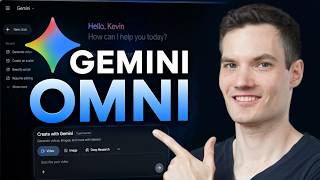

Google Omni: Free AI Video Creation
60sHigh educational value with a clear promise of free access, making it shareable for those curious about new AI tools.
▶ Play Clip"Delivers exactly what the title promises — a clear, step-by-step tutorial on using Gemini Omni."
This video is a step-by-step tutorial on using Google Omni, Google's AI video creation model, through the Gemini app. It covers creating videos from text prompts, editing them iteratively, using reference images, and creating avatars. The tutorial also mentions Google Flow for more advanced projects.
Omni is Google's latest AI video creation model, capable of generating and editing videos, audio, and more from simple prompts. It's accessible for free via the Gemini app.
To access Omni, sign in to the Gemini app with your Google account and click on the videos icon on the left-hand side.
Create a video by entering a detailed text prompt in the prompt box. More details generally lead to better results. You can also use Gemini to help craft the perfect prompt.
Omni allows iterative editing: instead of starting over, you can describe changes (e.g., transform a sunny scene into nighttime) and Omni updates the video.
You can upload your own videos (from your device or Google Drive) and edit them with Omni by describing the changes you want.
Use reference images to influence the look and feel of your videos. Upload an image and prompt Omni to apply its visual style to your video.
Omni allows you to create avatars by scanning a QR code with your phone, saying numbers, and rotating your head. You can then refer to your avatar by name or @me in prompts.
You can include dialogue, sound effects, music, and other audio elements in your video prompts.
All generated videos are saved in the library, where you can revisit and continue refining them or download them later.
For larger projects, Google offers Google Flow, which uses the same Omni technology but provides a workspace designed for complex video productions. Beginners should start with the Gemini app.
How do you access Google Omni?
Go to the Gemini app, sign in with your Google account, and click on the videos icon on the left-hand side.
00:34
What is the basic process for creating a video with Omni?
Enter a detailed description of the video you want in the prompt box; more details generally lead to better results.
00:49
How can you edit a video in Omni without starting over?
You can describe the edits you want, and Omni will update the video accordingly, allowing for iterative refinement.
01:47
How do you use reference images to influence video style?
Upload a reference image and prompt Omni to apply its visual style to your video.
03:10
What steps are involved in creating an avatar in Omni?
Scan a QR code with your phone, say some numbers, and rotate your head to set up your avatar.
04:09
What is Google Flow and how does it relate to Omni?
Google Flow is a tool for larger projects, using the same Omni technology but with a workspace designed for complex video productions.
05:25
Creating videos from text prompts
Shows the core functionality of Omni, emphasizing that detailed prompts yield better results.
00:49Iterative video editing
Demonstrates a key advantage: you can refine videos with natural language edits instead of starting over.
01:47Using reference images
Illustrates how to influence the visual style of videos using uploaded images, expanding creative control.
03:10Creating avatars
Highlights the avatar feature, which allows personalized video content with dialogue and audio elements.
03:56Google Flow for advanced projects
Introduces a complementary tool for more complex video productions, guiding users on when to upgrade.
05:25[00:00] In this video, I’ll show you how to use Google Omni step by step. Omni is Google's latest AI video creation model, capable of generating and editing videos, audio, and more from simple prompts. We'll create videos, make edits, generate audio, and use some of the
[00:16] most powerful features available today. And the good news is you can start using Omni for free. I'm Kevin, and let's dive in! Woo! To get started, head to the following website.
[00:34] You'll find a link right down below. First off, make sure you're signed in with your Google account. This takes us to the main Google Gemini app. To access Omni, over on the left-hand side, let's click on the videos icon. Right here at the top of the page, you'll now see that we can
[00:49] create with Omni. Let's start by creating our first video. We'll keep it simple and generate a video from a text prompt. Now right down here, we have the prompt box. And here, you can enter a description of the video that you'd like to create. In general, the more details
[01:04] you provide, the better the result tends to be. And one of my favorite tricks, right up here, you can even go back and use Gemini to help you craft the perfect prompt. Right over here, I'll enter in my prompt. Now, in this example, I'm going to create a cinematic shot of the Kevin
[01:18] Cookie Company storefront. If you need more space while writing your prompt, you can click right here and that will expand to the editor. Now, down below, you can also choose whether you'd like to create a landscape or vertical video. I'll stick with the default landscape option. Now, once
[01:34] you're ready, click on the generate icon. Google Omni will now create the video based on your prompt. Depending on demand, this could take a few minutes. All right, let's see how it turned out.
[01:47] Mom, look at those giant chocolate chip ones. need to start over every time you want to make a change. Instead,
[02:00] you can describe the edits you'd like to make and Omni updates the video for you. For this example, let's transform our sunny afternoon scene into a nighttime scene. Right down below, I'll enter
[02:12] in my prompt. Once you finish typing in, over here, click on generate. Let's check it out. Mom, look at those giant chocolate chip ones.
[02:26] With Omni, you can take an iterative approach to refine your videos. First, generate an initial video, then make tweaks and continue refining it until you're happy with the result. You can also edit videos just like this with videos that you created yourself. Right down below,
[02:42] simply click on the plus icon and over here, you can upload a file, or alternatively, you can go down to more uploads and you can add a video file from Drive. You simply upload it; describe the changes you'd like to make and then Omni will update it for you. Now once
[02:56] you're happy with the result, right over here, you can click on the share icon and here you'll get a public link. You can also share it on various social platforms or if you prefer, you can click on the three dots and here you can simply download the video directly to your PC.
[03:10] Another powerful capability in Google Omni is the ability to use reference images to influence the look and feel of your videos. I've always wondered what the cookie company store would look like in a cartoon style. Right down below, let's click on the plus icon and right up on top, I'll upload
[03:26] a file. There's the file, now I'll click on that and then open. Next, I need to type in my prompt. I'll basically tell it to apply the visual style from this image to the storefront video that we pulled together. Once you do that, over here, click on generate. Let's see how it turned out.
[03:44] Mom, look at those giant chocolate chip ones. There were a few glitches, but overall, that's really impressive. Google Omni
[03:56] also allows you to create avatars that you can use in your videos. Right down below, you'll see an option for avatar. Select that. Now right here, let's click on try now.
[04:09] Next, you'll need to scan this QR code with your phone and then run through the screens to set up your avatar. You'll need to say some numbers and also rotate your head. Back here in Gemini, you'll notice that it has inserted my name. Now, as an alternative, you can also refer to your
[04:26] avatar by typing in @me. Now that I've referred to the avatar, you can also just go ahead and enter in your prompt. Here, I'll describe what I want to have happen in the video. Here's a neat tip. You can also include dialogue. Over here, I want my avatar to say this line. Along with dialogue,
[04:42] you can also call out sound effects, music and other audio elements for your videos. Once you finish entering in your prompt, let's try generating it. Let's now play it. Welcome to the Kevin Cookie Company.
[04:56] Come inside and try our freshly baked cookies. we get back to them? Over on the left-hand side, let's click on the library icon. And here, you'll
[05:11] find all the videos that you've generated. Now here, you could click on any one of these videos, and that'll jump you directly back into the chat where you can continue refining them or you could also download them later. Throughout this video, we've been using Google Omni through the Gemini
[05:25] app. If you'd like to create larger projects, Google also offers a tool called Google Flow. You'll find the link right down below. Flow uses the same underlying Omni technology, but provides a workspace that's designed specifically for video creation. It makes it easier to organize projects,
[05:42] manage assets, and work with more complex video productions. If you're just getting started, I recommend using the Gemini app. As your projects become more advanced, you may want to explore Google Flow as well. Let me know what you think of Google Omni.
[05:55] Write down below in the comments. Also, let me know if you'd like to see a full tutorial on Google Flow. Thanks for watching, and I'll see you in the next video.


⚡ Saved you 0h 06m reading this? Transcribe any YouTube video for free — no signup needed.