
How to Sign Up for OKX & Get a Welcome Bonus
43sViewers are always looking for ways to get bonuses and clear sign-up instructions, making this a highly practical and shareable segment.
▶ Play Clip"Delivers a thorough beginner tutorial as promised, though some sections are region-specific and may not apply to all viewers."
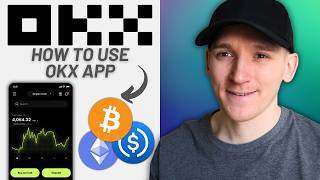
This video is a comprehensive tutorial for beginners on how to use the OKX cryptocurrency exchange app. It covers account setup, KYC verification, depositing funds via bank transfer or crypto, withdrawing crypto, trading with market and limit orders, and using the earn platform for yield. The presenter, James from MoneyZG, provides step-by-step instructions with visual demonstrations.
Download the OKX app and sign up. New users can get a welcome bonus via the provided link. KYC (Know Your Customer) is required, involving ID and face scan.
Access account settings via the account icon. Complete identity verification. Enable passkeys (touch ID or face ID) for enhanced security on important actions like withdrawals.
Bank transfer option is available in some regions. Add your bank account details, verify, and then transfer funds to OKX's local bank. Include payment reference if required. There may be a 15-day hold.
To deposit crypto, get your deposit address from OKX. Choose the asset and network (e.g., USDC on Aptos). Ensure the same asset and network on both sending and receiving platforms to avoid loss.
Go to withdraw crypto, select asset (e.g., USDC), choose network (e.g., Aptos), enter the recipient's address (exchange or wallet). Confirm and pay a small network fee.
Use the trade feature to exchange assets. Select trading pair (e.g., BTC/USDC). Market orders execute at best available price; limit orders let you set a specific price and join the order book.
OKX offers earn products like flexible and fixed lending. Flexible allows withdrawal anytime with variable APR; fixed locks funds for a term with fixed interest. Example: USDT flexible earn with 1% minimum APR and 10% bonus for first $500.
OKX is a versatile exchange with features for trading, earning, and managing crypto. Beginners should start with simple deposits and market orders, then explore advanced features like limit orders and earn products.
What does KYC stand for?
Know Your Customer
00:15
What is the purpose of passkeys on OKX?
To verify identity for important actions like withdrawals using touch ID or face ID.
01:11
What is the potential hold period for bank transfers on OKX?
15 days
02:12
What must match when depositing crypto to avoid loss?
The asset and the blockchain network must be the same on both sending and receiving platforms.
05:32
What is a market order?
An order that executes at the best available price at the time of pressing the button.
09:58
What is a limit order?
An order where you set a specific price and amount, and it joins the order book until matched.
11:02
What is the difference between flexible and fixed earn products?
Flexible allows withdrawal anytime with variable APR; fixed locks funds for a term with fixed interest.
13:39
What is the minimum APR for flexible USDT lending on OKX?
1%
14:18
KYC Requirement
Explains the mandatory identity verification process for crypto exchanges.
00:15Passkey Security
Highlights the importance of biometric security for protecting funds.
01:11Network Matching
Critical warning to avoid losing funds by using mismatched blockchains.
05:32Market vs Limit Orders
Clear explanation of order types essential for trading.
09:58Earn Products
Introduces yield generation on crypto holdings.
13:39[00:01] use the web app, I've got a separate video for that, which I'll link in the Now, what we need to do is download the app, and then you can sign up with an can get into the app, no problem. If you are a new user to OKX, I'll leave
[00:15] can get a welcome bonus via that link. So, just click that link to go through the app, what they'll do is push you to perform KYC. KYC stands for know your customer. Basically, you have to give them an ID
[00:30] that you use in your country just to prove who you are and where you live. with your phone's camera, and then you'll scan your face ID as well just to prove that the ID is yours. They will do this automatically when signing up for
[00:44] left-hand corner of the app, and this is your account icon, so press that. Up at the top, it says account settings. So, press that as well, and then you can see my profile here. I've got a user ID
[00:56] and identity verification. If you click this, it'll go through that process. it just says, "Yep, you're all good to go." You just need a passport and ID with you. Now, the other thing important is to go to security up at the top, and
[01:11] to create pass keys here if that's available for you. So, touch ID or face ID, and anything that important that happens on the app, they will just check that it's you doing it via the pass key.
[01:23] So, you can just do basically face ID. So, if you're withdrawing funds or they'll just double-check with the pass key, put the pass key in, and then they'll let you do it. Now, I'll show you how to deposit money into OKX via a
[01:35] bank transfer. So, I currently don't have this option, but I did before, and it just shows you that in some regions, you will have this option, and in some regions, OKX won't support this. So, if you can see it in your app, then there
[01:48] deposit cash or deposit money. So, you can go ahead and press that and go through this process. I currently don't have it, Uh, I have screenshots of uh a time that I did it before. So, you can say deposit cash or deposit
[02:00] money, and you can see the bank transfer option that I had here. So, all you have to do is just add an account, and you can add the details of your account account here, and you can set up a bank transfer.
[02:12] And it says asset security. Um, there may be a hold of 15 days before uh make sure you're happy with that. Uh, and then from here it says enter bank details. So, what I'm going to do is enter the bank account details where I'm
[02:25] going to send money from. So, that's my local bank account that I have. Uh, and for me it was an IBAN, but in other countries it may be slightly different. But, just go and put your bank details in and your name. And to be sure here,
[02:37] it has to be your bank. So, it has to be the same name in OKX and your bank. It details is the same between the both of ahead and put your bank account details in. Once you've done that, you can you
[02:50] can see your account is ready to verify. And then from here, this is the transfer details. So, um, these are the details that I would send money to in order to get it into my OKX account. So, go into your banking app, and then from there
[03:03] you can make a payment from there into the local bank that OKX have. Now, again, this may change depending on the region. So, it might be an IBAN, it that you use. But, I'm sure you know how to make a bank transfer. So, from your
[03:16] bank, make a transfer into OKX's bank. If there is a payment reference that you have to include, make sure you include it with the payment. Um, because then OKX will know which account to put it in. In other regions, you may get a
[03:29] unique bank account number with OKX, which is going to be easy. So, you can available in your region, it's essentially a bank transfer locally. So, go ahead and do that, and then you'll be able to uh deposit some cash into your
[03:42] it into any other crypto. Now, I'll show you how to make a deposit of crypto into OKX. So, if you've got crypto on a different platform, or you want someone account, all you need to do is get your deposit address into OKX. So, on the
[03:57] top, you can see the deposit crypto your assets in the bottom right, click that. And then there should be an icon here in green that says deposit. So, we're going to click that. I want to
[04:10] And then from here it says, "Well, which asset are you depositing?" So, let's say that I'm sending in some USDC from another platform. So, I'm going to receive USDC, so I'll click that. And then it says, "Well, which network are
[04:23] you receiving this on?" So, OKX accepts all of these different networks. If you have USDC on any of these networks or any other asset that's supported at OKX, networks. So, what I'm going to do is uh deposit in some USDC.
[04:37] And I'm going to choose Aptos because the arrival time is 1 minute, so going to press Aptos, and this is my deposit address for the Aptos network. address here on the right-hand side. And then what I'll do is go over to the
[04:51] other platform. So, in this instance, I'm going to use Bybit. I've got some USDC in my Bybit account, so I'm going I'm I'm going to press withdraw here. the top. And USDC.
[05:04] I'm using a blockchain network to transfer between two separate platforms. Well, I've copied my address on the this in. And it says network here.
[05:19] And it says network here. Well, it's Aptos, right? Because on OKX, I'm now expecting to use the Aptos network, and I've got my Aptos deposit Bybit, right? When you're sending crypto, just make sure that both
[05:32] the same blockchain. Otherwise, you'll have issues. Same asset, USDC, same press the amount that I want to withdraw and press withdraw. And that's it. It will send from this account on Bybit, and it will send over to my deposit
[05:47] OKX here, you'll see it's exactly the same, right? you'll have some deposit options. Make sure you use same asset, same blockchain. If we go out here and I press Bitcoin,
[06:00] There's some others which uh I wouldn't use. These are different versions, but let's say my Bitcoin deposit address that I want, this is my Bitcoin deposit slightly different address format, so you have to make sure you know what
[06:13] blockchain, send it into your deposit addresses at OKX. Now, I'll show you how assets page, up at the top, go to withdraw. Press withdraw crypto at the bottom. You'll have a list of assets here that
[06:27] much you want to send over is up to you. So, we'll press USDC. Now, exchanges are different centralized exchanges. Unhosted wallets are wallets that you would own, right? So, MetaMask, Trust
[06:40] yours or someone else's, you can press that. If you know that the other person is an OKX user, you can just use their user ID, and that's a free and instant transfer on the OKX platform. I'm going to choose exchanges, though.
[06:54] And which network do I want to send this USDC on? Let's go to Aptos again, cuz it's very cheap and fast. So, Aptos, and it says, "Where is the address?" So, we're going to deposit. So, on the left-hand side, I'll press deposit, cuz
[07:07] for Bybit. I'm going to press deposit crypto. We'll search for USDC. Which network did I want to use? Well, that's Aptos, right? I'm going to send from Aptos from OKX, and I'm going to
[07:19] Aptos. This is my deposit address. I'll copy that, go back to OKX, and I'll paste this in. address, right? You need to send an email to an email address. You're going
[07:31] the address here. So, I'll press done. It's going to check that the address has press next. How much do I want to send over? Like this. So, 100 USDC. I'm going to press next. Now, I think this address is new, so it says, "Do you want to add
[07:47] have caution here. That's fine. Press okay. "Do you want to confirm this withdrawal?" So, I'm withdrawing 100 double-check, the network I can double-check, same asset, same
[08:01] minutes. And you'll see down at the bottom there is a very small network fee that I have to pay to the Aptos network to process the transaction. That'll be taken out of the amount that you send over. Press confirm if you want to send
[08:13] that asset. If you have passkeys enabled on the app, when you press confirm, the Just press the passkey acceptance, it'll go through, and then it will send that to exchange assets on OKX using the trade feature. So, down at the bottom of
[08:27] icon. And it takes us through to the spot trading screen. If you've deposited some fiat currency onto OKX, you can now change that into any crypto asset that's available for you. So, what you have to
[08:40] do up at the top, where it says spot, just below that, you have to choose the trading pair. So, I'm going to click BTC USD, on OKX. If you have been able to deposit some
[08:52] fiat currency in here, you will see trading pairs against that fiat currency. So, you can go and search for your fiat currency, if it's USD or euros or something else. Go and find the pairs against that fiat, and then you
[09:05] can sell that fiat and buy one of the crypto assets that you want. For me, I'm going to press BTC up at the top, and it's going to show me the trading pairs Um now, down at the bottom you can see I think this is Turkish lira. You might
[09:19] have euros or AED, USD, something else. You can switch that into one of the I'm going to trade it against USDC, the stablecoin, cuz that's what I transferred in. So, up at the top I'm going to press Bitcoin USD. It's the
[09:32] second option here. And now we get the market. So, I've got some USDC. You can see just below on the uh order entry screen it says available. I've got some USDC available, so I can spend that for Bitcoin. You can buy and
[09:45] and selling Bitcoin against USD. If you If you want to sell Bitcoin, you can sell it into USD. And so, what we'll do is go ahead and actually trade. So, up at the top, I'm
[09:58] going to be a buyer. So, I'm buying USD and I'm going to choose a market order here. A market order is where you tell the but you don't choose a price. You just get the best available price at the time
[10:10] when you press a button. So, I'm going to press the total here. 10 USDC. That's how much I want to spend. So, I'm going to buy $10 worth of Bitcoin, whatever that may be. What price am I going to get?
[10:23] Go to the right-hand side. The red numbers are sellers. These people are showing us how much they're willing to sell and at what price they're willing to sell. When we press buy, we will take the cheapest seller
[10:36] and we'll take their Bitcoin. The cheapest seller is the lowest red number here. And so, it's uh currently 79828.8. press buy BTC. And that's it. You can see it went
[10:48] we bought the Bitcoin. I'll also show order is when you can choose the price and the amount that you want to trade. sell. I'll press buy. Where it says market
[11:02] order, I'll press that and then I'm going to choose limit order. Limit order willing to trade at. So, what I'll do in this price here, I'm going to say that I'm willing to pay 79,800
[11:14] per unit of Bitcoin, per one Bitcoin. How much Bitcoin do I want to actually buy? Down at the bottom of the order entry screen, press the total here. worth. I'm going to spend $10 and I'm willing
[11:28] to trade at 79,800 per Bitcoin and it's worked out what the fraction of the Bitcoin is that I can buy. Now, what we're going to do at this price is join the order book of buyers. The order book of buyers are these green
[11:42] numbers on the right hand side. These are other buyers showing the market what they're willing to buy Bitcoin at. The current best bid for Bitcoin is current best bid for Bitcoin is 79,834.6.
[11:56] I'm willing to pay 79,800. So, I'm actually a little bit cheaper my order is not going to go through straight away because sellers are going to sell to them before me cuz their price is higher, right? What I will do
[12:09] is join the order book, and I will wait for the order to get done. If the price just comes down a little bit and a seller is willing to sell Bitcoin to me at this price, then we'll trade. So, I'm going to press buy here.
[12:21] And notice that my order is actually now in the system down at the bottom here. immediately cuz we didn't care about the price that we paid. But in our limit order, our limit order has joined the order book, but we can't
[12:34] trade it right now cuz sellers are selling higher. Notice that my order has just come on the book. You can see the arrow. Right, so we're pretty close to away. Uh and so, if there's a seller that's willing to trade, we will trade,
[12:47] the Bitcoin. As of right now, nothing has traded. If you want to cancel this order, on the right hand side, you can see cancel all, and there's also a cancel for this specific order. So, I'll press cancel. Order canceled. I didn't
[12:59] trade cuz no one traded with me. Also, you don't pay any trading fees unless the order in, it didn't trade, I canceled it, and nothing's happened. I'll also show you the earn platform on OKX if you want to use it a little bit
[13:11] that. So, down at the bottom, press explore. the earn platform here. Up at the top, there's lots of different ways to use uh various products. I'll just show you simple earn here with dollars. So, we're
[13:25] going to go to earn. On the right hand side, I'll click the arrow. And what can you do? Down at the bottom, let's say that I've got some USDT platform, I want to lend it for some yield. So, I can choose USDT here.
[13:39] Notice we've got flexible and fixed down. Fixed is a fixed time period and a fixed interest that you get. And everything is done with an APR, so a yearly rate. So, if you were to have this product for 12 months, you would
[13:52] this product for 12 months, you would get a percentage back, which is 3.5% of now. So, we'll go to flexible, so I'll press that. USDT in. Uh you earn a little bit of yield and if
[14:06] can do. But the interest rate is flexible as well, so that means it might go down, it might go up. So, let's say that I want to put $50 in. The minimum lending APR I can choose is 1% because we know we know we're getting
[14:18] 1.43, so the minimum amount is 1%, let's say. The bonus is 10% for the first $500 and then after that it goes down to 1.43%. you can lend. That's flexible lending on the platform. So, you'll get a small bit
[14:33] of interest and then if you want to take the USDT out, once you've gone into the product, you can just go to flexible earn, withdraw and it will immediately withdraw back into your trading account or your funding account. Um if you go
[14:45] into the fixed product, if it's available for you, that's a fixed can't withdraw before the term expires. There are many more aspects of OKX including uh trading bots and future trading and many others. I'll leave
[14:58] features down in the description below. If you want to sign up for OKX, then able to get a bonus as a new user. I'm James as MoneyZG, cheers to watching and James as MoneyZG, cheers to watching and I'll see you in the next one.
⚡ Saved you 0h 15m reading this? Transcribe any YouTube video for free — no signup needed.