
Trade Directly from Your Phone with TradingView
45sImmediately addresses a common pain point (trading on mobile) and promises a solution, making viewers curious.
▶ Play Clip"The title promises a guide to using TradingView on mobile, and the video delivers exactly that with clear, actionable steps."
This video is a practical tutorial on how to use TradingView, one of the world's leading analysis platforms, directly from your mobile device. It covers downloading the app, logging in, navigating key features, and connecting a broker to trade directly from the phone.
The video introduces TradingView as one of the best and largest analysis platforms globally, and promises to teach viewers how to use it and trade directly from their mobile device.
To get started, go to your app store, search for 'TradingView', and download the app called 'TradingView-Bolsa'.
After opening the app, it's important to enable notifications so that any activity on your desktop TradingView will appear as notifications on your phone.
Click on the menu in the bottom right corner, select 'entrar' (log in), and log in with your account, e.g., using a Google account.
Once logged in, the 'list' option shows all assets favorited on the desktop. To add more, use the 'more' option to search for any asset.
The 'gr' option shows real-time assets. The bottom left shows favorited assets, and various timeframes like H4, H1, M15, and M5 are available.
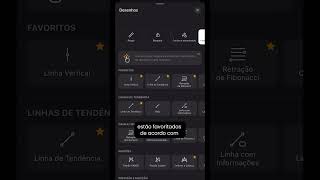
The pencil icon provides all favorited drawing tools. Another option offers layout settings, indicators, alerts, market replay, templates, and chart types.
To trade directly, click 'Negocie com a sua corretora' (Trade with your broker). The video recommends Vantage Markets, a large Forex and CFD broker with over 15 years of experience.
If your broker isn't listed, scroll down to 'explore as corretoras' (explore brokers) and search for it. Click 'connect' and log in with your account credentials to finalize the setup.
After connecting, you can analyze and trade directly through TradingView using your connected broker account.
By following these steps, you can effectively use TradingView on your mobile device for both analysis and trading, with the ability to connect a broker like Vantage Markets for direct execution.
What is the first step to use TradingView on a mobile device?
Download the TradingView app from your app store.
00:12
Why should you enable notifications in the TradingView app?
To receive notifications on your phone for any activity on your desktop TradingView.
00:25
How do you log in to TradingView on mobile?
Go to the menu, select 'entrar', and log in with your account, such as a Google account.
00:38
What does the 'lista' option show after logging in?
It shows all assets favorited on your desktop.
00:51
What timeframes are available on the TradingView mobile app?
H4, H1, M15, M5, and others.
01:05
How can you connect your broker to TradingView?
Click 'Trade with your broker', select your broker, and log in with your credentials.
01:43
TradingView as a Top Platform
Establishes TradingView as a leading analysis platform, setting the context for the tutorial.
Notification Integration
Highlights a key feature that syncs desktop and mobile activity, enhancing user experience.
00:25Broker Integration
Explains how to connect a broker for direct trading, a crucial step for active traders.
01:43[00:00] Como usar o TradingView, que é simplesmente uma das melhores, maiores plataformas de análises do mundo, diretamente do seu celular. E o melhor, ainda poder operar por ele.
[00:12] É isso que eu vou te ensinar nesse vídeo. Vem comigo! Para fazer isso, é só ir direto na sua loja de aplicativos, na barra de pesquisas, digitar a palavra TradingView e, em seguida, clicar na opção TradingView-Bolsa para fazer o download.
[00:25] Aguarda carregar, clique em abrir, pode fechar essa primeira janela. E agora é importante que você ative as notificações, porque dessa forma, tudo que acontecer lá no seu desktop vai aparecer através de notificação na tela do seu celular.
[00:38] Então clique em permitir, descemos no canto inferior direito, clicamos em menu para logar a nossa conta. E é só ir lá em cima na opção entrar, eu vou logar aqui com a minha conta Google. Clico em Google, permitir, clico no meu e-mail, continuar.
[00:51] e pronto, a minha conta Trade & View está logada no meu celular e aqui você já pode observar que na opção lista ele já me mostra todos os ativos que eu favoritei lá no meu desktop. Caso você queira abrir algum outro ativo, é só clicar aqui em cima na opção mais,
[01:05] digitar e escolher o ativo da sua preferência de acordo com a corretora que você utiliza. Clique em fechar, voltamos aqui embaixo na barra inferior e quando clicamos em gr voc j vai observar que ele te mostra ali todos os ativos em tempo real acontecendo Cante inferior esquerdo aqui os ativos que ele te mostra s os mesmos ativos que voc favoritou Na frente temos time frames todos os time frames dispon H4 H1 M15 M5 e qual voc quiser
[01:29] Nessa opção do lápis, temos todas as ferramentas que já estão favoritadas, de acordo com a sua configuração. Na frente tem essa outra opção, onde ele te mostra várias outras coisas interessantes, como configuração de layout, indicadores, alertas, replay de mercado, templates, tipo gráfico e muito mais.
[01:43] Agora, se você quiser logar a sua corretora para tanto analisar quanto operar diretamente pelo TradingView, é só clicar nessa opção Negocie com a sua corretora e ele vai te mostrar algumas opções. Claro que a corretora que eu utilizo é a Vantage Markets,
[01:56] uma das melhores e maiores corretoras de Forex e CFDs do mundo, com mais de 15 anos de mercado, já está como minha favorita aqui. E caso você ainda não tenha conta na Vantage, comente aqui embaixo a palavra corretora, que eu te mando uma aula completa e gratuita ensinando a criar conta
[02:08] e configurar todas as ferramentas corretamente. Depois que você criar a sua conta, caso ela não apareça aqui na tela inicial, é só você descer um pouquinho e aqui embaixo nessa opção, explore as corretoras, você consegue buscar pela corretora que você quiser.
[02:20] Beleza, clicou ali em vantage, é só ir em conectar e logar a corretora depois que você criar a sua conta com o seu e-mail e a sua senha e está feita a sua configuração e agora você consegue operar, analisar pela maior plataforma de análise e a maior corretora de Forex e CFDs do mundo.



⚡ Saved you 0h 02m reading this? Transcribe any YouTube video for free — no signup needed.