
He Made $100K/Month with ONE YouTube Ad
60sThe reveal of a channel earning $100K monthly from a single affiliate product sparks curiosity and desire for financial success.
▶ Play Clip"The title promises a step-by-step copy of a specific channel making $100K/month, and the video delivers exactly that – a detailed walkthrough with real numbers and actionable steps."
This video analyzes a YouTube channel earning over $100,000 per month by promoting a ClickBank product called 'Shifting Vibration' through Google Ads. The creator reverse-engineers the channel's strategy, revealing the commission per sale, estimated revenue, and the exact steps to replicate the campaign. The tutorial covers choosing the right product, setting up a YouTube ad campaign, and creating an affiliate link to start earning commissions.
A channel promoting 'Shifting Vibration' has been running a YouTube ad for almost a year, amassing over 760,000 views. The product is hosted on ClickBank and pays $51.82 per sale.
Assuming a 3% conversion rate, the channel earned roughly $1 million in 10 months – about $100,000 per month from this single product.
1) Gravity score between 10-25 (not oversaturated), 2) Recurring commission for passive income, 3) Affiliate resource page with proven ad strategies.
Navigate to ads.google.com, select 'Create a campaign without a goal', choose 'Video' campaign type, then 'Video views' sub-type. This targets skippable in-stream ads, in-feed ads, and short ads on YouTube.
Set daily budget (e.g., $10), target English-speaking countries (US, Australia), focus on mobile devices, set frequency capping to 3 impressions per week.
Target demographic: females aged 35-65. Use keywords from the affiliate page (broad, phrase, exact match) and topics like 'spirituality'.
Upload an unlisted video to YouTube, paste the affiliate link (shortened via Bitly) in the description and pin it in comments. In the Google Ads campaign, set the video URL, add a headline from the affiliate page, and set CPV to $0.04.
What is the recommended gravity score range for a ClickBank product?
Between 10 and 25.
02:43
Why is a recurring commission beneficial for affiliate marketing?
So that as long as the customer continues using the product, you keep earning money every month.
03:13
Which traffic source did the successful channel use to promote the Shifting Vibration product?
Google Ads (YouTube Ads).
04:08
What campaign sub-type did the creator recommend for affiliate marketing on YouTube?
Video views (skippable in-stream ad).
05:14
What frequency cap did the creator set for showing ads to the same user?
Three times per week.
08:16
What is the target age range and gender for the Shifting Vibration product according to the affiliate resource page?
35 to 65 years old, female.
09:39
How much commission does the Shifting Vibration product pay per sale?
$51.82 per sale.
01:50
Commission per sale
Reveals the exact monetary incentive for promoting this product.
01:50Estimated monthly revenue
Shows the potential earnings from a single product with a conservative conversion rate.
02:29Choosing the right campaign type
Explains why 'Video views' is optimal for affiliate marketing on YouTube.
05:14Using affiliate resource pages
Highlights how to leverage vendor-provided data to optimize ad targeting and creative.
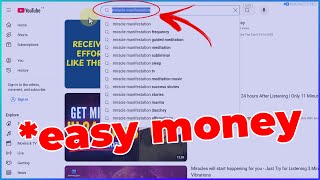
03:40[00:00] I'm on the home page of YouTube and if I type in Miracle Manifestation in the search bar, it shows me this ad promoting a spirituality product. So if I click on the ad, it's going to take me to this YouTube video promoting the product.
[00:18] And as you can see, the video has amassed over 700,000 views since it was uploaded to YouTube. This video was actually posted on the 1st of March, 2024, which means this channel has been running this ad for almost a year.
[00:35] And that tells us they must be making a lot of money if they are running the ad for this long. And if you take a look at the description of the video, they are promoting this affiliate link, Shifting Vibration.
[00:49] And also you can see they pinned the same link to the top of the comment. And if I click on this link, as you can see, it brought me to this affiliate website hosted on Flickbank where people can purchase this product, Shifting Vibration.
[01:06] And whenever people purchase this product, this channel earns a commission. Since we know the product is hosted on Clickbank, all we are going to be doing is to go over to our Clickbank account to look for that product.
[01:19] And if you don't know how to create an account on Clickbank, you can simply go over to clickbank.com to create an account or make sure to check out this video right here where I made a step by step guide on how to create a fully functional Clickbank account.
[01:35] So once your account is created, all you need to do is to head over to the marketplace and Now we want to basically search for the Shifting Vibrations product. As you can see this product is available on Clickbank and that channel earns $51.82 for
[01:51] every sale they make. So if I pull up my calculator real quick to do a rough estimate of how much this channel must have earned. Now that we know they got over 760,000 views.
[02:03] So now let's assume only 20% of people who watch that video and click on the link decide to purchase the product and this is the bare minimum all right so if you now multiply this number by 51.82 as you can see that channel must have earned at least 1 million dollars in the last
[02:22] 10 months and now if we divide this by 12 months as you can see this channel roughly makes 100 000 every single month from promoting this product alone and that takes us to the next step where i'm
[02:36] going to share with you three top criteria you want to look out for before promoting any clickbank product and the first thing you want to look out for is the gravity score of the product you want to make sure the gravity score of the product is between 10 to 25 as that tells you affiliates are
[02:55] currently making money with that product and also the product is not oversaturated yet by many affiliate okay and the second thing you want to look out for is if the product has a recurring
[03:07] commission as this helps you make passive income which means all you simply need to do is to make a sale once and once the customer continues using the product you keep making money every single
[03:19] month and as you can see this product has 50 30 recurring commission which means as long as your customers continue using the product you still make money in passive income every single month
[03:31] and finally the last thing you want to look out for is if the product has an affiliate page as this affiliate page usually contains valuable insights to up your end money from this product
[03:44] okay so now if you go over to the affiliate page of this product as you can see where they've provided us with various materials and resources we can use to make money promoting their product so now if i click on paid ads so you can see here they've listed the best traffic sources you can
[04:00] use to promote their products from TikTok Facebook and Google Ads as you can see right here and Google Ads being the one that YouTube channel is using to promote this product and now if you scroll down even further as you can see they provided you with headlines you can use to make money
[04:18] promoting their products and as you can see for yourself these are the summary of data collected running ads over 1 million dollars in sales through YouTube ads as you can see here and I'm going to be showing you how to create a YouTube
[04:32] at promoting this product like that channel so in order for us to create this ad all we simply need to do is to head over to art.google.com all you simply need to do from here is to click on the
[04:44] start now button or click on the sign in button if you already have a google account so once you do that it's going to bring you to this page where you'll be able to select your campaign objective
[04:56] all you then need to do from here is submit you to select a campaign without a goal guidance and now once you do that you want to scroll down here and as you can see there are various campaign types to choose from and since you want to target audience on youtube you want to select
[05:12] video campaign type so once you do this the next thing you want to then do from here as you can see there are various campaign subtypes you can choose from as you can see right here but i recommend to select video views which means your ad is going to be shown as a skippable
[05:29] in-stream ad which means when people are watching a youtube video they are going to see your ad and also your ad is going to be shown on the home feed of youtube as well and also when people are searching for certain keywords related to your video and finally it can also show as short ad
[05:47] so once you select this option all you then need to do is to click on continue so once you do that it's then going to bring you to this page and all you need to do is to give your campaign a name so So I'm going to type in shifting vibration just to keep us organized.
[06:01] And for this section that says multi-format ad, this is the reason why I mentioned earlier your ad is going to be displayed across various placements on YouTube. And the first one is capable in-stream ad.
[06:13] These are usually the 30 seconds or 5 seconds ad you see before you watch a YouTube video. and as you can see for in feed ads this is when you are scrolling through the youtube home feed
[06:25] and you are going to see that video when you are scrolling through the home feed and third option here we say short ad this is when you are scrolling through youtube short videos the ad can potentially show up as well all right so you want to leave this checked like this another thing you want to
[06:42] then do from here so come over to the budget and dates and select either daily or campaign total all right so what this campaign total means is the total amount you want to spend for this campaign or you can select daily to choose how much you want
[06:58] to spend every single day so for me I'm going to take daily here and I'm going to type in $10 all right and here you want to then select a start and end date so this is really up to you so for me I'm going to leave the end date as none
[07:13] until I stop the campaign myself so now the next thing you want to then do is to enter the location you wish to target all right and since we know the countries that are converting the most for this product from the affiliate resource page here you want to then select those
[07:29] countries all right so i'm going to take only united states and australia as an example all right so once you do this the next thing you want to then do is to select the language being spoken in that country all right as you can see here i've selected english now you want to then click on
[07:45] additional settings if you do this this is where you will then be able to select specific devices that you want to target all right since we know mobile device is the one converting the most for this product we want to deselect this option and leave only mobile device and now the next thing
[08:02] you want to then do is to come over to frequency happening this is where you want to select a limit to how many times you want youtube to show your ad to the same user every single day or whatever period of time you want So I usually go with this cap impression option all right so this is where you want to select the number of impressions so i usually
[08:24] set this to three which means that user can only see this ad three times every single day or you can change this to per week or per month all right so for me i'm going to change this to per week so you want to make sure at least the user see this ad three times in a week okay so once you've done
[08:41] that the next thing you don't want to do is to come over to the ad schedule and this is where you want to select what time of the day you want the ad to be shown to people right so you can leave this at default or you can set this to whatever time you want right so the next thing you want to
[08:57] do is to create your art group so you can also give your ad group a name sometimes just type in shifting vibration ad group one so once you do this you will then be able to select the audience
[09:11] you wish to target for this ad okay and since your account is relatively brand new you want to skip all this part and you want to go over to the demographic section and this is where you'll be able to select the gender and the age range you wish to target for this product so now if
[09:29] you go back to the affiliate resource page as you can see it tells us the age range performing the most for this product is between 35 to 65 years old and the gender converting the most is female
[09:43] all right 30 percent of male convert as well but majority of the sales come from female audience all right so all we simply need to do from here is to simply uncheck this and we can simply leave
[09:56] this male and female or we can basically go for only females all right so i'm going to leave both on for now and here you want to then change the age range from 35 to 65 and here you want to
[10:10] contact this unknown so once you do that you then want to come over to this section that says content and this is where you're going to be telling youtube where you want them to show your ad so you can basically target specific keywords or specific topic or specific placement so if you
[10:28] come over to the keyword as an example usually you want to type in certain keywords that whenever people are searching for this keyword on youtube your ad is going to show up and if you come back to the affiliate resource page again you can see there are several keywords from this title
[10:44] so i'm going to then paste in several keywords right here so when you're playing around with keywords you want to make sure to always experiment with block match phrase match and exact match what
[10:56] this means is if we take this miracle manifestation as an example this is a broad match so if i come over to this manifestation here and i type in this quote right here this is a phrase match okay and
[11:08] the final thing you want to then do is to add a bracket like this for some of the keywords doing this you'll be able to know which of the keywords are bringing you the most results and which one are not converting at all another thing you want to do is to come over to topics
[11:22] and here you can select topics related to whatever product you are promoting so if i type in spirituality as an example as you can see right here spirituality is available so if i click on
[11:34] spirituality all we then need to do from here is to then scroll down to where it says placement and this placement this is where you can target a specific youtube channel you want your ads to show in or you can target a specific youtube video as well so i recommend to skip this part and let
[11:51] google to order artwork for you okay and now the final thing you want to do is to upload a video to your youtube channel which you'll be using to run this part so if you don't know how to make this type of videos all you need to do is to go over to youtube and you can get ideas of how
[12:07] people create this type of videos as you can see here this is just a simple animation of this video with just a text and as you can see this video is still getting 22 views every single hour all right
[12:20] and if you don want to make the video yourself you can simply add over to fiverr and pay someone five to ten dollars to create that video for you so once you have the video made you want to simply upload it to your YouTube channel okay so I just
[12:34] making this video here as an example you want to give it a title that resonates with that image okay and then the next thing you want to do is to come over to the description and this way you then want to paste in your affiliate link and there
[12:47] two ways you can go about this you can simply use a url sharpener like bitly to sharpen your affiliate link all you need to do to come over to the product page you want to click on promote
[12:59] so once you do that it's going to bring you to this page here you want to then type in your clickbank username so once you type that you want to then click on create offlink as you can see it's going to then generate your affiliate link and so you know you don't want to promote this
[13:13] generic link as you can see it looks really really ugly so all you simply need to do is to come over to bigclay.com and you want to paste in your clickbank affiliate link in here and you also click on get your link for free which is then going to give you a shortened link which you can
[13:28] then copy and paste it in your youtube description and pin it to the comments however i also recommend to experiment testing a landing page as you will definitely get more conversions using a
[13:41] landing page and if you don't know how to create a i converting landing page i'll leave a comment and to click on the card above this video right now i've already made a dedicated video on how to create a i converting landing page for affiliate marketing so once you create the link completely
[13:58] as you can see you can create a custom link like this which is then going to include the name of that affiliate product and now all you need to do is to click on create your link so once you do that as you can see this is our link right here bitly slash shifting vibrations all you need to
[14:14] do is to copy that shortened link then you want to go back to your youtube channel and you want to simply paste in the link right here all you then need to do from here is to simply scroll down and you want to make sure to select video not made for kids and you want to come over to
[14:29] visibility and you want to make sure to leave this video as unlisted which means only people who you give access to this video can actually watch it so now you want to make sure to copy
[14:41] the link of the video right here and you want to then click on save so once you copy the link to the youtube video all you need to do is to paste in the link right here and it can see a backup that youtube video right away so now once this is done do here you want to then make sure to paste
[14:58] in that affiliate link again so once you do that you don't want to scroll down and you want to select a call to action if you want to do that all right this is really optional so i usually select this and you can select whatever you want all right so for this purpose you want to basically
[15:13] select learn more all right so once you select learn more here you don't want to type in an editing for this video yeah you don't want to type in an editing if you don't want to type as you can see these affiliate products are giving your ideas from this page which you can simply copy and paste
[15:30] so once you add the editing as you can see everything looks good all you're thinking to do from here is to scroll down this is where you then want to enter your target cpv which stands for cost per view and this
[15:42] is how much you are willing to pay whenever anyone clicks to watch your video all right as you can see google is suggesting 0.04 for your cost per views so you also can simply come over here and click on apply okay which means you are going to
[15:57] be spending 0.04 cent whenever anyone watches your video and here you can come over to the right hand section to see a rough estimate of your performance this is all you simply need to do to create a
[16:10] youtube ad and you want to click on create campaign once you do that your ad will be sent out for review and this usually takes less than 24 hours and once your ad gets approved you're going to start getting traffic right away and start making money with affiliate
[16:26] marketing and if you like this video then I highly recommend to check out this video on your screen right now this is the next video you should watch on

⚡ Saved you 0h 16m reading this? Transcribe any YouTube video for free — no signup needed.