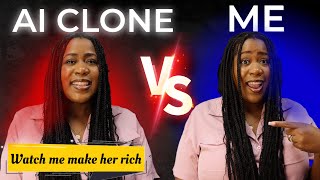

I Made an AI Clone to Make Money While I Sleep
44sThe hook combines a bold claim with the intriguing concept of an AI twin, immediately grabbing attention.
▶ Play Clip"Delivers on the promise of showing how to create an AI twin, but the 'make money while I sleep' claim is exaggerated and not substantiated."
The video demonstrates how to create an AI twin using NVIDIA AI's new feature, allowing users to generate studio-quality videos with their own face, voice, and style. The creator, Mo'Nique, shows step-by-step how to set up an avatar clone and use it to produce content for platforms like TikTok and YouTube, emphasizing ethical use and monetization potential.
Mo'Nique introduces her AI twin, Monnique 2.0, which works 24/7 to help her make money. She promises to show viewers how to create their own AI twin without editing or a team.
The tool used is NVIDIA AI, which has a new feature called AI Twin. This allows creating studio-quality videos using your face, voice, and style, essentially a digital twin.
Mo'Nique clarifies that YouTube's update on AI content targets spammy, low-effort videos, not ethical, original, value-driven content. She recommends TikTok for faster growth, citing her own success of 20,000 followers in 5 days.
Steps: Go to Invideo, select 'Create AI Video', ensure version 4.0, click 'AI twins', then 'Avatar clones'. You can either upload a YouTube video link or record a new video.
For the recording: maintain eye contact, good lighting (natural light from a window), at least 60 seconds of talking (can be multiple clips), and explicitly give permission to clone your avatar in the workspace.
Mo'Nique drags and drops her pre-recorded video. The tool uploads, reviews, and analyzes it, creating the avatar clone in a few minutes.
To create a video, go back to 'Create AI Video', select 'AI twins', choose your clone, and enter a prompt. Example: 'Create a 30 second inspirational video about the goodness of God using my avatar only and only using generative clip.' Then select platform and target audience.
You can change the video's language (e.g., to Spanish) to reach global audiences. Also, you can make it picture-in-picture with your avatar.
For those camera-shy, NVIDIA AI offers UGC virtual actors—pre-made AI characters that look real. You can select one and prompt them to create videos, e.g., 'Create a 30-second video using a UGC virtual actor sharing three easy side hustles to start with no money.'
Creating an AI avatar is free, but to produce videos, upgrade to the generative plan at $100/month, which provides credits for multiple videos and ads. Mo'Nique uses this plan and recommends uploading to all platforms, especially TikTok.
The video provides a practical guide to creating an AI twin for content creation, emphasizing ethical use and monetization. It highlights NVIDIA AI's features, including avatar clones and UGC actors, and offers tips for success on social media platforms.
What is the name of the AI tool featured in the video?
NVIDIA AI
00:43
What is the minimum recording length required to create an AI twin?
At least 60 seconds
03:49
What must you explicitly say in the recording to allow cloning?
Give permission to clone your avatar in the workspace
04:01
What is the cost of the generative plan in NVIDIA AI?
$100 per month
09:05
What are the two options for creating an AI twin?
Using a YouTube video link or recording a new video
02:57
What is the alternative to avatar clones for camera-shy users?
UGC virtual actors
07:16
What platform does Mo'Nique recommend for faster growth with AI content?
TikTok
01:50
AI Twin Introduction
Introduces the concept of an AI twin that works 24/7, setting the stage for the tutorial.
00:02YouTube's AI Policy Clarification
Clarifies that YouTube's update targets spammy AI content, not ethical use, which is crucial for creators.
01:09Recording Requirements
Provides specific technical requirements for creating a high-quality AI twin, such as eye contact and lighting.
03:24Language Customization
Shows how to change the video language to reach global audiences, expanding content reach.
06:34Pricing and Value
Reveals the cost of the generative plan and its value, helping viewers decide on investment.
08:51[00:02] million dollars a year for the past few years with the power of social media. And with everything going on in AI right now, I decided to take it even further. now, I decided to take it even further. And I created my very own AI twin. Hi,
[00:16] I'm Monnique 2.0. I work 24/7. No sleep, no breaks, no drama. Let's make this money. Listen, if she can help me make money while I sleep, then why not? And I'm about to show you how to do the exact same thing. There will be no
[00:29] editing, no team, just you and your AI twin out here working for you and making this money. What's up guys? This is Mon'nique and welcome back. Hello, bonjour, hola, aloha, konichi, waw wa, shalom, assalam alaikum, jambo child,
[00:43] this because I don't want to waste your time. The AI tool that we will be using today is Nvido AI. So listen, they just released a brand new feature called AI
[00:56] Twin. And this will allow you to create studio quality videos using your face, your voice, your style. Some people call this an avatar. Some people say is a clone. But don't let that freak you out. It's basically a digital twin that looks
[01:09] create videos for you. And I know what some of you are probably thinking. Didn't YouTube just say they are demonetizing AI created content? Yes, they did make an update, but let me make this clear. They are not saying that you
[01:22] cannot use AI. They are definitely coming for the spammy, loweffort style of AI videos. But what we are doing here is ethical, original, and valuedriven. is ethical, original, and valuedriven. Whether you are using an AI twin or an
[01:36] AI actor, as long as you are behind the content, you should be good. But honestly, if you want to see faster growth and fewer limitations, I'm going to tell you the truth. Tik Tok is where it's at. I always say this. I was able
[01:50] it's at. I always say this. I was able to grow my own Tik Tok using AI created videos to over 20,000 people in just 5 days. I'm telling you, their platform loves AI content right now. So, if you are nervous about what's going on with
[02:03] YouTube, even though, like I said, you should be fine. Go over there. But let's get into finally creating our AI twin. And if you want to follow along with me so that we do this together, I did put the link to Invido down in the
[02:16] description. Go ahead, click on that and create your account. And once you are inside of Invido, we are going to come to the top up here and select create AI video. And when it takes us to this next page, first and foremost, you want to
[02:30] make sure you are in the right version. And we are going to come up here and make sure it says 4.0. And when you are in this version, you'll see this button down here that says AI twins. And that's what we're looking for. So you can go
[02:44] ahead and click on that. And when it take you to this next page, you'll see that there are many different options here. And since we are focused on creating our clone right now, we want to make sure we select the one that says
[02:57] avatar clones. And when you do that, you'll see that they have two options available. You can either use a YouTube video that you have already recorded of yourself and you'll just go and grab the link and just paste it right here and
[03:11] invide will do its magic to create your AI twin from that video or you can just create a new recording which I want to show you how to do today in case you don't have any YouTube videos to use. So you can record this video that we need
[03:24] to upload so they can create your clone using your phone. But there are a few things that you want to make sure that you keep in mind when you're creating this video. Just make sure when you are talking into your camera that you keep
[03:36] eye contact the entire time and also that you want to do is make sure you have some good lighting. If you don't go sit in front of the window and get that natural light so that it can see
[03:49] you clearly. Now, you will need to upload at least 60 seconds of you talking. And it does not have to be just one clip. It can be multiple. Just make sure it equals 60 seconds. And the last thing you want to make sure you say in
[04:01] this video is that you give Invido permission to clone your avatar in this workspace or they won't do it for you. So to save us some time, I already recorded a video of myself talking. So I am just going to go ahead and drag it
[04:15] and drop it into here. And it's going to ask you a few questions to make sure you're cloning yourself or have permission to clone whoever you're is clear. The voice is also clear. And that's another thing to keep in mind.
[04:28] environment when you're recording. You can't have the kids running around screaming or be outside at the park with the birds chirping. And after only a few minutes, it basically uploaded the video, reviewed and analyzed it, and
[04:41] created your avatar clone. And this is my clone right here. It's truly exciting to see this come to life. As a digital content creator or you could say a YouTuber, I'm always looking for innovative ways to connect and share. So
[04:55] now, anytime I want to make any kind of video, all I have to do is come and use this avatar to create it. And let me show you how easy it's going to be now to create your videos. All you'll have to do is go back to the main page to
[05:07] create your AI video. And we are going to select AI twins again. And then you use. We're going to go with the one that we just created. And then when this box comes back up, this is where you tell it what type of video to create using your
[05:22] clone. Create a 30 second inspirational video about the goodness of God using my avatar only and only using generative clip. And then I'll come down here and finishes reviewing your request, it's going to ask a few more questions like
[05:38] what platform you want it on, your target audience. So you'll select what you want and then hit continue. And this is the video that I was able to create with my clone. Have you ever stopped to notice how God shows up in the smallest
[05:52] moments? When you needed strength and somehow found it when doors open just when you thought all hope was lost. God's goodness isn't just in the big miracles. It's in every breath, every sunrise, every unexpected blessing that
[06:07] reminds us we're loved. Today, I want to encourage you to look around. His goodness is everywhere waiting to be seen. You are so much more blessed than you realize. Now listen, when I first saw this, I was in awe because usually
[06:20] when you are creating clones of yourself, it tends to be a little off. And instead of looking like your twin is more like a distant cousin, but with this one, they definitely understood the assignment. And a good thing about this
[06:34] that you want to. And one of the things you can change is the language of the video so that you can reach many different audiences around the world. So I'll just go ahead come down to this box
[06:46] and say to change the language to Spanish. And now this is how that video Spanish. And now this is how that video sounds.
[07:02] the video and you can make this a picture and picture with your avatar. So, it's really so much that you can do with this. Now, let's say you're like, Mo'Nique, that's cool and oh, looks beautiful, but I don't want to be on a
[07:16] camera, not even as an AI twin. Don't worry, I got you. Because NVIDIA AI also worry, I got you. Because NVIDIA AI also has another new feature that is called has another new feature that is called UGC AI actors and these are pre-made AI
[07:30] characters that look like real people and they can say whatever you want them to. So in case you want to do that instead, let me show you how simple and easy it is. We'll again select AI twins. That's where it all starts. And this
[07:43] time instead of selecting avatar clones, we're going to go over to UGC virtual actors. And you will be able to use any of these pre-made AI actors to create
[07:55] your video. And look at the quality of all of these different ones they have here. And since I talk about finance a lot, I'm going to create a finance video going to select one that look like they'll fit the topic. And now we have
[08:09] to enter that prompt again. And I'll just say create a 30-se secondond video just say create a 30-se secondond video using a UGC virtual actor sharing three easy side hustles to start with no money. And once I hit enter, this is the
[08:23] new video. 0 in your bank account but still want to start a side hustle? I've got you covered. First, become a virtual assistant with emails. Second, start assistant with emails. Second, start content writing blog posts. Third, offer
[08:37] digital organizing services. They're digital photos. The best part, all three only need your time and creativity. Pick one and start today. >> Now, we were able to do this. No camera, no editing, and we have this AI actor
[08:51] out here creating make money videos just like any other regular person. So, if you are camera shy, you have no more excuses. Now, here's the good thing. You can create your AI avatar for free. But if you want to start producing
[09:05] recommend that you upgrade to the generative plan, which starts at $100 a month, which gives you enough credit to create multiple videos and ads. It is the plan that I personally use and it offers the best value, saving you
[09:21] hundreds of dollars in production costs. But when it comes to uploading these videos, but again, I suggest that you upload these videos on all platform. Tik Tok is the one that's really going viral right now, but you don't want to miss an
[09:35] opportunity anywhere. So, I would go on Facebook, YouTube, Tik Tok, and anywhere else I could find. So, now you can create studio quality videos without needing an entire team. You can create branded content to make sure that your
[09:48] business stays visible online. And you can finally start that side hustle that you've been wanting to using your AI twin. So, I really do hope that this video helped you out today. And please like this video because that helps me
[10:01] out. Other than that, make sure you come back. Let me know how everything goes with your new AI twins or your AI actors. But I thank you so much for watching and until next time, we are out. Peace.

⚡ Saved you 0h 10m reading this? Transcribe any YouTube video for free — no signup needed.