
Interactive Car Racing Game for TikTok Live
55sShows a unique, interactive game that boosts engagement on TikTok Live, appealing to streamers seeking fresh content.
▶ Play Clip"Title accurately describes the interactive car racing game for TikTok live streams; tutorial delivers on setup instructions."
This video demonstrates an interactive toy car racing game for TikTok live streams, where viewers can control cars by sending specific gifts or typing car names in the chat. The tutorial covers how to set up the game using TikTok Live Studio and TicFinity, including configuring actions and events for gifts, likes, and chat commands.
Interactive car racing game for TikTok live streams where viewers' gifts advance cars. Each car has a life bar; obstacles like meteorites reduce life, and cars restart when life reaches zero.
Requires TikTok Live Studio and TicFinity (desktop app). The game is for Windows computers.
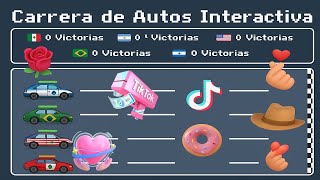
Predefined gifts correspond to cars: GG/ice cream cone → Brazil, maraca → USA, little rose → Argentina, TikTok shake → Mexico. If a viewer doesn't type a car name, these default gifts move the associated car.
Viewers can type a car name (e.g., 'Brazil') in chat to support that car. All subsequent gifts from that viewer will only move the chosen car, regardless of gift type.
Download a compressed file, extract it. The folder contains the game ('interactive race'), a 'boost' image for TikTok Live Studio, and a notepad file with car names and the TicFinity webhook link.
In TicFinity, create an action named 'game action' (or any name). Enable webhook and paste the link from the notepad file. Save.
First event: trigger on all chat comments. Select 'game action' as the action to execute. This allows the game to read car names from chat.
Second event: trigger on sending likes. Set minimum likes (e.g., 5) for meteorites to appear. Action: 'game action'.
Third event: trigger on sending a gift with minimum coin value (select one coin value). Action: 'game action'. This enables gift-based car movement.
Keep TicFinity open (minimized) for the game to work. Configure TikTok Live Studio with the game window and the 'boost' image. Start the game and go live.
The video provides a complete guide to setting up an interactive car racing game for TikTok live streams using TicFinity and TikTok Live Studio. Viewers can engage by sending gifts or typing car names, making streams more interactive.
What is the prerequisite software needed to run the interactive car game?
TikTok Live Studio and TicFinity (desktop app) are required.
01:28
How do viewers control a specific car without typing a name?
They send a predefined gift: GG/ice cream cone for Brazil, maraca for USA, little rose for Argentina, TikTok shake for Mexico.
02:09
What happens when a viewer types a car name in chat?
All subsequent gifts from that viewer will only move the chosen car, regardless of gift type.
03:35
What is the purpose of the 'boost' image in the game folder?
It is used as a source image in TikTok Live Studio for the game overlay.
05:16
How many free actions and events does TicFinity provide?
Five free actions and five free events.
10:38
What must be enabled in the TicFinity action configuration?
The 'Webhook' option must be enabled, and the link from the notepad file must be pasted.
12:06
What trigger is used for the meteorite obstacle event?
The 'Sending likes' trigger with a minimum like count (e.g., 5).
14:47
What trigger is used for the gift event?
The 'Sending a gift with minimum coin value' trigger, selecting one coin value.
16:28
Why must TicFinity remain open while streaming?
It acts as an intermediary to make the game interactive with TikTok live streams; closing it stops the game from working.
18:34
Interactive Game Concept
Introduces a novel way to engage TikTok live stream viewers by letting them control a car race with gifts and chat.
00:02Chat Command System
Explains how viewers can choose which car to support by typing its name, making the interaction personalized.
03:35TicFinity Free Tier
Highlights that TicFinity offers five free actions and events, sufficient for this setup, making it accessible.
10:38Meteorite Obstacle via Likes
Demonstrates how to use likes as a game mechanic to introduce obstacles, adding depth to the interaction.
14:47[00:02] 're here with a new video for my channel. Well, this time I bring you, guys, an interactive game, which is an interactive toy car racing game for TikTok live streams. If you're someone who does
[00:17] TikTok live streams, then this might be useful for you, since this game is interactive with TikTok gifts. In other words, when they release specific gifts for each TikTok cart, the carts advance. Okay,
[00:32] TikTok cart, the carts advance. Okay, let's imagine that for Mexico there's a little rose, so people throw a little rose, and the car moves forward. Okay, I'm going to explain it to you quickly right now , but first I'm going to start it so you can
[00:45] see how the game works. Let's lower the audio volume a little. And as you can see, that's right, it's progressing. The carts have a life around here. Everyone has one life. So what
[00:57] Everyone has one life. So what happens? The game consists of seeing which car arrives first, but there are also obstacles. For example, meteorites may appear, and these meteorites are what take away the life, and when it
[01:10] reaches zero, these cars start again from the beginning. Okay, I'm going to explain to you guys how you can configure this cart to be interactive with TikTok Live Studio. Okay. Via
[01:28] Tit Finity. Let's pause it, guys, over here. Well, this is the game. First, I'll explain quickly. Let's close it here, shall we ? We're just going to minimize it. Okay, guys, look, it's over here. I
[01:42] they can use it. You need to have TikTok Live Studio so you can use this game, since this game is for computers. Okay, as you can see, here I already have some gifts that are
[01:57] that are predefined for each cart. So, I'm going to give the people who are going to get the game get the game a file with this image
[02:09] here so they can put it in, and there's also some text here. What's happening? These texts are, for example, here are names, it says Mexico, Argentina, names, it says Mexico, Argentina, United States, Brazil and El Salvador. Uh,
[02:22] this is so that when the person is live, the viewers have to type the name of the cart so that their cart can move, right? So, if someone comes and puts "Argentina" in the chat
[02:37] , then only the Argentina car will move when they launch their gifts. But why are these images here, which are the default? It's just that some people join the TikTok live stream and don't put their
[02:52] name on it, they just throw the little gift right away. So if they throw the GG, ice cream cone, Brazil moves. If they throw the maraca, the United States moves. If they throw the little rose, Argentina will move. If they launch TikTok, Mexico will be shaken up.
[03:07] and throws any of these little gifts will move these carts from here. But if the person That's the good thing about this game, eh, this game works with any gift, not just these . It works with any gift,
[03:21] whether it's glasses, a gun, a whale, a galaxy, whatever you want. But how does it work? Well, the person who wants their big gifts to help move the car has to
[03:35] comment in the chat, putting the name of the car they are going to support. Let's imagine that the person is going to support Brazil, so they have to put Brazil in the chat. Once Brazil is in the picture, all the gifts you send, whether it's Yigi,
[03:51] Conito de Lado, Rosita, whatever, any gift, the only thing that's going to move is Brazil. The only car that will move faster is Brazil, since the person put the name Brazil in the chat. That's why those of you who are
[04:05] going to like the videos, have to tell people that if they want to support a car with gifts, they have to put the name of the have to put the name of the car first. Already. So, uh, I'm not going to
[04:18] Titlo Studio theme. What I'm going to teach you is how to connect the game with TikTok. You can look at this here; there are many tutorials on YouTube that I'm going to give you are the tools and how you can connect it.
[04:34] Okay, as I said, the file I'm going to send you will contain the game and also the image of the gifts that are included by default. Okay. Okay, let's go. First of all, when the file is sent to you,
[04:48] guys, it will arrive in your folder, in your download folder or wherever you download it, uh, a compressed file will be sent to you. They have to do something, what are they going to do? They are going to right-click on this
[05:02] right-click on this file and click on extract here. So that? To extract the game. This folder contains the game and also the tools. You're going to double-click it and here you'll see,
[05:16] says races, the game is inside , but here you'll also see an image called boost. You're going to click on that image and here it will default image that you have to place. Yes, you're going to put that in your
[05:34] TikTok Live Studio. We're going to close it, and over here's a notepad that says " read". You're going to click on that notepad and it will appear here. These are the names, guys, that we have to put. Uh, these are the names in the
[05:47] TikTok Live Studio. The names, for example, in the United States, uh, it doesn't say USA, it says United States. But why? Because we've updated the game . So the name is no longer
[06:00] . So the name is no longer United States, the name is now USA. You're going to put it in the USA, Argentina, Mexico, Brazil, El Salvador. No longer El Salvador. El Salvador is also in the previous one, but only Salvador, as it is.
[06:15] Now it doesn't matter if it's in uppercase or lowercase. The person who is in your live chat writes "Mexico" in the chat, whether in uppercase or lowercase, or with or without an accent mark, the game will still recognize it; it will recognize that they are a
[06:28] person who is supporting that country. Okay. But it has to be exactly like the Okay. But it has to be exactly like the letters, exactly like Argentina, USA, the U, the s and the a exactly like that. It doesn't matter if it's uppercase or lowercase. Okay, guys.
[06:41] As you can see, here are the names and down here we also have the link for TIIT. This link here is the one we're going to use in TIG Finity. So that? To connect your game with TIC Finity. Now I'm going to
[06:56] explain how this works, but I want you to know that these are the tools you'll have. And here in the folder, if you click on the folder, double-click. Okay, here they are. Uh, what matters to us in this folder
[07:10] is, uh, the game itself, that is, this part here. It says " interactive race" here. This is the game. We're going to click on this one. Uh,
[07:22] I'm going to close the one I already have open here and open this one over here. They're going to double-click it and the game should open. Already. Right now I'm testing it so you can see it. There it is, the game is open.
[07:36] game, they'll only give it a try and press play. Always play with the volume that's around here, because there's a lot of volume. There it is. And that's the game. But right now, if you like something on
[07:52] you like something on TikTok and then you put the game in your TikTok Live Studio, where it's already set up, and you press play, it won't work. Because? because it is not yet
[08:05] So, right now what we're going to do is connect it with TIC Finity. Now we're going to Tic Finity. What are you going to do? Okay, let's go to the page. Hey,
[08:17] you need to open Tic Finity. What are you going to do? You're going to type Titic Finity into the search engine and it will take you to this page. Look, let's get out of here so you can see. Here in the search engine, here you are going to put TIC Infinity. For those
[08:29] problem, you can open it normally, but you're going to put a tick here and the first option will appear. You're going to click on that first option and it will open the page for you right now. The setup only takes four steps
[08:44] and they are very simple. Since you're here, what we need to do right now is download. If you don't have the desktop version of Titic Finity, you need to desktop version of Titic Finity, you need to download it, as it works very well
[08:57] on desktop. I haven't tried it on the website, but I recommend you download and install it on your desktop. It's very easy. being here on the Tffinity home screen , in the Star option, up here you will
[09:13] see an option that says TIG finity stock app, that is, it is the desktop application. You're going to click here and it will take you window? You're simply going to click on this option that says "download for
[09:28] Windows". Obviously your computer has to be Windows because I think this is I think this is for Windows. Then, you're going to click on it and it will download. I'm not going to download it because I already have it. You're going to download it and it's going to
[09:42] go to your downloads folder and you're simply going to how to install it, there are many videos on YouTube that many videos on YouTube that show you how to install TIC
[09:55] Finity on your desktop. It's very easy; just download it, open it, accept the terms, and install it automatically. Okay, now that I to open the TIC Finity that's already installed. Wait a moment, I'm going to
[10:09] Okay guys, I just opened TIC Finity, the one I already have installed on my desktop. This is no longer the website, this is the desktop application, because when you install it, it will leave an icon on your desktop, on your
[10:24] computer, so that you can open it. Once you're here, it's just four steps away, guys. Hey, it's easy. Uh, you're going to leave, you're going to head quickly, you're going to go to the option that says actions and events. Remember that
[10:38] TIC Finity is a paid service, but it gives you five free shares that you can use and it also gives you five free events. These are free, but if you want to do a sixth action or a sixth event, it won't
[10:54] allow it because it only allows five. And if not, if you want more shares, you have to pay. But we only need... of the actions we only need one, and of the events we only need three. So that's
[11:07] enough for us, huh? Okay. First, let's configure what they are, let's configure what the actions are. What are you going to do? Look, you're going to click on it, you're going to go to this section here that says actions, to this section and you're
[11:21] going to click on the first part. Obviously, you won't see this name, you'll see a default name that comes with going to show you how I created it so you can do it the same way.
[11:38] Go to the pencil icon up here in the first option, the pencil icon, and while you're here a window will appear where you have to configure it. Here you can put whatever name you want. In this case, I added game action. You can
[11:52] name it whatever you want. Uh, it doesn't matter, but you have to keep in mind what name you're putting, so make it an easy name, because that's the name you're going to use. Okay, I've added game action to it.
[12:06] Now we're going to scroll down here and go to the option that here and go to the option that says activate webhop. What are you going to do? You're going to give it the check. Here, you're going to activate it, that's all you're going to do.
[12:19] When you activate it, this section will appear here. If it is not . When you activate it, this section will appear. And in this section you're going to put this link, this one here, this link. And you're going to tell me where
[12:36] the link is. The link is in the notepad file I left here for you. Here it is notepad file I left here for you. Here it is , look. Here, here it is, here it is. You're going to copy this here and paste it here. You're going
[12:50] to stick it here. Being here is enough. You're going to scroll down, you're going to scroll down and you're just going to click save. Okay, that's it . You don't need to do anything else in this actions section. Now we're
[13:05] this actions section. Now we're going to the events section. Remember that your actions up here are called game actions, okay? Remember that's its name. Okay, we're going to go down to where it says events. And what are you going to do
[13:18] here? So we're going to use three events. We're going to use the first three. Already. It might come to you by default with a different name, I don't know, but you know, we're going to use the first three. First, you're going to click on the little pencil
[13:33] and this window will appear again . In the first option you're going to leave it on all of them, it's going to come there on all of them , on all of them. Already. There with this team selected for all of them. In the next part, where it says why we are here,
[13:47] why will the event be triggered? So, this means, uh, what is the game going to do here? What event are you going to do? Well, we want you to take over the chat event. So, you're simply going to put it
[14:03] here, you're going to activate the chat option, and any comment, you're going to and any comment, you're going to activate this and go down here to this part here, to this section here where it says trigger all these
[14:16] actions, it will appear empty. That's how it will appear with nothing on it. What are you going to do? You're going to click on it and choose the name we created in the remember the name at the top of the stock? Well, it's going to appear here,
[14:31] what's it called? Game action, is the name I gave it. If you gave it a different name, then look for that name. Just click on the game action and you're done. That's all for now. You're going to click save. Okay, we've already done
[14:47] the first event. Let's move on to the second event. The second event will told you that meteorites appear in the game when you get likes? Already. Well, this is for meteorites. You're going to click here. And also up here, you're going
[15:01] to leave the option up here on everyone, on everyone. Down here, down here you're going to look for the option that says sending likes, you're just going to select that option likes, you're just going to select that option and go down here.
[15:15] define the minimum quantity that you want the meteorites to come out. If you put five, that means the person has to give at least five likes for meteorites to appear. From five likes onwards. Yes, yes, yes, send it if it
[15:32] does 6, 7, 8, or 10 taps of likes, then the meteorite will appear. But if you only make . Because? Because it has to be at least five. At be at least five. At the very least. And
[15:46] this option will also appear empty here below. You have to choose game actions, game action. In this case, in your case, your name, the name you have put, but in my case it is game action. Look, you're going to click on it. It appears for me
[16:00] because it's already been created. You will see the name you created. I'm going to click on game action and you're just going to click on save. Remember that the minimum here isn't fixed; you can set it at five,
[16:14] ten, twenty, or whatever amount you want. But remember minimum number of likes for the meteorites to appear. We're going to save it. Okay, we've created the second event. Now let's move on to the
[16:28] last one, guys, which is for the gifts. You're going to go to the third time, to the third time with this little pencil, okay? Uh, the third option. Let's click on the little pencil and now we'll set up the gifts. Easy. Also, give it to everyone,
[16:41] leave it on everyone. It's in everyone. And you're going to scroll down and choose the option that says sending a gift with a minimum coin value. This option is already minimum coin value. This option is already chosen and here you will select one. Here it is
[16:56] chosen and here you will select one. Here it is important that you select one. Don't put two or three. One. Now. And down here it will also appear blank because it will be empty . You have to choose an action in the
[17:10] game. Ignore this action here . This is action from another game that I posted. You don't have to put this in. Just choose the game action, the same action we're doing, uh, I mean, the name we've
[17:25] game action. Remember that you have to put the name, choose the name that you have given to the action that we created first. In this case, I created it with the name of the game's action, that's why I 'm choosing it. Remember, this
[17:40] here is not allowed, this here is not going to happen. This is a different matter. This has nothing to do with the car game. This is something separate that I added. All you have to do is add one, which is the name of your stock.
[17:54] Once that's ready, then you'll click on save and that's it. The three events have already been created. What action? Game action. It should appear here where it says "actions". Here's the game action. Game action.
[18:09] Game action. In this case, why? Why in my case, game action? I'll repeat it so you don't get confused, because I named it " game action". If you have put it to say only actions, then
[18:22] your names here in actions you have to say actions, actions, actions. Yes, depending on the name you gave it in the first one. Okay guys, that's it in the first one. Okay guys, that's it . You already have
[18:34] Titic Infinity set up with TikTok, with your toy car game. Okay. In that case, guys, it's important here not to close the window. You don't have to close this page . You can minimize it, yes, you can
[18:50] minimize it, yes, but don't close it. Because? Because if you close it, the game won't work anymore. The game works because it uses this as an intermediary to make it interactive with TikTok live streams. If you close it, it wo
[19:02] n't work anymore, okay? Just minimize it. Okay, guys. Now, remember that you also have to configure your TikTok L Studio, and then when you click to start the game, let's imagine that we are going to click it.
[19:19] That's where it begins. I'm going to turn the volume down a little. Let's imagine that the person sends a specific little gift to Mexico, well, Mexico is going to move. If you launch a specific gift for Argentina, then Argentina will react. It's going to move there.
[19:33] The more gifts you send, the more you will advance. And if someone sends this to the United States, which is where they use the name, this for Brazil, Brazil moves. If someone throws a punch towards El Salvador, then
[19:49] El Salvador moves. And if someone just keeps tapping, remember that meteorites are going to appear. I know, I'm going to pause this, I'm going to stop it, and okay, guys, remember, remember, this is important, this image here shows the
[20:05] default gifts, so you're clear, uh, if any of the car names, hasn't put Mexico, or Argentina, or any of the car names, and if that person throws any of these little
[20:21] gifts, the specific car that corresponds to that gift will move. Like I said, if they move the little guy, if they move the little rose, Argentina moves, if they throw the little rose, sorry, Argentina moves. But if that person puts the
[20:35] specific name of the car they want to support, then no matter what gifts they send , the car that person has chosen will always be the one that gets moved. Now, if the person says, "No, I don't want to anymore, I do n't want to support," for example, the
[20:49] United States, I don't want to support the USA anymore, so I want to support Argentina now, then that person has to comment again in the live chat of the like, they have to comment again the name they want. If you
[21:03] select Argentina this time, then it will reset, and the game will recognize that person as supporting only Argentina. All the gifts they send, whether they send Whale, Lion, Galaxy, or whatever, will
[21:17] only move Argentina, since they supported that car. Okay, guys, I hope that's totally clear. Well, also for the people who get the game, you can contact me, or
[21:30] you can contact me, or leave comments here on leave comments here on the video. You can leave me comments giving you information for those who want to get the game. Hey,
[21:44] remember that even though you already have the game and you're already setting it up, if you have any questions, you know you can always ask me because I'll always be here to help. Okay guys, this would be the whole video for
[21:57] the interactive car game, the car loading game. See you in the car loading game. See you in the next video!
⚡ Saved you 0h 22m reading this? Transcribe any YouTube video for free — no signup needed.