
Fix Missed Gift Entries Instantly!
60sShows a simple manual fix for a common streaming headache, making it highly relatable and actionable.
▶ Play Clip"Title promises money-making, but video is a dry walkthrough of game settings — only indirectly related."
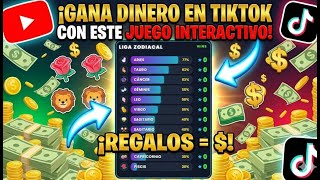
This video presents an update to the Zodiac League interactive game for TikTok Live. The update introduces several new features for streamers, including manual win tracking, adjustable bar-fill points, editable game titles, and the ability to change team signs and flags. The game is designed to engage viewers by allowing them to participate through gifts and likes.
The Zodiac League game has been updated with new functions. The video will explain these changes in detail.
A 'Wins' label and counter have been added to track wins from gifts.
Added manual increase/decrease number input and PTS points for adjusting bar progress without gifts.
You can manually add multiple wins at once by entering the number and clicking 'Wins'.
Enter a negative number (e.g., -1) and click 'Wins' to decrease the win count.
In settings, you can edit the game title to any name, e.g., 'League of Countries'.
Set the number of coins required to fill the progress bar (e.g., 10 coins for 100%).
Set a threshold for instant win: if a viewer sends a gift of that amount or more, they automatically win.
Likes now contribute to bar progress. Recommended setting is 1000 likes to fill the bar, making it harder than gifts.
You can replace zodiac symbols with custom names and images (e.g., country names and flags).
'Reset round' clears current progress; 'Total reset' resets all scores and bars to zero.
The update provides streamers with greater control and customization options for the Zodiac League game, making it more flexible for different formats like countries or sports teams.
How do you manually add bar progress for a gift that wasn't commented?
Enter the gift value (e.g., 30) and click PTS.
01:28
How do you add multiple wins at once?
Enter the number of wins (e.g., 5) and click 'Wins'.
01:56
How do you remove wins?
Enter a negative number (e.g., -1) and click 'Wins'.
03:04
What settings can be changed in the gear icon menu?
Edit title, set coins to win, coins for instant victory, and likes to win.
03:33
What is the recommended setting for 'Likes to win' and why?
1000, because it makes likes progress slowly so gifts remain the primary way.
05:22
What does 'Coins for instant victory' do?
If a viewer sends a gift of that amount or more, they automatically win.
04:41
How can you change a team's sign to a flag?
Change the name in the settings and upload an image via the 'Flag' option.
06:59
Manual Bar Control
Gives streamers full control over game progress without relying on viewer gifts.
00:41Likes Integration
Allows viewers without coins to participate via likes, increasing engagement.
05:22Customizable Teams
Enables rebranding for different themes (countries, sports teams), broadening appeal.
06:59[00:02] Well, as you can see, guys, we have the new update we have the new update for the Zodiac League game here. For everyone who is interested, we already have a previous video of the
[00:16] have updated it. It has more functions and I'm going to start explaining what those functions are right now. Firstly, as you can see, this part here is almost all the same. The only thing that's changed is the colors up here
[00:29] . We've added text that says "wins" and here are the numbers that will be counted each time there's a sign that means a game is won. Okay, as
[00:41] we can also see here, guys, in this part here where it says simulation panel, we've added several improvements. In what sense? So you can see here that there is an option to increase and decrease the number,
[00:56] right? What have we done this for? Well, for example, let's imagine that sometimes someone sends a little gift of, for example, right?, a donut that costs 30 coins. So, uh, 30 coins is advancing 30% on the bar, but it turns out he
[01:13] didn't comment on his sign. Since she didn't mention her sign, she didn't tell him, right? , I sent a donut. Well, it's very easy because this function didn't exist before. Now, what you do here is
[01:28] simply increase it to 30. You can do it using these arrows or you can simply enter the number 30. You enter the number 30 and here next to it where it says number 30 and here next to it where it says PTS, it means points, the points here on
[01:41] the bar. You're going to click on it and automatically, look, it already added the 30% as if you had sent those 30 coins. So, in that way you're already making good on the gift that she didn't tell him about. in case he did not comment. Now,
[01:56] let's imagine that you also put a gift, uh, for example, you put gift, uh, for example, you put a gun and say, uh, the gun counts you as five wins, yeah, five wins I mean these here. So, the
[02:09] person, in order not to advance one by one, wants to advance five at a time , wants to increase five wins at once, so he throws a gun and obviously when he throws the gun it will only count as one win, but the
[02:22] also where this works manually. You simply grab it, put in five, if it didn't count one, and click here where it says the word wins. And look, it automatically counted five. Even
[02:36] if someone was told too much or too little, you can add one. When you place one, it advances the wins one by one. Look, there it advances, for example, sorry, there it is. We're going to press Win, only
[02:49] one advances at a time, see? 7 8 9. The more pressure you apply, the more it advances one by one. Now, if you put the minus sign in front, the minus sign in front, this removes the win. For example, if you want to take away someone's wins, you
[03:04] simply put -1. or -2 or -3 will lower that amount. Look, I've set it to -1 and now I click on win and it lowers it, see? He's lowering it now. -1 -1. Okay. So, without the minus sign, it increases. When you
[03:20] add the minus sign, it reduces. Already. This is so you can work on it manually. This gives you control so you can manipulate both these points and the bar here. Okay. This would be the first part.
[03:33] Uh, one of the improvements. Now let's go to the settings area. Let's go up here by clicking on the little gear. As you can see here, we can now also edit the title. Look, I'm going to cancel. Remember that there was a title here that
[03:48] said, uh, Zodiac League. Well, I'll have put a sign here. But why? You can change this here to whatever name you want. For example, if you're doing countries, you put the countries; if you're doing teams, you put them; in other words, whatever you want. Here
[04:01] we're going to change. We changed the sign. For example, I'm going to put uh league of countries. Yes, league of countries. And we press save. It's an example. And look, save. It's an example. And look, the title was automatically saved
[04:16] as a league of countries. Now, if you want, uh, down here are coins to win. We've added this; what you had
[04:29] How many coins does it take to fill the bar? In this case, 100% will be 10 coins. You can modify it to the amount you want. And as we can see below, it says coins for
[04:41] instant victory. They had that in the previous version too. much as you want. Uh, when you set 100, a person who sends a gift of 100, automatically gives them the victory. If you set the betting pool to 1000, the person
[04:54] who throws 1000 coins at once automatically wins, but if they throw fewer than 1000, they don't automatically win. In other words, here it respects what you put. If you put 500, that means that anyone who
[05:06] throws any gift of 500 or more will get an instant win. I easier since people shoot faster. 1000 is a lot. Sometimes some can. Now we've implemented this third one here that says likes to
[05:22] win. This is where it also comes into play so that people can participate. This makes the game more dynamic. Because? Because in the previous version, only gifts could be advanced with, sorry, in the previous version, only
[05:35] signs could be advanced, the bars could only be filled with gifts. Now likes are also part of the equation. People who like the little screen or tap who like the little screen or tap the little screen, you define it here. Uh, I
[05:49] recommend setting it to 1000 or higher, because if you set it to 100, what's going to happen? When someone likes something, the bar will fill up faster, and it won't give you as much of an option to send
[06:03] "Ah, with tap-tab it's easier to fill the bar, why send gifts?", right? But if you set it to 1000, you'll make things a bit more difficult for them. So, they have to give more likes, more likes so they can fill the bar.
[06:16] So, with the likes they start to advance little by little, uh, they only advance a little bit, the bars advance and that gives them the opportunity to send faster. Yes, if you want you can set it to 1000, if you want you can set it to 2000, whatever
[06:31] amount you want. If you think the likes are increasing or 1500, but I recommend 1000 because I've already tested it with 1000 and it works perfectly. Likes don't progress that fast, gifts progress
[06:45] faster. Okay, those would be these three functions, well what we have increased is the number of likes, which means now you can put the game on and everyone can participate, even those who don't have gifts. Here
[06:59] comes the other important improvement that many of you have been asking for. Now you can change the signs. If you don't want to use symbols, simply change it. Instead of symbols, you put, for example, "Okay. Uh, I'm going to put Peru. I'm going to put
[07:13] uppercase or lowercase, it will always appear in uppercase. You put Peru. Now we go here. Here you see an option that says Avatar. Don't option that says Avatar. Don't touch this, since this is, uh, temporary,
[07:26] because when you click on avatar, what you're going to gift, and it might not work if you put any other type of gift, since not all gifts
[07:39] are tested. These gifts that are here are the default, since they are the gifts that are more stable on TikTok, that don't change their code. On the other hand, we've put these that are more stable. So,
[07:53] don't touch the avatar part. Now you go down here where it says flag. Here you can put an image, the image you want. For example, I'm going to click here where it says flag and we're going to choose, for example, uh, from Peru. Okay, let's
[08:06] choose the Peruvian flag here, click open, and that's it. Look, it's already placed the Peruvian flag here. There it is. So, you put Peru and you put the Peruvian flag, right? You can do the same with all of them. You change the
[08:20] name and you change the flag or the image you want. Here it's listed as the flag name, but if you want, you can put any image you want, okay? And this one here. Okay. Now that would be the option to change it. Now
[08:34] look, we're going to click save. We're going to click save. And look, uh, I'm going to reset it. This , by the way, for those who don't know, this button here is to reset the round. I mean, uh, if you click
[08:48] here, it resets. See? It's gone back to zero. The bar. All the bars here disappear. Now, here's another button that says total reset. This is to reset everything. For example, do you want to start from Zero? Okay, here, for example, it
[09:02] has four points, over here it has eight points, over here another one has 10 or 15 points. Do you want everything to be at zero? Then you just click here on reset, on reset, and it will say accept. You click accept and you reset everything
[09:16] from zero. As you can see, guys, look, the change has already been made. Now it does n't say Aries here anymore, now it says Peru, and here 's the flag. So, you can do the same with all the signs here, right? And you also know that you can
[09:29] change the title name too. There you go, guys. That's basically all the changes that the new update has made. Now you have more control over this game, and you can change it if you want by countries, if
[09:43] you want by soccer teams, I don't know, I hope you like it, and for those who are interested, those who don't have this game yet, you can write to me in the comments of
[09:58] this video. I'll also leave a contact form for those who are interested. Okay guys, that's all for now . Take care. See you in the next video.
⚡ Saved you 0h 10m reading this? Transcribe any YouTube video for free — no signup needed.