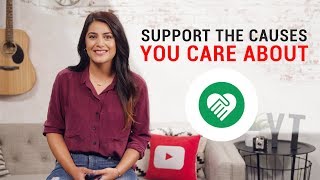

100% of Donations Go to Nonprofits
45sThe claim that 100% of donations go to nonprofits is highly appealing and shareable, as it addresses a common skepticism about fundraising platforms.
▶ Play Clip"Title accurately describes the tutorial; video delivers exactly what it promises."
This video provides a step-by-step guide on setting up a YouTube Giving fundraiser, enabling creators to raise money for eligible US nonprofits. It covers the two donation methods, tips for maximizing impact, and the complete setup process in YouTube Studio.
YouTube Giving empowers creators to support causes by fundraising for eligible US nonprofits, with 100% of donations going to the nonprofit.
Fans can donate via a Donate button next to videos/live streams, or through live chat donations when the fundraiser is added to a live stream with chat enabled.
Share why the cause is important, create clips or dedicated live streams, collaborate with other creators via community fundraisers, and spread the word to fans.
Log in to studio.youtube.com, go to Monetization > Giving. Choose to start a fundraiser or join a community fundraiser. Select an eligible 501(c)(3) US nonprofit.
Customize title, subtitle, and choose an icon (nonprofit's or YouTube Giving icons). Write a description explaining why the cause is important.
Set a fundraiser goal and duration. These can be changed later. Then select videos to add the fundraiser to.
After setup, a Donate button appears next to selected videos. For live streams with chat, a donate option in chat also appears.
In the Giving tab, use the three-dot menu to edit goal/end date or delete the fundraiser.
YouTube Giving provides a straightforward way for creators to support nonprofits, with full donation transparency and tools to engage their audience. The platform is rolling out to US-based creators gradually.
What percentage of donations goes to the nonprofit in YouTube Giving?
100%
00:16
What are the two ways fans can donate through YouTube Giving?
Via a Donate button next to videos/live streams, or through live chat donations.
00:33
What type of nonprofit is eligible for YouTube Giving?
Eligible US 501(c)(3) nonprofits.
01:59
Where do you go in YouTube Studio to set up a fundraiser?
Monetization tab, then Giving at the top of the page.
01:43
Can you change the fundraiser goal and duration after setting them?
Yes, you can change them at any time.
03:07
100% Donation Pass-Through
Ensures trust and transparency for creators and donors.
00:16Tips for Amplifying Reach
Practical advice to maximize fundraiser impact.
01:01Setup Location in YouTube Studio
Clear navigation path for creators.
01:43[00:03] In this video, I'll show you how to set up a YouTube Giving fundraiser YouTube Giving empowers you to use your voice to support the causes you care about.
[00:16] or with live chat donations we've made it easy for creators to fundraise for eligible US nonprofits. so 100% of the money you raise goes to the eligible nonprofit.
[00:33] your fans will be able to donate to your cause in two ways. That will appear next to your video or live stream. Second, if you add your fundraiser to a live stream with chat enabled
[00:46] your viewers can also donate through the chat. here are a few quick tips to help amplify your reach and impact. Share with your fans why the cause is important to you
[01:01] Whether it's by creating a clip to add to the beginning of your videos or a live stream dedicated to the fundraiser sharing your passion for the cause can make a big impact.
[01:14] You can increase your impact and your reach by collaborating with other creators through a community fundraiser. Third, spread the word and ask your fans to donate.
[01:27] you can reach all your fans and spread awareness. Now let's dive into how to set up a YouTube Giving fundraiser. or to join another creator's community fundraiser.
[01:43] Start by logging in to your account at studio.youtube.com. Then, click on the Monetisation tab, and then Giving at the top of the page. When you choose to join a fundraiser
[01:59] you'll see a list of community fundraisers already started by other creators. you'll first select the eligible 501(c)(3) US nonprofit
[02:12] If the nonprofit you'd like to support is not listed, please let us know. you'll customise your fundraiser title and subtitle.
[02:24] If the nonprofit has an official icon, you'll see it in addition to three YouTube Giving icons that you can choose from. This image will appear alongside your fundraiser title.
[02:39] Click Continue to write a description about why the cause is important to you. that donors will receive with their confirmation. with a community fundraiser by adding collaborators.
[02:55] or by specific creators with access to YouTube Giving. You'll then see the option to set a fundraiser goal and a duration
[03:07] Remember, you can change your amount goal and duration After setting your amount goal, click Continue to go to the final step where you'll select videos to add your fundraiser to.
[03:22] you'll see the Donate button appear next to your selected videos. the option to donate through chat will also appear.
[03:36] in the Giving tab. or change the amount goal and end date at any time.
[03:48] Just click on the three-dot menu next to your fundraiser. you can click on Delete. We're excited to roll out YouTube Giving to US-based creators in the coming months.
[04:05] when you have access. please let us know. and thanks for making a positive social impact with YouTube.
⚡ Saved you 0h 04m reading this? Transcribe any YouTube video for free — no signup needed.