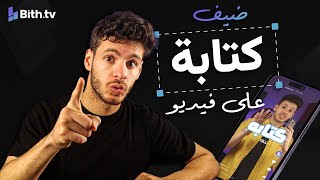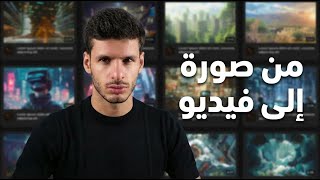

Make ANY Video with AI in Minutes
42sOpens with a bold promise and showcases diverse AI-generated video examples, instantly hooking viewers interested in content creation.
▶ Play Clip"Delivers on the promise of quick AI video creation, though it's more of a demo than a deep tutorial."
This video demonstrates how to create various types of videos using artificial intelligence tools on the Bth.ai website, which supports Arabic. The presenter shows three methods: text-to-video, image-to-video, and image-to-image with motion, all within a few minutes.
The video teaches how to make any video using AI, including cinematic, advertising, and meme videos, all within minutes.
Open a browser (Chrome or Safari) and go to Bth.ai, a website with AI tools that work in Arabic. Switch to Arabic by clicking the top button.
The site offers image-to-video and text-to-video features. Text-to-video converts typed text into a video, while image-to-video converts an image into a video.
The presenter describes a scene of an old man in a wooden house, holding a picture frame, with snow outside. He emphasizes the importance of detailed prompts, including setting, actions, and camera movement.
After describing the scene, choose the model, set orientation (portrait/landscape), duration, resolution, and sound. Click 'Create' and wait a few minutes. The site allows multiple simultaneous creations.
First, create an image using the image creation tool. Upload an image (e.g., a protein product) and provide a detailed description, including lighting and style (e.g., superhero). The image is generated in about 20 seconds.
In the image creation tool, there is a 'Move' button that converts the image to a video. The presenter then fills in details for a cinematic ad, including a Saudi Arabian voiceover and camera movement.
The presenter demonstrates uploading a beginning and end image to create a transition. He asks for a girl to sing an Umm Kulthum song, with the camera moving from her face to the audience.
The videos are generated successfully. The presenter shows an ad for Almarai Protein Milk and a music video. He mentions that the site offers editing features to further refine videos.
The video concludes that anyone can create professional-looking videos using AI in just a few minutes, and encourages viewers to try Bth.ai and follow the channel for more AI tutorials.
What is the name of the website used for AI video creation?
Bth.ai
00:31
What are the two main video features mentioned?
Image-to-video and text-to-video
00:45
What parameters can be set for video generation?
Orientation (portrait/landscape), duration, resolution, and sound.
02:16
How long does it take to generate an image using the image creation tool?
About 20 seconds.
03:05
What is the 'Move' button used for?
It converts an image to a video.
03:21
What did the presenter ask for in the image-to-video example?
A cinematic advertisement in Arabic about a product, with a Saudi Arabian voiceover and camera movement.
03:38
How can you create a transition between two images?
Upload a beginning and end image, then describe the transition.
04:06
Importance of Detailed Prompts
Emphasizes that detailed descriptions are crucial for getting desired results from AI video generation.
01:12Customizable Video Parameters
Shows that users can control orientation, duration, resolution, and sound, making the tool versatile.
02:16Image-to-Video with Voiceover
Demonstrates adding a voiceover in Arabic, showcasing the tool's multilingual capabilities.
03:21Transition Between Images
Illustrates a method to create dynamic videos by using start and end images.
04:06[00:03] In this video, I will teach you how to make any video you can think of using artificial intelligence, such as cinematic videos where there is one shot after another and you keep changing and you make the stories as you like. See how the video has a complete story and ends with the story, or for
[00:16] example, these are advertising videos, or for example, these are meme videos. All videos are made with AI and within a few minutes. So let's start. To start, we will open either the computer or the phone on the browser, which is like Google
[00:31] phone on the browser, which is like Google Chrome or Safari, and enter a website called bh. Chrome or Safari, and enter a website called bh. Dot AI is a website with all the artificial intelligence tools, and they all work in Arabic. So, I'll simply
[00:45] click the top button and switch to Arabic. Then I'll start using the video features, like image-to- video or text-to-video. As you can see from the text, image-to-video means you take the image
[00:57] and convert it to video, and text-to-video means you type the text and it becomes a video. As soon as I enter this section, I just tell it what I want to say. It fills in the settings, chooses the model (the AI type), and that's it. The video is there. This is the clip I want to make now. I want to make a
[01:12] clip I want to make now. I want to make a clip of an old man sitting in his wooden house with a window behind him, holding a picture frame, sitting at a wooden table. I need to explain all these details to AI if I want it. So, here I told it exactly what I told you: "Create a video of an
[01:28] old man inside his wooden house with a window behind him overlooking the snow falling outside. The man is holding a picture frame." The image shows him looking at her sadly and thoughtfully, lost in his own thoughts. The camera slowly moves towards his face. The man sits at his wooden table, and the camera angle focuses
[01:45] directly on his face. These are the details; you feel like a director when you're describing them. But if you have a vivid imagination, you have to tell it where the man is, what he's doing, what the house is made of, how old he is—all those details. Even what I've said is somewhat
[02:01] incomplete because I haven't mentioned the lighting and several other details. I haven't even included the sound details. sound details. But AI has reached a stage where it's advanced enough to handle everything for you. So, I've described the process, chosen the model, and now I'm setting the parameters: whether I want the
[02:16] video in portrait or landscape orientation, its duration, its resolution, and with sound. Here, I click "Create," and it starts creating the video. This video takes several minutes to create, for example, one, two, or five minutes. While it's working, I can open the website again in a new tab and use it
[02:32] twice or multiple times simultaneously. Okay, before I do the first thing, I'll go to the second feature, image to video. But I won't do it directly. First, I need to create the image. To create the image, I'll go to the image creation tool or the image editor (the
[02:48] image-to-image tool). I'll upload the image from my device. I'll take the image of this protein and put it here. As soon as it takes the image, I'll tell it the description I got from the GPT chat. I told it all the details: how the clouds should be, how the lighting should be, what the product should look like. I asked it to make
[03:05] it look like a superhero, like the superheroes. So, I've given it all the details, but I just press the create button. I even specified the image dimensions and clarity. Within 20 seconds, the image will be there. Here it is. This is the image after I created it using the
[03:21] image editing or image creation tool. From the same image creation tool, there's a "Move" button. This button converts the image to a video, and that's how it takes me from image to video. I made a video and put up the picture. Here I am, filling in all the details for the video I want. I told him it's a cinematic advertisement in
[03:38] Arabic about the product in the picture. Then I'll tell him to add a voiceover of a Saudi Arabian man promoting the product because I also want voiceovers. After that, I'll tell him how to move the camera lightly towards the product, and finally, I'll tell him how to make the product's garment move lightly and realistically with
[03:54] the wind. And here it is now, before he starts the second video. Now I'm going to the website a third time and trying the picture-to-video feature. This time I'm going to do something different. I'm going to try adding a
[04:06] beginning and an end image. So, I'll upload the beginning image. I'll take a picture of the girl from the front and upload a picture of the girl with the audience behind her. Here, after I uploaded the beginning and end images, I'll tell him what to do with the two images or how to transition between them. And
[04:23] after I uploaded the beginning and end images, I told him something in colloquial Arabic, very... It's very basic, but I told him to have her sing an Umm Kulthum song in Arabic and to have the camera move from her face to the audience. That's all
[04:37] very basic. These are the video dimensions and settings. This stage is six seconds long with sound, and I'm creating it. This is where I start the video. Let's see the results. This video is ready. results. This video is ready. The challenge starts here with Almarai Protein Milk
[04:52] The challenge starts here with Almarai Protein Milk 34g Pure Power. Launch to the peaks. A very wonderful video. I can use it now as an advertisement. Of course, I can still edit it, add other videos, and use the editing feature on the site. There are many other features that can
[05:07] help me work on this video. And the second video is ready too: " second video is ready too: " You are my life that began with your light in the morning." And the video I requested first is also
[05:21] And the video I requested first is also ready. This is how you can make any video that comes to mind with artificial intelligence in just a few minutes. Anyway, if you want to make videos like these and learn artificial intelligence, just follow the channel
[05:38] because it also teaches you how to use artificial intelligence more professionally. So, if artificial intelligence more professionally. So, if you like the Bth.ae website, try it and tell me what you like the Bth.ae website, try it and tell me what you think of it. In the comments, he killed
⚡ Saved you 0h 05m reading this? Transcribe any YouTube video for free — no signup needed.