
Create Your AI Twin in Minutes!
42sThe promise of creating a realistic AI character quickly is highly engaging and taps into the viral AI trend.
▶ Play Clip"Delivers a practical tutorial that matches the title, though some steps are repetitive and could be condensed."
This video is a tutorial on creating AI-powered digital characters to produce content videos. The presenter demonstrates using the Arabic website Beth.ae to generate realistic and cartoon characters, add voiceovers in multiple languages, and edit images, all without requiring prior AI experience.
The video introduces the concept of AI characters, which can be versions of yourself, AI-created humans, or fully digital characters, capable of speaking any language and performing actions.
The presenter guides viewers to open a browser and visit Beth.ae, an Arabic website that aggregates AI tools, usable without AI experience or Arabic language skills. The site can be switched to Arabic via a language option.
The process begins by selecting the 'Digital Character' tool. The site asks questions about gender, ethnicity, nationality, body type, clothing, and facial expression to customize the character.
After creating the character, users can input text and choose a language (e.g., Arabic, English, Spanish, French). The site offers multiple male and female voices; the presenter selects a suitable female voice for the character.
Once text and voice are set, the site generates a video with realistic lip sync. The presenter downloads the video and notes the ability to like and save it.
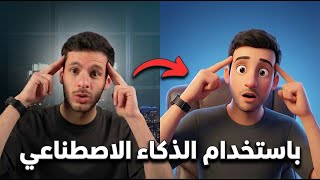
For a cartoon character, the presenter uses the 'Image Editing' tool to convert a real photo into a cartoon style, specifying details like hand-drawn children's book style, soft pastel colors, and clean warm scene.
The cartoon image is uploaded back into the Digital Character tool. The presenter writes a simple text and selects a suitable voice (e.g., Maryam's voice) to generate a new video with the cartoon character.
All created videos are saved in a library list on the main screen, allowing users to manage and continue using other AI tools on the site.
The video demonstrates a straightforward workflow for creating AI-driven characters and videos using Beth.ae, emphasizing accessibility and ease of use for content creators without technical expertise.
What is the name of the website used to create AI characters?
Beth.ae
00:31
What are the steps to create a digital character on Beth.ae?
Select the Digital Character tool, click Create Character, and specify gender, ethnicity, nationality, body type, clothing, and facial expression.
01:01
How do you add a voiceover to the character?
Type the text, select the language, and choose a male or female voice from the available options.
02:42
What is the purpose of the Image Editing tool?
To convert a real photo into a cartoon style by specifying details like style, colors, and scene.
04:56
Can you use your own audio recording for the character?
Yes, you can upload your own audio file instead of using text-to-speech.
06:25
AI Characters Can Speak Any Language
Highlights the core capability of AI characters to speak multiple languages, making content creation accessible globally.
00:03Beth.ae is Beginner-Friendly
Emphasizes that no AI experience or Arabic skills are needed, lowering the barrier to entry.
00:31Realistic Lip Sync
The generated video features realistic lip movement, enhancing the quality of AI-generated content.
04:10Converting Photos to Cartoon
Demonstrates a creative workflow using AI to transform real images into cartoon characters for varied content.
04:56Project Library for Management
Shows how users can manage multiple projects, indicating the tool's scalability for content creators.
08:06[00:03] AI character, whether it's a version of you, a human created with AI, or even a completely digital character. Anything you can think of, we can make it speak whatever we want, in
[00:16] any language. We can even make these characters perform actions instead of just talking. So, let's get straight to the point. To begin, we'll straight to the point. To begin, we'll open a browser on your phone or computer and
[00:31] open a browser on your phone or computer and type into a website called bh.a ( iBth.ae). This is an Arabic website with all the AI tools in one place, so you can use it without any AI experience or even Arabic language skills.
[00:46] AI experience or even Arabic language skills. To change the website to Arabic, click on the language option at the top and select Arabic. The website is now in Arabic. As I mentioned, you can access it from your phone or computer browser, and it has all the tools. Now, we'll go to the
[01:01] digital character tool to create the character. Let's let it talk. So, as soon as I enter the tool, it will ask me several questions, like which character I want: one of the characters I created character I want: one of the characters I created before, or should I upload a profile picture now, or create a
[01:16] new character, or use the site's ready-made characters. So, we'll start by me creating a character. As soon as I want to create a character, I'll just click the "Create Character" button,
[01:28] and then it will ask me questions like: What is the character's gender? For example, let's say a young woman or a little older. What is her ethnicity? Arab, White, Black, Asian, Turkish?
[01:40] What is her nationality? We can make her a Saudi Arabian girl. Then, what is her body type? Slim, average, athletic, curvy, average, normal? What type of clothing? Formal, informal, traditional, doctor, professional? I'll
[01:52] put it now, either formal or traditional. Let me put traditional. Then it will ask me if I want her to wear a hijab. I want to go back again. I put on my official profile picture and add a hijab. Then they'll ask me what color hijab I want. I'll choose a black one. Next, they'll ask me what my facial expression should be: a
[02:08] Next, they'll ask me what my facial expression should be: a neutral expression, a gentle smile, a big smile, or a serious, calm expression. I want a gentle smile. Then they'll ask me about the background, like where I'd be—at an office, on the street, in a mall. I've already written the environment as the manager's office, and they've given me some
[02:24] suggestions, but I liked this one. So, I click on "Create Character." Then I ask them if they have all these details, and they say yes. Then they
[02:42] want to cancel it, create a new digital character, or continue with this one. The first thing I need to do is fill in the name because they'll ask me what name to use. Once the character is created... Ready? Here you can add the words you want to say or add your own voice. But before we talk about the words,
[02:58] you can make her speak horizontally like this, or vertically by cropping any part you want from the camera. But I'll make her speak horizontally. Now let's get to the voiceover. Here I can add the text I want, like the text I had prepared. This is the feature where
[03:13] I add the text by typing the words, and it creates the speech for me and adds it to her so she can speak it. So let me try this now. After I typed it here, it asks me what language I want: English, Arabic, Spanish, French. All languages are available,
[03:29] but I want Arabic, of course. Here I choose the voiceover. These are the male voices, then the female voices. Since she's a girl, the first thing I'll do is look at her appearance and see if the voice I see a voice that suits her. Did you know that content creation
[03:56] very suitable for her. Let's hear Nada's voice again. Did you know that content creation... I chose Nada's voice, again. Did you know that content creation... I chose Nada's voice, appearance. Now I'm creating it. I put the words, I put the character, and I chose the voice number.
[04:10] Everything is ready. Now the site fills it in and gives me the video ready with the words I wrote. The video is ready. Let me watch it. In an amazing world, humans meet robots to In an amazing world, humans meet robots to begin a journey of secrets and mysterious mysteries, where
[04:25] ambiguity surrounds secrets in a world where facts intertwine with imagination. A mysterious question is posed. The video is facts intertwine with imagination. A mysterious question is posed. The video is very excellent, and the sound comes out exactly as I wanted it. Even the lip sync, meaning the lip movement, comes out very realistic. I really liked the video, and I'll
[04:40] even tell the site that I liked it. So, of course, I can... It's easy to download and save the video to my computer, but now I want to go back to the website's main screen and create another video. This time, I want the character to be cartoonish, not a real person. For
[04:56] example, I created this cartoon character, and I did n't make it from a cartoon image; I made it from a n't make it from a cartoon image; I made it from a real photo of this girl. I told AI to convert this photo to a cartoon image. To do this, we open the website to a feature called "
[05:11] Image Editing." As soon as I enter it, it tells me to upload my image. So I open the file and put in the real girl's photo. Here, I tell it to convert the image from a real girl to a cartoon girl. The image is there, and
[05:24] I tell it to convert the image to a drawing in the style of a hand-drawn children's book. Then I tell it I want it in soft pastel colors, with a clean and warm scene, to make sure the image comes out in that style. Of course, if you don't know what style you have in mind, you might have
[05:39] this style in mind, but not this one. The method, so you know the names of the methods, open the internet, like Pinterest and those sites, and see what categories and things are available for cartoon methods. So, as soon as I do this here, I tell it, "This is the image," and I tell it the text. Then I tell it the
[05:58] or 4K if I want it to be very clear. Here, I tell it the image dimensions. Now, this image is in portrait I tell it the image dimensions. Now, this image is in portrait mode, meaning 9 by 16. Here it is, 9 by 16. Here, I tell it to create it. So, the image will now be available to me. As soon as I take the image from
[06:10] here, it will be ready, and I will upload it. I go back to this tool, which is called, of course, "Digital Characters," so that I can create the same girl as a digital character and make her say whatever I want. I already created the girl, and here she is. I and make her say whatever I want. I already created the girl, and here she is. I
[06:25] before. Here I chose her, and here now. I'm going to say what I want, but I won't write it down this time. I'll just add the audio myself because I have a voice recording ready. Here's the file; let me listen to it with you. You know what if you organized your time perfectly and achieved
[06:40] audio isn't working this time. It's not suitable for this girl at all because she's young and the other voice recording is too loud. So I'll have to keep the audio down. But I could easily add the audio here and let the girl speak in that voice. You know what if we did?
[06:55] And of course, the girl's speech would sound very realistic. But since I don't have a voice recording ready for this since I don't have a voice recording ready for this girl right now, I'll write this very simple text: "How are you, my friends? Today I want to teach you how to create animated story videos using artificial intelligence." I'll put a
[07:08] period after that to stop the recording. Here, I'll set the language to Arabic and choose a voice that suits this little girl. I'll select female voices. Did you know? Did you know? Did you know? Did you know? Did you know? Did you know? Did you know? Did you know? Did you know? Did you know? Did you know?
[07:24] Maryam's voice, which is excellent. Let's listen to it again. Did you know that content creation can be done with Maryam's voice, which is very suitable for this girl? I chose it and started writing the text, but I just pressed the create button, and that's when it started making the video for me. And here the video
[07:38] is ready, let's watch it together. How are you, my friends? Today I want to teach you how to make cartoon story videos using artificial intelligence. The video is considered very excellent, and I don't even have enough words for it. It's not enough for her to be comfortable in it. I could also
[07:52] edit the image, make the girl bigger, many things I could do, and I can even edit this video. So here now I tell the website that I liked the video, I can download it, and I can go back to the main screen. I will
[08:06] see them all in my library list. Here I see everything I have made. For example, I have this friends? Today I want to teach you how to write cartoon stories using n't see what I've done, and when I return to the main screen,
[08:22] done, and when I return to the main screen, I can use the other tools and continue with them, doing anything I want with artificial intelligence. This was the Beth.ae website. Try the site and tell me what you think in the comments.
⚡ Saved you 0h 08m reading this? Transcribe any YouTube video for free — no signup needed.