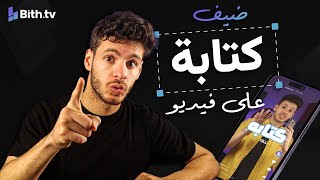

Make AI Videos in 60 Seconds from Your Phone
44sThe promise of creating any video quickly from a phone taps into the desire for easy content creation and AI tools.
▶ Play Clip"Delivers a practical demo of AI video creation, but the '60 seconds' claim is optimistic and the success story feels like a promotional plug."
This video demonstrates how to create AI-generated videos from a smartphone in under a minute using a website called 'b'. The host walks through the process of generating a video script, customizing visuals and text, and exporting the final product, while also showcasing a TikTok creator who gained over 346,000 followers using such AI videos.
The video claims you can create videos on any topic from your phone in just one minute using a website called 'b'.
On the website, you can choose to create videos, images, or audio. The host sets the site to Arabic and clicks 'Create Video', then inputs a topic like 'Look at the red car'.
The user selects the video language (Arabic), duration, dimensions (full-length), theme (educational), tone (natural), and whether to include background music.
The host selects a voice (e.g., Salman's voice) and uses a generator to create the script, which includes a hook, body, and conclusion. The script can be edited before generation.
The video is generated within seconds. The example video explains the Red Car Theory, illustrating how focus affects perception via the reticular activating system.
The host shows how to change an image by clicking on it and uploading a custom one, and how to edit text by changing font style and color.
The dialogue can be changed via the Subtitle/Script option, and the voice can be replayed. The host exports the video, which processes while you can work on other projects.
A TikTok creator gained over 346,000 followers in less than a month using AI-generated videos, with millions of views, all created with one click.
The video provides a straightforward tutorial for creating AI-generated videos on a mobile device, highlighting the ease of use and potential for social media growth, as evidenced by the TikTok success story.
What is the name of the website used to create AI videos?
The website is called 'b'.
00:02
What are the steps to create a video on the website?
Open the site, click 'Create Video', enter topic, set language, duration, dimensions, theme, tone, music, choose voice, generate script, then generate video.
00:16
What is the Red Car Theory?
It explains how our brains notice things we focus on, due to the reticular activating system acting as an information filter.
02:18
How can you change an image in the generated video?
Click on the image, then click 'Change Age' (or similar), and upload a custom image from your device.
02:55
What TikTok success story is mentioned?
A creator gained over 346,000 followers in less than a month using AI-generated videos, with millions of views.
04:07
Red Car Theory Explanation
Provides a clear, educational example of how the AI-generated video content works, demonstrating the tool's output quality.
02:18TikTok Success Story
Shows real-world potential of AI-generated content for social media growth, making the tutorial more compelling.
04:07Editing Capabilities
Highlights the tool's flexibility, allowing users to customize images and text, which is crucial for personalization.
02:43[00:02] any topic you want in the world, all from your phone, in just one minute. Okay, let's get started. First, on your phone, open the Google Chrome browser and go to a website called b. Google Chrome browser and go to a website called b. As soon as you enter
[00:16] the site, you'll see options for creating videos, images, and audio. I'll set the website to Arabic. Then, I'll click on "Create Video." It will ask me what I want the video to be about, so I can tell it in Arabic, like "Look at the
[00:30] red car." You can tell it about anything you want; it understands what you're saying. Next, I choose the video language; I want the video to be in Arabic. Then it asks me how long the video should be. I'll set it to
[00:46] video dimensions. Dimensions refers to the video's dimensions—spanning or unfolding. I want the video to be full-length. Okay, video theme, what style should the video be? Should it be educational or story-telling? I want it to be educational. Okay, video tone, what's the
[00:59] I want it to be educational. Okay, video tone, what's the narration style? Should it be natural, mysterious, funny, or scary? Let's keep it natural. Do you want background music? I'll put "yes" and then click "next." Now it'll ask me who I want the voice of the character speaking, so let's listen, for example, to
[01:12] Salman's voice. "The Journey of Creativity Knows No Limits" (referring to
[01:34] default, normal style. Then I'll use a generator to start the script. Next, it'll ask me if I'm sure I want the video to be like this, like this, like this, about The Red Car Theory and the characteristics I set up, I told him, " Yes, proceed, I'm sure of what I
[01:47] put up." And here it is. Give me the video script. It says " Hook," "Body," and "Connect Gen," meaning intro, body, and auto. So you can edit anything. You can say "Suddenly," delete it, and write whatever you want. So leave it "Suddenly." I won't edit anything because the script is as it is. Then I generate it,
[02:01] and within seconds it's finished. And the video is ready. Let's watch it and see what we got. Have you ever heard of the Red Car Theory? Imagine you buy a red car and suddenly you start seeing red cars everywhere. This theory explains how our brains start
[02:18] noticing the things we focus on. When we focus on something specific, like a red car, we start seeing more of the same thing around us. This happens because of the reticular activating system in our brain,
[02:30] which acts as an information filter. The theory helps us understand how focus can affect our perception of the world. We're talking about it, so next time you're focused, remember this theory.
[02:43] Thanks for watching, and we hope you benefited from this explanation. Wow, wow, what a great video! Let's say, for example, I want to change any image. Even though it's a great video, for example, I don't like this one, so I
[02:55] want to change it. I click on it, then I click on Change Age. As soon as I click on it, it gives me images I created using artificial intelligence from the website's AI. But I want to upload them. So, if I want to upload, I do so. I open the images from my own device. This is the image of the red car. I click on it, and it's there. I click on Plus, and it's
[03:09] open the images from my own device. This is the image of the red car. I click on it, and it's there. I click on Plus, and it's that's how I changed the image. Now I want to change the text. To change this text, I go down to the Text button and choose to edit whatever I want. For example, I want a bold font because it's a nice, thick font.
[03:25] Then also... I started by adding text and changing the font color. I put the font in yellow, and that's how I changed the image and the text. The video became exactly how I wanted it. I could even change the dialogue in the video by clicking on Subtitle (or Script)
[03:39] and changing the dialogue for the entire video. I could also change the character's voice and then replay the voice again. But I didn't want to change anything; I liked the video as it was. So I went and clicked on the Export button at the top, and that's where it started processing the video. The website is
[03:53] processing the video while it's working. While it's processing, I can go back to the studio and watch my other old videos. I can also make another one; it's working on the first video. Let me show you this person on TikTok who managed to get more than 346,000 followers in less than a month. His
[04:07] videos were all there, his whole account was just a dot, and he still managed to get 346,000 followers. And besides, he got all the followers he wanted. He has 20 million views, 4 million, 2 million, 7 million, and 3 million views, all of them AI-generated videos created with
[04:22] just one click. He himself mentions in his bio that these videos were created on the bio that these videos were created on the
[04:36] powered content on your phone and tell me what you think in the comments.
⚡ Saved you 0h 04m reading this? Transcribe any YouTube video for free — no signup needed.