AI Summary
This video demonstrates how to use Adobe Stock's Libraries feature to organize assets and license them in bulk. The presenter shows how to create a library, save images, and license up to 25 assets at once, streamlining the workflow for creative projects.
Chapters
The video introduces the Libraries feature in Adobe Stock, which allows users to create collections of assets and license up to 25 at a time.
When you click the heart icon on an image, a pop-up appears allowing you to manage your default library or create a new one, such as 'Hockney Mood Board'.
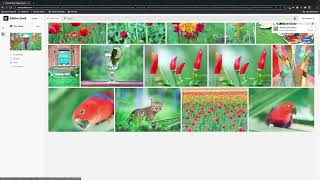
A blue checkmark indicates that an image has been saved to the library. You can save multiple images by clicking the heart icon on each one.
To review saved assets, go to 'My Libraries' in the top right and select the library. You can delete unwanted images or select all and license them at once.
Clicking 'License' opens the usual licensing window, and you can confirm with 'License Now' to license all selected assets at once.
Mentioned in this Video
Tutorial Checklist
💡 Key Takeaways
Creating a New Library
Shows how to create a dedicated library for a specific project, like a mood board, which is a key organizational technique.
00:49Bulk Licensing Up to 25 Assets
Reveals a specific capability of Adobe Stock that can significantly speed up workflow for users needing multiple assets.
Reviewing and Deleting Assets
Demonstrates how to curate a library by deleting unwanted items before licensing, ensuring only relevant assets are purchased.
01:43Full Transcript
[00:00] Let's chat about using libraries in Adobe Stock to create collections of assets and quickly license up to 25 at a time. So let's go ahead and search by image here in Adobe Stock.
[00:18] A portrait of David Hockney. And there's my search. And what I actually want is the same color. So I want, I'm creating a mood board to go with this image of him. Alright, so if any of these
[00:37] are interesting to me, I can go ahead and give them a heart, I'm not going to do this one, because it's premium. But let's do this. And when you click the heart, you're going to see this pop
[00:49] up over here. And this is your opportunity to manage which library is your current default, and even make a new one. So at this point, it's going to my stock demo, but I could name it
[01:02] Hockney mood board And when I click OK it makes a new library And now everything that I am liking Harding saving is going to go to that library Okay
[01:25] good. We see the blue checkmark. So maybe I like this house. This cat. It's a good bird. This is interesting, some food. And you get the picture, you can continue saving multiples. And
[01:43] when you go to your library, so you go my libraries in the top right, and you'll choose the one you've been saving to you can see everything that you have liked along this
[02:00] path, it hasn't been licensed yet. But now I can select all and I can license them. I can also delete ones that didn't quite match up with my vision. But if I click license, I can license all
[02:16] six at once. You'll see your usual licensing window and you'll just click license now. pretty cool thanks for watching