
How I Made $15K/Month With a Faceless Channel
45sOpening with real income proof and the promise of free AI tools grabs anyone hunting for a side income.
▶ Play Clip"Delivers a real AI workflow end-to-end, but the $15K/month promise is unverified and heavily hyped."
This video walks through a complete faceless YouTube automation system that claims to have generated $15,000 in 28 days using only free AI tools. The creator shows how to model a successful channel, generate scripts, voiceovers, and images with AI, and publish a fully optimized video from scratch.
A channel built without showing a face accumulated $15,000 in the last 28 days, using completely free AI tools.
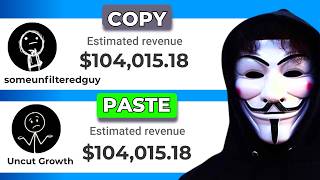
The channel 'Some Unfiltered Guy' gained 336,000 subscribers and 10 million views across 10 uploads, with estimated earnings of $100,000–$125,000.
Use Gemini to generate a channel name and create a handle so the YouTube algorithm understands the channel's focus from day one.
Snip a stick figure from a reference channel, upload it to Google Flow with a prompt, and generate a branded logo.
Use Canva templates to build a banner, add the stick figure, flip a duplicate for symmetry, set background to black, and download.
Verify your phone number in YouTube settings to enable videos longer than 15 minutes and custom thumbnails.
Feed Gemini the reference channel URL, video titles, and full transcripts (5–6 videos) to analyze niche, writing style, hook structure, and retention techniques.
Gemini generates a full script based on the chosen video idea, including a word count range; you can request rewrites.
Use Google AI Studio to create a voiceover by pasting parts of the script, with options to customize the voice.
In Google Flow, add the base character, set the model to Nano Banana Pro, and run each image prompt from Gemini to maintain visual consistency.
Import the voiceover and images, sync each image with the script, cut, and export the video.
Generate a thumbnail via Google Flow, and use Gemini to get the description, title options, and thumbnail prompt for the upload.
This system is highly actionable and built on reverse-engineering proven channels, but actual income is not guaranteed and depends on niche selection and execution.
How much did the faceless channel earn in 28 days?
$15,000
00:17
Which reference channel was modeled in the video?
Some Unfiltered Guy
01:00
What AI tool is used to generate the channel name?
Gemini
01:50
What two features are unlocked by phone verification on YouTube?
Videos longer than 15 minutes and custom thumbnails
05:21
What information is fed to Gemini to build a channel profile?
Reference channel URL, video titles, and full transcripts from 5-6 videos
06:28
Which AI model is selected in Flow for image generation?
Nano Banana Pro
10:31
Which tool is used for voiceover generation?
Google AI Studio
09:36
How many reference videos should be analyzed for the channel profile?
5 to 6
07:20
What does the AI analyze from the reference channel?
Niche, content category, target audience, writing style, hook structure, and retention techniques
07:47
Reverse-engineer proven channels
Instead of relying on original ideas, the system breaks down a successful channel's structure, making success more replicable.
01:00Phone verification unlocks key features
A quick step to enable longer videos and custom thumbnails, often overlooked by new creators.
05:21AI channel profiling
Feeding the AI multiple transcripts lets it extract writing style and hooks, creating a content blueprint for future videos.
07:47Consistent character generation
Using a base character with Nano Banana Pro ensures visual consistency across all generated scenes.
10:31Automated metadata generation
The AI provides description, title options, and thumbnail prompt, saving significant upload time.
12:02[00:02] under 2 months ago and so far it has accumulated $15,000 in the last 28 days. Now first off, I'm going to go ahead and show you this is actually in USD and not in some weird currency and I'm going to go ahead and reload my screen and over
[00:17] here you can see everything is still intact. Now the crazy thing is I built this channel without having to show my face using completely free AI tools and exactly how I built this channel. My exact workflow and how I monetize
[00:31] faceless channels as fast as possible. Now unlike other videos that speed runs get views but don't actually teach time to show you all the important details necessary to build something
[00:45] like this. But first, we need a niche. So I found this channel here called Some Unfiltered Guy and across 10 uploads, this channel has accumulated over 336,000 subscribers and over 10 million views. So I went ahead and asked Gemini
[01:00] for an estimate of their earnings and this channel has realistically earned this channel has realistically earned anywhere from $100,000 to $125,000 just from 10 videos. There was multiple other channels earning anywhere from 10
[01:12] to $25,000 using this same format. So we are going to be modeling these channels. straight up copying their channel but we are going to take the same structure that's responsible for their success and apply it to ours and I'm going to show
[01:25] you exactly how I do that. Which brings us to step number one which is creating an opti- mizing the channel. Now this part is important because it helps the YouTube algorithm know exactly what your channel is about from day one so it can
[01:37] So simply come over to your YouTube homepage and click on your profile. Once channel. Now for the name I prepared this prompt right here and it's going to be linked down in the description. So go ahead and copy the prompt and once you
[01:50] Gemini cuz that's what you're going to be using for this video. So go ahead and paste in this prompt and click on send. Now once the names are generated, you out to you. In this case, I'm going to go with the first one called Uncaught
[02:03] paste that in, and I'm going to go ahead and see if the handle is available. create channel, and once you click on that, your channel will be created. channel. Now, for that, you want to pull up the refresh channel and play one of
[02:17] one, and what I'm looking for is a stand-alone stick figure just like this. basically go ahead and snip this, and you want to go ahead and save this. Now, Chrome, and you want to search for Flow, and click on the first link. From here,
[02:33] you want to go ahead and pull up this prompt right here, which is the logo prompt. So, literally copy this prompt and paste it inside of Google Flow, and then upload the image you just snipped. So, I'm going to do that real quick, and
[02:45] click on send. So, this is going to be our base character. So, once we have the base character, and we want to go ahead and paste in this basic prompt. this. So, once I have this, I'm going to go ahead and click on download on the
[02:58] this. Next, I want to head over to my YouTube account here, and I'm going to And from here, you want to scroll down here, and you want to go ahead and upload your logo. So, I'm going to upload mine, and I'm going to go ahead
[03:10] and align these to fit perfectly. And from here, I want to go ahead and click together a banner. So, for that, we're going to head over to Canva. Once you're the top. And by the way, you can do this with the free version. You're not going
[03:23] sort of play all through out this video. So, I'm going to go ahead and search for and click on this one. So, once this opens up, you want to click on template any of these random templates in. And we're going to use this to guide us to
[03:37] create our banner. So, go ahead and click on test, and drag in a test in something like subscribe. Next, we are going to go ahead and upload our stick uploading our stick figure here. And now, we're going to drag this straight
[03:51] to duplicate this by clicking on the plus on the top. Send this here and click on flip and flip this horizontally. So, now we are going to you see exactly where this is going. So, you can click on the text here and
[04:04] After that, you want to go ahead and delete the main design. So, I'm going to highlighting everything and clicking on delete. And from here, I want to change the color to white. And lastly, I want to go ahead and click on the background
[04:17] and set everything to black. So, just like that, we have a banner. So, once ahead and click on share, click on download, and download your banner. And account, and you want to go ahead and
[04:29] that, you want to go ahead and click on done. And you want to go ahead and click on publish, okay? So, once you have your banner and logo locked in, you want to went ahead and did, I take complex things and explain them in a simple way.
[04:42] Now, you don't have to sweat this part cuz this is not what actually determines going to scroll down here. Down here, you're going to be asked to put in your contact email. And next, you want to go ahead and upload your watermark. Now, go
[04:54] ahead and click on upload here, and you can upload the exact image you used for and this is exactly how it's going to look to the viewers that are watching locked in, you basically want to go ahead and click on publish. After that,
[05:07] channel. So, come down here and click on settings, click on channel, and feature eligibility. Now, click on this drop down, and you want to go ahead and upload videos longer than 15 minutes and custom thumbnails. Now, this is
[05:21] able to upload thumbnails and longer videos. So, basically, go ahead and verify that by clicking on verify phone number, and you can actually use your local phone number to verify this. So, once you're done verifying your phone
[05:33] Over here, you're going to see features enabled. Once you're done with all of on view channel, and you are going to see exactly how your channel is going to this looks. Now, there's a lot more stuff that you can do to optimize your
[05:46] channel, but that's not what actually gets you views. So, once you're done next step. And the next step is to start creating content for the channel. Now, if you miss some important steps, you're going to end up making bad videos that
[06:00] no one wants to watch. And if your video sucks, well, you just have a fancy back to the prompts document and scroll down and locate this section and copy this entire prompt right from the system identity and copy everything all the way
[06:14] up Gemini and you want to go ahead and launch this prompt. Once you do, you drop down and set this on Flash 3.5 extended. So, once you do that, go ahead going to ask you for some details of the channel. Now, pull up your reference
[06:28] channel. In this case, we're using the Unfiltered Guy channel. So, go ahead and copy the channel URL, open up Google Docs, and open up a new document. So, you want to be like channel URL. Paste this in. Video title. Go back to the
[06:41] section, and set this on the most popular video. Now, we're doing this cuz we want to feed the AI so it knows exactly how to create high-performing of videos that this AI is going to be able to create for us. So, I'm going to
[06:54] want to go ahead and copy this title. Come back to our document here and paste want to come back to the reference channel again and click on the description section, scroll all the way down, and click on show transcript. Now,
[07:07] three dots, click on toggle timestamps, and copy everything they have here. So, come back to your document here, right click, and click on paste without formatting. Now, if you go ahead and just paste it in, it's going to be
[07:20] look something like this. Now, you want to go ahead and do this for five to six videos. Now, I've already done this, and I have my profile right here. So, once want to go ahead and name this file profile. And once you do, you want to go
[07:33] download. I want to download this as a PDF. So, I'm going to go ahead and the profile right here, you want to come back to the AI and upload this profile to the AI. So, go ahead and upload the file and once you do you want to go
[07:47] going to analyze things like the niche content category, the target audience, the writing style, the hook structure, and it also extracts the retention technique. So, just scroll down and type confirm and click on send. So, down here
[08:01] video ideas. So, you just want to go ahead and pick the one that sticks out going with the second one cuz I feel like this idea is pretty strong. So, I'm cuz that's what I'm choosing for this video and click on send. So, down here
[08:15] details. So, over here you can see the niche, the niche category, the target viewer profile, the hook strategy, the retention techniques, and everything the video successful. So, I'm going to go ahead and type confirm and click on
[08:28] provide you with a full script and over here it's going to tell you the total range of the video. Now, if you don't like any part of this workflow sequence, tell the AI to rewrite the script or whatever and it's going to go ahead and
[08:42] do that for you. Now, this script actually looks pretty decent to me. So, entire script and I'm going to go ahead and save it on a document. Now, this is going to be our script, but you can go ahead and modify it however you want if
[08:55] our script locked in. We want to come back to our prompt here and type ask us for our visual style. Now, come back to this channel, open up one of the videos. So, pull up your snipping tool and take a screenshot. Copy the
[09:09] paste it in. So, you basically want to do three to six of these. So, I'm going to go back, find another section, screenshot it, copy, go back and upload and do like three to six of these. So, once you have the visuals, you want to
[09:22] go ahead and click on send and once you click on send, it's going to analyze the confirm if you like what it has done. So, I'm going to go ahead and confirm. with all the image prompts for the video. But, before we proceed, we want
[09:36] to go ahead and generate our voice over. So, search for Google AI Studio voice here, you just want to go ahead and click on any of these and want to remove script. So, I'm going to go ahead and copy parts of this script, come back to
[09:50] here you can come down here and kind of So, there's a ton of things that you can customize when it comes to Google AI this simple so I don't end up confusing some of you guys. So, I'm going to go
[10:03] >> Let's be real. You're not bad at consistency because you're broken or the >> So, this is what we got. So, once you have this, you can literally come down to have your voice over. Once you have your voice over, you want to go ahead
[10:18] come over to Gemini and copy your prompt, go back to Google Flow and paste it in. Now, click on this plus and add your base character and click on add prompt. Now, click on the settings, set this on one and click on this drop down
[10:31] and put this on Nano Banana Pro. Then, scroll down and click on save and go image has been generated, you want to come back to Gemini and copy your second prompt and go ahead and generate that as well. So, I'm going to paste this in and
[10:44] go ahead and send it. So, you want to basically go ahead and do the same thing I'm going to do that real quickly and I'm going to get right back into the video. So, basically once you're done generating all the images, you want to
[10:56] click on download and you want to basically download all your images. And everything together inside of CapCut. So, go ahead and click on import and import your audio and all your images. So, next you want to drag and drop in
[11:10] your voice over and next you want to drag and drop your images into the that your images actually syncs with your script. For that, drop in your second image exactly where the second script starts and actually cut the first
[11:23] stopped. So, I'm just going to go ahead and drag and drop in all my images to done, you're going to go ahead and click on export. Once you click on that, give like video one. Once you do that, go ahead and click on export. So, I'm going
[11:37] >> Let's be real. You're not bad at consistency because you're broken or the universe is plotting against you. >> Now, this is just a demo video, but in ahead and generate the full video. So, once you have your video, you want to
[11:50] scroll all the way down and type in proceed. Now, you're going to be provided with all the metadata you need to upload your video straight to here and over here, you're going to see your thumbnail prompt. Go ahead and copy
[12:02] that. Once you copy that, come back to Flow. Paste this in, click on plus, and add to prompt. Now, go ahead and send this. So, just like that, we have a thumbnail. Now, we want to go ahead and upload our video. So, open up the
[12:15] the top. And then click on upload video. Now, I understand the fact that most videos, but you still need to pay attention so you know exactly how to optimize these videos. So, go ahead and click on select files and upload your
[12:28] come back to Gemini and grab the rest of the metadata. So, over here, you're going to see the description. Go ahead and copy that and paste that in. And if multiple video titles that it has provided us. So, pick the one that
[12:41] going to go with this one. So, I'm going to copy this and I'm going to go ahead and paste that in here. Next, you want to scroll down here and over here, we're back to Flow and click on the three dots and download your thumbnail. Now, come
[12:54] thumbnail. So, next, you want to scroll down here and want to set this on no, it's not made for kids and click on next. Click on next again and again. And you want to go ahead and set this on public and go ahead and publish your
[13:07] going to be live and you can potentially start getting views. So, smash thumbs up sub to the channel. And with all that said, I'm going to talk to every single said, I'm going to talk to every single one of you all in the next video. Peace.
⚡ Saved you 0h 13m reading this? Transcribe any YouTube video for free — no signup needed.