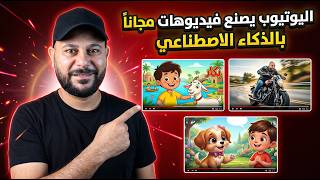

YouTube's NEW Free AI Features!
45sHigh curiosity about new updates that save money and offer free AI tools directly in the YouTube app.
▶ Play Clip"Delivers on the promise of free AI video creation, though the 'alternative to Grok' angle is not addressed."
YouTube is rolling out new AI-powered features in early 2026 that allow users to create videos, images, and music directly within the app for free. This video demonstrates these tools, including text-to-video, image generation, and photo-to-video conversion, while emphasizing the need to switch the app to English to access them. The creator also addresses the monetization question, clarifying that while AI tools are permitted, human creativity is still required to meet YouTube's partner program requirements.
YouTube announced updates for early 2026 that are now rolling out, enabling users to do things for free within the app that previously required paid tools.
The app now includes AI tools for creating videos, taking pictures, and converting pictures to videos, all accessible within the app.
To see the new AI features, users must change the app language to English; Arabic users won't see them otherwise.
After switching to English, a plus icon appears at the top of the app; if not visible, restart the app and wait 10-30 minutes.
Tools include 'Create Video' (text-to-video), 'Make Motion' (add motion effects), 'Photo to Video', 'Egg' (AI image generation), 'Background' (background removal), and 'Music' (music creation).
The creator uses 'Egg' to generate an image of the Egyptian cartoon character Bakkar with his goat on a boat on the Nile, using a prompt from ChatGPT. The tool creates four images in seconds, based on Nano Banana.
Using 'Create Video', the creator turns the generated image into a video of Bakkar walking in water and speaking Arabic. The video is created in under a minute and can be downloaded without watermark.
Videos can be downloaded directly to the device or converted into Shorts with additional editing options.
The 'Make Motion' tool allows users to animate any image, e.g., making a person appear to do karate.
The 'Photo to Video' tool converts a static image into a video, e.g., a person riding a motorcycle and speaking Arabic, based on a prompt.
YouTube does not prohibit AI but requires creative, human-added elements. Relying solely on AI-generated content may lead to channel rejection.
YouTube's new AI tools offer powerful, free content creation capabilities directly in the app, but creators must add human creativity to meet monetization requirements.
What is the first step to access YouTube's new AI features?
Switch the app language to English.
00:31
Name three AI tools available in the YouTube app.
Create Video, Make Motion, Photo to Video, Egg, Background, Music.
01:22
How many images does the 'Egg' tool generate per request?
Four images.
02:42
What is the 'Make Motion' tool used for?
Adding motion effects to images, e.g., making a person appear to do karate.
05:33
What is YouTube's policy on using AI-generated content for monetization?
YouTube allows AI but requires creative, human-added elements; relying solely on AI may lead to channel rejection.
07:20
Language barrier for AI features
Reveals that the AI tools are only available in English, which may surprise non-English users.
00:31Nano Banana integration
Confirms that YouTube's image generation is powered by Nano Banana, a known AI model.
02:42Video creation in under a minute
Demonstrates the speed and ease of creating a video from a text prompt and image.
04:06AI monetization policy
Clarifies that YouTube requires human creativity, not just AI, for monetization.
07:20[00:01] well. Finally, the updates that YouTube announced for early 2026 are starting to be YouTube announced for early 2026 are starting to be implemented. These updates mean that there are things you used to pay for on websites and tools that you can now do completely free of charge
[00:18] within the YouTube app. Let's explore some of the uses of artificial intelligence within the YouTube app itself. You can create videos, take pictures, and even convert
[00:31] pictures to videos – amazing features that will surprise you! To benefit from these updates, you need to switch the app to English. If you use it in Arabic, these updates won't appear. So how do you change the language? Click on your
[00:49] channel icon or profile picture (you'll find it at the bottom left). Then click on the gear icon at the top. Next, select languages. Change the app's language from Arabic to English. Then click on "Change." The
[01:06] first thing we do is click on the plus sign. As soon as... When you open the app, the icon on the right should appear. If it doesn't, close the app and open it again in 10, 15, or 30 minutes at most. The icon should start appearing at the top. Here you'll find the
[01:22] tools you can use. First, there's " Create Video," which lets you create a video by typing text, and it converts that text into a video. It speaks in Arabic, which surprised me! Second, there's "Make Motion," which adds motion effects. You can make yourself look like you're doing karate,
[01:39] performing specific movements, and so on. Then there's "Photo to Video," which converts photos into videos. Next, there's "Egg," which lets you create an image using artificial intelligence. Then there's "Background," which removes the background, and "Music," which creates
[01:51] music. Let's try the first thing, " Egg," which is creating an image using artificial intelligence. We'll start by putting our promo here. I had prepared a promo using
[02:04] our promo here. I had prepared a promo using Chat GBT. I told it I wanted the character Bakkar, which is a cartoon character from Egypt. We grew up with this image: a Nubian character with his goat, riding a boat on the
[02:18] Nile. Below, you can choose the image style: anime, image style: anime, digital, realistic—whatever you like. But
[02:30] we won't be doing any of that. Then we'll click "Create" and wait for YouTube to create the image. It's we'll click "Create" and wait for YouTube to create the image. It's 100% based
[02:42] on Nano Banana. See? In seconds, even as I'm talking to you, it creates four images! talking to you, it creates four images! Each time you ask it to create an image, it creates four. Each time you ask it to create an image, it creates four. If you want to
[02:57] open any image, you can click on it. This is the first image, and this is the second, and so on. If you want to convert this image directly to a video, you click "Create Video." If you want to
[03:13] use it for any other purpose. If you want to save the image, you click on the three dots at the top and then "Save image, you click on the three dots at the top and then "Save to Device." Let's just keep this image. Okay, that's good. Let's try
[03:29] another use now, which is creating a video. We'll click on it, and then we'll start putting our prompt here. Of course, I want to make a video of the picture I created of Bakkar
[03:41] walking in the water and speaking in Arabic. We'll click on this plus sign and Arabic. We'll click on this plus sign and choose the picture. For example, we'll choose this picture here, and then we'll
[03:54] click on this arrow and wait until it reaches 100%. Then we'll see the result together. I'm so excited, everyone! That's it, in less than a minute the
[04:06] video was created. It's still loading. What do you think, Rashida, about the Nile and today's trip? What do you think, Rashida, about the Nile and today's trip?
[04:19] What do you think, Rashida, about the Nile and today's trip? You must have liked it, right? Of today's trip? You must have liked it, right? Of course I liked it! The video is excellent. It just needs some diacritics; you can write them in the prompt. But the result is excellent, everyone.
[04:34] This is a video you made completely free from within YouTube itself. If you want to do something with it... Download: You click on Download and the video starts downloading without any watermark or problems. If you want to without any watermark or problems. If you want to download this video as a
[04:49] download this video as a short video, you can click Next. It starts processing, and then takes you to the second stage of creating the short video. Here, if you want to write something, make edits, add music, you can
[05:03] do all that. After that, you click Next and write the title and description, and so on. But we don't want to do that step now; we'll just delete it. If you want to use the video outside of YouTube altogether, you can do that. The video is already downloaded to my gallery, and I can use it
[05:20] anywhere. As you can see, the video is eight seconds long. Of course, you can make realistic videos, and you can add your own image and convert it into a video, and so on. There's also Mix Motion. Let's try it. Of course,
[05:33] Mix Motion. Let's try it. Of course, you can make any image move. Let's say, for example, that he's doing karate, and I add my image. This time, you click The pen icon lets you choose your image. Let's choose this image, for example. Then you click
[05:51] this arrow. And there you have it, the video is ready! video is ready! Wow! Hey,
[06:05] let's try something else: Photo to Video, which is converting an image to a video. Video, which is converting an image to a video. Let's choose this image, and I've added the promo here, as you can see. Of course, I got this promo from ChatGPT. Then
[06:20] we'll click the arrow icon. I said I wanted him to be riding a motorcycle, speeding, and speaking in Arabic. Let's see what you think of the new YouTube updates.
[06:40] ride a motorcycle, walk down the street, and say, " What do you think of the new YouTube updates?" in Arabic. If you want to save the video, click the three dots at the top and then click "Save to Device." the video, click the three dots at the top and then click "Save to Device." If you want to download
[06:54] this video as a short video, click "Continue" and keep going. The result is excellent! There are other things you can do, like remove the video background or add
[07:08] music. Now, I have a question I'm sure will be answered in the comments: can I rely solely on these videos to earn money and meet the requirements for YouTube to accept my channel?
[07:20] YouTube doesn't prohibit the use of artificial intelligence, but it wants you to use it creatively. You ca n't use AI completely; you have to add a human element. You need to
[07:32] add human touches to the video. You ca n't rely entirely on AI [snoring sounds], or your channel will be rejected. You might say, "But YouTube provides these tools!" They're provided to help you create content. You can take a screenshot or use
[07:48] images in your video, but don't rely solely on these types of rely solely on these types of videos or images to make videos or images to make money. They're meant to help you create content, but
[08:02] don't depend on them completely. If you're still with me, please like the video. If like the video. If you have any questions, write them in the comments. Peace be upon you.
⚡ Saved you 0h 08m reading this? Transcribe any YouTube video for free — no signup needed.