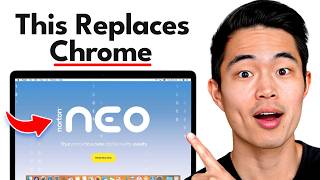

Why Chrome is DEAD in 2025
55sControversial claim that traditional browsers are obsolete, challenging viewers to switch.
▶ Play Clip"Delivers a thorough beginner's guide with step-by-step walkthrough; minor filler and self-promotion, but overall solid."
This video is a comprehensive tutorial on setting up and using Norton Neo, a free AI-powered browser. The creator demonstrates features like AI summaries, writing assistance, memory, reminders, and security, explaining how they enhance browsing efficiency. It's aimed at beginners looking to transition from traditional browsers.
Norton Neo is a free AI browser with features like AI summaries, writing, memory, reminders, and security.
Click the link in the description to download, then go through the installer and launch the browser.
Magic Box is the central AI interface for searching, asking questions, navigating, and getting help.
Use Magic Box to write articles, emails, and social media posts; adjust tone, length, and humor.
Click Neo chat on any page to ask questions or get summaries without leaving the site.
Hover over a link and use the Neo icon to get a summary or preview without opening the page.
Generate images via Magic Box, then tweak with additional prompts.
Neo can set reminders based on dates in emails.
Sync passwords, payment info, and bookmarks from Chrome to Neo.
Automatically group tabs into categories like shopping, email, entertainment.
Move tabs to the left for easier navigation, especially with many tabs open.
Use dash to trigger snippets; use voice input for hands-free searching.
Dashboard shows a feed of articles related to browsing history.
Enable memories to save conversation details; adjust tab archiving and smart tab closing.
Built-in ad block, privacy filter, and whitelist for specific sites.
Norton Neo is a feature-rich AI browser that can significantly boost productivity and browsing efficiency. By following this tutorial, even beginners can quickly set it up and leverage its advanced capabilities.
What is Norton Neo?
A free AI-powered browser with built-in features like summarization, writing, and reminders.
00:01
How do you open Magic Box on a Mac?
Press Apple + L.
09:08
What does smart tab grouping do?
Automatically organizes open tabs into categories like shopping, email, and entertainment.
05:52
How can you reference a specific open tab in Magic Box?
Type the @ symbol and select the tab from the list.
05:39
Can Neo generate images?
Yes, by typing a description in Magic Box; images can be tweaked with follow-up prompts.
04:46
What is the personalized feed?
A dashboard view showing articles and websites related to recent browsing history.
07:49
How do you set a reminder in Neo?
Neo can automatically set reminders from emails that contain dates and times.
05:11
Magic Box as Central AI Hub
It replaces multiple tools with a single interface for search, writing, and image generation.
01:10Contextual Email Writing
Saves time by generating email drafts based on the current page content.
02:46Summarization Without Opening Tabs
Reduces clutter and speeds up information gathering by providing summaries on hover.
03:26Smart Tab Grouping for Organization
Automatically categorizes tabs, making navigation much easier for heavy multitaskers.
05:52Memories Enable Personalization
Neo remembers conversation details to provide more relevant responses over time.
08:15[00:01] video I'm going to show you how to use Norton Neo, which is a free AI browser that has a ton of cool features. I've been using it for a couple weeks now and you use AI powered browsers like this, it's almost impossible to go back to
[00:14] going to show you how to set up the features like AI summaries, writing, memory, reminders, security, and more. pro at Neo, so make sure you watch until the end. Let's get started. So, just a
[00:28] nerd. I truly think that just using Chrome or Safari or whatever is completely outdated. In 2025 and beyond, you absolutely need an AI powered It's really cool and I think a lot of you guys are going to try this out and
[00:42] be absolutely blown away by how much better it is than other types of down below in the description, it's going to take you to this page. It's the appropriate options, download it, go through the installer, and then launch
[00:55] here you're going to have a few different things we can click on. If I my workspace. So, basically my last searches, very similar to chat GPT. You your gallery. Gallery is basically the images and videos that you've generated
[01:10] have your weather right here. Time. Yeah, it's just a very clean homepage interface. And right here in the center, you have Magic Box. Essentially, you can use Magic Box to search, ask questions, navigate, get help, pretty much
[01:23] anything. This is basically just AI built natively into this browser. And so when you use an AI browser like this, it just makes it a lot easier to use AI between different applications and everything is built in natively. So for
[01:35] example, if I want to go to a website directly, I can easily do that. I can go search for a site. So for example, if I want to search deals, it basically just uses Google to search for things. You can also use it to actually ask
[01:48] as in chat GPT. So, what are the best TVs to buy that are above 70 in? Now, as you can see, the interface is very similar to most other AI platforms. It's have with the AI. So, we can ask follow-up questions. We can ask it to do
[02:03] different things given this information. And yeah, I really like this type of having a real conversation. So, in this case, I could say something like, I like case, I could say something like, I like the LG C5. Can you help me look up
[02:17] current prices or deals? Now the AI is basically going to find actual deals a ton of time. Basically anything you can do within chat GBT you can do within to write me something. Write me a 300word article on the LGC5 77in TV. So
[02:33] suggestions. I can tell it to shorten it. I can tell it to have it be more conversational. We can add humor into it. Whatever you want to write, Neo can to actually help it write emails for you. And you can actually write emails
[02:46] based on context that you have pulled up. So for example, I'm on my Gmail like this. Help me write a 30-word email wishing my friend Frank a happy 30th birthday and that we should go on a group trip to Paris next year. Now, it'd
[02:59] also be able to help us craft up different responses to emails that we've nice to have all this built into this browser natively. You don't need to just makes everything so much more smooth. Once that's done, you can just
[03:12] yeah, doing this can save you a lot of time, give you initial drafts that you anytime. You can just go back to the magic box and use this to help you write pretty much anything you want. Emails, social media posts, articles for your
[03:26] in natively. You don't need any extensions. You don't need to switch yeah, it's just a lot more seamless. Another thing that Neo is really good at is summarizing content. So, for example, if I'm on an article or any type of
[03:39] website, I can click on Neo chat right here. And you can actually ask Neo questions about this website. It actually gives you suggestions. So, for basically like having a conversation with the article itself. This can save
[03:52] a specific thing. Another way to use this thumb feature is if I do a traditional search. So, I'm searching best sound bars. If I scroll down here and let's say I want to check out this article right here, I'm just basically
[04:05] going to hover my mouse over this link. I'm going to go to this little Neo icon things I can do. There's the peak feature and there is the summary feature. So if I click on summary first, it basically just gives a little summary
[04:18] of the article without me having to open it on this sidebar right here. Of this article without even clicking on it. If I also hover here and click on peak, this basically opens up a preview of this link without me actually opening
[04:32] this website, I can click on this button right here and it's going to open up in because it allows you to open up fewer tabs and also helps you decide on whether you want to click on a link or not. Another cool way to use Magic Box
[04:46] is you can actually generate images. So, generate an image of a TV mounted to a and done that. I can click on this. I can download it by clicking on this button. And I can also tweak this image by giving it more prompts. For example,
[04:58] I can say remove the chandelier. It's going to regenerate that image. Now, we yeah, super super cool. You can also use Neo to set different reminders. So, for example, if you read an email in Gmail and it has a date and a time, Neo can
[05:11] about to happen. Now, if you currently use Chrome or you have a Google account, account to Neo. You'll be able to sync all your passwords, all your payment it saves a ton of time. This basically is what made migrating to a different
[05:26] thing is you can add different Neo profiles, switch between these, and have different things saved in each profile. Now within magic box, I can also reference different tabs I have open using the at symbol. So if I type at, I
[05:39] can actually choose which tab I want to reference. So now I can ask it a tab or have it summarize pretty much anything. Another really great feature about Neo is that it has smart tab grouping. And if you guys are like me,
[05:52] all the time and it's basically impossible to find whichever one you this button right here at the top right, you can see I currently have smart tab grouping on. If I turn it off, though, it's basically going to just look like a
[06:06] normal browser with all my tabs. And if I toggle it back on, it's going to automatically group these. So, I have a shopping section. I have an email section, and more. Guys, this is
[06:18] organized. So, I definitely recommend having this turned on. I actually really like having my tabs on the left side instead of up here at the top. It just makes it easier for me to toggle between
[06:31] button right here, it's going to actually move my tabs to the left. We'll also be able to access my bookmarks here on the left. In my opinion, it's just a lot easier, especially if you have 50 plus tabs open, which is usually what I
[06:44] have. So, as you can see, it's super clean right here. If I want to, let's say, go to my email tabs, I'll just click on this. I can collapse it super entertainment, I can click on this. And yeah, this is the best way to browse the
[06:57] click on this plus button right here. And here we can actually upload different files. So it's exactly like chat GBT. It can actually access and read these files or use it as context to help us build different things. There's
[07:10] also snippets. So if I type in dash, we can actually choose between these different prompts. So, for example, if I click on this right here, and I write, "Happy 30th birthday," it's going to turn that one simple sentence into
[07:22] copy it using this. You can regenerate. If you don't like the current output, can search instead. Another cool feature that I recommend using is this right you can just speak it into your microphone. So, for example, help me
[07:37] microphone. So, for example, help me find the top five TVs to buy that are above 70 in. So, it turns it into text and does the search. And yeah, for me talking is a lot faster than typing things out. That can save you a ton of
[07:49] feature of Neo is the personalized feed. So if you come here to the dashboard, I can come here to this tab right here. If I click on it, it's basically going to show me a personalized feed of different websites, articles that match what I've
[08:02] been browsing recently. So as you can see, I've been researching soundbars and type of stuff, and it's just a really cool way to discover new content that is related to my current interests. To get out of this, you just click on this X
[08:15] to settings, here's basically where you can play around with all the different Neo settings. And if I come here to personalization, of course, we can there's dark. I have memories turned on, which I think is pretty cool.
[08:27] Essentially, it lets Neo remember details from your conversations with it. memories right here by clicking on this button. You can view the memories that memories. So to tell Neo to remember something, all you basically need to do
[08:41] going to store it in the memories and Neo is going to be able to recall that information later on. One thing I love about Neo is that it actually has tab archiving. So actually archives tabs that you haven't used in a while, which
[08:54] is so good for cleanup. I highly recommend having this option turned on. it archives these tabs, but I think a few hours is usually the best. Or you can also have smart tab closing on, which is really good, too. a great way
[09:08] not using. Here you can look up the different shortcuts for Neo. So, for example, to open up Magic Box on a Mac, it is Apple plus L. And for security, can play around with. I always have ad block turned on, which is good to block
[09:22] ads. You can also choose to show acceptable ads if you want. There's also this privacy filter that you can turn on. And if there's particular sites you those sites here. And yeah, Neo is built
[09:34] on security which is super super important nowadays. So that's basically how you can set up and start using Norton's Neo AI browser. Again, I'll have a link down below to get Neo. The best way to get started with setup as
[09:47] is to just get it right now and follow along with this video. Within about 10 to use it. Take advantage of all the better browsing experience. If you have a legacy browser like Chrome or Safari,
[10:01] I really encourage you to try this out at least, there's a very small learning features and are able to use them, it kicks all those other browsers butts. video helpful. Feel free to reference back to it. I know we covered a lot of
[10:14] optimization, so optimizing your browsing experience is big. That's why I guys got any value from the video, make sure to hit that like button and also subscribe for more content just like this. I make a ton of videos about AI,
[10:28] to help you live a better life. Thank you so much for watching and I'll see you so much for watching and I'll see you in the next video. Peace.




⚡ Saved you 0h 10m reading this? Transcribe any YouTube video for free — no signup needed.