
How to Add a Title in WordPress
60sClear step-by-step tutorial for beginners, highly searchable and practical.
▶ Play Clip"The title is vague but the content delivers exactly what it promises—a straightforward tutorial on setting page titles."
This tutorial demonstrates how to set a custom page title and meta description in WordPress using the All in One SEO Pack plugin. It walks through accessing the admin panel, editing a page, and optimizing the SEO fields for better search engine visibility.
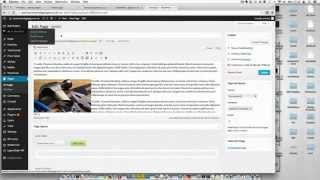
Log into the WordPress admin panel by adding '/wp-admin' to your website URL.
Navigate to the post or page you want to edit. For new content, click 'Add New'; for existing, find it under 'Posts' or 'Pages'.
Scroll to the 'All in One SEO Pack' section at the bottom of the editor to access SEO settings.
The default page title isn't always best for SEO, especially when targeting specific keywords.
Create a title that includes your keywords and keep it under 60 characters.
Write a description that shows what users will see in search results; it should be relevant to your target audience.
Click 'Update' in the top right corner to save your changes.
Optimizing your page titles and descriptions with the All in One SEO Pack plugin is a quick, effective way to improve your site's search visibility and click-through rates.
Keep titles under 60 characters
A concrete, actionable limit that prevents titles from being truncated in search results.
01:43Default titles aren't optimal for SEO
Highlights a common mistake and explains why customizing titles is essential for keyword targeting.
01:14Relevance boosts rankings
Emphasizes that aligning title and description with user intent directly impacts search positioning.
02:10[00:16] нужно сделать, это войти в административную панель, что можно сделать, перейдя по вашему веб-адресу и добавив после него косую черту WP Dash admin. Это переведет нас на панель управления. Затем нам нужно
[00:31] перейти к записи или странице, к которой вы хотите добавить заголовок. Если вы добавляете новую запись или страницу, просто наведите курсор и нажмите «Добавить новую». Если вы хотите добавить таблицу к существующей записи или странице,
[00:46] просто нажмите «Страницы» или «Записи», найдите страницу, к которой хотите добавить таблицу, и нажмите на нее. После того, как вы окажетесь на странице, которую хотите отредактировать, нам нужно прокрутить вниз до раздела «
[01:01] Все в одном SEO-пакете». Здесь находятся все ваши настройки все ваши настройки поисковой оптимизации. По умолчанию в административной панели будет использоваться заголовок
[01:14] страницы по умолчанию. Но это не обязательно лучший способ добавить заголовок, потому что, если вы пытаетесь нацелиться на определенное если вы пытаетесь нацелиться на определенное ключевое слово, это может быть не лучший способ. В индустрии, ориентированной на годовые результаты, вам нужно
[01:28] настроить таблицы под ключевые слова. Это можно сделать внизу каждой публикации и страницы в разделе настроек. Как видите, это всего лишь демонстрационная страница, которую мы создали. Сейчас она просто называется «Демо-страница».
[01:43] Вам нужно создать таблицу, которая включает ваши ключевые слова. Максимальная длина таблицы — 60 символов. В поле «
[01:56] описание. Демонстрационная страница показывает, что показывает, что увидит пользователь, если его запросит поисковая система. товары или услуги, вот что отобразится. Если у вас уже есть
[02:10] хороший заголовок, ключевые слова, то же самое относится и к описанию, и все это должно быть полностью релевантно вашей целевой аудитории. Это поможет целевой аудитории. Это поможет вашему сайту занять более высокие позиции в поисковой выдаче. Как только у вас будет готовое
[02:23] описание, соответствующее вашим целевым ключевым словам, все, что вам нужно сделать, это нажать на кнопку « Обновить» в правом верхнем углу. Это Обновить» в правом верхнем углу. Это
[02:38] so whenever Google can Scrolls your website in


⚡ Saved you 0h 02m reading this? Transcribe any YouTube video for free — no signup needed.