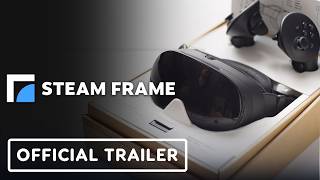

Unboxing the Steam Frame: What's Inside?
45sUnboxing videos are highly engaging, and the reveal of the headset, controllers, and accessories sparks curiosity.
▶ Play Clip"Delivers exactly what the title promises — a clear, step-by-step unboxing and setup guide with no fluff."
This video is a beginner's guide to unboxing and setting up the Steam Frame VR headset. It covers the contents of the box, initial power-up, fitting the headset, adjusting the lenses, signing into a Steam account, and setting up wireless streaming.
The box includes the headset, controllers, an iRelief spacer for glasses wearers, a wireless adapter, an information booklet, and a USB-C cable.
The headset ships in power-saving mode. Plug it into a power source with the USB cable, then hold the power button until the LED turns white. Turn on the controllers with the Steam buttons.
Put the headset on eyes-first, especially if you wear glasses. Position the rear strap high to avoid ears, tighten side straps, and adjust pivot arms for even pressure distribution.
If glasses don't fit or eyes feel too close to the lens, install the spacer by removing the face gasket, inserting the spacer, and reattaching the gasket. Magnets make it easy.
Use the IPD wheel to adjust lens spacing until the picture looks sharp and comfortable. Use the IPD lock to keep the setting for future sessions.
Steam Frame requires a Steam account. Recommended method: use the Steam Mobile app's Steam Guard tab to sign in wirelessly. Alternative: scan a QR code or manually enter credentials.
Log into the same Steam account on headset and PC, plug the wireless adapter into the PC, and Steam will guide pairing and SteamVR installation. Streaming uses the adapter, Wi-Fi, or both.
The Steam Frame is designed for easy setup and comfortable use, with clear steps for unboxing, fitting, and connecting to Steam. The video provides a straightforward path to start enjoying VR streaming wirelessly.
Complete Box Contents
Lists all included accessories, ensuring users know what to expect before setup.
00:13Comfort-First Fitting
Emphasizes proper headset placement for comfort, a key factor for extended VR sessions.
01:16IPD Adjustment for Clarity
Explains how to achieve optimal lens spacing, directly impacting visual quality.
02:04Dual-Channel Wireless Streaming
Reveals that streaming can use the adapter and Wi-Fi simultaneously for a supercharged connection.
03:42[00:00] Hey there! These videos will step you through everything you need to know to get up and running with your new Steam Frame. Let's start with something simple, opening the box.
[00:13] Inside the box, you'll find a Steam Frame headset, a pair of controllers, an iRelief spacer, particularly useful if you wear glasses, a wireless adapter, which will ensure a great experience for streaming games from your PC,
[00:31] an information booklet, and a USB-C cable. The headset ships in a power saving mode. To get things set up for the first time, you will need to use the supplied USB cable to plug the headset into a power source.
[00:44] Next, hold the power button down until the LED turns white. the Steam buttons to turn on your VR controllers. Now you can unplug the headset and continue
[00:58] getting things set up Time to mount your new headset onto your head Most people prefer to put it on eyes first especially if you wear glasses Avoid your ears by wearing the rear strap a little high
[01:16] then tighten to taste by pulling on the side straps. Additionally, adjusting the pivot arms at the front lets you further tune the fit for maximum comfort, evenly distributing the pressure on your face.
[01:28] If your glasses don't quite fit or your eyes feel too close to the lens, you may want to try the spacer. The magnets make it super easy to install. Just remove the face gasket, insert the spacer, then put the face gasket back on.
[01:42] With that said, it's your Steam Frame. You should wear it any way you want. These are all wrong, but we can't legally stop you. This wheel, what we call the IPD wheel, lets you adjust the spacing between the lenses
[02:04] until the picture you see through them looks good. What does good mean? Well it a subjective mix of focus sharpness and overall optical comfort You know it when you see it Once you found a setting you like you can use the IPD lock to keep the lenses in that position for future sessions
[02:32] Steam Frame requires a Steam account to use. If you don't already have an account, you can create one for free on your PC or mobile device. There are a few ways to sign into your headset, But first, we recommend setting up the Steam Mobile app on your mobile device.
[02:49] To sign in wirelessly in your headset, click on Add an Account. Then, in the mobile app, click on the Steam Guard tab. Select the gear icon, then sign into a Steam frame.
[03:03] This is by far the easiest, most fun way to get in. To sign in via a QR code, under More Options, select Scan QR Code. Then, in the mobile app,
[03:16] tap on the Steam Guard tab and hold your camera close to the lens until it sees the code. We be honest this is a weird way to sign in but it does work Lastly you can sign in the old way by manually entering your name and password on the virtual keyboard in the headset Clunky but historically accurate
[03:42] Steam Frame includes a wireless adapter to provide the best quality streaming from your Steam machine or VR-compatible PC. To set up wireless streaming, log into the same Steam account on both your headset and your PC. Plug your wireless adapter into the PC,
[04:00] and Steam will guide you through pairing your devices and installing SteamVR. Once this is done, VR streaming will automatically utilize the dedicated adapter link or your local Wi-Fi network, or both at the same time like one supercharged connection.
[04:16] Games that are available for streaming will appear in your headset's Steam library. Click Stream to play them wirelessly. To learn more about your Steam Frame, visit this link.




⚡ Saved you 0h 04m reading this? Transcribe any YouTube video for free — no signup needed.