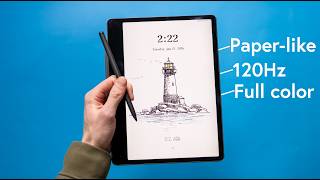

This Tablet Has a 120Hz E-Ink Display?!
42sThe unique blend of a 120Hz refresh rate with an e-ink-like eye-friendly display is a surprising concept that sparks curiosity and challenges common tech expectations.
▶ Play Clip"The title accurately describes the device's key features, but the review is somewhat subjective and lacks in-depth technical specs."
The video reviews the TCL Note A1 NXTPAPER, a hybrid device that combines the eye-friendly display of an e-reader with the performance and color of a tablet. The reviewer highlights its 120Hz LCD display, note-taking capabilities, and AI features, ultimately assessing its target audience and practical use cases.
The TCL Note A1 is positioned between a traditional tablet and an e-reader, offering a full-color 120Hz display like a tablet but with an eye-friendly, ink-like screen for writing and reading.
The device uses a 120Hz LCD display, which avoids the latency of e-ink and the ghosting issues, while reducing eye fatigue compared to OLED. It supports 16.7 million colors and adaptive brightness for low-light and outdoor use.
The interface is minimal, focusing on notes, inspiration space, and a to-do list. Users can create handwritten, text, or keyboard notes, with options for different paper textures, colors, and layouts. It supports 15 file types including PDF, Word, and PowerPoint.
The device has limited apps to minimize distractions, but includes Microsoft Edge for internet access. Users can watch videos in picture-in-picture while taking notes.
AI tools include handwriting recognition, text correction, translation, summarization, and recording with eight microphones. There's also a future handwriting beautification feature.
The pen has dual tips, 8,192 levels of pressure, and less than 5ms latency. The writing feel is described as closer to a pen than a pencil, with haptic feedback and a satisfying sound.
The device has an 8,000 mAh battery, 256GB storage, a rear camera, and optional accessories like a flip case and keyboard case. It also supports Wi-Fi, Bluetooth, screencasting, and hotspot.
The TCL Note A1 NXTPAPER is a versatile device that effectively bridges the gap between e-readers and tablets, offering a unique display and robust note-taking features. It is best suited for students and professionals who prioritize reading comfort and handwritten notes over a full app ecosystem.
What is the refresh rate of the TCL Note A1's display?
120 Hz
00:03
How many colors does the display support?
16.7 million colors
01:47
What is the latency of the pen?
Less than 5 milliseconds
08:16
How many microphones does the device have?
Eight microphones
07:01
What is the battery capacity?
8,000 mAh
09:54
How many file types are supported?
15 file types
03:50
Hybrid Concept
Defines the device's unique positioning between tablet and e-reader.
00:03Eye Comfort
Highlights the LCD's ability to reduce eye fatigue compared to OLED.
01:47AI Note Tools
Showcases practical AI features like summarization and translation for note-takers.
05:23Pen Precision
Details the pen's high pressure sensitivity and low latency for a natural writing feel.
08:16[00:03] device from TCL that is kind of halfway between a traditional tablet and an e- of both worlds and kind of solving a problem that a lot of people have. For example, you get full color 120 Hz refresh rate on the display much like
[00:17] you'd get on a tablet, but you get the satisfying writing experience and the eye friendly display like an e- in reader. Now, TCL sent this over in sponsor's video. So, I want to focus on answering the question of what is this
[00:30] device and who is it really for? Well, after using it for a little while, product that I want to talk about. Obviously, the display is a big one. That's kind of the secret sauce behind what this product even is. We'll talk
[00:42] about, of course, why that's beneficial and where you might use it. But the experience. Of course, this is called the note after all. And that's going to taking handwritten notes on there. The third thing is going to be the software.
[00:56] probably bundle those two together, is the AI feature set that is available on this device. And there are a lot of AI features that could be very useful for some people. So, starting off with the display, you have a 120 Hz refresh rate
[01:09] LCD display. The LCD is kind of the answer to the question of it looks like an e- in, but it's clearly not an e- in display. It's also not an OLED display. going to be meeting in the middle here. It allows you to scroll quickly,
[01:22] interact without tons of latency that you'd have on an e- in display. You can even watch videos on here. And like I said, with 120 Hz refresh rate, they're going to look better than like this is recording in 30 Hz, for example. We also
[01:34] have the ability to use this in low light without having like weird backlights. LCD works very well there. You don't have ghosting which you would time something changes there's like artifacts of the old things that was on
[01:47] the screen. That doesn't happen here. And you have 16.7 million colors available. But unlike tablets then with an OLED display, this is able to reduce eye fatigue pretty substantially. It looks a lot like ink, a lot like e- in
[02:01] displays. And you do still have eye comfort options on here. You have adaptive color and brightness. So, this is able to really optimize to your environment and look again a lot more like reading a piece of paper. And that
[02:13] tried it, my big thing was like, "All right, that sounds great, but like what really, really bright?" E- in does so well there. And OLED displays typically really struggle unless they get some insane brightness. But to my surprise,
[02:27] you can see in this B-roll shot here, this was so bright outside. It was basically the brightest it ever gets outside. And not only could I see it very well, but surprisingly the camera was able to pick it up very well also.
[02:41] display, the interface is kind of a really interesting aspect of this. It's very different than a lot of e- in readers and also very different than a lot of OLED style tablets. So looking at this, the interface is very
[02:54] minimal, very little that it's going to show you right off the bat. You've got there's a lot lot of different kinds of notes you can take. Uh on the bottom do that in a second. You've got inspiration space, which I will explain.
[03:09] And of course, a very self-explanatory to-do list on the top right. So, if we plus on the bottom. You can do handwritten notes. That's kind of the everything. But you can also get something like a keyboard tablet right
[03:23] have the keyboard on screen. And you could just do text notes. And of course, and organize all your stuff like that. So, if I go to add a note, you have lots can have different color. You can have specialty paper that's going to be
[03:37] textured. You can have uh, you know, horizontal lines or dots. You can have a of different ways you can have your notes set up. And it could be different for every single notebook. You can also add a ton of different files onto here.
[03:50] There are 15 different currently 15 supported file types. So, PDF, Word, PowerPoint, many other ones. So, you can send files over to this and then you're mark them up or read them or whatever you want to do. Uh, so you're able to
[04:05] get work done in that aspect. Again, either with a keyboard or just using the see it's very familiar. You're able to swipe down and you get your your settings there. So, you've got Wi-Fi on here. You've got Bluetooth. You've got
[04:17] uh some quick settings so you can cast to other devices as well. You've got eye right there. and you'll see there are really no notifications, but the going to be like if a file is done downloading or something, you're not
[04:30] going to be messaging people on this device. On the top, if you tap on note, either way, you'll get the menu over there where you can go to file manager, file transfer, like I said, if you want to send files to or from this device.
[04:43] And more interestingly, you have your apps down about halfway down. Now, there preload on this. There's a couple more that you can find in the settings and main idea here is that there are not a ton of apps, not a lot of distractions
[04:56] on here, but you do have the internet. So, you do have Microsoft Edge there. internet. And what I thought was really interesting here is even though you've got this kind of very note oriented device. If you go and you watch a video
[05:09] on YouTube on Edge and then you press the button on the left side that's like go into some notes, you'll be able to watch a video and it's like picturein playing while you're taking notes. Also, when you're taking notes, you can see on
[05:23] know, manage a ruler. You've got your shapes there. You've got your text box. the right side. One of them is going to scan everything you have. And if you rewrite it. You could polish it and like correct different text. You could
[05:38] write if you wanted to, you know, make translate your notes or you could summarize your notes as well. And I so I you're taking a lot of handwritten notes. You have like a 20page
[05:51] handwritten, you know, thing. You could then summarize it. That could be really in a recording or you could take pictures uh or just add other photos library there. You have a ton of brushes to choose from. Lots of colors for each
[06:06] brush. You can choose the size of the brush, the opacity of a highlighter for like a nice touch. Look, if you go into a pencil, choose whatever color. And as you change the size of the pencil, it'll adjust the pencil icon from a really
[06:19] rounded off pencil. Just kind of a nice little attention to detail there. I There's also soon going to be handwriting beautifification. So I like good enough that a lot of people can read it, but I mean a lot of people have
[06:33] isn't that good and and you could improve it uh using handwriting beautifification in the future. That is coming. And inspiration space. So, beginning on the dashboard there. Uh, but what is that? Well, in any note, if
[06:47] you hold down the button on the pencil and you circle whatever, you know, text take it as a screenshot and save it in the inspiration space. There are more soon, but at least for now, you're able to collect some different kind of
[07:01] important notes like that. And what I think is very interesting on here is if you hold down the button on the side right there, you're able to open up record. This has eight microphones on here, so you're able to record and you
[07:14] can do a lot of different AI related things with that. So, obviously, you're useful. Uh, so you can have your your something like that. You could be writing down notes and also recording
[07:26] simultaneously on the same device. So, everything's tied together. You can also English is maybe your second language, but you're in in a class that's being translation. So, if you're ever like, "Oh, I don't know what that word was."
[07:39] transcription that is also translated to your native language and hopefully can help you learn a little bit faster that way. And the third thing is going to be really long lecture or just whatever you're recording, you can then look at a
[07:52] summary and get a good idea of what was talked about. There's also handwriting to text on here, handwritten formula recognition, and like I said, you're able to even watch videos on here. Talking about the pen, then the pen has
[08:04] two different styles of tips. So, dual tip here, uh, where one style is going to be just a pure cone and the other one's like stepped down to a smaller tip there. We also have a button, as I mentioned, for that extra function. And
[08:16] you just flip it around and start erasing, it'll automatically act as an 8,192 levels of pressure and has less than 5 milliseconds of latency. So, as far as the writing experience goes on here,
[08:30] anecdotally, like my own personal preference, it is a lot. It has more friction than a traditional like glass tablet that's super smooth and I haptic feedback as well that's trying to make it feel like you're writing with a
[08:44] pencil. I'd say it feels most like writing with a pen probably. It's a little bit It's definitely smooth. You can you can glide along pretty well. And sample here of what it sounds like when you're writing.
[08:57] you're writing. [panting] corner because it makes it very like easy to hold it in one hand. You don't
[09:11] middle. And it also works well when you put it in a keyboard format where the feels like the right spot for that. You've got a button on the side and that Brings you to the home uh essentially the home screen right here. And if you
[09:26] open up your recording. And you've got a power button on the top on the back. little kind of or three little feet here and a camera. So the camera is like the when you set it down. This is obviously meant for handwriting and it's so
[09:41] annoying when tablets wobble. So I appreciate that a lot. You've got four going to be for connecting to your keyboard case. So you can have that paired up. Well, some other things to know about this device. 8,000 mAh
[09:54] battery. Optional accessories like the flip case or the keyboard case. 256 GB camera on the back. I haven't really shown you much about that, but you can like redesigning your living room, take a picture and kind of draw where things
[10:09] is probably more likely what people would do. This has Wi-Fi, Bluetooth, screencasting, hotspot capabilities. So yeah, that is the device. If you want to the description down below. Thanks for watching and I'll see you guys in the
[10:22] watching and I'll see you guys in the next
⚡ Saved you 0h 10m reading this? Transcribe any YouTube video for free — no signup needed.