
RAG Explained: No More AI Hallucinations
34sThis clip directly addresses a common pain point (AI hallucination) and promises a solution, making it highly engaging for viewers frustrated with inaccurate AI responses.
▶ Play Clip"The title accurately reflects the video's content: a step-by-step guide to setting up local RAG with Ollama and AnythingLLM, which is indeed a fast and practical method."
This video provides a step-by-step guide to building a local Retrieval-Augmented Generation (RAG) system using Ollama and AnythingLLM. It explains how RAG enables AI to answer questions based on your own documents, eliminating hallucinations and ensuring privacy. The tutorial covers installation, configuration, and key calibration settings for optimal performance.
RAG (Retrieval-Augmented Generation) allows AI to answer from your own documents, not just general knowledge.
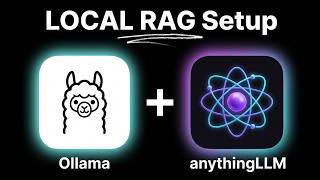
Ollama runs AI models locally; AnythingLLM handles document chunking, embedding, and retrieval.
Install Ollama from ollama.com, pull Llama 3 (8B, ~4.7 GB), and verify with a test command.
Download AnythingLLM desktop app, choose manual setup, select Ollama as LLM provider, and keep everything local.
Upload a TXT file with fake company details; AI correctly answers based on the document, citing the source.
A 30-page PDF is split into 21 chunks (vectors) for efficient search.
Default chunk size is 1000 characters with 20-character overlap; smaller chunks give precise search, larger chunks retain context.
Embeddings convert text to numbers; similar meanings produce similar numbers, enabling semantic search.
Similarity threshold (default: no restriction) controls how closely a chunk must match; adjust if results are irrelevant or missing.
Default max context snippets is 4; temperature should be low (0.3-0.5) for factual answers; system prompt can enforce citation.
What does RAG stand for?
Retrieval-Augmented Generation
0:18
What are the two main components of the local RAG setup described in the video?
Ollama runs the AI model locally; AnythingLLM handles document chunking, embedding, and retrieval.
1:21
Which AI model is used in the tutorial, and what is its size?
Llama 3 (8 billion parameter version, ~4.7 GB)
2:28
How does the embedder (e.g., all-MiniLM-L6-v2) make text searchable?
It converts each chunk into a list of numbers (embedding) so that similar meanings produce similar numbers, enabling semantic search.
9:37
What vector database is used in the tutorial?
LanceDB
10:28
What are the default chunk size and overlap settings in AnythingLLM?
1000 characters with 20 characters overlap
8:36
What does the 'similarity threshold' setting do in RAG?
It controls how closely a chunk must match the question to be included; higher values (e.g., 75%) mean only very relevant chunks are used.
10:56
How many chunks are sent to the AI per question by default?
4
11:47
What temperature range is recommended for RAG to avoid creative but incorrect answers?
Lower temperature (e.g., 0.3 to 0.5) to keep the AI factual and reduce hallucination.
12:29
RAG Solves Hallucination
Explains how RAG retrieves real answers from your documents instead of guessing, addressing a core AI limitation.
0:18Two-Component Architecture
Breaks down the local RAG stack into Ollama (intelligence) and AnythingLLM (memory), making the system easy to understand.
1:21RAG with Made-Up Data
Demonstrates RAG's ability to answer accurately using fake company details that don't exist on the internet, proving it reads the document.
4:33Chunk Size Calibration
Explains the trade-off between chunk size and search precision, a key calibration skill for RAG performance.
8:36Semantic Search via Embeddings
Illustrates how embeddings match meaning (e.g., 'dogs allowed' vs 'pets permitted') rather than exact keywords, enabling intelligent retrieval.
9:37[00:00] So, what if your AI go beyond is
[00:01] cleaning data and actually learn from
[00:03] your documents? No guessing, no
[00:05] hallucination, just real answer pulled
[00:08] directly from your own file. That's rag.
[00:11] So, regular AI doesn't know your company
[00:12] docs, your research paper, or your
[00:14] private notes. It can search the web,
[00:16] but it can't search your files. That's
[00:18] exactly what rag, retrieval augmented
[00:21] generation, solves. But here is what
[00:23] most people miss. Rag is a system, but
[00:25] learning how to calibrate is a skill.
[00:27] So, how you chunk your data, what
[00:29] similarity threshold would you set? This
[00:31] decision determine whether the rags
[00:32] works well or fails. So, today I will
[00:35] show you exactly how the rag system
[00:36] works [music] end to end. We're going to
[00:38] break it down to three simple steps.
[00:40] First, we'll build a complete local rag
[00:42] system from scratch using a tool called
[00:44] Anything LLM. So, we'll start from the
[00:46] very beginning, installing Ollama,
[00:47] uploading the documents, and getting
[00:49] everything running locally.
[00:51] Second, we'll look at the under the
[00:52] hood. As we go, I'll explain the concept
[00:54] like chunking, embedding, and vector
[00:56] database the more practical way. And
[00:59] finally, I'll walk you through the
[01:01] setting that control the rag
[01:02] performance. Things like chunk size,
[01:04] similarity threshold, and temperature.
[01:05] [music]
[01:06] So, you know how to tune it for your own
[01:08] use cases. So, by the end of this video,
[01:10] you won't just have a working rag setup,
[01:12] you'll actually understand how the
[01:13] end-to-end system works behind the
[01:15] scene. So, if that sounds interesting,
[01:17] let's jump straight in.
[01:20] All right. So, before we start
[01:21] installing anything, let me quickly
[01:22] explain what we're building here. So, we
[01:24] need two things to make the rag work
[01:26] locally. First, Ollama. This runs the AI
[01:28] model on your machine. Think of it like
[01:31] a brain that generate the response.
[01:33] Second, Anything LLM. This is a rag
[01:35] platform. It handles everything.
[01:37] Splitting your documents into chunks,
[01:39] converting them to a searchable
[01:40] embeddings, storing them into a vector
[01:42] database, and retrieving the relevant
[01:44] pieces when you ask a question.
[01:46] So, in a nutshell, Ollama provides
[01:47] intelligence and Anything provides you
[01:49] memory. Together, you get an AI that
[01:51] actually read and answer your own
[01:52] documents. So, let's start with Ollama.
[01:56] Great. Let's check our system first. I'm
[01:57] on Windows 11 with 32 GB of RAM. And you
[02:00] don't need this much, 16 GB works
[02:01] [music] too. So, if you're on Linux or
[02:03] Mac, same process, nothing changes. So,
[02:05] first thing we need is Ollama. This is
[02:07] where we run the AI models locally on
[02:09] your machines. So, let's head over to
[02:10] ollama.com, go to the download page, and
[02:13] grab the installer for Windows. So, one
[02:15] command in PowerShell, paste. So, let it
[02:17] download.
[02:22] Once Ollama is installed, let's verify
[02:24] the Ollama version, and we're good.
[02:26] So, now we need a model. So, let's pull
[02:28] Llama 3. This is a Meta's latest model,
[02:30] around 4.7 gigs for 8 billion parameter
[02:32] versions. Good balance [music] of speed
[02:34] and quality. So, let it download.
[02:39] And we can verify using the Ollama list
[02:41] command, and there it is, Llama 3 is
[02:43] ready to go.
[02:44] Quick test, Ollama run then model name,
[02:47] then put the message. And you can see a
[02:49] response coming from our local LLM.
[02:51] Perfect. Now, if you check the API part,
[02:53] it is running on port 11434. And this is
[02:56] what Anything LLM will connect to. So,
[02:58] Ollama is ready. Let's move on.
[03:00] Great. Next, we'll see how to set up
[03:02] Anything LLM. This is a rag platform
[03:03] that handles everything.
[03:05] So, let's head to anythingllm.com and
[03:07] download the desktop app. Click download
[03:09] and run the installer.
[03:12] You'll notice it is downloading the CUDA
[03:13] libraries. It is Nvidia's GPU
[03:15] acceleration. If you have Nvidia graphic
[03:17] card, it will use the faster processing.
[03:19] If you don't have, no worries, it will
[03:20] automatically fall back to CPU.
[03:23] Now, it is asking to download the
[03:24] meeting assistant model. We don't need
[03:26] this because we are using Ollama for AI
[03:27] models. Click no and proceed. Now, the
[03:30] installation part is completed now.
[03:31] Let's launch Anything LLM. It opened
[03:34] with a beautiful setup dashboard, where
[03:36] we need to configure a couple of
[03:37] settings.
[03:38] So, click on get started and follow the
[03:40] [music] wizard.
[03:42] Next, you will see it is recommended to
[03:43] download its own model, which is QM3
[03:45] currently. Since we go with a different
[03:47] LLM, so let's go with the manual setup.
[03:50] And here is interesting part. Let's
[03:52] choose Ollama, and it will auto detect
[03:54] the localhost 11434, and find our local
[03:57] model. Right? Perfect.
[03:59] Now, here is a quick summary, which is
[04:01] important one to understand. So, LLM
[04:03] provider is Ollama, which runs locally
[04:05] on our machine.
[04:07] Then the embedding, which is Anything
[04:08] LLM Embedder, which also runs locally.
[04:11] And finally, the vector database,
[04:14] LanceDB, runs locally. So, essentially,
[04:16] everything stays on our machine, no
[04:18] cloud, no data leaving our computer
[04:21] scenario here. Kind of a true private AI
[04:23] setup.
[04:24] Finally, skip the survey part, dismiss
[04:26] the desktop assistant for now. We are
[04:28] in. Anything LLM is set up. We are ready
[04:31] to go with the rag in action. All right.
[04:33] First, let's do a quick test. I'm going
[04:34] to start with something simple, a basic
[04:36] TXT file with few lines of information.
[04:39] So, I created this text file with fake
[04:41] company details. Acme Corp, CEO John
[04:43] Smith, founded in 2019, headquartered in
[04:46] Austin Texas.
[04:48] Product called Widget Pro, and revenue
[04:50] is 5 million.
[04:51] Now, here is a thing. This is a
[04:53] completely made-up one. I guess these
[04:55] specific details won't exist on the
[04:56] internet, and AI won't be knowing this
[04:58] information on its own accurately. So,
[05:01] we'll upload this file. Click on upload
[05:03] the document, select our file, and you
[05:05] will see it added a contest. Now, the
[05:07] document is now part of this workspace.
[05:09] Now, the real test. Let's ask what is
[05:11] the document all about, kind of quick
[05:13] summary. And look at that response. It
[05:16] correctly identify Acme Corp, founded in
[05:18] 2019, Austin, Texas, Widget Pro, the
[05:20] revenue, and everything. Remember, this
[05:22] is a made-up information. AI only know
[05:25] this because it's actually read from our
[05:26] document. Let's try another one. Who is
[05:28] the CEO? John Smith. Exactly right. Now,
[05:31] here is a key part. Click on the
[05:33] citation, and look at this,
[05:35] rag_basic_doc.txt
[05:37] reference. It's showing exactly which
[05:40] document it used to answer the question.
[05:42] So, this is the rag working. AI did not
[05:44] guess, it did not hallucinate, it
[05:46] searched from our document, found the
[05:48] relevant information, and answered based
[05:50] on what it actually found. That's
[05:52] retrieval augmented generation in
[05:53] action. Retrieval, it searches document.
[05:56] Augmented, it added that information to
[05:58] the prompt. Generation, it generate the
[06:00] response based on that context.
[06:03] Now, that's a simple TXT file. Great.
[06:05] Let's go with something more complex. I
[06:07] have a 30-page technical guide here, a
[06:08] PDF. Let's see how rag handles the real
[06:11] documents.
[06:12] First, we'll create a new workspace
[06:14] [music] to keep things organized. Click
[06:16] on the plus, call it GitHub docs.
[06:19] Now, let's upload our PDF. Click upload
[06:22] document, select the file. There it is.
[06:25] Click save and embed.
[06:27] Now, it's processing. It's take a moment
[06:28] for larger files.
[06:30] And there is a reason for that.
[06:32] Something important happening behind the
[06:33] scene. So, let's see what's actually
[06:35] happened. Go to the workspace setting,
[06:37] vector database tab, and look at the
[06:39] numbers. Vector count is 21. So, what
[06:42] does that mean? Our 30-page PDF becomes
[06:45] 21 vectors.
[06:47] In other words, the document has split
[06:49] into 21 smaller pieces.
[06:51] These are called chunks. Each chunks
[06:53] roughly a paragraph or a sections.
[06:57] Why do this? Because when you ask a
[06:58] question, you don't need the entire
[07:00] 30-page document. You just need a
[07:02] specific paragraph that answers your
[07:04] questions.
[07:06] So, instead of searching through 30 page
[07:08] every time, which would be slow, the
[07:10] system search these 21 chunks, and find
[07:13] just the relevant one. Much faster, much
[07:16] more precise.
[07:18] All right. Let's test it out. What is
[07:20] Open Clo? How do I install it?
[07:22] I'm just using the readme file of our
[07:24] previous video GitHub document. And look
[07:27] at this response. Exact description what
[07:30] Open Clo is, and installation commands.
[07:32] Multiple method, curl commands, Node.js
[07:34] setup, all pulled directly from the PDF.
[07:38] Let's check the citation for reference.
[07:40] So, it searched through 21 chunks,
[07:43] and found the four most relevant one,
[07:46] and built the answer from those. This is
[07:48] the power of rag. It is not guessing,
[07:50] and it is not using general knowledge.
[07:52] It's finding the specific information in
[07:55] your document, [music] and answering
[07:56] based on exactly what it found.
[07:59] Now, if you look at the system
[08:00] resources, I see 50% utilization on both
[08:04] RAM and CPU. I don't have any GPU, and
[08:07] the network shows zeros. That means
[08:09] there is no cloud access, and [music]
[08:11] completely private.
[08:14] All right. Now, we understand how rag
[08:15] works. But remember what I said at the
[08:17] beginning, rag is a system, and learning
[08:19] how to calibrate is a skill. Let me show
[08:22] you what I mean, and the settings that
[08:23] control everything.
[08:25] So, once you understand these, you can
[08:27] tune rag for your own specific use
[08:29] cases.
[08:30] So, first, the text splitter and the
[08:32] chunking. So, go to the settings, the AI
[08:34] provider, text splitter and chunking.
[08:36] The chunk size is 1,000 characters,
[08:39] roughly a paragraph.
[08:41] This is how big each searchable pieces
[08:42] is. And overlap is 20 characters. This
[08:45] means that each chunk is slightly
[08:47] overlap with the next one. So, you don't
[08:49] lose the context at the boundaries.
[08:52] Now, why does it matters? Smaller chunks
[08:55] give you more precise search result. You
[08:57] find exactly the sentence you need, but
[09:00] you might be losing the surrounding
[09:01] context. Larger chunks keep you more
[09:03] context together, but search became less
[09:06] precise.
[09:07] So, here is the thing. Different
[09:09] document need different settings. Legal
[09:11] document with long structured paragraph
[09:13] might need a larger chunks. Customer
[09:15] support transcript might work better
[09:17] with smaller chunks.
[09:19] So, this is one of the calibration
[09:21] decision that affect how the rag works
[09:23] for your specific data.
[09:25] Moving on, next is the embedder. This is
[09:27] where the text became searchable.
[09:30] We are using Anything LLM built-in
[09:32] embedder all-MiniLM-L6-v2.
[09:35] So, what does this actually do?
[09:37] Computers can't search text by meaning.
[09:40] They search numbers. So, this model
[09:42] convert each chunks into a long list of
[09:44] numbers called embedding.
[09:46] And here is a magic. Similar meaning
[09:48] produce similar numbers.
[09:50] So, let me explain with an example.
[09:52] Keyword like "dogs allowed" and "pets
[09:55] permitted", completely different words,
[09:57] but same meaning. Their embedding would
[10:00] be very close to each other.
[10:02] But dogs allowed and remote work policy,
[10:05] totally unrelated. Their embedding would
[10:07] be far apart.
[10:09] So, this is how the search find the
[10:10] relevant content even when you don't use
[10:12] exact keyword from the document.
[10:15] It's matching the meaning, not just
[10:17] words.
[10:18] You could use other embedding provider
[10:19] like OpenAI, Azure, Ollama. But the
[10:22] built-in one runs completely locally and
[10:24] works great.
[10:26] Next is vector database. This is where
[10:28] all this embedding gets stored. We are
[10:31] using LanceDB. It's a building into
[10:33] anything LM. Runs 100% locally.
[10:37] Zero configuration needed. You could use
[10:39] Chroma or Pinecone or other.
[10:41] But for the private use, LanceDB is
[10:43] perfect.
[10:44] Think of it like pre-processed index.
[10:47] Instead of searching raw text every
[10:49] time, which is slow, we search these
[10:51] numbers that is almost instant.
[10:54] Now, let's look at the workspace level
[10:56] settings. Similarity threshold. This
[10:59] controls how closely a chunk must match
[11:01] your questions to be included in your
[11:03] result.
[11:04] >> [music]
[11:05] >> No restriction means everything is
[11:07] considered.
[11:08] Low is 25% match or higher. So, you'll
[11:12] get the results, but some might be
[11:14] loosely related. Medium is 50%. High is
[11:18] 75%.
[11:19] Very strict, only most relevant chunks
[11:22] make it through.
[11:24] So, this is how it works. So, if you are
[11:26] getting irrelevant information in your
[11:28] answers, bump it up.
[11:30] If you are getting no information found
[11:32] when you know it exists in the document,
[11:34] lower it.
[11:35] And the search preference default is
[11:37] fastest.
[11:39] Accuracy optimized takes longer, but
[11:42] find better matches.
[11:44] So, now max context snippet.
[11:47] How many chunks get sent to AI per
[11:49] questions?
[11:50] Default is four. Remember, our PDF had
[11:53] 21 chunks.
[11:55] When you ask a questions, system find
[11:57] top four most similar chunks and passes
[11:59] those to AI.
[12:01] More chunks means broader context, but
[12:04] slower response, more tokens used. Fewer
[12:07] chunks is faster, but might miss the
[12:09] relevant information. So, four is
[12:11] usually a good balance.
[12:14] Temperature. This control how creative
[12:16] the AI gets.
[12:18] Zero means deterministic. Same question
[12:20] gives same answers every time. Very
[12:23] factual, very focused. One means
[12:26] creative, more varied, more random
[12:28] response.
[12:29] For rag, you generally want lower
[12:31] temperature, maybe 0.3 to 0.5.
[12:35] You want AI to stick what's actually in
[12:38] the document.
[12:39] Not get creative and start making things
[12:42] up. If you are seeing hallucination even
[12:44] with rag, try lower this.
[12:47] And finally, system prompt. These are
[12:49] the instruction that AI follow for every
[12:51] response.
[12:52] The default works fine, but you can
[12:54] customize it. For example, add something
[12:57] like always cite your sources.
[12:59] And if you don't find the relevant
[13:00] information in the documents, say so
[13:02] instead of guessing.
[13:04] This makes AI much more reliable.
[13:07] And these settings together determine
[13:08] how well the rag system performs.
[13:12] Great, that's it. Now, we have fully
[13:13] working local rag system running on your
[13:15] machine with a complete privacy.
[13:18] And more importantly, you understand the
[13:19] core pipeline and the key settings
[13:22] needed [music] to tune it for your own
[13:23] data.
[13:24] So, in the next video, we'll explore the
[13:26] Open Web UI, a beautiful ChatGPT-like
[13:28] interface that adds rag, chat history,
[13:32] multi-model workflows.
[13:33] All the commands and the configuration
[13:35] for this video are in the GitHub. Link
[13:37] in the description. [music]
[13:39] If this helped, hit the subscribe, drop
[13:41] the comments if you got the rag working.
[13:43] And if you're stuck somewhere, [music]
[13:44] let me know.
[13:46] I'll see you on the next one. Take care.
⚡ Saved you 0h 13m reading this? Transcribe any YouTube video for free — no signup needed.