
Best Monitor for Work & Gaming?
45sOpens with a relatable problem (finding a monitor for both productivity and gaming) and teases a personal, non-sponsored solution, sparking curiosity.
▶ Play Clip"Title accurately reflects the monitor's dual-use promise, though 'best' is subjective."
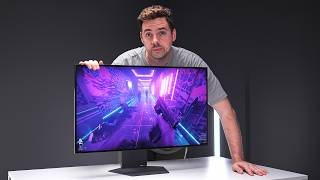
The LG UltraGear 32GX870A is a 32-inch 4K OLED monitor with 240Hz refresh rate and a dual mode switching to 1080p at 480Hz. It aims to serve both productivity and gaming needs without major compromises, as tested over five months of daily use.
32-inch OLED, 4K resolution, 240Hz refresh rate, dual mode (1080p at 480Hz), DisplayPort 2.1 and HDMI 2.1, USB-C with 90W charging.
32-inch provides more spacious workspace compared to 27-inch, especially in apps like DaVinci Resolve. Ultra-wides not preferred due to screen sharing and gaming aspect ratio.
4K offers sharp text and UI elements on 32-inch, better than 1440p. Allows scaling options on Mac OS, though minor scaling issues exist.
4K gaming is demanding (8.3M pixels vs 3.7M for 1440p). To maximize FPS, can reduce settings, use DLSS, or upgrade GPU. Dual mode (1080p 480Hz) is available but rarely used by reviewer.
Colors differ significantly from Apple monitors, noticeable in photo editing. Menu shortcuts limited; no dedicated physical button for input switching.
Mac connected via HDMI 2.1 at 120Hz, PC via DisplayPort 2.1 at 240Hz. Keyboard (Nuphy Air 75 V2) switches between Bluetooth (Mac) and 2.4GHz (PC). Two mice used for simplicity.
Original RRP $1,399, now discounted to $950. Considered decent price for the combination of 32-inch OLED, 4K, 240Hz, dual mode, and laptop connectivity.
The LG UltraGear 32GX870A hits a sweet spot for hybrid productivity and gaming setups, offering high resolution and refresh rate with minor compromises in color accuracy and input switching. It is a strong contender for the best monitor of 2026.
What is the resolution and refresh rate of the LG UltraGear 32GX870A?
4K resolution at 240Hz.
00:30
What dual mode does the monitor offer?
It can switch to 1080p resolution at 480Hz.
00:42
What ports does the monitor have for video input?
DisplayPort 2.1 and HDMI 2.1.
00:56
How much power does the USB-C connection provide for laptop charging?
Up to 90 watts.
01:09
Why does the reviewer prefer 32-inch over 27-inch for productivity?
32-inch feels more spacious, especially in apps like DaVinci Resolve with many menu elements.
01:24
What is the pixel count difference between 1440p and 4K?
1440p has about 3.7 million pixels, 4K has 8.3 million pixels.
05:31
What is the response time of the monitor?
0.03 milliseconds.
08:05
What color gamut coverage does the monitor have?
98.5% DCI-P3.
09:04
How does the reviewer switch between Mac and PC?
Keyboard switches via FN+4 (2.4GHz for PC) or Bluetooth for Mac; monitor input switched via menu.
11:03
What is the original RRP and current discounted price of the monitor?
Original RRP $1,399, now $950.
11:33
Clenching cheeks for RTX 5090
Humorous admission of the high cost of the GPU upgrade.
06:30Dual mode rarely used
Honest confession that the 1080p mode is almost never used, contrary to marketing hype.
07:04Price drop makes it decent
Reveals significant discount from $1,399 to $950, making the monitor more accessible.
11:33[00:00] Productivity and gaming. Those are the two things I need my monitor to be good at. The problem is finding a monitor that can do both of those things without making any big compromises. Now, I have been patiently waiting for one for years, but a few months ago I came across this one.
[00:16] The LG UltraGear 32GX870A. And this is not a sponsored video. LG hasn't paid me any money. This is a monitor I have personally chosen and have been using at my desk daily for the last five months.
[00:30] So let me get into why. So a really quick overview of some of the specs. Now this is a 32-inch monitor. Now the panel is OLED and is also 4K with a refresh rate of 240Hz.
[00:42] Now it also has a dual mode where it can be switched to a 1080p resolution at 480Hz, but I'll go into more detail on that a little bit later. Ford selection is good with both the Sprayport 2.1 and HDMI 2.1,
[00:56] so I can use either and get the full 4K 240Hz image. And it has a one cable USB-C laptop connection that provides image output and up to 90 watts of charging.
[01:09] So, sounds pretty good so far, right? Well, let me expand on a couple of key areas that are important to me. Now, I work from home, so I'm obviously sitting at my desk for eight hours a day, which typically involves having multiple windows open at the same time.
[01:24] Now my personal preference is a 32 inch screen size for this. 27 inch feels a little cramped for me, especially in apps like DaVinci Resolve, where there are tons of menu and selection elements.
[01:37] To kind of give you an idea of the size difference and how that scales in some programs, here is a 27 inch screen versus 32 inches. Now same scaling, there's no other differences other than physical screen size.
[01:50] You can see how everything just feels a little bit nicer and more spacious on the larger 32-inch monitor. Now, there are, of course, ultra-wide options. I do like ultra-wide. I have used them before.
[02:03] I enjoy the huge amount of screen real estate they provide. But I typically don't use them for my own setup for a few reasons. I often don't take full advantage of all the space.
[02:15] And I also share and record my screen a lot. and it's just a little bit easier on a standard 16 by 9 aspect ratio monitor, and I also prefer that aspect ratio for shooter games.
[02:27] Next is resolution. Now, I have used 1440p monitors in the past. The lower resolution is great for gaming, especially if the GPU isn't super powerful, but I personally don't enjoy it for productivity, right?
[02:40] Especially on a 32-inch monitor. The pixel density just isn't enough, and text and UI elements in particular are just not very sharp. Now, the 32GX870A has a 4K resolution,
[02:53] so, you know, during the day when I'm just doing emails and writing text, it still looks pretty sharp. Also, it gives me more headroom to adjust scaling if I want. For example, on Mac OS, I can set the scaling to the Morse base option,
[03:08] aka native 4K, and I can also still read text relatively easily, but I also instantly gain a lot more workspace if I need. Now to be fair there are some minor scaling issues with 4K monitors on Mac OS when you using the scaled versions and not using a native 4K scaling option
[03:28] It's not really that noticeable in my experience, although I'm sure the comments down in this video will tell you otherwise. I can always switch to the full native 4K resolution if I want, like I mentioned before, for an ever so slightly cleaner and sharper image versus the scaled options.
[03:45] Now, speaking of writing text all day at my desk, I'm sure most of you watching this also spend a long time typing, you know, between sending messages, prompting AI tools, and just jotting down thoughts. Did you know you can use speech to text to save a lot of time?
[04:00] For example, I can quickly reply to Slack messages in just a few seconds, or say the name of the text template, and it's instantly pasted into an email. And that is where the sponsor for this section of the video comes in with the flow.
[04:13] Now, unlike other dictation options, Wisp to Flow is not only much more accurate requiring very few edits, but it actually works in any app with no setup or integration and is entirely cross-platform.
[04:26] So, for me, it's things between my iPhone, desktop PC, and my Mac. Now, I like this because Wisp to Flow actually learns unique words I say and adds them to my own personal dictionary.
[04:38] Now Flow can spell uncommon names, brands, and terms correctly depending on the workspace context, and I have the option of customizing the style of messages based on which apps I use.
[04:50] So I can choose a more formal style for Slack and Teams dictations, for example. Whisper Flow also takes this a step further. Now I frequently use ChatGPT, and I can give Whisper Flow a quick verbal idea of what prompt I want,
[05:04] and it will return a formatted optimized version right in the chat GFT message box. So if you're interested, use my link in the video description and pinned comment to get a one-month free trial of Whisper Flow Pro.
[05:17] Okay, so let's get back to talking about the resolution. Now, typically the big problem with a 4K monitor is that it's not the best choice for gaming, right? For the simple reason that 4K gaming is much more demanding than, say, 1440p gaming.
[05:31] To give a rough idea of difference, a 1440p image contains about 3.7 million pixels versus 4K, which has 8.3 million. So that's over twice as much data that the GPU needs to render and push out to the monitor in every single frame.
[05:48] And you can imagine the effect that that has on the FPS. Now, for me, I play a lot of shooters, so I want to try and maximize FPS where possible, ideally over 120 FPS. There are a few ways to do this.
[06:01] I can reduce the settings of downscaling game or use Nvidia's frame generation or DLSS, etc. Of course, having a beefy GPU is really the most obvious answer.
[06:14] And I recently upgraded from an RTX 3090 to 59 and saw significant improvement. Now, yes, an RTX 5090 is super expensive. I'm not going to lie. And yes, I clenched my cheeks very hard when I hit the purchase button.
[06:30] By the way, here's my PC build list. I know that I bought this just after end of financial year in 2025, so I actually got a really good discount on the GPU and that is also obviously before RAM prices went crazy too But this monitor also has got LG dual mode feature that we first saw about two years ago
[06:51] Now the reason this is relevant for this section is because dual mode allows me to switch between the 4K 240Hz option and a second 1080p 480Hz mode.
[07:04] Now to be 100% honest with you, I almost never use this 1080p mode. 1080p is a fairly low resolution, especially on a 32-inch size monitor. I would just rather play in native 4K resolution and just bump the settings down to increase FPS.
[07:21] But I'm also not a super competitive gamer either. I mostly play Rainbow Six Siege, which is a 10-year-old game and isn't demanding anyway. or more recent shooters like Tarkov or Ark Raiders,
[07:34] which don't really need a super high 300 FPS refresh rate. But, you know, if you are a Counter-Strike or Valorant or Overwatch player who wants that super competitive high refresh rate like 300 plus hertz,
[07:48] that option is available for you at the touch of a button. Literally, it is just a button on the bottom of the monitor. Now, I've got to mention that you probably already know all the other nerdy gamer specs this monitor has, like 0.03 millisecond response time, which is pretty typical for an OLED panel.
[08:05] It's also got G-Sync, FreeSync, etc. I will just link the monitor on the LG website below, so you can check all those specs out if you're interested. I also have some affiliate links down below, so if you like this review, if it helped you
[08:17] out, if you want to support the channel, click that link, and it will also take you to the best price I could find for this monitor. Okay, so now I want to mention a few things that I don't really like about this monitor. honestly there really weren't much and that is a pro in and of itself but one thing that I didn't
[08:35] really like is the color and it's not really the monitor's fault like it has great colors in general especially when gaming but the colors are very very different to an Apple monitor like my MacBook or the studio display. Now I like taking travel photos and editing them and the colors looked
[08:52] significantly different when I had my MacBook side by side with the monitor but this is really only an issue if I need to color something using the native Mac OS colors. You know, the monitor
[09:04] itself has, I think it's like 98.5% coverage of the DCI-P3 gamut. So if you really need to, you can just switch your MacBook to DCI-P3, match the colors up that way. But yeah,
[09:16] not really a huge negative, just a little nitpick that I found during my usage. Also, while there are menu shortcuts, functionality is actually kind of limited. Now, I can set input as shortcut but to actually switch inputs I have to then manually click through every time I switch
[09:33] between my Mac and PC. It'd be really nice to just have like a dedicated physical shortcut button that I could map to easily switch between HDMI and DisplayPort inputs. Okay so to give you a brief
[09:46] overview of how I have everything set up and connected to the monitor here. So this is my M3 It is connected via HDMI 2.1. Now I can get the full 240Hz refresh rate. I've got that manually set to just 120Hz on Mac OS.
[10:00] Just because I don really need 240Hz I just looking at Word documents and emails all day The PC the RTX 5090 gaming PC that is connected via DisplayPort 2 Now the beauty of having both HDMI and a DisplayPort 2 is I can use either and get the full 4K 240Hz refresh rate which is really nice
[10:24] Now as you can see, I use the exact same keyboard for both systems. This is connected wirelessly. This is the Nufi Air 75 V2. It is connected to the Mac with Bluetooth and the PC with a 2.4 GHz dongle,
[10:37] and I'll show you how you can switch between that super easily a little bit later. Now, I've also got different mice here. I have the MX Master 3S, that's the Mac OS, and then the Logitech D Pro X Superlite, that is for my Windows PC.
[10:50] I find it's just easier having two separate mice. I can just grab one and start using it, versus having to switch it around and have two different Bluetooth connections. So if I want to be switching between Mac OS and the PC, it's super simple.
[11:03] On the keyboard, all you need to press is FN, and then right now I'm on Bluetooth for the Mac. So you can see that it's flashing blue. So if I hold down FN and press 4, that's going to switch the keyboard over.
[11:16] You can see it's flashing green there for the 2.4 GHz dongle. And then over here, I'm just going to click the menu, go to Input, switch to DisplayPort. and I'm instantly on Windows and as you can see the keyboard works perfectly fine.
[11:33] So let's talk about the most important factor when it comes to monitors and that is the price, right? Now at the original I think $13.99 US dollar RRP, yeah that is a pretty tough pill to swallow
[11:46] and you'll probably have to sell an organ or two to afford that but usually 6 to 12 months after these game monitors are released, which is around about now, they get discounted, sometimes quite a lot. Now this one in particular is down to $950 at the time
[12:04] of this video, which I think is actually a fairly decent price, right? Like considering there's not really that much competition if you want something like this. It's got a large 32-inch OLED panel,
[12:16] you know, not that uncommon, but when you pair that with also 4K, 240Hz, and the 1080p dual mode and laptop connectivity, it ends up being the perfect combination for someone like me,
[12:31] you know, who wants that 4K resolution for day-to-day work and also has that gaming flexibility and capability. So overall, have I enjoyed using this monitor? It's been about five months of daily
[12:43] use at this point and overall, yes, you know, it's not perfect, especially for those of us that use Macs as well as PCs. And there are so many options out there for hybrid productivity and gaming
[12:55] setups. Like you have your gaming-oriented ultrawides, your dual monitor setups, or even just a straight, you know, 1440p 27-inch gaming monitor. But I feel that this one, for me personally,
[13:10] is right in that sweet spot where I still have to make, you know, some compromises, but not in a big There's also the big brother of this monitor, a 45 inch ultrawide version with almost identical
[13:22] features. I'll just leave a link either here or down in the description of this video so you can check it out and see how they compare.
⚡ Saved you 0h 13m reading this? Transcribe any YouTube video for free — no signup needed.