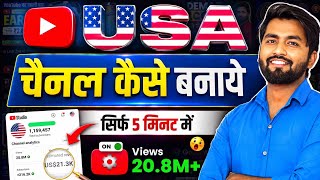

US vs India YouTube Earnings Exposed
40sReveals a shocking earnings disparity with concrete numbers, sparking curiosity and debate.
▶ Play Clip"Delivers a practical step-by-step guide, though some repetition and promotional content reduce the score."
This video provides a step-by-step guide to creating a USA-based YouTube channel, emphasizing the higher earnings potential from US audiences. The creator demonstrates the process from creating a new Gmail account to setting up the channel's country as the United States, and explains how to use AI tools like ChatGPT for channel branding and descriptions.
Explains that a USA-based YouTube channel is one where the audience is primarily from the United States, leading to higher earnings.
Shows proof: a video with 3.7 million views earned only $26, while a US-content video with 3 million views earned $496, highlighting the significant difference.
Open the Gmail app, click on profile, then 'Add another account', and create a new Google account for personal use.
Open YouTube app, switch to the new account, and click 'Create a Channel'.
Ask ChatGPT to suggest a channel name for USA-related content, then copy the name and check on YouTube that no big channel already uses it.
Use ChatGPT to generate a logo and banner for the channel, then upload them as profile picture and banner.
Use ChatGPT to write a channel description in English with emojis, then paste it into the channel settings.
Go to 'studio.youtube.com' in Chrome, switch to the new account, and enter YouTube Studio.
In Settings > Channel > Basic info, set 'Country of Residence' to United States.
In Advanced settings, mark videos as 'No, not for children'. Feature eligibility (like custom thumbnails) requires phone verification, which can be done later.
Use ChatGPT to generate channel keywords, then paste them in the 'Keywords' field in Basic info.
In Upload Defaults, set the video category (e.g., Entertainment) and language to English (United States) for video language and title/description language.
After saving, the channel is set to United States, and viewers will see it as a US channel.
By following these steps, you can create a YouTube channel targeted at US audiences, which can significantly increase your earnings compared to a general channel. The key is to set the country to the United States and consistently upload USA-related content.
What is the main benefit of creating a USA-based YouTube channel?
Higher earnings due to US audience, as shown by a video with 3 million views earning $496 vs 3.7 million views earning $26.
00:26
What is the first step to create a USA-based YouTube channel?
Create a new Gmail account.
01:43
How do you set the country of residence to the United States in YouTube Studio?
Go to Settings > Channel > Basic info, then set 'Country of Residence' to United States.
11:06
Why should you check if a channel name is already taken?
To avoid creating a channel with the same name as a big channel, which could cause confusion and prevent you from building your own brand.
05:42
What is the purpose of using ChatGPT in this process?
To generate a channel name, logo, banner, description, and keywords.
04:35
What should you do in the 'Advanced settings' regarding children's content?
Select 'No, not for children' if your content is not made for children.
11:59
What is the recommended category for AI videos in Upload Defaults?
Entertainment.
14:51
What language settings should you choose for a USA-based channel?
English (United States) for both video language and title/description language.
15:05
Earnings difference proof
Provides concrete evidence that US audiences yield significantly higher RPM, motivating viewers to follow the tutorial.
00:26Using ChatGPT for channel name
Shows an innovative use of AI to generate branding ideas, saving time and effort.
04:35Setting country to United States
This is the core step that makes the channel USA-based, directly impacting audience and earnings.
11:06Channel keywords via ChatGPT
Demonstrates how to optimize channel discoverability using AI-generated keywords.
13:58[00:01] how to create a USA based YouTube channel ? What are USA based YouTube channels ? Friends, there is such a channel on which if you upload a video, the audience watching your video will be the audience of the United States.
[00:13] audience visible here is the US audience. So your videos are watched by US audiences. For this, friends, you should create a USA based YouTube channel. create a USA based YouTube channel.
[00:26] work on USA content. I am saying this friends because the difference in earnings there is If you don't believe it, let me show you some proof here. You will If you see here, I have one of my shots which has $3.7 million views and
[00:40] how much has been earned on it? It's only $26. Friends, if you convert $26 into Indian Rupees, it becomes approximately $2400 to $2500. Ok? But friends, if you see this video on US content, it is US content.
[00:52] Ok? The audience watching it was from the US. How many views has this post received? Only $3 million views have come and from 3 million views, brother, if you see its earnings, you can see that $496 has been made. Do you understand ? Approximately $500, if you see it in Indian rupees,
[01:05] brother, this amounts to $45 to $46000. So friends, you can see here difference there is in the earning. So if you also want that whatever you upload, the US audience can see it, then how will your video reach the US. For that, brother, there are
[01:18] You have to turn it on. What would be the perfect way to create a USA channel, So watch this video very carefully. But yes friends, Those who are new to the channel, along with subscribing to the channel, please click on the bell icon
[01:31] upload such a video, the notification goes to you first and you I am your Sirki and you are watching our channel Spreading Knowledge. What is the first thing you have to do friends? You have to open the Gmail app.
[01:43] Ok? As soon as you open it, you will see that you will see the profile in this corner. Friends, if you scroll down a little while clicking, you will Ok? All you have to do is click here. Simply first of all you have to generate an email
[01:57] click on Google here. As soon as you click, an option will appear in front of you to After that friends, this page will open in front of you. Now friends, if you look here, it will be written Create Account. Ok? All you have to do is
[02:11] for my personal use and work and my business. So brother, it has to be made for personal use. As soon as you click, the next option will appear: Create a Google Account. and whatever your surname is, fill it in. If not, it is optional and you
[02:26] here. Friends, after writing the name here, you have to click on Next here. As soon as you click, you will have to select gender etc. Let's select it first.
[02:39] written next below, you just have to click on next here. As soon as you click on Next, you will get the option to create a Gmail address here. ID you want to create, you can write it here as per your convenience, for example, suppose I want to
[02:51] soon as I write it here and click on Next, it will automatically tell me whether it is written that the username is taken. This is not available. What is available? Available, all this click on it. Otherwise, friends, you can increase the digits here as per your convenience. You
[03:06] can write something like one, two, three, four as per your wish. So for now I'll take one of these. You just have to click on Next here. As soon as you click, the You can just create your password here as per your wish. Let me
[03:19] After creating the password, friends, you have to click on Next which is written here. you just have to click on Next once again. Then you have to scroll it down. You have to agree to their clicking on I Agree here. As soon as you click on I Agree here, you will have
[03:33] click on I Agree here, you will have email ID that you have created, we will create a YouTube channel here. How to create a channel now? Please watch the process very carefully. Ok? What you have to do is first of all
[03:45] you have to open the YouTube application on your mobile phone. After clicking, friends, what do you have to do now ? Account will be written here. Ok? All you have to do is click here on this account. As soon as you click, all the
[03:57] and channels created in your mobile phone will be showing here. Ok? You have to scroll down and see that the new email ID you created is showing here. will doing a show here. And it is clearly written no channel. So how to create a channel? Please
[04:10] What do you have to do? You have to click here. As soon as you click, this page will open in front of you. What do you have to do now ? All you have to do is then you will come to this page. Ok? After coming, friends, you can see that it will be written here '
[04:22] Create a Channel'. Please look very carefully. Create a channel. Ok? You just have to put a profile picture is coming. Ok? To write the name and to write the handle. Ok? Friends, what do you have to do ? You have to open Chat DT in your mobile phone.
[04:35] I opened Chat YouTube here. After opening it, you can write here if you want. If you want, you can also speak here. So let me say it here. I am starting a YouTube channel on which I will upload USA related content. So please
[04:47] suggest me some name for my channel. Now friends, what do you have to do here? Whatever name it suggests, now whatever name you like, you just have to copy that name from here and you have to find out whether any YouTube channel is already created with that name
[05:00] I take one of these names. As soon as I take this name, I copy it. copy this from here to here. I copied this. Ok? Now I'll go to YouTube. back it up and go to search here and paste this name here and
[05:15] search. Ok? As I search, then you have to click on these three lines. You have to click on the search filter and the type written here is all, select the channel here. Look, you just have to
[05:28] Now you just have to click on apply here. As soon as you click on Apply, As soon as you click on Apply, see that there is no very big channel. All 1 2 5 6 10 100 subscribers are such
[05:42] no big channel which has 1000 or 1 lakh subscribers. Look why I forbid you from creating a channel in the name of any big channel because brother, you are creating your own channel. You will create your own brand. Ok? And if someone with the
[05:56] big channel with the same name, then that person not even get it because that guy has already taken it with that name. So don't make one with the same name. Please check it here once. Now look, there
[06:11] you can select this name. So I select this name. Ok? Selected it. create a channel? Now you have to click the same again. Click on profile here. Then name that is showing here, you just have to click on the pencil that is made in front of it
[06:26] whatever you had copied from there, you have pasted it here, you can see our name is written here, you just have to click on save here, okay see, I have written my name here, okay and I have also taken this handle on my own, if you are
[06:39] just click on this pencil here and whatever is the name of your channel, it is written here, next you write some words i.e. some numbers here, see I have see I have got it, just save it, what have you done here,
[06:52] Now comes the turn of your channel's logo. we will get the logos made from this only. Why would we work so hard? Ok? Look, I have told him here that the name Urban USA is good. I have taken this.
[07:05] Make me a logo for this. Ok? You just have to click here. Now he will create this logo for you. Ok? As long as he's making logos. Let us follow the next steps. work here. You just have to click here on Create Channel. As soon as you click,
[07:17] ready. Let me show you. The channel has just been created brother, but there is still a n't just make this and then start uploading videos. Ok ? So just click here. If you click, you Create a Channel'. Now your channel name is written there. You can see it
[07:33] channel is written. You can view your channel just by clicking here. You can see that your channel will look something like this. Ok ? Now friends, what do you have to do? Look carefully. It will be written here Edit Channel. All you have to do is click here. As soon as you click,
[07:45] this page will appear in front of you and friends, this is the channel setting which you setting of the channel which you will see here in the desktop one. Ok show it to you in full detail. We will do the settings from there also. Ok? See here what you
[07:58] can put logos. Ok? So let's see whether our logo is made or not. So we that our logo is ready. You can see what a great logo it is. What do you have to do? You just have to click here. And here above it is written save.
[08:11] You just have to click on save. As soon as you click on save, this logo of yours will be Ok? Download done. You can see. Just what do you have to do? Have to come here. All you just downloaded will be in the gallery. Select on gallery and
[08:25] just select your logo and below it is written Save as Profile Picture. Just Now comes the turn of friends, what is visible in the back is the banner friends. Ok Now friends, I had written here that you should also make a banner for this
[08:39] can see it here. Ok? So what do you have to do? Click on this ? What do you have to do after saving? You have to come to this page and click here. As soon as you click, whatever banner you have downloaded friends, just
[08:51] After selecting it, you can minimize it like this. Click on save. logo has also been installed. My name is written here. The handle is done and the send the link of your channel to your friends, then just by copying it here,
[09:06] you can send the link of your channel to any of your friends. Ok? Next friends, the What is a description? Description of your channel. What are you going to do on your channel? And you should also write the description brother. Once you have created a channel, you should write immediately. how to
[09:19] write? Let me teach you. What do you have to do? You have to come to Chat GTI. On this channel I will upload AI related videos which will be for USA audience. For this, write a description for your YouTube channel which should be
[09:33] in English language and use emojis. So here friends, you can see that it is This is the description of your channel. Ok? What are you going to do on your channel? Just come here and click on the description and
[09:46] friends, after doing this, please click on save here. Your description will also be saved here. And as far as privacy is concerned, friends, please let it remain as it is. Now your channel friends has been created. Let me back it up and show you. So
[09:58] how will your channel look? You can see that your channel is visible here in this manner. You This is done people. This is the banner. Ok? Now friends, let's talk about Friends, what you have to do is open the Chrome browser on your mobile phone.
[10:12] After opening it, you have to type here study youcom. Keep this in mind, study youtube.com. You have to write this here without using any space. not have to click on this here without using any space. Friends, you have to
[10:26] write this study youu.com. As soon as you click on Go here, a website like this will open in front of you. Watch the process carefully. What you have to do is, you have to zoom it here in this manner. After zooming, you have to
[10:40] Switch Account written here, you just have to click here. As soon as you click, all the shown to you here. All you have to do is scroll down and you will see Look, my channel is visible here which I had just created. Ok
[10:53] click here. If your channel is not showing then leave it for 2 minutes. After 5 minutes you can do this process. Your channel will be shown here. click on Continue here. Friends, what do you have to do after clicking? Please
[11:06] Friends, what is the first thing you have to do? Here, if you look at the bottom side, if settings have been made here. Ok? Friends, in this setting you have to click here. As soon as you click, this page will open in front of you and this is called
[11:18] important setting of the channel. This setting is important friends. there. Channel settings opened. written Country of Residence here. Which country do you live in? This is
[11:31] asking here which country's channel is this. You just have to click here and here brother, for whom have you created this channel? Made for a US audience. So here you just have to So you have to scroll down here. As you will see, if it is by your name then
[11:44] come to U and here you will see United States written. You can see the As soon as you click, you can see that United States has been selected here. Now that you have selected the country United States, the
[11:59] Plus here friends you will see the second setting, you will see the advanced setting, come inside it and here brother you must tick on the no so that whatever this video is not for children, if you do not make it for children then brother click on no, okay
[12:14] and if you make it for children only, then brother you will have to click on yes here, that I will not make it for children, okay next friends, what you have to do here is feature eligibility, you can see the first one here
[12:26] enabled but do not enable it now because to enable it here you will need an India number. An OTP comes on your number. So don't enable it right now. Next thing friends, this also needs to be enabled. But don't enable this yet.
[12:39] How to work if you want to create a USA based YouTube channel? Look carefully. Friends, when you see this, open it and show it to you. What happens in this ? You can see. Unless you turn this on, you cannot add thumbnails to your videos. Ok? If you are making shsh then there is
[12:53] long channel creator and are uploading long videos. Ok? Only then friends, you should upload at least 10 videos related to your US content. After that friends, you should turn on this step. Ok? Turn on this step after that. It
[13:06] a page will appear in front of you. Here you have to fill the number. Once you fill the OTP, your number will be verified and 'Enabled' will be written here. This is a very simple process. Ok? And friends,
[13:20] you want, you can turn it on through video verification. Either you have a valid turned on from the channel history also. What does the channel's history mean, friends? If you keep working on it for 2 months, it will turn on automatically.
[13:33] So don't worry too much about it. Ok? It does not mean that if you do not turn it on, you will That is video verification. It is a very simple process. You can see it on the side here. A verification will come to your email. You just have to verify your face here
[13:45] If you do not know this process then watch my video. How to create a YouTube channel. I have taught all these processes in it. Ok? Now friends, the when you come inside the basic info, you will see keywords written here.
[13:58] What should I write in the keyword, brother? Here you have to write channel keywords which will be related to your channel. back to the chat gift. Ok ? We will go here. By writing the channel keywords, writing it here, I search it. Friends, if you see here, I have got the
[14:11] channel keywords here. You can see so much is given here. Plus, it is clearly said here that click here and copy it. You can copy it from here to here.
[14:25] paste it here. Paste it in this manner. Look, as I pasted it, you written here. After this, you have to click on Save here. you have selected the country and also written the keywords here. Then
[14:39] we will open the settings here. Next is Upload Defaults. What do you have to do inside this, friends? Friends, you have to leave the basic information. nothing to be done. You have to go tell what your category is related to. Ok?
[14:51] you can also take help of chat. Well, friends, if you upload AI videos then Ok? I have selected the entertainment category here. AI video Plus friends, if you see here, what is the language of your video
[15:05] So you click here and here you have to search English. Ok? You English United States. Ok? You just have to select this. if you look here, what will you keep as the language of the title and description?
[15:19] you write that also in English then we will select the same for that also. English United States I just click here. You can also see that mine has been from here. What do you have to do to select it? Just save this as well. As soon as you
[15:31] save, you have done all the important settings. open the YouTube channel. And this is your channel. I'll show you by clicking. You can see this is your channel and if someone clicks here on your channel, as soon as he
[15:43] clicks, he will see your channel of United States here, you can see that the very clearly, okay friends, from this video you have learnt you have learnt this method, but what USA related content will you upload on that channel,
[15:57] what kind of content is there, I have explained it in great detail you will get a lot of content, friends, watch each video, whatever you like, make content like that and
[16:10] upload it and it will remain within India, brother, get US audience and earn a lot. I If you liked the video then please like the video brother. If you are subscribe. I will meet you in the new video. Till then take care of yourself.
⚡ Saved you 0h 16m reading this? Transcribe any YouTube video for free — no signup needed.