
Earn More with US YouTube Channel from India
45sHigh earning potential from a US audience compared to India is a compelling hook for creators seeking better monetization.
▶ Play Clip"The title promises a guide to creating a US YouTube channel, and the video delivers exactly that with detailed steps."
This video provides a step-by-step guide on creating a YouTube channel targeting a US audience while residing in India. It covers account setup, channel customization, and essential settings to maximize earnings from US viewers.
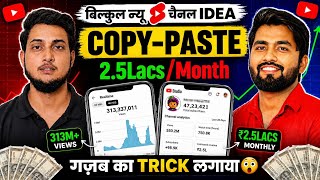
The video explains how to create a US-based YouTube channel from India, emphasizing higher earnings from US audiences compared to Indian audiences.
Open the Gmail app, click on profile, select 'Add another account', and create a new Google account. Avoid using existing accounts to prevent spam issues.
Open YouTube app, switch to the new email ID, click on profile, then 'Create a Channel'. Name the channel appropriately.
Use ChatGPT to generate channel name ideas. Check if the name is already taken by searching on YouTube with filter 'Channel'.
Use ChatGPT to create a logo and banner. Upload them to the channel via the YouTube app.
Use ChatGPT to generate a channel description in English with emojis. Copy and paste it into the channel settings.
Open Chrome browser, go to 'studyyoucom' (without spaces), click on profile, select your channel, then click on settings.
In channel settings, under 'Country of Residence', select United States. This is crucial for targeting US audience.
Set content as 'Not for kids'. Enable feature eligibility later; for now, skip phone verification and advanced features.
Use ChatGPT to generate channel keywords. Copy and paste them into the 'Keywords' field in basic info settings.
Select appropriate category (e.g., Entertainment) and set video language to English (United States). Also set title/description language to English.
In customization, add links to Instagram, Facebook, Telegram etc. to promote the channel.
By following these steps, you can successfully create a US-targeted YouTube channel from India and start earning higher revenue from US viewers.
What is the first step to create a US-based YouTube channel from India?
Create a new Gmail account specifically for the channel.
01:47
Why should you avoid using an existing email ID for a new US channel?
To avoid spam issues and zero reviews.
02:14
How can you check if a channel name is already taken?
Search the name on YouTube and filter by 'Channel'.
06:41
What tool is recommended for generating channel name ideas?
ChatGPT.
05:21
What is the key setting to target the US audience?
Set 'Country of Residence' to United States in channel settings.
13:36
What should you set for content made for children?
Set 'Not for kids' if your content is not for children.
14:18
What is the purpose of channel keywords?
To help YouTube understand the channel's topic and improve discoverability.
16:29
What language settings should be selected for a US channel?
Video language: English (United States); title/description language: English.
17:34
How can you add social media links to your channel?
In customization settings, click 'Add link' and enter the URL.
18:43
Higher Earnings from US Audience
Explains the core motivation for creating a US-based channel: significantly higher revenue compared to Indian audience.
00:01Using ChatGPT for Channel Name
Demonstrates a practical use of AI to generate creative channel names efficiently.
05:21Country Setting is Crucial
Highlights the most important setting to make the channel appear as US-based to YouTube and viewers.
13:36Channel Keywords for SEO
Emphasizes the importance of keywords for channel discoverability and provides a method to generate them using ChatGPT.
16:29[00:01] Friends, in today's video we will learn you can create a USA, that is, a channel, by staying here. If you are already working on USA content and you are not getting views or your video is
[00:16] ? Friends, you will if you want to work on a completely new channel then watch this video very carefully. will tell you everything. Plus friends, you can see my voice here on the side.
[00:30] If you look here, you can see how much earning is happening here with so few views. Why are you earning this much brother? Obviously, because this is a USA based YouTube channel. Look, let me tell you what is a US based YouTube channel? While
[00:43] staying in India, upload such content whose viewing audience is from where? The US you have to create content in English and people see it from there, then brother, your earnings will be very high. You will
[00:57] not earn as much in India as you would in the US. If the audience watches your content, how will the US audience watch our content ? Brother will see. If you have created the channel correctly. If you have done the settings correctly,
[01:10] then you can upload your video while staying in India and What kind of video should I upload? What Friends, you will learn everything in this video. But yes friends, before moving ahead in the video, I have
[01:22] new to the channel, friends, friends, watching it for the first time, along with subscribing to the channel, please click on the bell icon. If you learn anything from this video, please give it Come on friends let's start the video. Friends, let me tell you in advance
[01:34] that every part of this video is very interesting. Don't miss it at all. some settings which are very important for you to do. Only then will the want to create a completely new channel then look carefully. Friends, you must be
[01:47] What is the first thing you have to do friends ? You have to open the Gmail app. very carefully. As soon as you open it, you will see that you will see the profile in this corner. All you have to do is click here. Friends, if you scroll down a little while clicking,
[02:01] you will see 'Add another account' written here. Ok ? All you have to do is click here. Now look friends, I am telling you this process open the YouTube application and create an email ID from there.
[02:14] you are going to create a channel related to the US. Look very carefully. That's how spam happens. There is a problem of zero reviews. You don't have to do all this. Simply first of all you have to generate an email ID. As soon as you click, you will get the option to fill in the PIN etc.
[02:29] Whatever your password etc. is, please enter it. After that friends, look here, it will be written Create Account. Ok? All you have to do is click here. As for my personal use and work and my business. So brother, if you want to create it for personal use then
[02:43] simply you have to click here. As soon as you click, the next option will create a Google account, you have to fill in your first name and whatever your surname is. can skip it. So let us first write our name here. Friends,
[02:57] you have to click on Next here. As soon as you click on Basic Information, you will have to write your date of birth etc. here and you will have to select gender etc. After doing this, friends, it will be written next here below. So you just have to
[03:10] you click on Next, you will get the option to create a Gmail address here. can write it here as per your convenience. For example, suppose I want to get it written in my own name. As soon as I write it here and click on Next, it will automatically tell me whether it is
[03:24] available or not. So tell me yourself that brother, look here it is clearly written that the username is taken. This is not available. What is available? Available, all this is available. If Otherwise, friends, you can increase the digits here as per your convenience. You
[03:36] can write whatever you want, 1 2 3 4, as per your convenience. So for now I'll take one of these. After selecting, As soon as you click, the next option will come to create a password. Let me create a password here.
[03:51] you have to click on Next which is written here. As soon as you click, Then you have to scroll it down. You have to agree to their privacy terms by clicking on I Agree here. As soon as you click on I Agree here.
[04:04] click on I Agree here. email ID that you have created, we will create a YouTube channel here. How to create a channel now? Please watch the process very carefully. Ok? What do you have to do?
[04:16] First of all, you have to open the YouTube application on your mobile phone. After clicking, friends, what do you have to do now ? Account will be written here. Ok? All you have to do is click here on this account. As soon as you click, all the
[04:28] and channels created in your mobile phone will be showing here. Ok? You have to scroll down and see that the new email ID you created is showing here. will show is going on here and it is clearly written ' No Channel'. No channel has been created with this email ID yet.
[04:42] So obviously we have just created a new email ID. So channel. So how to create a channel? Please watch the process very carefully. As soon as you click, this page will open in front of you. What do you have to do now
[04:55] click here on the profile. If you click then you will come to this page. Ok? Create a Channel'. Please watch Create a Channel very carefully. Ok? You just have to click here. As soon as you click, you can see that the name is available to be written here
[05:09] and in the name section, the name is already written here. But this is the name with which you created the email ID. You do n't have to keep this name. What name do you want to keep? I will teach you all these things now. Ok? You can see the option is coming here. Here the
[05:21] Ok? To write the name and to write the handle. What is all this? I will explain it to you now. Ok? First of all friends, what will we name the USA channel? How Friends, what do you have to do? You have to open Chat GT in your mobile phone.
[05:34] After opening it, you can write here if you want. If you want, you can also speak here. So let me say it here. I am starting a YouTube channel on which I will upload USA related content. So please suggest me some name for my channel.
[05:48] ? I have closed the mic here and I have asked him to upload the USL recordings. You can see that it will telling it here. I have written it here and tell me the name. So he will tell me more names.
[06:04] Now friends, what do you have to do here ? Whatever name it suggests, now whatever name you like, you just have to copy that name from here and you have to find out whether any YouTube channel is already created with that name or
[06:16] What those people do is that there is a big YouTube channel with that name. They don't know and they create a new channel. Brother, don't make this mistake. Ok? So suppose take this name. I will copy this. Ok? Let me
[06:29] copy this from here to here. I copied this. Ok? Now I'll go to YouTube. Ok? Here I come to YouTube. I will back it up. And here I will go to search and paste this name here and search. Ok?
[06:41] As I search, then you have to click on these three lines. Click on the search filter. is all, you just have to click here and select the channel here. select the channel. Look, I have selected it. Now you just have to click on apply here.
[06:54] As soon as you click on Apply, see that there is no very big channel. All the people who have one, two, 5, 6, 10, 100 subscribers have
[07:06] no big channel which has 1000 or 1 lakh subscribers. There See why I forbid you from creating a channel in the name of any big channel. Because brother, you are creating your own channel. You will create your own brand. Ok? And if someone with the
[07:20] same name, let's say the name you are selecting, verification tick of Rs 1 lakh. You will not even get it because that guy has already taken it with that name. check it here once. Now look, there
[07:35] feel like this then you can select this name. So I select this name. Ok? I have selected it. What do you have to do now? How to create a channel? Now you have to Then click on Create a Channel here. Now the name that is showing here, there is a
[07:48] pencil in front of it, you just have to click here and paste it here, whatever you had copied from there, you have pasted it here, you can see our name is written here, you just have to click on save here, okay, see,
[08:00] okay and I have also taken this handle automatically, friends, then what you have to do is just click on this pencil here and whatever is the next you write some words i.e. some numbers here,
[08:12] if it is available then you will get it, see I have got it, just save it, wrote the name. Now comes the turn of your channel's logo. What do you want to put? Brothers, we will get the logos made from this only. Why would we work so hard? Ok?
[08:26] give it a name. We call it a name. that the name Urban USA is good. I have taken this. Make me a logo for this. Ok? You just have to click here. Now he will create this logo for you.
[08:39] Ok? As long as he's making logos. Let us follow the next step. Ok? can use logos in future also. Ok? We have done so much work here. You just have to click here on Create Channel. click, brother, you can see that your channel is ready. Let me
[08:53] show you. The channel has just been created brother. But there's still a lot of setting up to do. Okay, right Ok? So just click here. Will you click? You can see where it was your channel name is written there. You can see it here. Ok? This is your
[09:06] channel. View channel is written. You can view your channel just by clicking here. You look something like this. Ok? Now friends, what do you have to do? Look carefully. It will be written here Edit Channel. All you have to do is click here. As soon as you click, this page will appear in front of you.
[09:20] which you see inside the app. And here friends, there is a main setting of the channel Ok? I will open the site on my desktop and show it to you in full detail. We will do what you need. Look here you can put logos. Ok? So
[09:34] So we come to this page. So friends, you can see that our logo is great logo it is. What do you have to do? You just have to click here and it As soon as you click on save, this logo of yours will be downloaded in your mobile phone.
[09:49] can see. Just what do you have to do ? Have to come here. All you have to do is click here. Click on it and whatever you just downloaded will be in the gallery. Select on gallery and just select your logo. And below it is written Save
[10:02] logo will be placed here. Our logo is here. see in the back is a banner friends. Ok? So let's get the banner made from this also. written here that you should also make a banner for this for your YouTube channel. So it
[10:15] Ok? So what do you have to do? Click on this and save it here also. what do you have to do after saving? You have to come to this page and click here. As soon as you click, whatever banner you have downloaded friends, right now. Just
[10:27] After selecting it, you can minimize it like this. And you can see here that in the TV, you will see it completely in full, in the desktop you can see the banner from here to here see it, then in the mobile you will see it from here to here, if you
[10:41] you can tell it in the chat gift and it will be made for your mobile. Ok? So what do we do right now? After backing it up completely, we click on save. As soon as you click, brother, and look above, your banner here will also be
[10:54] You friends can see that my banner has been installed here and my logo has also been installed. and the channel URL is there. If you want to send the link of your channel to your friends, then just by copying it here, you can send the link of your channel to any of your friends.
[11:08] description is written here. What is a description? Description of your channel. You should also write what work you are going to do on your channel and the description. Once you have write immediately. how to write? Let me teach you. What do you have to do? You have to
[11:21] come to Chat GT and here you can get the description of your channel speaking. On this channel I will upload AI related videos which will be for USA audience. For this, write a description for your YouTube channel
[11:37] which should be in English language and use emojis. Friends, you have to say it here in this way. friends, you can see that it is written in front of you. This is the description of your channel.
[11:50] ? Just copy this. After copying, you have to come here paste it here. Ok ? If you want to get something else written, please let me know in the chat. He will give it to you in writing. You can paste it here.
[12:03] Your description will also be saved here. You can see it has been friends, please let it remain like this. You don't have to do anything here. Ok? back it up and show you. So how will your channel look? You can see that
[12:15] your channel is visible here in this manner. You can see this is the name of your channel. Ok? Now friends, let's talk about how you will get its main setting. Chrome browser on your mobile phone. After opening it, you have to
[12:29] type study youcom here. Keep in mind that study youcom has to be written here without any space. Look, there is a space here. You do not have to click on it here without any space. Friends, you have to write this
[12:42] study youcom as soon as you click on go here, a website like this will open in front of you. Watch the process carefully. What you have to do is you have to zoom it here in this manner. in this profile which is in the corner. After clicking,
[12:55] you just have to click here. As soon as you click, all the YouTube channels in your mobile phone will be click, all the YouTube channels in your mobile phone will be where it is visible. So look here's my channel that I've just
[13:08] Ok? So you just have to click here. If your channel is not showing then you can do this process. Your channel will be shown here. Ok? As soon as it shows, Friends, what do you have to do after clicking? Please
[13:22] what is the first thing you have to do? Here, if you look at the bottom side, if I made here. Ok? Friends, in this setting you have to click here. As soon as you and this is called important setting of the channel, friends. This setting
[13:36] first thing to do is just click on the channel that is written there. Channel settings opened. Friends, if you look inside this, it is written Country of Residence here. Which country do you You just have to
[13:50] for whom have you created this channel? Made for a US audience. So here you just have to select US country. scroll down here. As you will see, if it is with your name then come to U and written. You can see the United States. You just have to click here. As soon as
[14:05] you click, you can see that United States has been selected here. Now that you have selected the country United States, the Ok? So please do US here. Plus friends here you will see the second setting, you will
[14:18] see the advanced setting, come inside it and here brother, you must tick on the make, brother, it is not for children, if you do not make this video for children then brother click on no, okay and if you make it for children only, then brother
[14:32] I will click on no here that I will not make it for children. Ok? Next friends, here is the feature eligibility, what do you have to do here? is enabled. Friends, the second one here has to be enabled. But do
[14:44] not enable it now because to enable it here you will need India number. An OTP comes on your number. So don't enable it right now. Next thing friends, this also needs to be enabled. But don't enable this yet.
[14:58] when you see the second step, I will open it and show it to you. What happens in this ? You can see. Unless you turn this on, you cannot add thumbnails then there is no problem. But if you are a long channel creator and are
[15:12] uploading long videos. Ok? Only then friends, you should upload at least 10 videos related to content from your US. you should upload at least 10 videos related to content from your US. is very easy to turn on. When you click on Verify Phone Number, a page will appear in front of you.
[15:25] As soon as you click, OTP will come. Once you fill the OTP, your number will be verified and 'Enabled' will be written here. This is a very simple process. Ok? And what do you have to do to turn on the one below? Like friends, if you click here you
[15:38] can see that if you turn it on then you will get all these things but it is not to be turned on right now, related to USA country, after that you have to turn on the second step, after that you have to turn it on, turning it on is a very easy process, see what will have to be done in this, if you
[15:51] want then you can turn it on through video verification, either you have a valid ID then also also be turned on through the history of the channel, what does the history of the channel mean friends, if you keep working on it for 2 months then it will turn on automatically, so do not
[16:03] not turn it on then you will not get views. It's not like that. It will turn on if you are getting good views brother, then you can turn it on even before 2 months. simple process. You can see on the side that a verification will come on your mail here.
[16:17] You just have to verify your face here and you will be verified here. then watch my video on how to create a YouTube channel. I have taught all these processes in it. Ok? Now friends, the main thing here is that
[16:29] when you come inside the basic info, you will see keywords written here. What should I write in the keyword, brother? Here you have to write channel keywords which will be related to your channel. back to Chat GFT. Ok? Let's go here and tell it to
[16:42] write my channel keywords. Ok? Write down the channel keywords. Ok? Now he himself is writing the channel keywords for me because he knows what is the name of my USA channel ? Because I have been
[16:54] all the history. Ok? Friends, if you see here, I have got the can see so much is given here. Plus, it is clearly said here that you can directly copy and paste it in the channel keywords inside the settings. So what do you have to do? Just
[17:07] click here and copy it. You can copy it from here to here. After copying, you have to come here and paste it here. Paste it in this manner. pasted it, you can see that all the keywords are written here. After
[17:20] click on Save here. Your friends, here also written the keywords here. Then we will open the settings here. Next is friends? Friends, you have to leave the basic information. nothing to be done. You have to go
[17:34] you have to tell what your category is related to. Ok? you can also take help of chat. Well, friends, if you upload AI videos then Ok? I have selected the entertainment category here. AI video
[17:47] Plus friends, if you see here, what is the language of your video So you click here and here you have to search English. Ok? You English United States. Ok? You just have to select this.
[18:02] if you look here, what will you keep as the language of the title and description? you write that also in English then we will select the same for that also. click here. You can also see that mine has been selected here. We selected these three
[18:16] you have to do is save it. As soon as you save, you have done whatever settings you had. Now your channel will appear to be a US channel. I will show you the whole thing. Yes show it to you. I'll back up from here. I open the YouTube channel.
[18:30] And this is your channel. I'll show you by clicking. You can see this is your channel. And if someone clicks here on your channel , as soon as he clicks, United States here. You can see that the United States channel is visible.
[18:43] Very clearly. Ok? Plus, if you visible here in the description, how will you add it? Let me teach you that too. You have to click here. You have to when you come here, you can see the customization here. Just by clicking here
[18:58] you will get this page here. What do you have to do? Have to scroll down. And here you will get an option, friends you can see the add link. Ok ? Just click here and write the title here. Enter a title. Please
[19:10] write Instagram here. Ok? And you can see next to it, it is written Enter URL, you just have to paste the link here. Ok? As soon as you write one, it will You can also add your Facebook by clicking on it. You can also add Telegram.
[19:23] way it will be added from here. Friends, from this video you have learned how to create a YouTube channel related to USA. You have learned this method. But what USA related content will you upload on that channel ? What kind of content is there? I have explained it in great detail, friends. If
[19:38] check it in the description of this video. You will find a lot of content. Whatever watch every single video. Create and upload content in the way you like and while staying in India, get US audience and earn a good amount. I hope
[19:51] If you liked the video then please like the video brother. If you are new to the channel, please you in the new video. Till then, take care.
⚡ Saved you 0h 19m reading this? Transcribe any YouTube video for free — no signup needed.