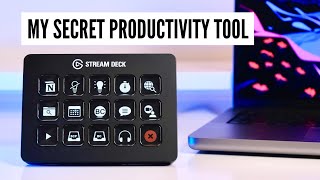

Stream Deck: Not Just for Gamers
45sChallenges the common assumption that Stream Decks are only for gamers, sparking curiosity among productivity enthusiasts.
▶ Play Clip"The title accurately reflects the video's content, which convincingly argues the Stream Deck is a secret productivity weapon for remote work."
The Elgato Stream Deck, originally designed for gamers and streamers, is a powerful productivity tool for anyone. This video explores how it can be used to automate tasks, control apps, and streamline workflows, especially for remote workers and creators.
The Stream Deck is a programmable macro pad with LCD buttons that can control your computer and apps with custom settings.
There are three versions: Mini (6 keys), Original (15 keys), and XL (more keys). The Mark II version has an improved form factor and custom fascias.
Plug into Mac/PC, download software, and start programming buttons for tasks like opening apps, web pages, or complex multi-actions.
Profiles allow automatic switching of button layouts based on context or app, providing more than 15 buttons without manual switching.
The creator built a custom Notion control deck to speed up workflow, with templates linked in the description.
The web store offers plugins (e.g., Spotify shows album art) and icon packs. Users can also create custom buttons with the button editor.
Key uses include: home screen for work modes, home automation via IFTTT, audio device switching, video call automation (opens Zoom, webcam, key light, switches profile), email management with text insert, and video editing shortcuts.
Third-party plugins (e.g., Pomodoro timer from GitHub) and startup/shutdown routines. Caution advised for downloads from trusted sources.
The Stream Deck is a versatile productivity tool that can save time and streamline workflows for remote workers and creators, offering extensive customization and automation capabilities.
What is the Elgato Stream Deck?
A programmable macro pad with LCD buttons that can control your computer and apps with custom settings.
What are the three versions of the Stream Deck?
Mini (6 keys), Original (15 keys), and XL (more keys).
01:28
How do you set up the Stream Deck?
Plug it into your Mac or PC, click the welcome button, download the software, and start programming buttons.
02:00
What is the difference between folders and profiles on the Stream Deck?
Folders provide extra space within a page, while profiles are pre-determined views that can automatically switch based on context or app.
02:29
What is a multi-action button on the Stream Deck?
A button that triggers multiple actions in sequence, such as opening Zoom, turning on a webcam, and switching profiles.
05:36
How can the Stream Deck help with video calls?
It can automate opening the video call app, webcam software, turning on key lights, and switching to a call-specific profile.
05:36
What is the text insert function used for?
It inserts pre-written text, useful for managing regular emails or replies.
05:58
Where can you find third-party plugins for the Stream Deck?
Platforms like GitHub.
07:14
Stream Deck as Productivity Tool
Introduces the Stream Deck as a versatile tool beyond gaming, emphasizing its potential for productivity.
Profiles for Context Switching
Explains how profiles enable automatic button layout changes based on the active app, greatly expanding functionality.
02:29Multi-Action Video Call Automation
Demonstrates a real-world automation that saves 5-10 minutes per call by combining multiple actions into one button press.
05:36Third-Party Plugins for Advanced Features
Highlights the extensibility of the Stream Deck through community-created plugins like Pomodoro timers.
06:44[00:00] [Music]
[00:00] i'm currently upgrading my work from
[00:02] home desk setup and this week i bought
[00:04] one of these it's a stream deck by
[00:07] elgato as the name suggests it was made
[00:10] for gamers and online streamers and well
[00:13] i don't do either
[00:14] so why are we talking about it well this
[00:16] little thing might be about to become
[00:18] your new favorite productivity tool
[00:20] launch apps control video calls create
[00:23] custom app control panels multi-action
[00:26] automations does it all and for you
[00:28] notion fans out there i've not forgotten
[00:30] you i've even created a custom notion
[00:33] work pad
[00:35] how about that hi everyone welcome back
[00:37] to the channel if you are new here i'm
[00:38] simon and on better creating i'm
[00:40] collecting great ideas and tools to
[00:42] simplify productivity and creative life
[00:45] and in just a few days this stream deck
[00:47] has already done just that even though
[00:50] elgato released the stream deck back in
[00:52] 2017 to become a permanent fixture for
[00:56] streamers and gamers i think it remains
[00:58] lesser known and kind of underrated
[01:00] amongst many other creators and
[01:03] productivity types like us so here's how
[01:06] it works and some of the amazing use
[01:08] cases for productivity that i am loving
[01:10] this isn't sponsored i just bought it
[01:12] myself with my own money to share the
[01:14] potential this offers with you
[01:16] if you've not heard of it the stream
[01:18] deck is a programmable macro pad with
[01:20] lcd buttons that can be programmed to
[01:23] control your computer and favorite apps
[01:25] with almost infinite custom settings
[01:28] there is a mini version with six keys uh
[01:30] the original 15k version which i think
[01:32] most people should get rather than the
[01:34] smaller key one once you realize the
[01:36] potential you will want it and there's
[01:37] an updated version two a mark two of
[01:40] that which is the one i've got released
[01:42] in july 2021 with an improved form
[01:44] factor you can change out the fascia for
[01:46] custom fascias and a couple of other
[01:48] little tweaks but essentially it does
[01:50] the same thing and there is an xl for
[01:53] more serious automators and streamers
[01:55] i didn't feel i needed that but you know
[01:57] it's a little bit more expensive as well
[01:58] if you're just trying this out you
[02:00] simply plug it into your mac or pc click
[02:02] the welcome button download the software
[02:04] and you're good to go essentially you
[02:06] can program buttons to do different
[02:08] tasks from simply opening apps or your
[02:11] favorite web pages really great for
[02:13] things like opening emails to more
[02:14] complex tasks like assigning hotkey
[02:16] functions for certain apps or
[02:18] multi-actions that can set custom work
[02:21] profiles for your favorite tasks in the
[02:23] click of a button speaking of clicking
[02:25] buttons make sure to hit this one down
[02:27] there it goes a really long way to
[02:29] support the channel now you can create
[02:30] folders within each page for extra space
[02:33] but i much prefer using profiles these
[02:35] can be pre-determined views that can
[02:37] help you group buttons by context or app
[02:41] so you can automatically switch between
[02:43] different profiles when you are doing
[02:45] certain tasks or in certain applications
[02:47] which means you aren't limited to just
[02:49] 15 buttons and the deck will intuitively
[02:51] change when you are in certain apps and
[02:53] modes the interface is actually
[02:55] surprisingly intuitive to use and i
[02:58] found customizing the deck this week and
[03:00] setting it up actually really easy and
[03:02] the piezo resistance of my messing with
[03:05] it this week a completely custom notion
[03:08] control deck that's helping me speed up
[03:10] my notion workflow and template builds
[03:13] templates linked below if you don't know
[03:15] about those there's a web store where
[03:17] you can download plugins from your
[03:18] favorite apps
[03:20] and even button icon packs to go with
[03:22] them the spotify plugin is particularly
[03:24] pleasing for the fact that it shows
[03:26] album artwork when a track is playing
[03:29] sexy
[03:31] i've also enjoyed using their button
[03:33] editor to create my own custom buttons
[03:36] for my notion board but you can also
[03:39] just find logos on the web or use your
[03:41] favorite icon packs that you've
[03:43] downloaded
[03:44] if you want a bit more of a minimal
[03:45] custom look if you've seen my minimal
[03:48] ipad and iphone setup videos i'm using
[03:51] the same icons from those in this to
[03:54] give my whole system a coherent look now
[03:57] beyond the obvious uses for streamers
[03:58] and content creators such as switching
[04:00] cameras soundboards sending messages and
[04:03] managing twitch or obs accounts here are
[04:06] the best productivity use cases i've
[04:08] discovered for screen deck so far with a
[04:11] quick tour of my own setup building a
[04:13] home screen for different work modes has
[04:15] to be number one for productivity you
[04:18] can jump to key tasks this is the main
[04:21] page that mostly either switches custom
[04:24] profiles for me or opens specific apps
[04:27] files folders or web pages this is my
[04:30] better creating button which switches to
[04:32] a folder within it which then gives me
[04:33] access to a view of all the things i use
[04:36] for better creating you'll see links to
[04:38] all of my favorite apps so notion to my
[04:41] squarespace website
[04:43] this one will open up let's have a
[04:45] little look the review is where i
[04:48] run my newsletter from
[04:50] let's close that
[04:52] pretty clever
[04:53] and then you can jump directly to
[04:55] websites as well so either to search the
[04:57] web or for example to go to
[05:00] youtube simple as that
[05:04] the next use case is home automation
[05:06] like lighting or heating controls there
[05:09] is a free plug-in for if this then that
[05:12] which is um ifttt pretty great for
[05:15] simple automation of your home there are
[05:16] also plugins for controlling your audio
[05:19] input and output devices which of course
[05:21] are free for example flipping quickly
[05:23] between headphones and speakers great
[05:25] for when i'm editing you can even create
[05:27] multi-action buttons to build more
[05:29] complex automations controlling video
[05:32] calls and setting up intuitive shortcut
[05:34] buttons to do so i have a multi-action
[05:37] that opens zoom opens my fuji webcam
[05:40] software turns on my key light and then
[05:42] switches to zoom controls in that
[05:45] profile yes
[05:46] all of that is possible with this device
[05:49] that's literally saving me five to ten
[05:51] minutes every time i jump on a work call
[05:53] managing regular emails and admin jump
[05:55] straight to emails and even inserting
[05:58] pre-written reply content is really
[06:00] brilliant using the text insert function
[06:03] for productivity workflows if you're
[06:05] wanting to manage regular communication
[06:07] that ability to insert pre-written stuff
[06:10] you know i have regular similar
[06:12] questions about my notion templates and
[06:13] i can now do it in less time faster
[06:16] shortcut workflows now my notion editing
[06:19] board it uses this text insert function
[06:22] to create a faster workflow in notion
[06:25] i use it to automate all those forward
[06:27] slash functions and then to
[06:29] automatically press return on those
[06:31] functions in one button click normally
[06:34] you would have to do this
[06:36] i'm now doing this i'll likely do a
[06:38] follow-up video on using it specifically
[06:40] with notion soon so make sure you're
[06:42] subscribed if you want more of that
[06:44] goodness i'm also finding stream deck
[06:46] absolutely brilliant for simplifying my
[06:48] video editing in final cut pro you can
[06:51] download a free icon deck
[06:53] for it from our garters website and then
[06:55] program the hotkeys and shortcuts that
[06:57] you want my film button also
[06:59] automatically opens the program and
[07:01] jumps to this profile
[07:03] it's great for startup and shutting down
[07:06] routines as well or even more simply i
[07:08] find this button that activates command
[07:10] q brilliant for quickly shutting
[07:12] applications for more advanced users
[07:14] there are a ton of third-party custom
[07:16] plugins on platforms such as github to
[07:19] create things like pomodoro counters
[07:21] youtube subscriber counts and all the
[07:23] rest i've actually got a focused button
[07:25] where i can click into it and it just
[07:27] gives me my music and a pomodoro counter
[07:31] which i got off github you can press it
[07:33] to set the number of the minutes you
[07:36] want to work
[07:37] and the alarm will go off now just be
[07:38] careful with third-party things to
[07:40] download from sites you trust so if you
[07:43] want to try out the stream deck and you
[07:44] don't you own one please click the links
[07:46] below use my affiliate links it really
[07:48] helps the channel out and comment below
[07:50] let me know what you make of all of this
[07:51] any other suggestions of how you can use
[07:53] this tool you should watch this video
[07:55] next for more on using notion and other
[07:57] great apps to improve your creative and
[08:00] productive workflow i'll see you on the
[08:02] next one
[08:03] bye
[08:06] [Music]
⚡ Saved you 0h 08m reading this? Transcribe any YouTube video for free — no signup needed.