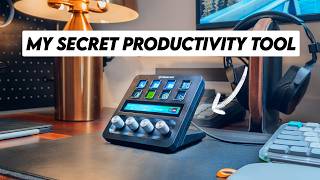

10 Stream Deck Hacks That Boost Productivity
45sThe intro promises 10 automations and hooks viewers with the claim that Stream Decks aren't just for streamers.
▶ Play Clip"Title accurately reflects content; video delivers 10 actionable stream deck productivity hacks."
The video presents 10 stream deck automations to boost productivity, covering audio switching, dark mode toggling, smart home control, notion shortcuts, project folders, focus mode, emoji insertion, USB ejection, Spotify controls, and Final Cut Pro shortcuts. The creator emphasizes that stream decks are useful beyond streaming, especially for content creators.
Use the free Audio Switcher plugin to toggle between headphones and speakers with one button.
Use an AppleScript (generated via ChatGPT) to toggle dark/light mode.
Link smart lights via HomeKit or native plugins like Philips Hue.
Use the website action button to link frequently used Notion pages.
Organize project files, Notion pages, and Riverside recordings into folders.
Multi-action switch activates Do Not Disturb, headphones, Spotify rain sounds, and Pomodoro timer.
Use text action buttons in a folder to quickly insert emojis.
AppleScripts (via ChatGPT) to eject all USB devices or just SD cards.
Native Spotify plugin for play/pause with album artwork display.
Hotkeys and CommandPost integration for advanced editing shortcuts.
These 10 automations can significantly boost productivity for content creators and professionals, with the stream deck serving as a powerful tool beyond streaming.
What free plugin is used to switch audio outputs on the Stream Deck?
Audio Switcher
01:01
How can you generate an AppleScript to toggle dark mode without coding knowledge?
Ask ChatGPT to create the AppleScript.
01:56
What smart home brand has a native plugin on the Elgato Marketplace?
Philips Hue
03:00
What action button type is used to create shortcuts to Notion pages?
Website action button
03:37
What are the four actions in the focus mode multi-action switch?
Do Not Disturb, set audio output to headphones, open Spotify with rain sounds, open Pomodoro timer.
05:05
How do you insert frequently used emojis on the Stream Deck?
Use text action buttons in a folder.
06:56
What tool is used to create AppleScripts for ejecting USB devices?
ChatGPT
07:37
What does the Spotify plugin display on the button while music is playing?
Album artwork
08:34
What free Mac app can be combined with Final Cut Pro for advanced Stream Deck controls?
CommandPost
09:13
Audio Switcher Plugin
Simple yet powerful automation that saves multiple clicks daily.
00:31Dark Mode Toggle via AppleScript
Demonstrates using ChatGPT to create scripts without coding experience.
01:28Focus Mode Multi-Action
Combines multiple automations into one button for deep work sessions.
04:48Final Cut Pro Shortcuts
Shows how to integrate professional editing tools for advanced workflow.
08:42[00:00] are you tired of all those boring daily
[00:02] repetitive tasks slowing you down well
[00:04] today I'm going to show you 10 stream
[00:06] deck automations that will supercharge
[00:09] your workflow and boost your
[00:10] productivity I think people often think
[00:12] of stream decks as being just for
[00:14] streamers but I've had one for the past
[00:16] few months and honestly it's been a game
[00:18] changer for me make sure you stick
[00:19] around for the last one because it's a
[00:21] game Cher for Content creators like you
[00:23] and me and I'm going to show you how I
[00:25] stream seamlessly using Riverside my
[00:28] go-to platform for all my content
[00:30] creation needs all right let's start out
[00:31] with a pretty simple but powerful button
[00:33] on the stream deck and that is switching
[00:35] audio outputs now I personally am
[00:37] constantly switching throughout the day
[00:39] between my headphones and my MacBook
[00:41] speakers particularly when I'm switching
[00:43] between just my normal everyday tasks
[00:45] and then jumping into an editing session
[00:47] or a recording session with Riverside
[00:49] and so instead of having to go through
[00:50] multiple clicks with my audio output
[00:52] setting in my Apple toolbar I've got it
[00:55] set up just as a single button on my
[00:56] stream deck that automatically switches
[00:58] between my headphones and my MacBook
[01:00] speakers this one is actually super
[01:01] easier to set up it's just a free plugin
[01:04] called audio switcher that you can get
[01:05] on the Elgato Marketplace you just
[01:07] download and install it and then you can
[01:09] select which outputs you want to switch
[01:10] between you can even set up multiple
[01:12] different switches if you've got
[01:13] multiple outputs I always prefer using
[01:15] headphones when I'm recording in
[01:16] Riverside because then I can hit
[01:18] everything in the best quality possible
[01:19] and because Riverside records all of my
[01:21] content to my computer locally before
[01:23] uploading it to the cloud I can make
[01:25] sure I'm monitoring everything in its
[01:26] native high quality audio all right so
[01:28] number two is quick toggling dark mode
[01:30] and this gets into some kind of more
[01:32] advanced but really powerful stuff in
[01:34] the Stream deck so on my Mac I've got it
[01:36] automatically set to switch to dark mode
[01:38] in the evening but sometimes again when
[01:40] I'm recording or doing some color
[01:42] grading I need my room to be really dark
[01:44] and so having the option on my stream
[01:46] neck to just switch to dark mode with
[01:47] the single press of a button is super
[01:49] handy the way I've got this set up is
[01:50] with a simple apple script if you're not
[01:52] familiar with coding and scripting and
[01:54] all that kind of thing don't worry all
[01:56] you need is chat GPT I personally have
[01:59] no background in scripting especially
[02:00] Apple scripts or anything like that but
[02:02] literally all you have to do is ask chat
[02:04] to create an apple script for you the
[02:06] togg is between the dark and the light
[02:08] mode it will create it for you just copy
[02:09] and paste it straight into Apple scripts
[02:12] editor save it as an application and
[02:14] then open that with a button on your
[02:16] stream deck I'm going to go through a
[02:17] few more automations that I created with
[02:19] apple scripts but seriously I highly
[02:21] recommend looking into this because
[02:23] there's so many different things you can
[02:24] do and it's super powerful all right so
[02:26] number three is controlling smart home
[02:28] devices so for me I personally have
[02:31] three different smart lights in my
[02:33] office and so in the morning it's really
[02:34] nice to just be able to hit a single
[02:36] button and all of my lights turn on I've
[02:38] also got a button link to my living room
[02:39] so I can turn that on and off if I want
[02:41] to but again you can link this to all
[02:43] sorts of different smart home devices
[02:44] this is just what I've got linked up in
[02:46] terms of setup this can get a little bit
[02:48] more complicated depending on the smart
[02:49] home devices that you've got I
[02:51] personally run everything through home
[02:53] kit that's running on my NZ which again
[02:55] is a little bit more complicated to set
[02:56] up but there's lots of good tutorials
[02:58] online or some brands have native
[03:00] plugins on the Elgato Marketplace like
[03:02] the Phillips Hue lighting which are just
[03:04] plug and play so that's a lot easier to
[03:06] set up all right number four is setting
[03:08] up shortcuts to your notion Pages now
[03:10] most people I know who are pretty
[03:12] organized tend to use notion and I'm no
[03:14] exception it's where I plan all of my
[03:16] content pretty much it's like my central
[03:18] hub for all of my productivity but what
[03:20] this often means is that I've got a lots
[03:22] of different projects happening all at
[03:24] once in my notion workspace and it can
[03:26] be kind of tedious having to dig through
[03:27] all my different pages to find specific
[03:29] spefic pages that are linked to certain
[03:31] projects and so I've set up links to my
[03:33] frequently used notion pages right on my
[03:35] stream deck it's really easy you just
[03:37] use the website action button and then
[03:39] copy the link from your notion page into
[03:41] that website action button and you're
[03:42] good to go it seriously saves me so much
[03:45] time searching through all of my
[03:46] different notion pages to try and find
[03:48] the ones that I want all right so Ida
[03:49] number five is kind of the next logical
[03:51] step from the notion shortcuts and
[03:53] that's creating entire folders for
[03:56] specific projects so again you can use
[03:58] this for literally whatever you want in
[03:59] terms of your own projects for me I've
[04:02] organized a few different things on my
[04:04] stream deck into folders including video
[04:06] project files all of my notion files and
[04:09] all of my Riverside recordings for
[04:11] example I have a folder dedicated to my
[04:13] Riverside podcast recordings I can just
[04:15] hit a single button and it automatically
[04:17] opens up my Riverside Studio where I'm
[04:19] ready to record my podcast in high
[04:21] quality or even live stream to multiple
[04:23] platforms all at once in terms of
[04:25] setting it up it's actually really
[04:26] straightforward you just create a folder
[04:28] in the Stream deck software and then
[04:30] within that you can have pretty much as
[04:31] many links as you like and a pro tip you
[04:33] could actually even link your smart home
[04:36] automation with one of these buttons so
[04:38] for example I could set up the stream
[04:40] deck so that when I open my Riverside
[04:42] Studio it will automatically switch up
[04:44] my lighting scenario so it's ready for a
[04:46] recording for example all right number
[04:48] six is one of my favorites and this is
[04:50] focus mode now if you're like me
[04:51] sometimes you might find it a little bit
[04:53] hard to stay focus might be a bit
[04:54] distracted by notifications popping up
[04:56] on your screen or certain apps you might
[04:58] find particularly distracted and so I've
[05:00] set up a button on my stream deck that
[05:02] activates a fully custom Focus mode so
[05:05] what happens when I press my focus mode
[05:07] button first of all it puts the Mac into
[05:09] Do Not Disturb mode so I don't get any
[05:10] notifications then it sets my audio
[05:13] output to my headphones because again
[05:14] when I'm focusing I like to use my
[05:16] headphones to block out distractions
[05:17] next it'll open Spotify and
[05:19] automatically play a rain sounds
[05:22] playlist that's what I personally like
[05:23] to focus but you can set it to whatever
[05:25] you like and then last but not least it
[05:26] opens a Pomodoro Timer in my web browser
[05:29] I find pomodora Tim is really helpful
[05:31] for just focusing for a certain amount
[05:33] of time and again you can set this to
[05:34] whatever you want so if you have a
[05:35] dedicated pomodora app you could get the
[05:37] app to open this guy is really the limit
[05:39] like for example if you're a streamer
[05:40] combining this button with Riverside
[05:42] could be a game changer for you because
[05:44] you get even link opening a Riverside
[05:45] studio with the focus mode so that when
[05:47] you're live streaming to multiple
[05:49] platforms there's no distractions and
[05:51] you can just be really dialed into what
[05:52] you're doing plus with Riverside it's
[05:54] really handy because you can see all of
[05:55] your chats from multiple Platforms in
[05:57] the one place and it will record your
[05:59] entire ire stream into your Riverside
[06:01] studio and I've personally found this to
[06:02] be much easier than using OBS for
[06:04] example to stream because you can manage
[06:06] everything in one place and then later
[06:08] when your stream is over you can
[06:10] automatically edit clips from your
[06:11] stream using the Riverside editor which
[06:13] again just really streamlines your whole
[06:15] process and helps you be more productive
[06:17] in terms of set up this one uses a
[06:19] multi-action switch on the stream deck
[06:21] the way it works is it's got two modes
[06:22] on and off and then you just set up all
[06:24] the different actions you want to happen
[06:26] when you've got it switched on or when
[06:27] you've got it switched off again I use
[06:28] an apple to activate the Do Not Disturb
[06:31] mode but you can fully customize a multi
[06:33] switch with whatever you want all right
[06:34] so number seven is kind of fun and that
[06:36] is adding frequently used emojis now
[06:38] personally I actually really miss the
[06:40] old MacBook Pro Touch bar from like 2017
[06:43] or whatever it was because I really
[06:44] liked being able to just quickly add
[06:46] emojis and this finally brings that
[06:48] feature back I personally actually hate
[06:50] having to manually open the Emoji menu
[06:52] and scroll through or search and find
[06:54] the different ones that I want this one
[06:56] is also really easy to set up I've got
[06:58] all the Emojis set up in a folder and
[06:59] then it's easy as using a text action
[07:02] button to just quickly insert emojis I
[07:04] personally find this really helpful when
[07:05] I'm replying to all of your comments on
[07:07] my YouTube videos because it's super
[07:08] easy for me to just quickly tap and add
[07:10] some more emotion to my replies speaking
[07:13] of which make sure you leave a comment
[07:14] and hit the like button if you're
[07:15] finding these ideas helpful all right so
[07:17] idea number eight is one of my new
[07:19] favorites and that is ejecting
[07:21] particular USB devices so again because
[07:24] I'm constantly moving in and out of my
[07:26] office doing different types of work I'm
[07:28] also constantly having to eject my
[07:30] external drives my SD cards because I
[07:33] have so much footage that I'm managing
[07:34] between different storage locations but
[07:37] again I use chat PT to set up some apple
[07:39] scripts that allow me to eject
[07:40] particular drives so I've currently got
[07:42] two buttons set up one is designed to
[07:44] eject all of my USB devices all at once
[07:47] and then the other one is designed to
[07:48] just eject SD cards so if I'm working at
[07:50] my computer and I finished transferring
[07:52] some footage for example I can just
[07:53] eject my SD cards or if I want to leave
[07:55] my desk all together and go and work in
[07:57] a different room I just hit the all
[07:58] devices eject button and I'm good to go
[08:01] number nine is Spotify controls
[08:03] particularly a play and pause button
[08:05] I've got this on my home stream deck
[08:07] screen and the reason I like this so
[08:08] much is that when I use the play pause
[08:10] button on my keyboard it actually
[08:12] doesn't always seem to know which media
[08:14] source to go with so if I've got a
[08:16] YouTube video open plus Spotify open
[08:19] sometimes it'll play pause Spotify
[08:21] sometimes it'll play pause my YouTube
[08:22] video and I never know for sure which
[08:24] one is going to pick so be having the
[08:25] button on my stream deck I know for sure
[08:27] it's always going to play or pause my
[08:29] music this one's super easy to set up
[08:30] there's a native Spotify integration
[08:32] plugin on the elgo marketplace it also
[08:34] shows the album artwork on the button
[08:36] while it's playing which is kind of nice
[08:38] and you can even map other buttons like
[08:39] next or previous for even more control
[08:42] all right so last but definitely not
[08:43] least I highly recommend adding some
[08:46] Final Cut Pro shortcuts to your stream
[08:48] deck if you're a video editor like me or
[08:50] whatever platform using to edit whether
[08:52] it's Riverside or Premier Pro anything
[08:54] like that you can set up heaps of
[08:56] different shortcuts all the way from
[08:57] basic up to really advanced personally
[09:00] I've got my stream deck set up so that
[09:01] when I open funnel cut it automatically
[09:03] opens a whole bunch of different
[09:04] shortcuts that I frequently use this is
[09:07] actually really easy to set up it's
[09:08] pretty much as simple as adding a hotkey
[09:10] shortcut for some more advanced controls
[09:13] you can combine it with command post
[09:14] which is what I've done which is another
[09:15] free Mac app and then from there I've
[09:17] personally got it set to do a whole
[09:19] bunch of different things including
[09:20] stabilize footage copy and remove
[09:22] effects from Clips add basic titles loot
[09:25] playback you can really get super
[09:27] Advanced especially if you're using mult
[09:29] action shortcuts for more complex edits
[09:31] the guy is really the limit I say it all
[09:33] the time but if you're looking to
[09:35] increase your productivity when it comes
[09:36] to video editing shortcuts are really
[09:38] the way to go and then once you finish
[09:39] editing your video to speed up your
[09:41] workflow even more again I like to use
[09:43] Riverside to create short form Clips I
[09:46] just upload my edited video into
[09:47] Riverside and then let the AI decide
[09:49] which parts of my long form video are
[09:51] best for short form Clips then I just
[09:53] need to download them and then I can
[09:55] reupload them to YouTube and Instagram
[09:57] so there you go there's 10 ideas for
[09:59] automation to hopefully boost your
[10:01] productivity and your content creation
[10:02] let me know in the comments if you've
[10:04] got other suggestions I'm really Keen to
[10:05] continue fleshing out my stream deck for
[10:07] even more shortcuts and make sure you
[10:09] check out Riverside using the link in
[10:10] the description if you're looking for a
[10:12] centralized content creation platform
[10:14] that let you record live stream
[10:16] repurpose and edit all of your content
[10:18] in the one place it's a huge time saer
[10:20] especially for live streamers and
[10:21] content creators you can sign up for a
[10:23] free account using the link in the
[10:24] description and then if you decide to
[10:26] upgrade to a subscription you can use my
[10:28] code nick2 20 to get a 20% discount and
[10:31] then in the meantime if you're looking
[10:32] for more videos on YouTube setups then
[10:34] make sure you check out this video right
[10:36] here
⚡ Saved you 0h 10m reading this? Transcribe any YouTube video for free — no signup needed.