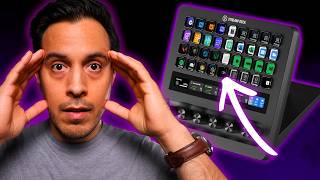

You're Using Your Stream Deck Wrong
45sThe opening hook challenges viewers' current usage, creating curiosity and a desire to learn the 'better way'.
▶ Play Clip"Title accurately reflects the content: the video demonstrates a better, more intentional way to set up a Stream Deck."
The video explains how to optimize the Stream Deck Plus XL for a streamlined workflow as a content creator. The creator shares his intentional layout using multiple profiles, key logic, and dial stacking to avoid clutter and improve efficiency.
Many people underutilize their Stream Deck due to poor setup, not lack of features.
The Stream Deck Plus XL has 36 keys and 6 dials, which can lead to mess without a plan.
The home profile is the main hub for launching apps, websites, and quick controls.
Keys are organized into 9 columns of 4 keys each, with each column serving a specific function.
First column controls key lights, Elgato Prompter modes, crosshair toggle, and mouse software.
Two columns for audio output device, mix selection, mute personal mix, and mute microphone.
Buttons to assign new apps to game, browser, or music channels in Wave Link 3.0.
Three columns for frequently used apps: Elgato apps, content creation tools (OBS, Audacity, DaVinci Resolve, Canva), and other apps (Steam, Chrome, Spotify, Discord).
Columns for CPU/GPU monitoring, benchmarking tools, websites (YouTube, X, Twitch, Google Drive), and weather/time/battery info.
Six dials control system volume, game audio, browser audio, music audio, and two Key Light Airs (brightness and color temperature via dial stacking).
Separate OBS profile with columns for OBS controls, audio meters, mute buttons, prompter control, and lighting.
Key Logic allows single press, double press, and hold to perform different actions (e.g., start stream, instant replay, start/stop recording).
Six dials split into two groups: three for stream mix audio (system, game, music with browser via dial stack) and three for personal mix audio.
Standalone Wave Link profile for advanced audio controls: device switching, mix selection, mute, effects toggling, app assignment, soundboard, Voice Mod, Discord, Spotify.
Home key with Key Logic: single press goes to home profile, hold goes to OBS profile; from OBS, hold home goes to Wave Link; from Wave Link, hold home goes back to OBS.
Intentional layout with multiple profiles and key logic transforms the Stream Deck into a seamless extension of your workflow, making content creation faster and more enjoyable.
Stream Deck Plus XL
tool
Elgato Wave Link 3.0
tool
Elgato Prompter
tool
Elgato Key Light Air
tool
Elgato Wave DX
tool
Elgato Wave XLR Mark II
tool
OBS
tool
Audacity
tool
DaVinci Resolve
tool
Canva
tool
CapFrameX
tool
RivaTuner
tool
Voice Mod
tool
Discord
tool
Spotify
tool
Scimitar Elite Wireless SE
tool
iCue
tool
How many keys and dials does the Stream Deck Plus XL have?
36 keys and 6 dials.
0:56
What is the purpose of the home profile?
It serves as the main hub for launching frequently used apps, websites, and quick controls.
2:02
How are keys organized in the home profile?
Into 9 columns of 4 keys each, with each column serving a specific function.
2:32
What is dial stacking?
A feature that allows you to stack multiple commands on a single dial by double-clicking it to switch between functions.
7:27
What is Key Logic?
A feature that allows a single key to perform different actions based on single press, double press, or hold.
12:20
How does the creator start a recording without a dedicated record button?
By holding the stream start key, which uses Key Logic to start/stop recording on hold.
12:46
What is the purpose of the Wave Link profile?
To control advanced audio settings like device switching, mix selection, effects toggling, and app-to-channel assignment.
16:17
How does the creator navigate between profiles?
Using Key Logic on the home key: single press goes to home profile, hold goes to OBS profile; from OBS, hold home goes to Wave Link; from Wave Link, hold home goes back to OBS.
19:59
Underutilized Stream Decks
Highlights the common problem of poor setup leading to inefficiency.
Column-Based Layout
Introduces a structured approach to organizing keys for clarity and speed.
2:32Dial Stacking
Demonstrates a clever way to maximize limited dials with multiple functions.
7:27Key Logic for Multi-Function Keys
Shows how to save space by assigning multiple actions to one key.
12:20Profile Navigation Cycle
Illustrates a seamless navigation system between profiles for efficient workflow.
19:59[00:00] I think a lot of people are
[00:01] underutilized in their Stream Deck. Not
[00:03] because you don't know what it can do,
[00:04] but because of how you're setting it up.
[00:07] And once I put a little more thought
[00:09] into my Stream Deck's setup, everything
[00:11] just got faster. Your Stream Deck layout
[00:13] can be the difference between an
[00:15] efficient workflow and an inefficient
[00:17] one. As Stream Deck has evolved, we've
[00:19] gotten more keys and more dials, and as
[00:22] great as this is, this could also lead
[00:24] to more mess. So, today I want to show
[00:27] you how I've got my Stream Deck plus XL
[00:29] set up to streamline my workflow as a
[00:32] content creator. Before we get started,
[00:34] I do want to let you know that I am an
[00:36] Elgato partner, and this video is
[00:38] sponsored by Elgato. They sent me the
[00:40] Stream Deck plus XL for free prior to
[00:42] release for the purposes of making
[00:44] content on it. They don't get to read my
[00:45] script, they don't get to see the video
[00:47] before you do, and they have no say in
[00:50] what type of content I make on the
[00:52] Stream Deck plus XL. They just said,
[00:54] "Here you go. Have fun." The Stream Deck
[00:56] plus XL is an absolute unit of a Stream
[01:00] Deck. With 36 keys and six dials, this
[01:03] thing is huge. Its size is both its
[01:06] greatest asset and its biggest
[01:08] opportunity. Setting one up with no
[01:11] plan, no rhyme or reason can easily lead
[01:14] into a mess of pages, folders, profiles,
[01:17] and key layouts that make no sense. So,
[01:20] allow me to help you avoid that. As I
[01:23] thought about how to set mine up, I
[01:25] thought about what I actually do and how
[01:27] I actually use Stream Deck. And
[01:29] basically, I open apps, I open Chrome
[01:33] directly to specific websites, I control
[01:35] my lights, control my audio, control my
[01:37] streams and my recordings, aka OBS, and
[01:40] I monitor a few things here and there. I
[01:43] could just make one profile with
[01:44] multiple pages for every single aspect
[01:46] that I just mentioned, but let's be
[01:48] real, that gets really messy really
[01:50] fast, and navigating that is not as
[01:52] intuitive as it can be now thanks to
[01:54] some recent upgrades in Stream Deck
[01:56] navigation. So, instead, I'm using a few
[01:58] profiles to manage my entire workflow.
[02:02] And let's start with my home profile.
[02:04] Think of home as the main hub. This is
[02:07] the profile where I will launch all the
[02:09] apps that I frequently use, the websites
[02:11] that I visit frequently, a couple of
[02:13] quick access controls that I do use
[02:15] frequently, and a couple of random
[02:18] things that I don't interact with too
[02:20] often, but are nice to have right here
[02:22] in my default main profile. We have 36
[02:26] keys to play with here, and I look at
[02:29] those 36 keys as two different groups.
[02:32] Four rows of nine keys or nine columns
[02:35] of four keys. I wanted this layout to be
[02:37] very intentional, so I went with
[02:40] planning this layout based off of having
[02:42] nine columns with four keys apiece. And
[02:46] therefore, every single column or groups
[02:48] of columns serve a specific function.
[02:51] Let's start left to right and start with
[02:53] the first column here. This first column
[02:55] is my key lights on
[02:59] and off. I'm able to toggle between chat
[03:01] mode and display mode for my Elgato
[03:03] Prompter. I can toggle the crosshair
[03:05] when I'm reading a script, for example,
[03:07] I can I can know exactly where my camera
[03:09] lens is by toggling this crosshair on or
[03:12] off. And in the event that I need to use
[03:14] my Scimitar Elite Wireless SE mouse for
[03:17] something like editing my timeline in
[03:19] DaVinci Resolve, I can press this button
[03:21] at the bottom to make sure that IQ has
[03:23] been launched and open so that it can
[03:25] work with Stream Deck, blah blah blah.
[03:26] All right. The next two columns are my
[03:29] audio control columns. Now, from the
[03:32] top, I can switch my audio output
[03:34] device. It's either my headset or my
[03:36] speakers, okay? The second button here
[03:38] allows me to control what mix I'm
[03:40] actually listening to, and right now
[03:42] it's set to my Stream Mix, but if I
[03:43] press that button, it outputs all of my
[03:46] personal mix, which is what I
[03:48] traditionally use 99.99%
[03:51] of the time when I'm not streaming. The
[03:53] third button here allows me to mute my
[03:54] entire personal mix in the event that I
[03:56] just need to mute everything really
[03:57] quickly. And finally, the button here at
[04:00] the bottom allows me to mute my
[04:02] microphone. In the third row, I have the
[04:05] ability to add different apps to
[04:07] different channels within Wave Link 3.0.
[04:10] So, for example, let's pretend I launch
[04:13] a game on Steam that I've never played
[04:14] before at all. It's the first time this
[04:16] game runs on my computer, and I need to
[04:18] assign it to my game channel. As soon as
[04:20] that opens and starts running, I simply
[04:23] hit this button right here, and it
[04:24] automatically adds it to the game
[04:26] channel in Wave Link 3.0, which then
[04:29] makes sure that it's being routed to all
[04:31] other mixes where game is active as a
[04:33] channel. I can do the same here in case
[04:35] I want to add anything to browser or
[04:37] anything into the generic music channel
[04:39] as well. These audio controls here, as
[04:42] far as keys are concerned, are mainly to
[04:44] control where the audio is going, what
[04:46] you what device is outputting the audio,
[04:49] and what channel a given application is
[04:52] sent to upon its first launching. The
[04:54] next three columns are the apps that I
[04:56] use very frequently on a day-to-day
[04:58] basis. First column up over here, I have
[05:01] every single Elgato application that I
[05:03] use from Wave Link, Stream Deck, Camera
[05:05] Hub, and Control Center. The next one I
[05:08] have here is the content creation
[05:10] column, okay? I have OBS for whenever I
[05:13] want to go live or record a video like
[05:15] the one that I'm doing right now. I have
[05:17] Audacity in the event that I just want
[05:18] to record audio. I've got DaVinci
[05:20] Resolve so I can edit the videos, and I
[05:23] have a link straight to Canva.com so
[05:25] that I can start working on thumbnails
[05:27] or any other assets that I may need for
[05:29] a video. This third column here in the
[05:32] apps grouping is just all the other
[05:35] stuff that I use. I open Steam to play
[05:36] games, I go to Chrome to do some
[05:38] browsing Spotify Discord
[05:40] self-explanatory. And the last three
[05:42] columns are kind of a bit of a random
[05:45] mixture, but not really. This column
[05:47] here, the third-to-last column, is my
[05:49] statistics column, if you will. I can
[05:51] take a look at my CPU utilization right
[05:54] here directly off my Stream Deck, and I
[05:56] can also check how hot or not hot my GPU
[06:00] is currently running. And then the last
[06:02] two buttons here are going to launch
[06:03] CapFrameX and RivaTuner in the event
[06:06] that I want to capture any sort of
[06:07] benchmarking for any game that I am
[06:09] currently playing. Second-to-last column
[06:12] is all the websites, YouTube X, Twitch,
[06:14] Google Drive, and then this final one
[06:16] over here is going to show me the
[06:17] weather for today, the weather for the
[06:19] next 2 days, the time, and if I had iCue
[06:22] open and this mouse on, it's off right
[06:24] now, it would show me the battery level
[06:26] for my Scimitar Wireless Elite SE.
[06:30] And that's it. All right. Now, the dials
[06:33] are a bit of a different story because I
[06:34] have six dials at the bottom. I am only
[06:37] concerned in this profile here
[06:39] controlling anything that impacts me and
[06:42] only me. So, I have a dial to control
[06:45] the volume for my system channel, which
[06:47] is going to be my PC and Windows sounds.
[06:49] I have a dial for the games. I have a
[06:51] dial for browser audio. I have a dial
[06:53] for music audio. And that's it. The last
[06:55] two dials are going to be controlling my
[06:57] Key Light Airs. Now, instead of just
[06:59] turning them on or off, I'm actually
[07:00] controlling the brightness and the color
[07:02] temperature for each one of my two Key
[07:05] Light Airs right here in front of me.
[07:07] But, if you notice, I have two dials for
[07:10] two different settings for two different
[07:11] lights. That means that I would
[07:13] technically need four dials. A
[07:16] brightness dial and a color temperature
[07:18] dial for one Key Light Air and a
[07:20] brightness dial and a color temperature
[07:22] dial for my second Key Light Air. But,
[07:25] thanks to something that Stream Deck has
[07:27] built in called the dial stacking, we
[07:29] don't have to worry about running out of
[07:31] dials because if I double-click in,
[07:35] bam, I'm able to stack commands on
[07:39] dials. So, what this means is that if I
[07:41] go back here, let me go back home.
[07:44] Pop.
[07:45] All right. I can simply turn the
[07:47] brightness up right now as you can see
[07:48] it change right now. We're going to go
[07:49] back to nine, but if I want to change
[07:51] the brightness of my other light, I push
[07:54] this dial in and now I can start messing
[07:56] around with that one. I think this one
[07:58] was set to
[08:00] seven. All right. And I can do the same
[08:02] exact thing with this other dial for a
[08:04] color temperature, but I'm not going to
[08:05] do that because I like I'm a control
[08:07] freak and I like everything staying the
[08:09] same always as far as lighting is
[08:11] concerned.
[08:12] Okay, perfect. So, this is the home
[08:16] profile. This is the main hub. This is
[08:17] where everything begins.
[08:20] So,
[08:21] what happens when I have to go into OBS,
[08:25] launch OBS, and start controlling things
[08:28] from a completely different perspective?
[08:31] Well, let's make it easy. I've already
[08:33] created an OBS profile and a couple of
[08:35] other profiles that we're going to cover
[08:37] in this video today, but as you can see,
[08:39] I have an OBS key right over here. So,
[08:41] I'm going to simply press it and it'll
[08:43] automatically open up OBS. So, let me
[08:46] switch over here to my OBS profile so
[08:49] that you can have a look at what this
[08:50] looks like. Again, columns are
[08:53] intentional. They have purpose. They
[08:55] serve functions, okay? Don't look at it
[08:58] from left to right as far as rows are
[08:59] concerned because that doesn't mean
[09:00] anything. The first two columns in this
[09:03] profile control OBS from switching
[09:05] scenes to starting a recording, starting
[09:07] a stream, capturing clips, so forth and
[09:10] so on. This is pretty self-explanatory.
[09:12] I'm not going to really dive into that.
[09:14] Obviously, yours may look a little
[09:16] different, but basically, first two
[09:17] columns control OBS. That's all you got
[09:19] to know.
[09:20] The next two columns start the audio
[09:23] grouping, and as you can tell here, the
[09:24] audio grouping is four columns wide. If
[09:27] that I guess that makes sense. It does
[09:28] make sense. Anyways, I have two meters,
[09:30] all right? The first meter, the one that
[09:32] you're seeing move right now is my
[09:34] microphone. And that way I can get a
[09:36] quick visual representation of where I'm
[09:38] at as far as my levels are concerned
[09:39] when I'm speaking into the mic.
[09:41] Underneath that, I have a mute button so
[09:43] I can mute my microphone. And above this
[09:45] here at the top, I have the button to
[09:47] change what device my audio is sent to,
[09:49] be it my speakers or my headset. That's
[09:52] it. Third column, or fourth column
[09:54] rather, is about the same exact thing
[09:56] except it's going to show me the meters
[09:57] for my stream mix. So I can get an idea
[10:00] of where my stream audio is versus my
[10:03] mic audio. And I'm able to change what
[10:06] mix I'm listening to on a given device.
[10:08] So I can change between the personal
[10:10] mix, which is what I hear, and the
[10:12] stream mix, which is what my audience
[10:13] hears. And here I want to be able to do
[10:16] that because as I'm streaming, I want to
[10:18] make sure that the audio my audience is
[10:20] getting is actually good. And that maybe
[10:23] I didn't accidentally leave myself muted
[10:25] the minute I went live. And you'd be
[10:27] surprised how often that actually
[10:29] happens cuz it happens a lot.
[10:32] The next two columns, and the last two
[10:33] columns in the audio grouping over here,
[10:36] allow me a little bit more finite
[10:38] control for the stream mix and the
[10:40] personal mix, okay? From the top, I can
[10:42] mute the entire stream mix or I can mute
[10:45] the game channel, I can mute the browser
[10:47] channel, or I can mute the music channel
[10:49] in the stream mix only. And on the final
[10:52] column in this grouping, I can mute the
[10:55] personal mix for myself entirely, or I
[10:58] can mute the game, I can mute the
[10:59] browser, or I can mute the music audio.
[11:02] The next two columns are prompter
[11:03] control. In the event that I go into a
[11:06] stream and start streaming and I'm not
[11:08] in chat mode over here, I can cycle
[11:10] between the different prompter modes
[11:13] between basically display or chat mode.
[11:15] So I can press that up. If I miss
[11:17] anything at all, I can scroll up and
[11:20] down through chat to make sure I catch
[11:22] up with whoever is chatting me with me.
[11:23] You know, maybe that one or two people
[11:25] that do end up watching my streams. And
[11:28] in the event that I'm reading a script
[11:30] and I mess up on a chapter, I can move
[11:33] backwards and forwards across chapters
[11:35] to make sure I get some good retakes in.
[11:38] The last column allows me to turn all of
[11:41] my lights on or off, not just my key
[11:43] light errors, but all of my lights on or
[11:45] off. I'm able to also capture a
[11:48] screenshot of whatever it is, so
[11:50] whatever scene I'm in in OBS, and
[11:53] finally, I can go home back to my home
[11:56] profile. Now, before we move on, let's
[11:58] cover a couple things here. If you take
[12:00] a look, you're going to notice that I
[12:01] have one button to start my stream, and
[12:04] that's it. I've got no record button,
[12:06] and I do have a clip button right over
[12:08] here.
[12:09] How in the world do I record or start a
[12:12] recording, rather, if I don't have a
[12:14] button for it here on my Stream Deck
[12:16] Plus XL with 36 freaking keys?
[12:19] Well,
[12:20] that's all going to happen thanks to key
[12:22] logic. All right? Now, key logic is
[12:24] really freaking cool, because let me
[12:26] double click here.
[12:28] Key logic allows you to change how a
[12:32] single key behaves depending on how you
[12:35] interact with it, whether you press it
[12:37] one time, you hold it, or you double
[12:40] press it. So, as you can see here, if I
[12:42] press that key one time, it's going to
[12:44] start a stream. If I double press it,
[12:46] it's going to start instant replay, or
[12:49] whatever that replay buffer is called,
[12:50] that thing right there. And if I hold
[12:52] it, it will start or stop a recording.
[12:55] And I I I absolutely adore that Elgato
[12:59] introduced key logic into streaming,
[13:01] because that saves so much space in
[13:03] terms of buttons that it it makes it
[13:06] just
[13:07] I can't think of anything clever to say.
[13:09] It's just a really cool feature, okay?
[13:11] This is the entire setup for all the
[13:12] keys. Let's move on to the dials. The
[13:14] dials are a little different, because in
[13:16] my mind,
[13:17] I've already set up my lighting. I've
[13:19] already got it dialed in. That's not
[13:21] going to really change much, if at all.
[13:23] So, I don't need to waste a dial or
[13:25] dials on lighting. But what I do need is
[13:29] control for audio that I hear, aka
[13:31] personal mix, and the audio my audience
[13:34] hears, aka the stream mix. So, I have
[13:37] six dials. I've divided them up into two
[13:39] groups. Three dials for stream audio,
[13:42] three dials for me audio. But, I'm I I
[13:44] take it a step further because left to
[13:46] right, what I see on my left to me is
[13:49] priority. And when I'm streaming or
[13:52] recording, my audience's audio is
[13:54] priority over my audio. So, they're the
[13:57] first set of audio that we're going to
[13:59] see here. I have my system audio. I've
[14:01] got my game audio, and I have my music
[14:04] audio. And if you can see or if you can
[14:06] tell, I'm missing a channel, and that is
[14:09] my browser audio. But, if I double-click
[14:11] here, you're going to see that this is a
[14:13] dial stack, which you've already
[14:15] covered. I'm able to just say, "Hey, I
[14:17] want to mess around with my music audio
[14:19] right now, but if I press this button in
[14:21] or press the dial in, I can switch over
[14:23] to controlling my browser audio." And
[14:26] the last three are basically the same
[14:28] exact thing mirrored, but just set to
[14:31] personal audio or personal mix, and
[14:33] that's it. Congratulations, that is my
[14:36] OBS layout and setup on the Stream Deck
[14:38] Plus XL. I have two profiles here with
[14:41] you so far. I've got my home profile,
[14:43] which is the main hub, and I have this
[14:45] OBS profile, which is going to allow me
[14:47] to control OBS when I'm creating
[14:48] content. Blah blah blah. All right. I
[14:50] need to get back to my home profile,
[14:52] okay? And that's what this home key over
[14:53] here is for. Um it's just a a switch
[14:57] profile command in Stream Deck, which is
[14:59] going to be right over here. Navigation.
[15:02] Where are you at? I can't read.
[15:04] Apparently, reading is very difficult
[15:05] for me. Let's click on that. There it
[15:07] is.
[15:08] Navigation, switch profile, dropped it
[15:10] in there and called it a day, right? And
[15:12] then I changed the icon to home to
[15:13] represent home. You get the point. So,
[15:15] I'm going to go ahead and press it now,
[15:18] and I'm right back in my home profile.
[15:20] But um
[15:22] you might notice
[15:24] I don't have a single button here to go
[15:27] back to my OBS profile. And I'm not
[15:30] about to open up Stream Deck and take my
[15:32] mouse and go over here and drop down and
[15:34] select the OBS profile to switch that.
[15:36] That would be ridiculous. So, what I did
[15:39] is thanks to Key Logic once again, I
[15:42] took this key where OBS was originally,
[15:46] I dropped the Key Logic command, which
[15:48] is going to be under Stream Deck
[15:51] false.
[15:53] It's under multi-action. I stand or sit
[15:55] corrected. You're going to take Key
[15:57] Logic, you're going to drop it down, and
[15:58] then you double click, and boom.
[16:01] A single press of this key will launch
[16:03] OBS, and if I hold it, which I'll do
[16:06] right now,
[16:07] it will automatically take me to my OBS
[16:10] profile. And if I go back and hit that
[16:12] home key once again,
[16:14] I'm right back at my main profile.
[16:17] Love it. Now, let's go back to the OBS
[16:20] profile, and let me hold the home key,
[16:23] and let's see what happens.
[16:26] Boom. Now, I'm in the Wave Link profile.
[16:30] The reason I created a standalone Wave
[16:33] Link profile is because there are
[16:34] certain actions I'm going to need when
[16:37] it comes to controlling my audio that I
[16:39] maybe only need to interact with once or
[16:42] twice within a content creation session
[16:45] or every once in a blue moon when I'm
[16:47] not creating content. So, for example,
[16:49] as you can see here, all 36 are taken
[16:52] up. The first 1 2 3 4 columns are all
[16:55] Wave Link controls. I can switch the
[16:58] audio device I'm listening to. I can
[17:00] switch what mix I'm listening to. I can
[17:01] mute the stream mix. I can mute the
[17:03] personal mix. I can mute my mic. And
[17:05] now, I can start turning off or on the
[17:09] different effects that I have going into
[17:11] my Elgato Wave DX through the Elgato
[17:13] Wave XLR Mark II. So, as you can tell
[17:15] right now, Voice Focus is turned off.
[17:18] And if I were to hit the compressor
[17:19] button,
[17:20] the compressor would be turned off. If I
[17:22] hit Elgato EQ,
[17:24] the Elgato EQ effect is turned off. If I
[17:27] hit Loud Max, my limiter will also turn
[17:29] off, like so. So, now all of that is
[17:32] off. And you know what? Just for
[17:33] shiggles, let me go ahead and turn the
[17:35] expander off. Now, every single effect
[17:37] that I have set up for this microphone
[17:39] is off.
[17:41] But, let's start turning back on,
[17:42] because I want this audio to be good.
[17:44] So, expander is back on now. We're going
[17:46] to go ahead and turn on the compressor
[17:47] next. There it is. Compressor is on. So,
[17:50] is my Elgato EQ. So, is my Loud Max
[17:53] limiter. And I'm going to leave voice
[17:55] focus off for now, cuz I haven't been
[17:56] messing with it, and that's okay. All
[17:58] right. Same exact thing as in my main
[18:00] home profile. I'm able to add
[18:02] applications to each individual channel
[18:04] from here. I have some soundboard audio
[18:06] that if I wanted to add in any sounds
[18:08] from my computer that I maybe create or
[18:10] download on my own, I can pop them in
[18:12] here and start playing them in my
[18:13] streams and in my recordings for my
[18:15] audience. I've got Voice Mod controls
[18:17] over here, Discord controls here,
[18:19] Spotify controls here, the ability to
[18:21] launch Elgato Wave Link, the ability to
[18:24] launch Discord, the ability to launch
[18:26] Spotify, and my ability to go home. As
[18:30] far as the dials are concerned, it is
[18:32] the exact same layout as they were set
[18:35] up in my OBS profile, but swapped.
[18:38] Okay? Because in my mind, when I am in
[18:40] this profile, I'm not necessarily
[18:43] concerned with the audio for my stream
[18:46] or my audience. I'm now concerned about
[18:48] audio on my end, whether from what I am
[18:51] taking in as audio is concerned or what
[18:53] I am executing and putting out to you.
[18:56] So, instead of having the stream mix
[18:59] audio dials on the left, I have the
[19:01] personal mix ones now. Now, listen.
[19:04] I just kind of heard myself say that out
[19:05] loud. Maybe that's a little too much.
[19:08] And And maybe you're right. Maybe that
[19:09] is crazy, but if you haven't tried
[19:12] actually putting thought, like real
[19:15] thought, into how you set up something
[19:17] like a Stream Deck, I want to challenge
[19:20] you to do that, because it it if you're
[19:22] already enjoying it, you're just going
[19:23] to love it even more. Because once you
[19:25] make this device your own, it just feels
[19:28] like an extension of you. And when you
[19:31] start using it and you start flowing, it
[19:33] just you enter your flow state. It feels
[19:35] really, really, really good. So, I'm
[19:38] going to hit my home button, okay? And
[19:40] as usual, it's going to take me right
[19:42] back to my home profile, my main hub, if
[19:45] you will. And as you can see here, I've
[19:47] got the Elgato Wave Link icon here. If I
[19:50] press it, Wave Link's going to open up,
[19:52] and if I hold it, it's going to take me
[19:54] right back to my Elgato Wave Link 3.0
[19:57] profile in the Stream Deck app. And you
[19:59] know, sometimes when you are in the
[20:02] middle of streaming or making content
[20:04] and you're in your OBS profile, for
[20:05] example, you have to be able to swap
[20:07] back, right? So, we're going to go back
[20:09] to home. I'm going to hold the OBS key,
[20:11] go to my OBS profile, and I'm over here
[20:14] like da da da da doing some things. Oh
[20:15] crap, I need to go play a sound for my
[20:17] sound board. So, let me hold that home
[20:19] key. Boom, I'm in my Wave Link profile.
[20:22] Easy peasy lemon squeezy, but now
[20:25] now, I need to get back to my OBS
[20:28] profile. Well, if I press the home key,
[20:31] it'll take me to my home profile, but if
[20:33] I hold it, I've set it up to take me
[20:36] right back to my OBS profile. I set this
[20:39] entire thing up to be a cycle of sorts,
[20:42] like a circle, okay? Like I can just
[20:45] easily navigate across all profiles that
[20:48] I actually need to have. I don't have a
[20:50] mess of pages, I don't have a mess of
[20:52] folders, and this just flows and works
[20:56] so seamlessly. I absolutely
[21:00] love it. I love my Stream Deck Plus XL.
[21:02] It's massive and feels great to use. And
[21:05] I believe, all right, I believe that if
[21:07] you're going to get a Stream Deck, then
[21:10] this is the one to get.
[21:12] But, no matter what Stream Deck you end
[21:14] up going with, put some thought into
[21:16] your setup. Make it work for you instead
[21:19] of against you. Anyhoo, that about does
[21:22] it, ladies and gentlemen. I hope that
[21:23] you found this video helpful and
[21:24] informative, and if you did, make sure
[21:26] you hit that like button. That would be
[21:28] amazing. And you know, maybe even maybe
[21:30] even subscribe. I'm like 800 away from
[21:33] 10K. That'd be great if I hit that. All
[21:35] right? Of course, I'm going to have a
[21:36] link to the Stream Deck Plus XL in the
[21:38] description below. It is my partner link
[21:40] with Elgato, so if you buy it using that
[21:43] link, you're going to help me out big
[21:44] time, but it's not going to cost you any
[21:46] extra. And if you don't want to go with
[21:48] the XL version, I'll also have a link to
[21:50] the Stream Deck Plus, the regular little
[21:53] brother version, if you will. Lastly,
[21:55] let me know in the comments below,
[21:57] what do you want me to help with next?
[22:00] Until then, and until next week, be good
[22:02] to yourselves, be good to one another.
[22:05] Peace out.
⚡ Saved you 0h 22m reading this? Transcribe any YouTube video for free — no signup needed.