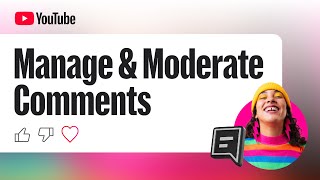

Why YouTube Comments Are Sorted by 'Most Relevant'
48sCreators are often confused about why certain comments appear first, and this explains YouTube's default ranking algorithm.
▶ Play Clip"Title exactly matches the content — a clear, practical walkthrough of YouTube's comment moderation tools."
This video is an official YouTube guide for creators on managing and engaging with their comment section. It covers comment sorting and filtering options, saving these preferences as defaults on desktop and mobile, and a range of tools for replying, hearting, and pinning comments. The tutorial also details proactive moderation settings such as blocked words, moderator roles, and how to handle inappropriate comments, including removal, hiding users, and flagging to YouTube.
The comments section is where community engagement happens, and YouTube provides controls for filtering, sorting, and moderating to give creators a consistent experience.
Comments are sorted by 'Most relevant' by default, which surfaces conversations like viewer questions based on the channel's activity.
Creators can choose 'Top comments' (valued interactions) or 'Newest first' (chronological order).
Preferred sort and filter options can be saved as a default view, available on both desktop and Studio Mobile, with settings syncing automatically.
Go to the Community tab in YouTube Studio, click the Filter bar, choose desired options, then select 'Set current filters as default.'
While the 'Top' sort is available on video and post comments, it cannot be saved as a default view.
In the YouTube Studio app, tap Community, View all, choose sort, tap the Filter icon, select filters, and tap 'Set current filters as your default view.'
The Response Status filter includes Unresponded, Responded, and New replies to your response, allowing quick follow-up on comments needing attention.
Clicking Reply shows the audience you're listening; responding is a great way to display personality, connect with viewers, and build a positive community.
The heart icon (next to thumbs up/down) lets creators show appreciation; viewers see a red heart and may receive a notification.
Creators can pin a comment to the top of the feed to highlight it, e.g., to clarify something, ask a question, or set the community tone with a fan comment.
In YouTube Studio Settings > Community Moderation > Content Controls, choose whether comments are On or Off for new videos and posts.
Options are None (no hold), Basic (holds potentially inappropriate), Strict (holds broader range), and Hold all comments for review.
Select videos in the Videos tab, click Edit, then Comments to apply moderation settings in bulk.
Add words or phrases in Community Moderation settings; comments containing them will be held in YouTube Studio.
Standard Moderators can remove comments or hide users but cannot manage settings; Managing Moderators have full permissions including blocked words and managing standard moderators.
To remove a comment, click the three dots in YouTube Studio and select Remove. Hide a user to prevent their future public comments; both options are available from the comment's menu.
Flagging sends content to YouTube for review; if it violates Community Guidelines, it will be removed. Creators can also remove it immediately themselves.
If overwhelmed, creators can pause or completely turn off comments using Community defaults settings.
YouTube offers a comprehensive set of comment management tools that allow creators to control, engage, and moderate their comment sections effectively. By leveraging sorting, filtering, and moderation features, creators can foster a positive and safe community.
What is the default sorting for YouTube comments?
Most relevant
00:16
Name the two alternative comment sorting options besides 'Most relevant.'
Top comments and Newest first
00:30
How do you save a default filter on desktop?
Go to the Community tab in YouTube Studio, click the Filter bar, choose desired sort and filter options, then select 'Set current filters as default.'
01:04
Which comment sort option cannot be saved as a default?
The 'Top' sort
01:21
What are the Response Status filter options?
Unresponded, Responded, and New replies to your response
01:53
What does the heart icon do on a comment?
It shows the commenter you loved their comment, and they may receive a notification; viewers see a small red heart.
02:38
What are the moderation filter strictness levels?
None, Basic, Strict, and Hold all comments
03:39
What can Standard Moderators do?
Remove comments from public view or hide users, but they cannot manage channel settings like blocked words.
04:35
How do you assign a moderator?
Go to Studio Settings, Community Moderation, User Management tab, and add the user's channel URL.
05:00
What happens when you flag a comment to YouTube?
It sends the content to YouTube for review; if it violates Community Guidelines, it will be removed from the platform.
05:50
Three comment sorting options
Understanding the available sorting options enables creators to prioritize the comments they want to engage with, improving community management efficiency.
00:30Save defaults across devices
This feature saves time and ensures a consistent comment moderation experience between desktop and mobile, particularly useful for creators managing comments on the go.
00:48Reply to build community
Replying to comments directly shows the audience that the creator is listening, which is a fundamental principle for fostering a positive and engaged community.
02:09Moderation filter levels
Offering tiered strictness levels lets creators balance safety and engagement, giving them granular control over what appears publicly.
03:39Flag comments to YouTube
Flagging escalates harmful content to YouTube for platform-level review, empowering creators to contribute to community safety beyond their own channel.
05:50[00:00] The comments section is where your community goes to engage directly with your content. It's where you get direct feedback and build conversations around your videos. We know for creators, managing all of those comments is a big part of your job. That’s why we’ve focused on giving
[00:16] you more control and a consistent experience with new comment filters and sorting options. comments are sorted by Most relevant as a default view. This aims to surface the conversations you
[00:30] may want to engage with, like questions from viewers, based on your channel’s activity. You have two other sorting options: Top comments, which surfaces what viewers are most likely to value and interact with; and Newest first, which displays comments in chronological order.
[00:48] If you prefer a different view, you can save your preferred sort and filter options as a default. This feature is now also available on Studio Mobile, and your channel’s settings will automatically sync between both. To save a default filter on desktop:
[01:04] Go to the Community tab in YouTube Studio. Click the Filter bar. Choose your desired sort and filter options. Filters also allow you to search for specific keywords, or filter by subscriber status, and even by the commenter's subscriber count. Keep in mind,
[01:21] while the 'Top' sort is available on video and post comments, it cannot be saved as a default. From the filter menu, select Set current filters as default. To save a default filter on mobile: In the YouTube Studio app,
[01:36] from the bottom menu, tap Community. Next to “Comments,” tap View all. Choose your desired sort option In the top left, tap the Filter icon. Choose your filters, scroll to the bottom, and tap Set current filters as your default view.
[01:53] Within the Response Status filter, you'll find options for Unresponded, Responded, and New replies to your response. Now you can select any combination of these to quickly find comments you need to follow up on. Once you’ve found the relevant comments,
[02:09] you have a suite of tools to engage with your community directly. To reply to comments on your videos and posts, simply click the Reply button. When you jump in, it shows your audience that you’re listening. Responding to comments is a great way to show
[02:24] your personality, engage and connect with viewers, and help build a positive community. icon next to the thumbs up and thumbs down. Viewers will see your picture with a small
[02:38] red heart on their comment, and may receive a notification that you loved what they wrote. From a video or post's comment page, you can also pin a comment to the top of the feed to highlight it for all of your viewers. You can pin your own comment to clarify something from
[02:55] your video, ask your audience a specific question, or tease a specific moment. Or, you can pin a fan comment that stood out to you to set the tone for the community. Now let’s talk about how to handle hurtful or inappropriate comments.
[03:11] YouTube’s priority is to make sure that comments provide a safer experience for all users. Here are some things you can do at a channel level to proactively manage your comment section:
[03:23] Set upload defaults. To set comment upload defaults, go to YouTube Studio Settings. Select Community Moderation, then look under the Content Controls tab. Under "Comments on new videos and posts," you can choose to turn comments On or Off.
[03:39] If you choose to keep comments on, you can adjust your moderation filter's strictness: Selecting None ensures no comments will be held back. Basic holds potentially inappropriate comments. Strict will hold a broader range of
[03:55] potentially inappropriate comments. You can also choose to Hold all comments. To apply these to existing videos in bulk, go to your Videos tab in YouTube Studio. Select
[04:07] the videos, click Edit, and choose Comments. Create a blocked words list. In your channel Settings under “Community Moderation,” you can add words or phrases that you don’t want to appear in
[04:19] your comments section. Comments containing these blocked words will be held in YouTube Studio. Add comment moderators. You can assign Standard and Managing Moderators. Both help review and manage comments on your videos. Standard Moderators:. Can remove comments from
[04:35] public view or hide users. When a moderator removes a comment, it is moved to your “Held” tab for you to make a final decision, rather than being deleted entirely. Standard Moderators cannot
[04:48] manage channel settings like blocked words. Managing Moderators: Have all Standard permissions, plus the ability to manage settings like Blocked Words and manage Standard Moderators
[05:00] To assign a moderator: Go to Studio Settings, then Community Moderation, then the User Management tab and add the user's channel URL. If someone has written something inappropriate in your comments, or if you find a comment that requires individual action, you can:
[05:17] Remove the comment and all of its replies. To do so, you can go to your YouTube Studio “Comments” tab and click these three dots, and select “Remove.” Hide the user from your channel. This prevents a specific user's future comments from appearing
[05:33] publicly on your channel. You can hide a user by selecting the three dot menu from one of their comments, or in YouTube Studio. Flag the comment to YouTube. Flagging helps protect the community from bad actors by sending the content to YouTube for review. If the comment
[05:50] violates YouTube Community Guidelines, it will be removed from the platform. You can also remove the comment yourself to ensure it’s immediately hidden from public view. Remember, if you’re feeling overwhelmed by your comments, you can always choose to pause
[06:05] or turn off comments completely by selecting these settings in your Community defaults. We hope these tools help you better manage and engage with your community. To learn more, check out the Help Center links in the description.
⚡ Saved you 0h 06m reading this? Transcribe any YouTube video for free — no signup needed.