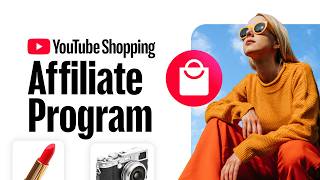

YouTube Affiliate Eligibility Requirements
32sCreators immediately want to know if they qualify for the shopping program and what rules they must meet.
▶ Play Clip"A straight-from-the-source tutorial that matches the title exactly; no fluff, just actionable details."
This video offers a thorough walkthrough of the YouTube Shopping affiliate program, guiding creators through eligibility requirements, product tagging methods, live-stream integration, commission rules, and earnings tracking. It’s an official overview designed to help creators monetize their content with product recommendations.
The YouTube Shopping affiliate program lets creators tag products from brands and retailers, earning commission while giving viewers a seamless shopping experience.
Creators must be in the YouTube Partner Program, not an official artist or Made for Kids channel, be in an eligible country, and follow all community guidelines.
Products can be tagged automatically via AI or manually. Automatic tagging uses video information; manual tagging lets creators search and select products.
In YouTube Studio, go to Channel > Advanced settings > Automatic Product Tagging and turn the setting on.
Tag products during upload from mobile or desktop, or on existing videos. Search by product name, URL, or filter by seller; save frequently used products.
Grouped Products let you tag one item covering all variations (sizes, colors), preventing out-of-stock issues and letting viewers choose their preferred version.
On desktop, you can add timestamps so tags appear at the right moment; they show to viewers on all surfaces.
From Live Control Room, select Stream or Manage, click the Shopping tab, and pin a product to feature it during the stream.
Only tag products that are easily identifiable, featured prominently, or meaningfully related to content, and that are used as intended. Direct viewers to tags and tag popular videos.
Earn commission on the entire basket if a viewer clicks your tag and buys other items. Payment comes via AdSense, typically 60-120 days after purchase; returns reverse commissions. Some brands offer up to 30-day conversion windows.
In YouTube Studio, go to Earn > Shopping to see revenue, product clicks, orders, and total sales. Click View more for top products and top earning content.
By following the eligibility criteria, using smart tagging techniques like Grouped Products, and monitoring performance in Studio, creators can effectively turn their influence into commission-based income.
What are the eligibility requirements for the YouTube Shopping affiliate program?
Be in the YouTube Partner Program, not an official artist or Made for Kids channel, be in an eligible country, follow all community guidelines.
00:31
What are the two ways to tag products on YouTube?
Automatically via AI and manually.
00:46
How do you enable automatic product tagging?
In YouTube Studio, go to Channel > Advanced settings > Automatic Product Tagging and turn the setting on.
00:58
What are Grouped Products and why are they recommended?
They are tags that encompass all variations of a product (sizes, colors), helping avoid out-of-stock issues and letting viewers pick the right version.
01:47
On which device can you add timestamps to product tags?
Only on desktop, but timestamps show to viewers on all surfaces.
02:03
How do you pin a product in a live stream from desktop?
In Live Control Room, select Stream or Manage, click Shopping tab, select an item, drag it to the Preview panel, and click Pin Product.
02:50
How does commission work if a viewer buys additional items?
You earn commission on the entire basket size, including other items purchased during that transaction.
03:58
How long does it typically take to receive payment from product sales?
Typically 60-120 days after purchase, to account for returns and AdSense payment timelines.
04:11
What happens to commissions if a viewer returns an item?
The commissions are reversed.
04:11
Where can you track your shopping earnings?
In YouTube Studio, under the Earn tab, then Shopping.
04:38
Eligibility Gates
Creators must already be in the YouTube Partner Program, which filters the audience to monetized channels.
00:31Grouped Products Prevent Out-of-Stock
A practical technique that saves creators from constantly updating tags when sizes or colors sell out.
01:47Basket-Wide Commissions
Earning on the entire basket means a single tag can produce significantly higher revenue than just one item.
03:44Centralized Earnings Dashboard
YouTube Studio's Shopping tab provides all key metrics in one place, making performance tracking straightforward.
04:38[00:00] The YouTube Shopping affiliate program lets you easily tag products from a variety of brands and retailers – giving viewers a seamless and trusted shopping experience and letting you earn commission and reach new audiences. Let’s walk through how the program works,
[00:14] eligibility requirements, how to tag products, and how to track your earnings. When you tag products in your videos, Shorts, or live streams, a shopping tag appears, on all viewer devices. To be eligible for the YouTube Shopping affiliate program, you must:
[00:31] Be in the YouTube Partner Program Not be an official artist or Made for Kids channel Be in an eligible country And follow all community guidelines There are two ways to tag products on your content: automatically and manually.
[00:46] You can save time by letting YouTube help you find, tag and timestamp products automatically using AI and your video information. You can always choose to edit, remove, or add tags to
[00:58] auto-tagged content in YouTube Studio. To turn on automatic tagging: Choose “channel,” then “Advanced settings” Scroll down to “Automatic Product Tagging”
[01:10] and turn the setting on Click save Manual tagging lets you search and select products to tag in your content. You can tag products during the upload flow from mobile or desktop. From mobile,
[01:22] at the “Add details” step go to “Tag Products”. From desktop, at the “Video Elements” step, go to "Tag Products”. To add tags to existing products, go to the video details page from mobile or desktop.
[01:35] You can search by product name, URL, or filter by a specific seller, then add the products you want to tag. If you frequently tag the same products, save them by tapping the Save
[01:47] icon. You can easily find all your saved products again by clicking the Save filter chip. We also recommend using Grouped Products when available, which let you tag one item that encompasses all its variations— like different sizes and colors. This helps you avoid
[02:03] "out-of-stock" issues, keeping your tag fresh for longer and giving your audience the flexibility to select the specific version that’s right for them. When tagging from a desktop, you can also add timestamps to ensure your tags show at the right moment, helping increase engagement. Note
[02:18] that even though you can only add timestamps on desktop, they’ll show to viewers on all surfaces. You can also tag products in your live streams and feature a tagged product by pinning it to the stream. To tag products for your live stream from a desktop, in Live Control Room
[02:33] Select Stream or Manage Click the Shopping tab To remove a product, click Trash next to the product. To pin a tagged product for your stream, select an item to promote. Click or drag
[02:50] it to the “Preview” panel, then click “Pin Product.” For a mobile live stream, you can tap the shopping button, then pin the product you want to feature. Next, here are some things to keep in mind and best practices when tagging products.
[03:03] Only tag products if they’re easily identifiable and featured prominently, or if they’re meaningfully related to your content. And only tag if the products are used as intended, or you’re using the product in a safe way that aligns with the manufacturer’s intent.
[03:16] When making new videos, remember to direct your viewers to your tagged products And consider tagging products in both new and existing videos – especially your most popular ones Fans trust your guidance. Be sure to tag
[03:29] products that you actually use and love to give your audience high quality recommendations. Also note that you may still be able to go through the flow of tagging products, even if they won’t show to viewers in cases where your content is made for kids, contains claimed content,
[03:44] or other restrictions. So be sure to familiarize yourself with these restrictions ahead of time. Here are a few things to keep in mind when it comes to commissions: You’ll earn commission on the entire basket size - so if a viewer clicks on your product
[03:58] tag and ends up buying other items, you’ll receive commissions for everything they purchase during that transaction. You’ll receive payment through your AdSense account – typically 60-120 days after purchase to account for returns,
[04:11] and AdSense payment timelines. If a viewer returns an item they purchased, the commissions you earn will be reversed. Some brands offer different conversion windows. For example, you can earn commissions for up to 30 days after a viewer clicks on your tagged product,
[04:26] as long as that viewer didn’t click on someone else’s affiliate link or product tag. if viewers click from Affiliate products tagged in your content.
[04:38] Finally, let’s walk through how to track your earnings. You can find earnings data by going to YouTube Studio, then the “Earn” tab, then “Shopping.” Here you’ll see an overview of your shopping analytics including revenue, product clicks, number of orders, and total sales.
[04:55] Hit “View more” to see deeper insights like your top affiliate products and top earning content. For more info on the YouTube Shopping Affiliate Program, check out the links in the description below. Thanks for watching!
⚡ Saved you 0h 05m reading this? Transcribe any YouTube video for free — no signup needed.