
PRISM's New Multi-Layout Presets
60sShows mobile streamers how to set up switchable gaming/chatting layouts with built-in presets, a huge quality-of-life upgrade.
▶ Play Clip"Delivers exactly what the title promises — five new features explained with clear, practical instructions and a bonus tip."
PRISM Live Studio is a free mobile app for streaming games. This video highlights five new features, including layout presets, phone-to-computer screencasting, chat notifications for iPhone, stream preview, and FaceCam on Android, plus a bonus iOS setting to disable recording.
PRISM Live Studio is a free app for live streaming mobile games, available on Google Play and the Apple App Store.
New layout presets added in the Live tab, with separate layouts for landscape and portrait orientations.
Use the layout grid icon to add multiple layouts from presets, allowing quick switching between different stream scenes.
Rename, copy, or delete layouts via the three-dot icon in the layout menu.
Scan the PRISM Lens QR code to connect your phone to Windows/Mac, then use the feed in OBS or PRISM desktop with minimal latency.
iPhone users can finally get chat pop-ups; enable push notifications in app settings and adjust iOS notification permissions.
Options include all chat, subscriber-only, YouTube Super Chats, and text-to-speech for donations.
Use the floating widget's preview option to see your live stream from your phone.
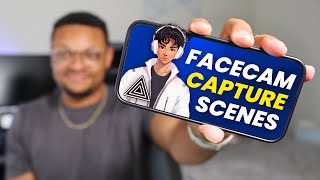
Enable the camera via floating widget, move/resize the face cam, and tap to disable.
Turn off live stream recordings in settings to reduce CPU usage and resource strain while streaming on a phone.
PRISM Live Studio continues to expand its mobile streaming features, with useful tools now available on both Android and iOS, though some features remain platform-specific.
What is PRISM Live Studio?
A free app for live streaming mobile games, available on Google Play and the Apple App Store.
00:02
What are the two gaming orientation layouts offered by PRISM?
Landscape and portrait.
00:30
How do you add a new layout preset in PRISM?
Go to the layout grid icon, tap the plus button, select a preset, and choose 'Use'.
01:24
What does the PRISM Lens app enable?
It allows you to screencast your phone to your computer, with minimal latency, for use in OBS or PRISM desktop.
02:46
Which feature was Android-only before this update?
Chat notifications on the phone screen.
03:27
How can you prevent private text messages from showing during a stream on iPhone?
Turn off notifications for the Messages app in iOS settings.
04:47
Why would you disable live stream recording in PRISM?
To reduce high CPU utilization and resource limitations when streaming and gaming on the same phone.
06:25
Where is the setting to disable video files in PRISM?
Profile icon > Settings > Live settings > Video files.
06:54
Multiple Layouts per Orientation
PRISM now supports several switchable layouts for landscape and portrait, making it easy to change scenes without rebuilding.
01:10Free Phone-to-PC Screencasting
The PRISM Lens integration provides a free wireless feed into OBS with minimal latency, expanding streaming setups.
02:32iPhone Chat Notifications Finally Arrive
This was a long-requested feature that closes the gap between Android and iOS for mobile streamers.
03:27FaceCam Available on Android via Widget
The floating widget gives hands-on control of the face camera, including moving and resizing it.
05:28Disable Recordings to Save Resources
A practical tip to avoid performance issues when streaming and gaming on one device.
06:25[00:02] Gamers out there today I'm going to be showing you guys five brand new prism live studio app features that you've never heard of until now if you're not it's one of the best apps out there for being able to live stream your mobile
[00:15] being able to live stream your mobile gaml with or without a computer in great through the Google Play Store as well as iOS through the Apple App Store and it's 100% free to download so jumping into feature number one we have the edition
[00:30] of layout presets in the app if you head over to the live tab at the bottom you're going to see two gaming orientation layouts Available to You other one's going to be for landscape
[00:43] landscape one here and this is where you're going to typically see your primary layout for the landscape orientation if I go over to that layered icon there this is where I'm going to see each layer of this layout I have one
[00:56] for vtuber I have one for my streamlabs alerts I have one for chat screen capture is the screen of your mobile device and then I have an image behind borders on the top and the bottom what prism has recently done to enhance this
[01:10] capability is if you exit out of here and then you go to that layout grid icon which is the third icon down there on the right hand side select that and this is where you're going to be able to add multiple different layouts that you can
[01:24] going to want to leverage prism's presets by selecting that plus button on the top right hand hand side and you're going to see five different preset options that you can choose from I'm going to select preset five for the
[01:37] example here select use we're going to edit the vtuber character to be the same one in the other preset and for this particular layout I'm actually going to bring my vtuber avatar and Center him up in the middle or actually you know what
[01:50] blown up a little bit here and then we're going to blow up the chat box here on the left hand side more so that way if I want to have a just chatting portion of the stream I can do that and what's nice here is that I can easily go
[02:05] back to my layout options and select any of my current existing ones and switch is that if you go to the portrait orientation by selecting that bottom right option you'll see that if you go to the layouts that I don't have any
[02:20] here currently because prism completely separates the layouts that you'll have for portrait and for landscape if at any point you guys want to rename copy or delete your layouts Within your layout menu just go ahead and select the three
[02:32] doted icon next to that layout that you want to modify and you're going to see there the next feature we have here is screencasting your phone to your computer looking at the bottom tab again if you go over to the connect option
[02:46] this is where you can scan the QR code of your prism lens app on your Windows or Mac computer if you don't have the prism lens app already installed on your description below but once you scan the QR code here you'll have the option to
[02:59] pull pull in your vtuber camera or your phone screen and the reason that this feature is so awesome is that you can use applications such as OBS Studio or even prism's desktop application create a new source within one of your scenes
[03:14] and then select the corresponding prism lens that you set up your phone through and you'll have the feed from your phone going directly into your live streaming software completely for free and I did test this out pretty thoroughly and
[03:27] there's minimal latency between between the phone and the computer feature number three on this list is chat notification for iPhone Android users have been blessed for the longest time by having their chat messages pop up on
[03:40] their phone screen while they're live but iPhone hasn't had the same luxury until now if you go back into the live tab of the app select the three dotted icon on the far left hand side you're going to see the screencast notification
[03:55] you're going to see the settings for where you can turn on on those push notifications from Prism coming from the streaming platform so the main things first within the chat notification section you're going to want to make
[04:09] sure all chat is turned on you don't want that set to off or you won't get any chat messages coming through whatsoever if your chat starts to get a little bit busy you can switch this to subscriber chat only or even YouTube
[04:21] super chats only on that point about YouTube super chats it's nice that prism added a YouTube Super Chat text to speech option so that when you get one of those Dono messages it will be spoken out to you through prism we just need a
[04:34] test option to hear these text to speech sounds before I hear them when I'm live the other setting you guys are going to need to adjust is within your iPhone settings so if you go into that app and then you go into notification you're
[04:47] you're going to want to have the notifications turned on now when you do notification popups for your other apps as well including your messages so I highly recommend going to the messages app specifically and making sure that
[05:03] you have notifications turned off you don't want people seeing your private text messages or do you the next new feature I have to show you is the stream preview while you're live if you're on an Android device you can select the
[05:15] prism floating Widget icon and that's going to open up an entire separate menu if you look just a little bit further down you're going to see an option that says preview select that and this is going to give you a little bit of an
[05:28] insight to what what your stream looks like when live which brings us to feature number five which is the FaceCam returning to the Android I wish it was on iOS but it's not limitations continue to exist on iOS but Android users if you
[05:46] stay within this floating widget section while you're live you can select the camera option on the right hand side and that will enable your camera to show up on your live stream you can even grab it take it to different areas of your phone
[06:00] screen blow it up even if at any point you want to hide the camera of your you want to hide the camera of your FaceCam just tap on the face cam and that will disable it until you tap it again and that will reenable it the day
[06:13] that we get FaceCam on iOS you'll be the first to know especially if you're subscribed to the channel of course but I have one bonus feature to show for you iOS users and that's the ability to turn off the recordings of your live streams
[06:25] now some of you guys might be asking why would I not want to record my live live streams well if you're doing it all on the phone while you're live and playing a game all at the same time it can cause a lot of high CPU utilization and
[06:39] resource limitations depending on the phone that you have so to disable this right hand side where you see your profile icon select that and then go into your settings and just a little down under live settings you'll see the
[06:54] video files and you can set that to be on or off depending on what you want to do keep in mind if you're streaming to places like YouTube and twitch you can directly off of those platforms so there you guys have it those are the latest
[07:08] updates of the prism Life Studio mobile application let me know which feature below I also left the link in the description as well to the detail page releasing of these new features of course as always if you guys came to
[07:23] thumbs up watch the next video that you see up on screen here and I will see you see up on screen here and I will see you in the next one peace
⚡ Saved you 0h 07m reading this? Transcribe any YouTube video for free — no signup needed.