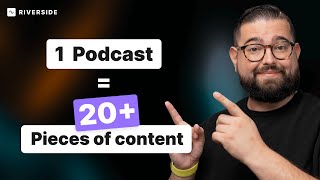

Repurpose Content Fast with AI Editor
45sHigh engagement from creators looking to save time with AI-powered editing tools.
▶ Play Clip"Delivers exactly what the title promises—a clear, practical demo of five repurposing methods with no fluff."
This video demonstrates five practical ways to repurpose long-form content using Riverside's text-based editor. It covers creating full video podcasts, vertical clips for social media, square videos, downloading transcripts for AI-generated posts, and exporting audio-only files. The focus is on speed and efficiency, showing how a single recording can be transformed into multiple formats.
Riverside's text-based editor allows searching the transcript to jump to specific points, cut clips, and supports AI transcriptions in over 100 languages.
Create a full-length video podcast by searching for the exact start phrase, setting in/out points, and exporting in up to 4K with audio normalization.
Use 9:16 aspect ratio for vertical clips; search for engaging moments, delete unwanted sentences via transcript, and export for Shorts, TikTok, and Reels.
Choose 1:1 ratio for square videos; use AI layouts like Shared AI to feature the active speaker; export for Facebook, Instagram, and LinkedIn.
Download AI-generated transcripts in over 100 languages; use them with tools like Notion AI to create blog posts and social media posts.
Export audio-only files as uncompressed WAV or MP3 for direct upload to podcast hosts and RSS feeds.
Riverside's editor enables creators to repurpose long-form content into multiple formats—video, clips, transcripts, and audio—quickly and efficiently, maximizing reach and engagement.
Text-based editing for precision
Shows how searching transcript text allows exact clip trimming, a powerful workflow improvement.
00:41AI transcripts in 100+ languages
Highlights the global scalability of Riverside's transcription feature.
04:35Using Notion AI for repurposing
Demonstrates a practical integration with external AI tools to generate blog posts and social content.
05:05Vertical clips for discoverability
Emphasizes the strategic importance of vertical video for reaching new audiences.
01:48[00:00] Whether you're creating podcasts, talking head content, or any kind of high-quality video and audio, it's important to repurpose that long-form content so you can share it on social media, an audio podcast, and lots of other ways. With Riverside, we now have a text-based editor that helps you repurpose your content
[00:15] multiple ways extremely fast. You can search the text of your recording, jump to points in your recording to cut a clip, and our transcriptions are now powered by AI in over 100 languages. So in this video, we're going to show you five ways you can repurpose your content
[00:28] using the Riverside editor and show you how fast it can be. Number one, you should be sharing your full video podcast and uploading it to YouTube in a podcast playlist and Spotify video and wherever else you'd like to host that video. Here on the Riverside recordings page,
[00:41] you can of course download the high quality separate video and audio tracks for everyone. But if you were to jump into the edit and create clips, you can actually create a full length video podcast from your recording in just a few seconds. You'll see now that you have the transcript here on the left,
[00:55] and so you can quickly edit and you can set your end point or start point exactly where you want it. I know when we start this episode, I say the words welcome to Movies on the Side. So if I put that in the search box, it'll show me exactly where that point is
[01:07] in the recording. I'll also see it represented down here in the timeline. And now I can drag the end point so this recording starts exactly where it says welcome to Movies on the Side. And I can preview it right here.
[01:19] Hello and welcome to Movies on the Side. And that's the beginning of the podcast episode. So now I'm ready to export this video and upload it to YouTube. I can go to export. I can save as high as 4K resolution. I can normalize the audio level so it's the same volume throughout.
[01:32] And then export the video. You get an email once that file is ready to download And then you can just upload that file directly to YouTube Spotify video and now you have a full video podcast in just a few seconds If you like to learn how to create a video podcast on YouTube and why you should why it important check out this video
[01:48] above or the link in the description. Now that you have your long-form content, the second way to repurpose is getting vertical clips to share on YouTube Shorts, TikTok, and Reels. When it comes to discoverability, it's the best way you can get your content in front of the eyes of more people.
[02:01] Let's go back into the Riverside Editor from the recordings page, and now let's choose a story or 9 by 16. You'll see it's already formatted, ready to go for social media, and now I can use a powerful search function to find that exact clip or engaging moment from the podcast and export
[02:15] that. Maybe there's a clip where we talked about Brendan Fraser, and I want to export that to share on social media. Well, here it is. I use the search box. I can actually browse all the different places that his name appears, and again, I'll see those lines represented down in the timeline.
[02:28] I'll go to the exact place I want, and maybe there's part of this that I actually want to delete. I can actually just select the text right here and just delete this one sentence and you'll see anything you delete in the text here in the transcript it will remove that from the clip as you export it. I'll actually drag it in an
[02:43] out point so it's exactly a minute long and you can see as I drag that out point the transcript live updates here on the left side so I can make sure I'm getting to exactly the place I would like when I export this clip. Of course using our
[02:55] editor you can rearrange which video is on top or bottom. You can change the design of the background or remove it entirely. You can keep the aspect ratio of the video if it's important to have the full 16 by 9 ratio or you can even choose one of our AI layouts. Full frame
[03:09] will focus on the active speaker with nothing else to distract. Shared AI will put the active speaker large and other speakers in small picture and picture windows or you can even split the screen for a cleaner look I going to keep it with that grid behind the images You can upload custom images of the background to make sure it looks on brand and you can even upload your brand logo and overlay that on top of the clip
[03:27] And then just like before, when you're ready, you can export it to 4k, but for vertical clips on shorts and TikTok, 1080p would do just fine. While vertical clips are great for YouTube shorts, TikTok, and reels, you might also want to do square style video for Facebook, Instagram feed,
[03:40] or LinkedIn. And just like before, going into the editor, you can choose one by one ratio for a post. You still have all the same options for layouts. And of course, you can find the clip just by searching. Maybe you talked about Las Vegas as part of this episode. I can drag the in and out
[03:54] point to exactly the instance that I would like, get that minute clip. Maybe this time I'll actually use the shared AI feature so the active speaker is large, everyone else picture in picture, and then export that square clip for LinkedIn, Facebook, and Instagram feed. The great part is
[04:07] you can create as many clips as you would like just from the single recording. And here on the recordings page, if you scroll to the bottom, all the clips that you've created are always here, ready to download once again if you need access to it. You can always rename the clip as you're creating it here in the upper left-hand corner,
[04:22] and it's helpful to have those names visible so that when you're on the recordings page browsing all your previously created clips, you can tell what they are quickly at a glance. Now, the fourth way you can repurpose your content is by downloading a transcript. Again, all of them are generated by AI, so they're incredibly accurate,
[04:36] and in over 100 languages, and then you can use that transcript to create a blog post or even social media post using AI. Here on the recordings page, I'll click download transcripts, and I'll choose the text file for transcription. If you're already in the editor,
[04:49] you can also just copy the transcript to your clipboard by clicking copy transcript down here. Now I actually saved the transcript here to my desktop and here the text file You see it has the speaker labels included I actually going to select all of this text I going to paste it in a Notion document Notion actually has a powerful AI feature
[05:05] I basically have an entire video on that. You can check it out above or in the description. So I've copied a part of the transcript here in a Notion document. If I click the little dots here, I can choose the Ask AI feature, and let's try Prompt, write a 500-word blog post based on this transcription.
[05:19] And you can see Notion AI is now beginning to write that 500-word blog post live in front of our eyes, and it'll be really close to just publishing on a website or in the description of your podcast. Now, I can continue with the AI command. Maybe I want some social
[05:31] media posts from this transcript. I can have it create five Facebook posts or Twitter posts advertising this episode. And now I'm actually getting five social media posts promoting this specific episode, and all I did was give it the transcript I downloaded directly from Riverside.
[05:45] Again, utilizing the transcript you get from Riverside, you can repurpose this text in many different ways. Email newsletters, social media posts, blog posts to post on your website, and a ton more. Finally, number five, you can still export your content in an audio-only format
[05:58] so you can post it to your RSS feed and podcast host. Here on the recordings page, you can look at the all participants row, click high quality, and you can export the audio-only uncompressed WAV file. It'll open the editor. You can choose uncompressed WAV file or the MP3 if you want to
[06:12] just upload it directly to your podcast host, and then you're ready to export that file and upload it to your podcast. So that's five different ways you can repurpose your long-form content super fast with Riverside. To learn more about Riverside's editor and how it can streamline
[06:24] your entire production process, check out the video above or the link in the description. Then subscribe to the Riverside YouTube channel. We have lots of content on creating a video podcast setup, how to use AI for all of your podcast planning, and a ton more.
[06:36] Thanks for tuning in. We'll catch you in the next video.
⚡ Saved you 0h 06m reading this? Transcribe any YouTube video for free — no signup needed.