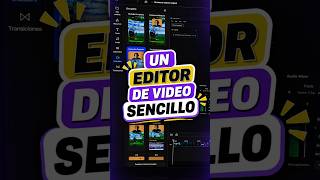

Turn Horizontal Videos into Vertical Clips Easily
44sSolves a common pain point for creators: repurposing horizontal content for vertical platforms without manual editing.
▶ Play Clip"The title promises a solution to a common problem, and the video delivers a clear demo, but it's essentially a promotional ad with limited depth."
This video demonstrates how to repurpose horizontal videos into vertical clips for platforms like TikTok, Reels, and Shorts using the online editor Rollnroll. The creator walks through the process of importing a video, using AI to identify key moments, and customizing the output format.
The creator wants to upload vertical content but finds it tedious to manually reformat videos in a traditional editor.
Introduces Rollnroll, a fully online video editor, as a solution to quickly convert videos to vertical format.
Go to the 'video to clips' option, import the file, wait for processing, then drag the video to the project and click next.
Choose the content type (e.g., tutorial, technology) and provide instructions to the AI about what to focus on.
The AI processing took 45 seconds, after which the user can select the best moments from the video.
Users can customize framing, transitions, subtitles, audio, text, and add stock or AI-generated resources (videos, images, GIFs).
Choose the resolution (e.g., 60fps) and the reformatting is described as 'super fast' while preserving quality.
The creator mentions a link in bio and a 10% discount code for Rollnroll.
Rollnroll offers a fast, AI-driven solution for converting horizontal videos into vertical clips, saving time and effort while maintaining quality.
What is the main problem the creator wants to solve?
Adapting horizontal videos to vertical format for TikTok, Reels, or Shorts without manual editing.
00:02
What tool is recommended for converting videos to vertical format?
Rollnroll, an online video editor.
00:16
How long did the AI processing take in the demo?
45 seconds.
00:56
What customization options are available in Rollnroll?
Framing, transitions, subtitles, audio, text, and adding stock or AI-generated resources like videos, images, and GIFs.
01:10
What discount code is offered in the video?
A 10% discount code, but the specific code is not mentioned in the transcript.
01:36
Rollnroll as a Solution
Introduces a specific tool that directly addresses the common pain point of video reformatting.
00:16AI Speed
Demonstrates the efficiency of AI in processing, a key selling point for the tool.
00:56Customization Features
Highlights the range of editing options available, making the tool versatile for content creators.
01:10[00:02] to multistream on several platforms at the same time with few resources. This video different chapters, which you can actually see in the timeline. And the truth is that while I want to upload vertical content from this video, I'm
[00:16] quite lazy to adapt the format to the vertical format by opening my editor, , etc. So that's why I'm going to tell you about an amazing online video editor, completely on the rollandroll.com website. We're going to go
[00:30] to the video to clips option, import the file (here's the video), and wait for the processing. Okay, it's finished. We simply click on it, drag it to the project, and then click next here
[00:42] . In my case it's a tutorial, as it couldn't be otherwise, so that's what we choose, technology and we give instructions to the AI. In this case, it will be about know that you can write whatever you want. We click on create. This process
[00:56] has taken 45 seconds less when selecting the video. We will have a select what you want from that video, obviously finding the best moments of your video. I'm going to click here on create clip. And this is where it
[01:10] gets quite interesting because we can obviously give it whatever format we want. This includes framing, adding transitions, editing the subtitles, adding audio, text, and resources. And by resources I
[01:22] mean videos, images, GIFs, all stock or even generated by simply choose the resolution. The best part is that it can in this case would be 60, and you'd be on the other side. The truth is that it's
[01:36] super fast to reformat with roll and roll, creating content you've already made and preserving its quality without any problems. If you want more information, the link is in my bio; enter the code for a 10% discount. I just uploaded a video to
[01:50] multiple platforms simultaneously with limited resources. This video is edited so chapters, which you can actually see on the timeline. And the truth is that while I want to upload vertical content from this video, I'm
[02:04] quite lazy to adapt the format to the vertical format by opening my editor, , etc. So that's why I'm going to tell you about an amazing online video editor, completely on the rollandroll.com website. We're going to go
[02:18] to the video to clips option. We will provide the file. Here's the video, and we're waiting for it to be processed. Okay, it's finished. We simply click on it, drag it to the project, and then click next here
[02:30] . In my case it's a tutorial, as it couldn't be otherwise, so that's what we choose, technology and we give instructions to the AI. In this case, it will be about know that you can write whatever you want. We click on create. This process
[02:44] has taken 45 seconds less. When you select the video, we will have a short process so you can choose what you want from best moments of your video. I'm going to click here on create clip. Yeah.




⚡ Saved you 0h 02m reading this? Transcribe any YouTube video for free — no signup needed.