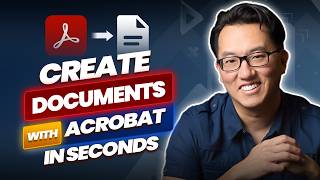

Adobe Acrobat is not just for PDFs anymore!
45sDebunks common misconception about Acrobat, showcasing its new AI-powered all-in-one workspace capabilities.
▶ Play Clip"Delivers a hands-on demo of Acrobat's AI features exactly as promised, with only minor promotional gloss."
This video, presented in partnership with Adobe, demonstrates how Acrobat Studio has evolved beyond simple PDF editing into an all-in-one AI-powered document creation workspace. The host, Garrick, walks through practical examples of using PDF spaces and the AI assistant to generate checklists, presentations, and personalized letters from a single set of source files.
Adobe Acrobat is repositioned as an all-in-one workspace platform for document creation, not just for touching up or outputting final PDFs.
Users can create a new PDF space at acrobat.adobe.com, then select files from recent, device, cloud, or other sources to upload.
Acrobat combines Word docs, PowerPoints, transcripts, and PDFs into one intelligent workspace, generating a summary and insights from all documents.
A simple prompt like 'create a detailed first week checklist' produces a day-by-day checklist with citations that link back to the exact source files.
Responses can be copied into word processors or emails, or saved to notes within the PDF space for later reference and editing.
Using the Presentations sidebar, users can type a prompt and choose a template to generate a full onboarding presentation directly from the source documents.
AI can draft a warm, personalized welcome letter using the video transcript and other files, including the employee's name and day-one details.
Instead of asking for a specific output, users can prompt AI for unexpected ways to reuse content, receiving ideas like a digital onboarding hub or microlearning modules.
Acrobat Studio offers Stylize PDF to update colors, fonts, and layout, plus a template gallery powered by Adobe Express for a professional finish.
Acrobat Studio's AI assistant transforms document creation by unifying input sources, generating tailored content, and offering polished templates—making it a powerful productivity tool for professionals.
What file types can be added to an Acrobat PDF space?
Word documents, PowerPoint presentations, PDFs, VTT transcripts, and other common file types.
01:14
How does Acrobat's AI assistant show where information came from?
It uses citations that, when clicked, open the source file and highlight the exact location of the information.
02:47
Besides copying, how can you save an AI response in Acrobat?
You can save it to notes within the PDF space for later reference.
03:00
What steps are needed to generate a presentation from documents?
Open the Presentations sidebar, type a prompt, choose a template, and click 'Generate Presentation'.
03:45
How can AI assistant repurpose a video transcript?
It can draft a personalized welcome letter using the transcript and other documents, including the employee's name and key details.
05:08
What are examples of AI-suggested repurposing ideas for onboarding content?
Creating a digital onboarding hub, developing microlearning modules, gamifying the process, and hosting a lunch and learn series.
07:28
What are two ways to polish a resume in Acrobat Studio?
Use Stylize PDF to update colors, fonts, and layout, or start from a professionally designed template in the Adobe Express gallery.
09:07
Unified workspace for multiple file types
This eliminates the need to juggle between different tools and creates a single source of truth.
01:14Structured checklist with citations
Shows how AI can turn scattered documents into an actionable, source-verified plan.
02:20One-click presentation generation
Dramatically reduces the time and effort needed to build a professional deck from raw materials.
03:45AI as a creativity partner
Beyond executing tasks, AI can surface novel uses for content that users might not have considered.
07:11Polished final output with Stylize PDF
Completes the document creation loop by offering professional design assets without leaving the workspace.
09:07[00:00] If you still think Adobe Acrobat is just for touching up and outputting the final versions of your documents, it's time you took another look. Adobe has ushered in a new era of Acrobat, which I think is one of the best all-in-one workspace platforms for document creation. You can
[00:15] convert and combine different file types into a single document. You can brainstorm content ideas, and you can create new documents from your existing files or from scratch. Hi, I'm Garrick and in this video in partnership with Adobe, we'll see how to use AI for document creation and look
[00:31] at some examples of how to polish content and quickly generate brand new content. I've signed into my account at acrobat.adobe.com and I'm going to create a new PDF space by clicking create a PDF
[00:43] space. It generates that new space for me and asks me to select my files. I can select from recent files, files for my device, files on the cloud, and so on. I'll choose to select files.
[00:56] And on my desktop, I have a folder with all sorts of company onboarding materials. There's a PDF employee handbook, several Word documents with benefits info, workplace safety guidelines, a PowerPoint presentation, and even a VTT file, which is a video transcript. I'll select all of
[01:14] these and choose to open them. And here I'll click add to PDF space. And now Acrobat is analyzing all of these different files and generating a summary. and insights from all of these documents. And this really is one of the best AI platforms for creating and converting PDFs
[01:30] because it doesn't matter if you have Word docs, PowerPoints, transcripts, or PDFs. Everything gets combined into one intelligent creative workspace. So you can see now it's created the summary of the documents and below that it's also offering some suggestions on ways it can use the files to help
[01:47] us like provide insights, generate a presentation or create a podcast from the information found in the documents. So right off the bat there's a lot of things we can do just by dragging files into a PDF space. So let's take a look at a couple of examples of how we can use our PDF space to
[02:03] create documents. Let's say I want to generate a checklist for new employees for their first week so they know what to expect. I'll come down to the prompt area and I'll type create a detailed first week checklist for new employees based on the onboarding materials. Include day-to-day tasks,
[02:20] what to expect, and who they'll meet. And after just a few seconds, here's what we get. Notice how it's organized by day as we requested with specific tasks and expectations. It includes
[02:34] everything from meet your onboarding buddy to completing security orientation to scheduling a coffee chat with team members. You'll also notice citations throughout your responses. Rolling over
[02:47] a citation tells me which file this information was pulled from. And clicking a citation opens the file and highlights that exact location of the information. At the bottom of the response,
[03:00] we have some buttons. For instance, we could click the copy button to copy the entire response and paste it into a word processor or email. But we also have the ability to save this to notes here in my PDF space. So now if I go over to the notes area, there's
[03:17] the response and I can always refer back to this first week checklist for new employees. In fact, I'll change the title to first week checklist. So AI assistant has done the heavy lifting of reading
[03:31] through all of these documents and organizing the information into something useful. And now I can copy that information and further refine it or edit it as needed. And if you wanted to take this a step further, you can actually generate a full onboarding presentation directly from these
[03:45] documents. Just come over to the left sidebar of the PDF space and click presentations. You can read through this information that tells you how to use the space.
[04:01] But here I can just type a prompt. Notice it's even offering suggestions as I type. And I'll choose create an onboarding presentation for new hires at Pento.
[04:14] Here I can choose a template and click generate presentation. And here it is. Acrobat has automatically built a full presentation for us based on
[04:27] those documents. So this really is one of the best ways to turn a stack of source documents into a ready-to-share presentation with no extra work required. Of course, you will want to go through each slide to check them and to edit them, but you can see that the majority of the work here
[04:42] has now been completed for us. Let's take a look at another example of how to use AI for content creation in this PDF space. One of the files we brought in was this transcript file from a
[04:54] welcome video for new employees. You can see its layout is not exactly useful as a document that we want to share. But I'd like to repurpose the info found here as well as relevant info from the other documents into a welcome letter that we can include in the onboarding packet.
[05:08] But instead of writing everything by hand, I'll just come down to the prompt area and ask AI assistant to use the welcome video transcript file to draft a warm personalized welcome letter from
[05:20] a hiring manager to a new software engineer named Alex who is starting next Monday. Include what to expect on day one, what they should bring, and express excitement about them joining the team.
[05:35] And there it is. We have a personalized email with Alex's name that starts with a warm introduction followed by important details from the files in our PDF space such as meet your manager, your onboarding buddy, equipment setup, and so on. So, a hiring manager could now take this,
[05:51] personalize it a bit more with specific project details or team introductions and have a polished welcome letter ready to send in a few minutes. Again, they could add this to notes here in PDF spaces, or they could copy it. Or if you wanted to go the extra mile, right here from the Acrobat
[06:09] homepage, you have access to a full library of professionally designed templates powered by Adobe Express. These are some of the best professional templates available for exactly this kind of document. For example, I could search the templates for a professional letter, find one
[06:26] that I like, choose customize template, and then I could paste in the AI assistant response, make a few edits, or even use AI assistant in Adobe Express to tell it what I want to create. And very
[06:41] quickly, you'll end up with a beautifully polished on-brand welcome letter with no design skills required. So AI assistant considered the text tone and purpose of this document and automatically generated it so we have a great foundation for our final product and we can polish it even more
[06:57] from some of the best professional templates in Adobe Express all from the same place. Now so far the examples we've been looking at have been for scenarios when we know what we want to do with the information we've brought into our PDF space. But oftentimes we may not have thought of
[07:11] or considered other ways we can use our content to our advantage. So rather than asking AI assistant to perform a specific task with a specific goal, try prompting it to offer you other ideas or perspectives. For example, I'll try a prompt like, "What are some creative or unexpected ways
[07:28] we could repurpose all this onboarding content to add value?" And now AI assistant has provided several ideas I might not have come up with on my own. For example, it's suggesting create a
[07:40] digital onboarding hub, develop microlearning modules, gamify the onboarding process. And it's not just offering ideas, it's telling me what to do, and also the value that it adds.
[07:53] So, in just a couple seconds, it's giving me 15 ideas I can consider. So, if I like any of these ideas, for example, host a lunch and learn series, I could then ask AI assistant to draft a schedule for the event and the topics that should be covered. So, this is another example
[08:08] of what makes Acrobat Studio one of the best creative workspaces. It doesn't just execute what you ask for, but it can also help you discover possibilities you didn't even know existed in your content. This is truly how to use AI to create a workspace that thinks alongside you. For instance,
[08:24] you could create a PDF space loaded with market research, competitor analysis, customer survey data, and so on. And we've already seen that it handles your many different file types seamlessly. and then ask AI assistant to create a polished marketing plan by analyzing your documents and
[08:40] providing insights that you could then share with your team and leadership. Or you could upload your current resume along with a job posting you're interested in and ask the AI to suggest edits to your bullet points. You could even generate a tailored cover letter as a starting point and then
[08:55] refine it with your own voice before sending. And once your content is ready, Acrobat Studio makes it easy to put a professional finish on it. Use Stylize PDF to update the colors, fonts,
[09:07] and layout of your existing resume, or start fresh with a professionally designed template from the template gallery powered by Adobe Express. Either way, you walk away with a polished, ready-to-use application package, all without ever leaving Studio. So, as you can see, Acrobat Studio
[09:23] isn't just for reviewing and editing final PDFs anymore. It's become one of the best AI powered productivity tools and creative workspaces for creating new content. With PDF spaces, AI assistant, and templates for documents powered by Adobe Express, you can bring together all your
[09:40] source materials and create polished, professional documents in what feels like unlimited ways. So, now you know how to use AI with productivity tools that transforms your entire document creation process. If you want to try Acrobat Studio out for yourself, click the link in the description.
[09:57] And if you found this video helpful, hit the like button and subscribe for more videos like this



⚡ Saved you 0h 10m reading this? Transcribe any YouTube video for free — no signup needed.