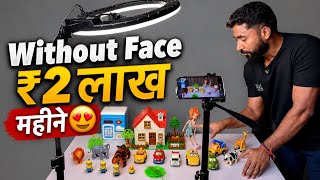

Earn Without Showing Face!
40sImmediately hooks viewers with the promise of easy money through faceless YouTube channels, a highly sought-after topic.
▶ Play Clip"Title promises earning money from YouTube, but the video delivers only basic stop-motion editing steps with zero monetization insight — a classic mismatch."
This video is a step-by-step tutorial on creating 'no-face' YouTube videos for kids using toy stop-motion animation. The creator demonstrates how to film toys like a plastic cow and car using a smartphone and tripod, then compile the photos into a video using the InShot app, add sound effects, and export. The video aims to teach viewers how to earn money from YouTube without showing their face, targeting housewives, students, and others looking for a side income.
The creator claims videos made without showing the face can get 100-200 million views and generate significant income, though exact earnings are not specified.
A tripod, a smartphone with a ring light, a table, and toy figures (like cows, cars, horses) are needed for the setup.
The key trick is to use the smartphone camera's photo mode, not video mode, and capture individual photos while moving the toys in small increments.
Move the toy slightly forward, take a photo, repeat. This creates a stop-motion effect that makes the toy appear to move on its own.
Download the InShot application, create a new project in the video section, and import all captured photos in sequence.
Set the duration of each photo to 0.3 seconds using the speed option and apply it to all photos to ensure smooth motion.
Use InShot's audio/effects feature to search for sounds like 'cow', 'horse', 'car', and 'truck' to sync with the actions in the video, increasing engagement and virality.
Export the video in MP4 format at 30 frames per second. The example video is 14 seconds long, but longer videos (2-4 minutes) can also be made.
The tutorial teaches a simple stop-motion method to create entertaining kids' videos without showing your face, using basic equipment and the free InShot app. While the video emphasizes earning potential, it focuses on the technical process of producing and editing the videos, leaving monetization strategies unexplored.
What camera mode is used to create the toy video effect?
Photo mode, not video mode.
01:37
What is the recommended duration for each photo in the InShot app?
0.3 seconds.
08:08
Which app is used for editing the photo sequence?
InShot
05:59
Why is the camera required to stay completely stable during the entire photo capture?
To ensure consistent frames that create smooth stop-motion animation without shaking.
04:19
How do you apply the 0.3-second setting to all photos at once?
Use the 'Apply to all' button after setting the duration.
08:24
Where do you find sound effects like 'cow' and 'car' in InShot?
In the Audio > Effects section, using the search bar to type the desired sound name.
09:19
What export format and frame rate are recommended?
MP4 at 30 frames per second.
12:47
Faceless video earning potential
Reveals the motivating claim of the video: 100-200 million view videos are possible without showing a face, driving viewer interest.
00:14Photo mode trick
The core technique is using photo bursts instead of video, a simple but effective stop-motion hack any smartphone user can apply.
01:37Stable camera requirement
Emphasizes that the camera must remain immobile to avoid jerky animation, a key principle for quality stop-motion.
04:19Sound effects boost engagement
Connects sound effects to higher engagement, which is essential for YouTube algorithm promotion.
09:04[00:01] Friends, nowadays it has become very easy to earn money from YouTube. you will see many videos in which you will see that videos have been made without showing faces and all these videos have received millions of views. There are 100-100
[00:14] million to 200 million views and all this generates a lot of income. So today I am going to tell you about a channel idea in which you can make such a setup in your house and without showing your face, you can see that a
[00:27] mobile is installed here. You do n't even have to make a video from here. You have to make a video from a photo and how to make the video, that is the biggest trick for you, how to make a video from it in which it looks like this cow is walking here, so it will
[00:41] look like it is walking. It is running on its own. Meaning you will feel that this is a plastic cow. But I will show you how it works by making it this way. So this video is a video without showing the face and here no matter who
[00:54] video without showing the face and here no matter who you are, housewife, student, go to office, do any work, you can earn a lot of money from YouTube by making such videos, friends, you should carefully see how you have to make the video,
[01:07] need a tripod like this, you should see here, you need a tripod like this, in the description of the video, take it, after this you need a mobile like this ring light should be something like this and you should have a table like this.
[01:23] You can see on which you will decorate such toys. Now So first of all you will you can see it as a video. You do not have to start here on this section.
[01:37] Ok? You do n't have to make a video from here. You have to go I click on the photo section. And after going to the photo section, after going to the photo section,
[01:51] you look here, you will see an aspect ratio. So if your aspect click on Full Aspect Ratio. Look here, you will click like this. see in front of you, the full
[02:04] Now how do you make a video here? Look at the attention. Like you will have to buy toys from the market like this. For example, suppose the car is like this. Ok? You will have to take these toys like this. And here the video will be made in such a way that it will
[02:18] seem as if all these tasks are running automatically. So watch carefully how to make the video. Now here your camera will remain running like this. Now suppose look at the video next to it, see the cow is walking. It is running on its own. Ok? So
[02:33] you have to show that the cow is walking on its own and here you have to add sound effects to your video. make the video something like this. Here you can see the video next to it. Ok? So how do you want to make this video? So first of all look, here the car is like this
[02:46] and here you have the camera like this. So how do you make a video? First of all, you have to take a photo here like this. here. Now what to do after this ? This cow needs to be moved a little further.
[02:59] Then after this you have to take the photo. Then after this, this cow has to be moved a little forward. Ok? Then its photo has to be taken like this. Then after this, this cow has to be moved a little forward. Then after this you have to take the photo. In this way you have to keep
[03:12] moving the cow forward and keep taking photos. Keep watching the attention. Watch at the end, I will how to edit this video. After this this cow will go here again. Then after this we will take the photo here. Then we'll move the cow a little bit forward here.
[03:25] Then we will take a photo here. Now this cow has come here. Ok? So now this cow came here. Now if you look here, I have placed another animal here. Now there will be a discussion between these two. Ok? So suppose he comes here,
[03:38] what will he do now? Will step back a little. Ok? It will retreat here. So what will we do a little bit here now? As soon as the cow comes here, you take a photo. After this, move this cow a little back. Look here it has moved back. Then
[03:51] after this it will come to the side here. Then after this take this photo. Then what should we do with it after this ? Do it this way. Look, a cow will eat grass. Look at this. Now after this, you can take a photo here like this. After this take the photo again.
[04:07] Again you cow ate grass. Ok ? What to do now? Please return it again. ? What to do now? Please return it again. Take the photo again. Take the photo. It came to him again. Take the photo again. This camera of yours should not move. One should
[04:19] remain stable at one place. Remember that your camera should not move. Then after this move it a little here. Then take the photo. After this, this cow will come here and stand here like this. Now after this this
[04:33] girl will say, this girl will say car, you go. Ok? So now after this you have to do voice over here also. I will show you how to do it. So now let's say take a photo again. Now after this this car will run. Ok? So here first of all
[04:46] move it forward a little bit. Then again, take it forward. Then take it forward. Now this cow is about to be loaded on this cart but will not be able to do so. So what will this do? Will go back again. Then turn it around like this.
[05:03] go and straighten out like this. Correct? But now after this this car will come. Ok? Just wait and see how good it will look after the video is made. After this, Then move this vehicle a little forward. Then move this vehicle a little
[05:19] forward. Now after this this cow will be loaded on it. Take the photo. Ok ? After this, turn this vehicle like this.
[05:33] will see that you have got a lot of photos. Now I have to make a video of this. How to make a video? Correct? What do you have to do now? Now what do you have to do with Simple? This mobile has to be removed. Ok? And you have to make a video of the photo you took.
[05:47] How to make a video? Here I am turning off the light first. Now after turning off the lights, off the light first. Now after turning off the lights, Understand it carefully. I am showing it to you. There is an application.
[05:59] You have to download the Insort application here. tricky. Don't assume that you will do the editing yourself. You have to click on the video section.
[06:16] you have to click on New Project. After clicking on this new project, you will see that it will appear in front of you like this. And now if you click on the photo here in the many photos have appeared in front of you. Now you have to take all these photos one by one.
[06:31] So from here we will click from where we have taken the photo. All the photos have to be selected together. So look here 1 2 3 4 5 6 7 8 9 10 11 12 13 14 15 16 17 18 19 20 21 22 23 24 25 26 27 28 29 30 31 32 37 34 35 36 37 38 39 40 41 42 43 44 45 46 47 48 49
[06:44] look here 1 2 3 4 5 6 7 8 9 10 11 12 13 14 15 16 17 18 19 20 21 22 23 24 25 26 27 28 29 30 31 32 37 34 35 36 37 38 39 40 41 42 43 44 45 46 47 48 49
[07:03] said it like this, half in English and half in Hindi. So look carefully here. What do you have to do after this? You have to tick here. You have to tick on this option. So you will see what was written? Please do not lock the screen and switch off other apps. Switch
[07:17] to other apps. So all your photos here are now being imported into it. Ok? So now look, all your photos have come here. So once I show you the photo, I will play the entire video once. Here you will see the entire photo,
[07:31] see for yourself how the cow is walking here. But now if I play this video a little bit, you will see that there is a problem here. Look, look, I played this video. Now if you see, the cow is still standing here. So
[07:43] what work do you have to do here now? You have to bring all these photos in durations. That means it has to be brought in the duration of a video. How will you bring it? So look here, all your photos have come here. All the photos that were there have been uploaded here. And
[07:55] now if you see, the length of this video is 4 minutes and 5 seconds. But we have to get this video into motions. That means the cow has to be shown walking. You are understanding what I am saying, right? So what will we do first? Here we will select it like this.
[08:08] And look here, one speed option is shown. We will click on the speed option and after clicking, we will bring the timer here to 0.3. We will bring it to 0.3 seconds. And what does the double tick here,
[08:24] double tick, double tick, mean? That will apply to everyone. And the single look here, we will click on the double tick. So look what was written here? Apply to all. It will apply to everyone. Now let us see this, we have made it apply to all. Now let
[08:37] us try running it here. Look at this. Look how the cow is walking. Look, it is moving on its own. Look, the cow ate food here. After this it went here. Now see, the smaller car will come to pick it up here, I could not take it.
[08:50] after this, look, this comes. After this the cow climbs on it. She goes away. So watch your video, it is ready. The 14 second video was made and ready. And what does it take for a short video to go viral on YouTube? Engagement And how does engagement come about? The more people
[09:04] watch the video and quickly watch the 14-second video, the more your engagement will increase. Now here you have to do something else. First of all, you have to add sound effects here. come on audio. After coming to audio, you will see here that there is an effect.
[09:19] We will click on this effect option. And after clicking on the effect option, we will search here. If it happens here then it doesn't matter if it doesn't happen. Like here we will write cow. We put the cow here. See what is written here? Look, did you
[09:32] hear the sound? So we will click on it here and place it here. Look at this, and place it here. Look at this, look at this here. Ok? After this we will place it here like this. And after this,
[09:44] what will we put second here again? Again we'll get into sound effects. come to effects. After coming to Effect, click on Search here. Here we will write horse click on Search here. Here we will write horse h or s e horse. Click here.
[09:57] So here we will see whether the second one comes or not. Or we'll put it here again. We will add cow again. Is Kau okay? COW Cow will put it here again. We will click on Cow to Pay and look here,
[10:11] we will click on this. And after this you will see again that he said look and went away. vehicle moves here, then again we have to cut it here first. You have to you will see here that there is an option of split. We will click on this.
[10:27] we will click on delete this part. Now after this the car starts moving. So we have to add sound effect of the car. So again we will simply click on this, on the effect and write car here. Ok ? Let's go back for 1 minute and after this
[10:43] we will park the car here. So look here now, look at this. After this we will add it here. Now look, now look, the car is coming. She goes away.
[10:57] Then now look, the second car comes here. We will cut it again. What will we do with this part here again? We will cut on the split option. And after cutting it, we will delete it again.
[11:09] Click on audio again. Will go to the effect. After going to Effect, here we will again come to the search option and write car here. Look, we'll put the car or the bus here. Or here we will
[11:22] we'll put the car or the bus here. Or here we will write truck TRUC truck, truck or again we will write car, okay so here you can choose any other one here you can choose any other one which you like, okay so
[11:37] here we will click on the second one with car horn and after this we will add it again, you see here now you will see we will move it a little forward, after moving it forward, pay attention, now see this one has
[11:51] come here. After this we will click on it again and after this we will delete it by clicking on Split here. What do we have to do again after deleting ? I have to go to the effect. After going to the effects, what do we have to do here again ? We have to click on the car and
[12:05] add the same sound here. And after this, you see here, see this. Now after this we have to add the sound effect here again. The cow that is mounted here. So again we will click on this and come to audio.
[12:18] After going to Effect, we will search here. Will write cow. Ok? COW Cow. Again we will add the same effect here. Look here now. After this, they will move it a little forward here. Look at this.
[12:33] Look at this, the video ends. After this we will split it here. I will delete this. We will split this also. I will delete it. Now our video is ready. Look at this. [screaming] Look at this.
[12:47] Now in the same way you can also make long videos. You can make long videos of up to 2 minutes to 4 you have to do the export here. Look here in 30 frames per second format, you have to click here, click on MP34.
[13:04] save it here. So see here, your video has been made and is ready. So friends, If you like this video then please like, comment See you in a new video with a new topic. Till then Jai
[13:17] with a new topic. Till then Jai Hind, Vande Mataram.



⚡ Saved you 0h 13m reading this? Transcribe any YouTube video for free — no signup needed.