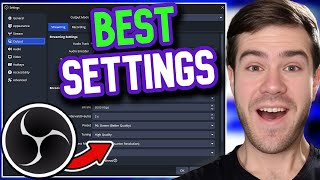

From laggy to crystal clear stream
45sRelatable problem with a promised solution hooks viewers who struggle with stream quality.
▶ Play Clip"Title accurately promises beginner-friendly OBS settings for streaming; video delivers exactly that."
This video provides a step-by-step guide to configuring OBS Studio for high-quality, lag-free streaming, tailored for beginners. The presenter shares optimal settings for video, audio, and encoder configurations to achieve a professional stream.
Open OBS Studio and click on 'Settings' in the bottom right corner.
In the Stream tab, connect your Twitch account. This also enables adding Twitch chat and stats to the OBS dock.
Uncheck 'Enable enhanced broadcasting' and check 'Ignore streaming service setting recommendations' to have full control.
In the Output tab, change output mode from Simple to Advanced.
For Nvidia GPUs, use NVENC H.264; for AMD, use equivalent; otherwise, use x264 (CPU-intensive).
Set rate control to CBR, bitrate to 8000 (6000 for affiliates, 8000 for partners), keyframe interval to 2.
Set preset between P5 and P7 (P6 recommended), profile to high, and enable psycho visual tuning.
In the Audio tab, set all audio bitrates to 320 for best quality.
In the Audio tab, select correct desktop audio and microphone devices.
Set base canvas resolution to your gaming resolution (e.g., 1920x1080), output resolution to same, and FPS to 60.
Enable 'Automatically reconnect' and optionally 'Dynamically change bitrate to manage congestion' for unstable networks.
By following these OBS settings, you can achieve a crystal-clear, smooth stream. The video also promotes a separate guide for the Twitch VOD track feature to avoid copyright issues.
What is the recommended bitrate for Twitch streaming according to the video?
8000 kbps (6000 for affiliates, 8000 for partners).
02:32
Which video encoder should you use if you have an Nvidia graphics card?
NVENC H.264.
02:11
What is the purpose of the 'Dynamically change bitrate to manage congestion' setting?
It lowers stream quality to prevent buffering when network bandwidth fluctuates due to other users.
04:56
What is the recommended keyframe interval for streaming?
2 seconds.
02:54
What audio bitrate does the video recommend for all audio tracks?
320 kbps.
03:23
What is the 'Twitch VOD track' feature used for?
It allows playing copyrighted music on stream without muting VODs.
01:58
What should you set the encoder preset to if you have a good computer?
P7.
03:05
Switch to Advanced Output Mode
Crucial step to unlock full control over encoder settings for quality.
01:35Bitrate Recommendation
Key setting that balances quality and stability; 8000 kbps is the new standard.
02:32Dynamic Bitrate for Congestion
Practical tip for streamers on shared networks to avoid buffering.
04:56[00:00] every streamer wants their stream to
[00:01] look Crystal Clear without any lag the
[00:03] only problem is the settings are super
[00:05] complicated and hard to understand for
[00:07] normal people so that's why in this
[00:09] video I'm going to reveal to you the
[00:11] best stream settings to use an OBS
[00:13] Studio that turned my stream from being
[00:15] a laggy PowerPoint presentation that had
[00:17] me looking like a Minecraft character to
[00:19] a nice smooth Crystal Clear professional
[00:21] stream and the reason why most people
[00:23] don't get their streams to look this
[00:24] nice is because they don't know the
[00:25] exact settings to use so whether this is
[00:27] your first time in OBS Studio or you've
[00:29] been streaming for a while these
[00:31] settings will apply to anyone who wants
[00:32] the best video quality for their streams
[00:34] first thing we need to do is open up OBS
[00:36] Studio duh it's in the title if you're
[00:38] wondering where I got this dope starting
[00:39] soon graphic it's actually in my
[00:40] streamer starter pack which is in the
[00:42] description below but we want to go to
[00:43] the settings in the bottom right corner
[00:45] so click on settings and then we're
[00:46] going to actually skip General in
[00:47] appearance cuz it Doesn't Really Matter
[00:49] we're going to go straight to stream
[00:50] then from here we're going to connect
[00:52] our Twitch account or whatever thing
[00:54] you're using here so in this case I have
[00:56] my Twitch account connected with this
[00:57] button and a cool thing about connecting
[00:59] your Twitch Channel this way is that if
[01:00] you hit okay go to the doc Tab and now
[01:03] you can add your Twitch chat your stream
[01:04] info your Twitch stats and your activity
[01:06] feed all in the dock here so if you
[01:07] click on Twitch chat it'll automatically
[01:09] pop it here so you can automatically
[01:10] just see it in OBS Studio Isn't that
[01:12] cool but let's go back to the settings
[01:13] in the bottom right corner click
[01:15] settings then we'll go back to stream
[01:16] and then we're want to uncheck enable
[01:18] enhanced broadcasting because it's going
[01:20] to allow us to change more settings then
[01:22] once you've done that make sure to check
[01:23] ignore streaming service setting
[01:25] recommendations because that way it'll
[01:27] use what we tell it to instead of what
[01:29] this tells it to instead which will make
[01:31] more sense in just a second so then hit
[01:32] apply and then we're going to move to
[01:34] the scariest part which is the output
[01:35] tab but don't freak out I got you guys
[01:37] go to the top where it says output mode
[01:39] and change it from simple to Advanced
[01:41] which I know is counterproductive to
[01:42] people wanting to keep it simple but
[01:44] trust me then we'll make sure we're on
[01:45] the streaming Tab and then we'll make
[01:47] sure that the audio track is on one and
[01:49] so any audio that we say is on track one
[01:52] will be sent to our stream then for our
[01:54] audio encoder keep it at fmm the twitch
[01:56] VOD track is actually a very useful
[01:58] setting which will allow you to play
[01:59] copyrighted music on your Twitch streams
[02:01] without getting the little warnings or
[02:02] your vodes muted after but I'm going to
[02:04] touch on this setting at the very end of
[02:06] the video so make sure to stick around
[02:07] for it because you don't want your
[02:08] channel getting in trouble for the video
[02:09] encoder if you're using a Nvidia
[02:11] graphics card you're want to use Nvidia
[02:13] enve h264 and if you don't have this
[02:16] you're using AMD you're going to want to
[02:17] use whatever the AMD equivalent is and
[02:19] if you don't have either of those then
[02:20] you're going to want to use x264 but
[02:22] that's going to use a lot of resources
[02:24] on your computer which might run into
[02:26] issues the next important setting is
[02:27] we'll go to the encoder settings we're
[02:29] going to change rate control to CBR and
[02:31] we're going to change the bit rate to
[02:32] 8,000 we used to have it on 6,000 which
[02:35] is also very good bit rate but sometimes
[02:37] when you're streaming if there's extra
[02:39] resources available it will boost it up
[02:41] to 8,000 which will give you even better
[02:42] quality if you're a regular twitch
[02:44] streamer or a twitch affiliate however
[02:45] if your partner then you'll almost
[02:47] always get the 8,000 kilobits per second
[02:49] quality but don't put it any higher than
[02:50] 8,000 because then you will actually
[02:52] nuke your stream so don't do that next
[02:54] we're going to change the key frame
[02:55] interval to two others like to have it
[02:57] on zero either is really fine but I
[02:58] prefer two the pre set you want to have
[03:00] anywhere between P5 and p7 I'm just
[03:03] going to have it on P6 if you have a
[03:05] really good computer put it at p7 if you
[03:07] have a not so great computer do P5
[03:09] somewhere in between P6 then we're going
[03:10] to do high quality two passes High
[03:13] enable psycho visual tuning GPU 0 and
[03:16] Max B frames 2 which is pretty standard
[03:18] then we're going to click on the audio
[03:19] portion a little two tabs in we're going
[03:22] to change all of these audio bit rates
[03:23] to 320 to give us the best audio quality
[03:26] as well so now after doing these
[03:27] specific settings this is going to give
[03:29] you a good quality but we still need to
[03:31] do a couple more things to make sure
[03:33] it's the best quality so we're going to
[03:34] go to the audio Tab and make sure that
[03:36] you have your correct desktop audio
[03:38] selected this is going to be wherever
[03:40] your computer speakers are so in this
[03:41] case I'm using the yaha zg1 which is
[03:43] holding all of my computer audio so we
[03:45] have that and then for your mic simply
[03:46] pick your microphone from the list I'm
[03:48] using the road pod mic USB love this bad
[03:50] boy also linked in the description below
[03:52] then we'll hit apply and then we'll move
[03:53] to the video tab now this part's a
[03:55] little complicated so pay attention for
[03:57] the base canvas resolution you're going
[03:58] to want to pick whatever you're gaming
[04:00] at I'm gaming at 1080P and I'm also on a
[04:02] 1080p monitor so I'm going to choose the
[04:04] 1080p option now I'm also wanting to
[04:07] stream at 1080p 60 frames per second so
[04:09] that means my output resolution is also
[04:11] going to be 1080 if these are different
[04:13] it's going to make you pick a downscale
[04:15] filter in which you're going to want to
[04:17] pick L Cod cuz it give you the best
[04:18] quality but since these are the same I
[04:20] don't need one then since we want to
[04:21] stream at 1080p 60 frames per second
[04:24] we're going to change our common FPS
[04:25] value to 60 so that way we have 1080p 60
[04:28] frames per second makes sense right then
[04:30] obviously hit apply and if this has been
[04:31] helpful so far drop a quick like on the
[04:33] video because it's going to help other
[04:34] people find more of these videos and
[04:36] then we can skip hot keys and
[04:37] accessibility because they're just going
[04:38] to waste your time really and we jump
[04:40] straight to Advanced where the only
[04:42] thing that you really need to consider
[04:44] here is the automatically reconnect make
[04:46] sure this is enabled because if your
[04:47] stream disconnects you'll retry a couple
[04:49] times to keep the stream going and then
[04:51] this is an optional setting but can be
[04:52] really useful so right under Network
[04:54] there's an option that says dynamically
[04:56] change bit rate to manage congestion
[04:58] essentially if you have other people on
[04:59] your network like your Wi-Fi and they're
[05:01] like streaming at 4K and just like the
[05:04] amount of internet kind of goes up and
[05:05] down you might want to enable this
[05:07] because if you are streaming at high
[05:09] quality and you don't have enough
[05:10] resources from your internet cuz other
[05:11] people are hogging it all up this will
[05:13] lower the quality of your stream instead
[05:15] of making you buffer and stutter like
[05:17] this so if you want you can do that but
[05:19] if that's not a problem to you you can
[05:20] leave it off so it's up to you then you
[05:21] can hit apply okay and now you got a
[05:23] crystal clear stream but if you're
[05:25] streaming on Twitch you're definitely
[05:26] going to want to take advantage of this
[05:27] twitch VOD track feature right here and
[05:29] you're going to want to watch this video
[05:30] to the side of me where I explain it all
[05:32] in full detail so give that video a
[05:34] watch my name's Cody and I'll see you in
[05:36] the next one


⚡ Saved you 0h 05m reading this? Transcribe any YouTube video for free — no signup needed.