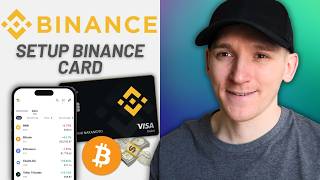

How to Get the Binance Card
45sQuick, step-by-step guide on applying for a crypto card, appealing to beginners interested in spending crypto.
▶ Play Clip"Delivers a clear, step-by-step tutorial that matches the title, though some sections are padded with personal anecdotes."
This video is a beginner-friendly tutorial on how to apply for and use the Binance card, a Visa or MasterCard that lets you spend your crypto balances directly. The presenter walks through the application process, card management, funding priorities, and borrowing options, along with a breakdown of associated fees.
Check eligibility by navigating to 'More Services' and searching for 'card'. If eligible, click 'Apply Now' and provide required information, including a phone number matching your account's registered region.
The application asks if you expect to spend more than $1,000 monthly; answering 'yes' may trigger additional information requests. After submitting, a verification code is sent to your phone, and the card is typically ordered within about 15 minutes.
Once approved, access the card via the 'Pay' icon. You can set funding priority to choose which crypto assets are sold first when spending. Stablecoins like USDT or USDC are recommended as the first payment priority.
You can select where funds come from: Spot account, Funding account, or Earn Flexible account. Toggle these on/off and set payment priorities. Earn Flexible can earn yield on stablecoins while waiting to be spent.
Set a PIN, view card details (number, CVC, expiry), and add the card to Google or Apple Pay. The presenter had to add it manually to Apple Pay.
Instead of selling crypto, you can borrow fiat against your assets. This is an over-collateralized loan with an LTV (loan-to-value) up to 78%. Interest rates are around 3.47% currently. If collateral value drops, margin calls and liquidation can occur.
No annual or issuance fees. Conversion fees: 0.1% for USDC, 0.9% for other assets. To minimize fees, convert crypto to USDC first. Foreign exchange (FX) fees of 2-3% apply when spending in a currency different from the card's base currency.
The Binance card offers a convenient way to spend crypto, with options to manage funding priorities and even borrow against assets. To minimize costs, use USDC and be mindful of FX fees when spending in foreign currencies.
What is the first step to apply for a Binance card?
Check eligibility by going to 'More Services' and searching for 'card'.
00:01
What phone number is required for the Binance card application?
A phone number that matches the region your Binance account is registered to.
00:53
What is the recommended payment priority for the Binance card?
Stablecoins like USDT or USDC should be set as the first payment priority.
03:07
What are the three funding sources for the Binance card?
Spot account, Funding account, and Earn Flexible account.
03:48
What is the maximum LTV (loan-to-value) for borrowing against crypto on Binance?
78%.
07:36
At what LTV does Binance issue a margin call?
85%.
07:50
At what LTV does Binance liquidate collateral?
91%.
08:02
What is the conversion fee for USDC on the Binance card?
0.1%.
08:42
What is the conversion fee for other crypto assets like Bitcoin?
0.9%.
08:56
What is the FX fee when spending in a currency different from the card's base currency?
2-3%.
09:22
Borrowing Option
Explains an alternative to selling crypto, using over-collateralized loans with clear LTV thresholds.
05:48Fee Optimization
Provides actionable advice to minimize fees by converting to USDC first, saving 0.8% per transaction.
08:29Funding Source Flexibility
Shows how to earn yield on stablecoins while keeping them available for spending, a smart use of idle assets.
03:35[00:01] apply for the Binance card, which is either a Visa or a MasterCard depending spend your crypto balances from your Binance account through this card. You well if you want. So, the first thing to do is figure out if we're eligible for
[00:15] the card. Some countries and regions are, and some aren't at the moment, but that may change over time. So, go to the top left-hand corner of your Binance and then I'm going to go to more services down at the bottom,
[00:28] and up at the top, I'm just going to search for card, and if you click that, you'll find out if you're eligible to actually apply for the card, uh and if this video. I'll show you what applying for the card looks like as well. All you
[00:40] have to do is give Binance just some of your information, and that's it. So, press apply now if you are eligible for the card. Then, it's going to ask for that in here. And then from there, it's going to uh
[00:53] your phone number has to be of the region that your account is registered to as well, right? So, wherever you are, I'm sure you've done KYC with Binance, which is giving them your name and ID card and something like that. Your phone
[01:06] number has to be uh in the region that you've registered to as well. Uh they're going to send you a code to that as well, so go ahead and put that in. Now, it says, "Do you expect to spend more than 1,000 USD monthly?" Um I just said
[01:18] no here. If you put yes, I'm not sure if they ask for extra information from you potentially, um but I just put no, and I And then from there, it's just going to say, "What's the verification code that
[01:31] send a verification code to your number. Put that in. I pressed submit, and then placed. Uh that will be about 15 minutes." It took maybe a minute, and as "Binance card ordered," and everything went through okay. So, that was it, and
[01:47] card details. If everything is okay with the application, you should get directly into your card account now. So, what we can do once we've got the card is go to the top left again, not the drop-down menu, but the pay icon uh to the
[01:59] to click that. Now, on the right-hand side of the pay app, you can see I've press that. And now we can see this is my card, and the balance that it's showing me, that's the balance of crypto in my Binance
[02:12] the balance of crypto in my Binance account. Um so, what we can do now is actually manage the card itself and how we make payments. So, what they will do automatically is take crypto from your accounts and spend that in and
[02:27] dollars or your local currency, there's going to be some fees here, which I'll they take crypto assets from your account uh and then switch that into some currency that you want to spend. Now, the order in which they take those
[02:40] assets, you can choose. So, what I'm going to do here, where you can see the card, to the bottom left of the card it says manage card, so I'm going to click And what I want to do is set the funding priority. And you can see payment
[02:53] assets and the balances of them. I'm going to press manage card, and then we have to choose this. So, source of funding, if we click that, this is where the money is coming from. So, you may have stable coins like USDT or USDC,
[03:07] those, then they're going to start selling other crypto assets. Um so, bottom it says payment priority. Spot and funding account, I'm going to click Choose which assets that you would want to sell when you're spending on the card
[03:21] firstly. So, I've got stable coins up at the top, and then down at the bottom ETH, SOL, BNB, Bitcoin. So, you can choose which assets are set to pay and if you run out of stable coins, which is the next asset that's actually going to
[03:35] that and then use it to pay for what you're paying for with the card. That's from your spot and funding. Now, if I come out of here, you can see that the two tabs, spot account and earn flexible account. You
[03:48] can choose where the money comes from that you spend. So, funding account up at the top, that's the default. You know the funding account is different to your can move some money into there and use that basically is like a bank balance of
[04:01] what you spend. Now, if there's no money in there, then you want to come down to account, so you may have some crypto in if you want. So, if you don't want to take money out of there, you can just
[04:13] toggle it off. Also, earn flexible. Now, if you've got some dollars that you're you may want to put them in your earn flexible account because those dollars will probably earn a little bit of yield there, maybe a few percent or so.
[04:26] funding account not doing anything or not earning any flexible interest, you flexible account to kind of wait there until you spend. And so, you can toggle on and off spot account and earn flexible account. And you can see down
[04:41] different payment priorities. For example, if I turn off spot account cuz there, but I want it all to come from my funding or earn, then I can turn on earn. Down at the bottom it says earn flexible, click that. And again, you can
[04:54] choose a payment priority. So, in that way, what you can do is put some dollar stable coins in there, for example, earning some yield, and then you will they'll just take the balance out. Within the manage card options as well,
[05:06] you can also set a PIN number. Uh so, you can just click that to set it up. the card details are here as well under my cards. So, to the bottom left of the card, you can find the long card number, CVC, and also the expiry date. And
[05:20] add it to Google or Apple Pay. So, what actually happened for me is that I got a right here, and it said add your card to the digital wallet. Now, they wanted me to manually add it, so I had to go into Apple Pay, uh add card manually, and
[05:36] then just put the details in. Uh so, once that's done, essentially you can Pay, and then you can just tap to pay, uh and you'll be taking balances out of your Binance account. Another option in my region is to actually borrow money to
[05:48] assets. So, what usually happens on the card is, let's say you have $100 of to spend on the card. The other option is to actually borrow dollars first against your assets and then spend those dollars and then pay back the loan at
[06:02] left-hand side, if you press borrow here, I'll show you how this works. I I mean, you are taking debt. It's It's basically like a a small personal loan So, what you have to do is, let's say we
[06:16] want to borrow $100. What Binance will do is tie up some of your assets in order to give you this money. So, if it's going It's an over-collateralized loan, meaning if you want to borrow
[06:30] $100, you have to put 120, 130, 140 dollars worth of Bitcoin on the app and being is that Binance is going to lend you the money or actually people on the app, but they don't want a bad loan. And so, they've got $150 of Bitcoin there,
[06:43] they loan you $100, and if the Bitcoin price falls to 100, that gives them a And then it gets to 100, they just sell the Bitcoin and pay off your loan. And that's going to be automatic. So, you can't get into a bad debt here.
[06:56] Now, borrowing may work out better for you, it may work out worse. If you want to spend $100 now and then over a year you pay 3.47% the interest rate right now, um and your Bitcoin goes up 20%, well,
[07:09] loan and more. So, you actually made price goes down, that's not great because then you should have just sold price has gone down, you're now paying interest, you're actually worse off. So,
[07:22] you could be worse off. That's the decision you'll have to make. But, you happens is you tie up more collateral than you can borrow. Down at the bottom, that's what LTV is. Loan to value, so the loan that you're taking out, let's
[07:36] say $100, to the value of your collateral, what that is. The most you can borrow is 78%. So, you can borrow 78% of the value of your can see here margin call and liquidation. Basically, if the loan
[07:50] amount in relation to your collateral comes to 85%, they'll send you a message saying, "You're pretty close to not being able to pay this back. Do you want back the loan? Do you want to liquidate some of your collateral? Do you want to
[08:02] tie up more collateral to make sure that the loan to value goes down?" At 91%, so the loan is 91% of the value of our collateral, they will sell your of course, that can happen, right? If you take a loan of 50% loan to value,
[08:16] but then the Bitcoin price falls, it might come down to about 91%. They'll loan for you. And that's probably a worse situation Bitcoin price has come down. But you can take that uh that uh loan, and if you
[08:29] dollars against your assets. The main fees for the card come when you spend to another. So, there's no annual fee, and there's no issuance fee for the card, no matter where you live. Now, the main fees come when you have to convert
[08:42] currencies. So, let's say you've got crypto, we're going to have to convert that to a fiat to spend on the card. And for USDC, the conversion fee is 0.1%. So, I'd recommend using USDC, that's the lowest fee. You can see for other
[08:56] assets, it's 0.9%. Um so, got Bitcoin in your account, sell it in your spot account first to USDC, and then put USDC on the card and spend the USDC. That's going to be the lowest
[09:09] fees. Otherwise, if they have to liquidate, for example, Bitcoin um itself, they're going to charge 0.9%. So, do it first and get it into USDC. different currency than the base currency of the card. So, my card is
[09:22] dollars, and if I spend in dollars, no problem. But let's say I want to spend what would happen is that they would take the dollars and have to FX it again, which you can see here is a 2 to 3% fee. If you need a full tutorial
[09:36] in the description and the bonus offers to Binance and the other exchanges I I'm James as in the White DG. Cheers for watching and I'll see you in the next watching and I'll see you in the next one.
⚡ Saved you 0h 09m reading this? Transcribe any YouTube video for free — no signup needed.