Fix Game Lag in 30 Seconds
30sQuick, actionable fix for a common gaming problem that viewers can try immediately.
▶ Play Clip"The title promises a fix for laggy games, and the video delivers exactly that—a concise, actionable tip with no fluff."
This video offers a quick, practical tip to reduce game lag by adjusting Windows graphics settings. It guides viewers to set their game to high performance mode, ensuring the system uses the best GPU.
Windows may not prioritize your game correctly, causing lag.
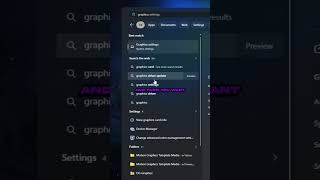
Click the Windows icon, search for 'graphics settings', and open it.
Scroll to find your game (e.g., Call of Duty) and set it to high performance mode.
This tells Windows to use your best GPU for the game, improving performance.
How do you enable high performance mode for a game in Windows?
Click the Windows icon, search for 'graphics settings', and select 'High performance' mode for your game.
What does setting a game to high performance mode do?
It tells Windows to use your best GPU for the game.
00:14
Access Graphics Settings
Provides a direct, actionable first step to improve game performance.
Set High Performance Mode
Explains the core fix that ensures Windows uses the best GPU for gaming.
00:14[00:00] If your game feels laggy, try this out. Sometimes Windows doesn't prioritize your game correctly. So click on the Windows icon and search up graphics and then you want to click on graphics settings. Then you want to scroll down until you find the game that you want to improve. So for me
[00:14] it's going to be Call of Duty. Click on the drop down and make sure that it's set to high performance mode. This tells Windows to use your best GPU for the game. Follow for more tips like
⚡ Saved you 0h 00m reading this? Transcribe any YouTube video for free — no signup needed.