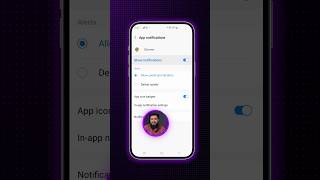

Block Site Access to Camera & Mic
51sPrivacy scare factor, viewers worry about spying, making them eager to lock down permissions.
▶ Play Clip"The title promises a way to stop ads, and the video delivers exactly that with clear, actionable steps—no fluff, no filler."
This video explains how to stop ads on your Android Chrome browser by adjusting a few key settings. It walks through disabling ad personalization, turning off notifications, and revoking site permissions to reduce unwanted ads.
Open Chrome, tap the three-dot menu, go to Settings, then Privacy and security, and tap Ads privacy. Turn off Ad topics, Site-suggested ads, and Ad measurement.
In Settings, scroll down and turn off 'Access payment methods' if it's on.
Go to Notifications in Settings and turn them off entirely, as 99% of users don't need them and they often appear as ads.
In Site settings, turn off permissions for location, camera, microphone, motion sensors, and USB. Re-enable temporarily if needed.
What are the three ad personalization settings to disable in Chrome?
Go to Chrome Settings > Privacy and security > Ads privacy, then turn off Ad topics, Site-suggested ads, and Ad measurement.
00:12
How can you stop ads that appear as notifications?
Turn off notifications in Chrome Settings, and revoke site permissions like location, camera, and microphone in Site settings.
00:39
What percentage of users don't need Chrome notifications, according to the video?
99% of users don't need Chrome notifications, and they often appear as ads.
00:39
Disable Ad Personalization
Turning off these three settings stops Chrome from tracking your interests and showing targeted ads.
00:12Notifications Are a Major Ad Source
Many ads appear as fake notifications, so disabling them eliminates a whole category of interruptions.
00:39Revoke Unnecessary Permissions
Sites rarely need camera, mic, or location access, and revoking them reduces ad delivery and improves privacy.
01:07[00:00] आपके Android फोन के अंदर Ads आने के एक बहुत बड़ा सोर्स है Google Chrome उसमें आपने कुछ Settings करनी हैं जो बहुत ही ज़्यादा Important है ध्यान से देखते हुए इन तमाम Settings को कर लें आप आजाएं Google Chrome के अंदर 3 Dot पे क्लिक करें
[00:12] Settings में आजाएं यहाँ पे आप क्लिक करेंगे privacy and security add privacy पे क्लिक करेंगे add topics पे आ जाएंगे इसको आप totally off कर देंगे back आएंगे site suggested ads इस पे क्लिक करें इसको भी आप off कर दें
[00:25] back आ जाएं add measurement पे आ जाएं यहाँ पर भी इसको off कर दें यह तीनों options को off करने के बाद back आ जाएं और यहाँ पर back जाते हुए एक setting को और भी off कर दें access payment method अगर यह on है तो इसको भी off कर दें off करने के बाद back आ जाएं
[00:38] थोड़ा मजीज स्क्रोल down करें और notifications पर click करें यहाँ पर अगर आपके Google Chrome में कोई ऐसी site save नहीं है जिसके notifications के आपको need रहती है तो इसको भी आप totally off कर दे क्योंकि 99% आपको chrome के notifications की need नहीं होती
[00:50] जबकि इस notification की वज़ा से हामखा आपके सामने ads आती रहती है notification की शकल में इसको off करने के बाद back आजाएं इसके बाद आप click करेंगे site settings यहाँ पे आपकी location, camera, microphone, notification, motion sensor, USB
[01:03] इन में तमाम चीजों को आप बारी बारी off कर दें अगर आपको इनकी need नहीं है तो किसी भी site को आपको अपना camera देने की, mic देने की, gallery की access देने की जरूरत हरगिज नहीं है और अगर कभी जुरूत पड़ जाए तो आप इसको फर्जी तोर पे आउन करके अपना काम करने बाद में से अगेन आफ कर दें
[01:17] आफ करने के बाद वापिस बैक आ जाएं दैट्स इट Google Chrome में आपने इतना ही काम करना है इससे भी आपके सामने आने वाली अकसर ads बंद हो जाएंगी अगर वो Google Chrome की वज़ा से आ रही थी तो
⚡ Saved you 0h 01m reading this? Transcribe any YouTube video for free — no signup needed.