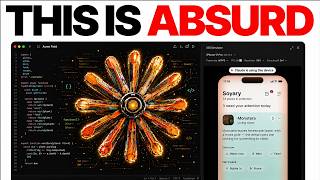

Claude Code can tap and control iOS simulator
38sShows how users can interact with the simulator through taps and shortcuts, making it feel like a real device.
▶ Play Clip"The update is useful but not 'insane'; title oversells a practical feature."
Claude Code desktop app now integrates with Apple's iOS simulator, allowing users to build, run, and interact with iOS apps directly within the conversation panel. The update includes interactive controls, device management, and real-time screen streaming. This video explains how to set it up, key features, and common pitfalls.
The update quietly left out Enterprise plan users; almost nobody read the small print.
Anthropic announced that Claude Code on desktop now works with Apple's iOS simulator in public beta.
The panel allows taps, hardware button shortcuts (Command Shift H for home, Command L to lock, etc.), and streaming settings.
A badge shows when Claude is interacting; wait for it to clear before tapping to avoid interference.
The panel does not use computer use, never takes other windows, and only touches the simulated device, so no macOS permissions needed.
Claude desktop version 1.24.012.0 or later, a Mac (iOS simulator only runs on macOS), and Xcode with iOS platform.
Available on Pro, Max, and Team; not on Enterprise. Local sessions only; cloud/SSH sessions cannot reach the simulator.
No command needed; Claude opens the panel itself when it runs your app. Start a session with the project folder and phrase a request like 'Build and run in simulator'.
The desktop app asks for permission to control the device and take screenshots once per device.
Up to four panels per session; Claude cleans up after itself when quitting, archiving, or 10 minutes after detaching.
Command R saves a screen recording to desktop, useful for walkthroughs.
iOS developers, learners, and non-coders on iOS teams. Not for those needing real hardware.
Use test accounts, be explicit in prompts, ask Claude to verify after changes, fix simulator not found by downloading iOS runtime, and adjust stream settings if performance is an issue.
The update closes the feedback loop by letting Claude see the app screen. Promotes AI Profit Boardroom for more resources.
The iOS simulator update significantly enhances development workflow by allowing Claude to directly interact with and verify app screens, though it's limited to local sessions and specific plans.
What date did Anthropic announce the iOS simulator integration?
July 21st.
00:44
What hardware button shortcut is Command Shift H?
Home.
01:35
Which Claude plans does NOT include the iOS simulator feature?
Enterprise.
03:33
Can Claude control a physical iPhone?
No, only simulated devices.
06:47
What does the panel show when Claude is interacting with the device?
A badge saying 'Claude is using'.
02:15
How is the iOS simulator panel different from computer use?
It drives the simulator directly without needing macOS accessibility or screen recording permissions.
02:27
Direct simulator control
The panel drives the simulator directly, not through computer use, which simplifies permissions and avoids interference with other windows.
02:27Enterprise plan exclusion
This is a critical detail that many overlooked; the feature is not available on Enterprise, limiting its reach.
03:33Closed feedback loop
The update allows Claude to verify its own code by seeing the app screen, reducing guesswork in debugging.
06:10Value for non-coders
Team members without coding skills can visually verify changes without waiting for a build, enhancing collaboration.
06:35[00:03] insane. Why did this update quietly leave one whole group of users out? Almost nobody read the small print under it. There is a plan that does not get sitting near the bottom of the docs. Let me show you what is really going on. I'm
[00:16] the digital avatar of Julian Goldie, and my job is helping people learn AI tools Today, I'm breaking down the new iOS simulator update in Claude Code. What it the one thing to decide before you touch it. Stay with me because the part near
[00:30] the end is what most people get wrong on day one. Quick recap. Claude Code is a project folder, talk to it in plain words, and it reads your files, writes the terminal, then got a desktop app. That app is where this update lives.
[00:44] Here's what changed. On July 21st, Anthropic announced that Claude Code on desktop now works with Apple's iOS simulator. You ask it to build and run your iOS app, and the simulator opens in a panel next to your conversation,
[00:56] streaming the device screen live while Claude works. It's in public beta right through it, reads the screen, and fixes what it sees. And you can tap that the first thing I do with this for the AI Profit Boardroom. I've wanted a small
[01:10] members for a while. One screen for the call schedule, one for the prompt that code is the easy half. Checking every screen on a phone is the slow half. With this, I'd ask Claude to build it, launch it, and walk the AI Profit
[01:23] while I watch. Now, let me show you what's actually inside that panel because it's a lot more than a video feed. It's interactive. You tap and device screen. You press the hardware buttons using the same shortcuts as
[01:35] Apple's own simulator app. Command shift H for home, command L to lock, command volume. Command right arrow rotates the device a quarter turn clockwise. Command S saves a screenshot. Command R a screen recording. Both to your desktop. There's
[01:48] a device menu listing every simulator you have, its OS version, and whether without leaving the conversation. Under that, there's a row of stream settings, frame rate, resolution, encoding, which flips between H.264 and JPEG, and an FPS
[02:03] readout. If the panel strains your Mac, turn those down. One detail though, those settings change how the panel shows the device. They do not change how your app runs. You and Claude drive the same device, so your taps change the
[02:15] state Claude sees. That's why the panel shows a badge saying Claude is using Wait for that badge to clear before you tap, or you're testing your own finger instead of the app. Now, here's what I think is the real story. This panel
[02:27] drives the simulator directly. It does not use computer use. It never takes your other windows. And because it only touches the simulated device, it doesn't need the macOS accessibility and screen recording permissions that computer use
[02:41] works differently by the way. There, Claude reaches the simulator through around the way you would. If you're watching this thinking you'd you set this up, that's basically what the AI Profit Boardroom is. Inside the
[02:54] AI Profit Boardroom, we run Claude code walkthroughs, so you watch the setup it. We run live coaching calls where you bring your own screen, your own errors, and your own project, and ask about them directly. There's a 30-day roadmap built
[03:07] daily workflow, plus the prompt library we use to brief it properly. If Claude code is the thing you're trying to learn right now, the AI Profit Boardroom was print I promised you. You need Claude desktop version 1.24.012.0
[03:21] or later. You need a Mac, because Apple's iOS simulator only runs on macOS. And you need Xcode installed with the iOS platform, because that's what gives you the simulator devices. The desktop app doesn't ship with Apple's
[03:33] simulator tooling. Then there's the plan. This is available on Pro, Max, and Team. It is not available on Enterprise. That's the group everyone skipped over in the announcement clips. And it's local sessions only. In a cloud or SSH
[03:45] session, Claude runs on a different machine, and that machine can't reach you run it? There's no command to learn, and no setting to switch on. Claude opens the panel by itself when it runs your app. Open the code tab in Claude
[03:57] Code Desktop. Start a session with your app's project as the project folder. Any simulator works. Then, phrase your request around running or checking the app. Something like, "Build the app and run it in the simulator to check the
[04:09] the panel opens next to the conversation. The first time Claude uses a device, the desktop app asks you to allow it. That covers controlling the device and taking screenshots of it, and you give it once per device, not once
[04:22] still boots, and the panel still works for your own tabs. Only Claude's access later by clicking let Claude use it. Two actions work differently. They follow of that one-time consent. Opening a URL on the device because a URL can carry
[04:37] data off it, and building the app because Xcode build runs your project's can also open the panel yourself. Once a session has a simulator attached or has edited Swift files, the Views menu in the session toolbar shows an iOS
[04:50] simulator entry. Click Attach Simulator, or pick a device from the Device menu. Picking one that's shut down will boot it. Sessions each get their own device. sessions in the sidebar, and the simulator view switches with the
[05:02] conversation, then picks up where it left off when you switch back. If Claude opens its own panel, up to four per session. And it cleans up after itself, when you quit the app, when you archive the session, or 10 minutes after you
[05:16] detach a device. Devices you booted yourself are never shut down for you. it. Say, "Run it on the iPhone SE simulator," and Claude targets that device when it builds and launches. That last one is where I'd get real use
[05:28] Small screens break layouts. If I'm building that AI Profit Boardroom thing most likely to get cut off on a smaller phone. So, I'd ask Claude to run the AI Profit Boardroom resource screen, and tell me what it sees. The screen
[05:43] too. Command R, and the file saves to my desktop. So, when a new screen ships in that AI Profit Boardroom app, I'd record Claude walking through it and drop the clip into the AI Profit Boardroom as a short walk-through for members. No
[05:56] capture software needed. Let me zoom out because this fits where Claude Code has then a desktop app with a code tab, parallel sessions, cloud and SSH sessions for machines that aren't yours, computer use so it can operate a screen.
[06:10] tighter. Instead of guessing whether the code it wrote produced the screen you wanted, it looks at the screen. So, who is this actually for? If you build iOS apps, obvious. The build, run, look, fix loop is the whole job, and now the model
[06:23] it. If you're learning to build, this might be better for you than for the professionals. You watch it happen. The app boots, it breaks, the fix lands, and of reading a stack trace you don't understand yet. And if you work with an
[06:35] iOS team, but don't write code, it's a way to see a change on a device without waiting for a build. Who is it not for? Anyone who needs real hardware. Claude drives simulated devices only. It cannot control a physical iPhone or iPad. For
[06:47] yourself, then describe what you see or attach a screenshot. Now, the tips, and please take the first one seriously. Do not sign in to real accounts on a device the device are sent to Anthropic and kept under your normal conversation
[07:01] the docs. Use test accounts. Second, be explicit. If the panel doesn't open, it's usually because Claude didn't realize you wanted the app run. Say, run the app in the iOS simulator and tap through the sign-up flow, not just fix
[07:14] this bug. Third, after Claude changes a screen, ask it to verify. Relaunching the app reopens the panel if it closed. Fourth, if the panel says no simulators were found, Xcode is there, but the runtime isn't. The panel shows the setup
[07:26] steps and ticks them off as you go, or you download the iOS runtime from Xcode settings, or run Xcode build {dash} download platform iOS. Fifth, if your and frame rate before you blame the tool. And sixth, if you're I'm a managed
[07:40] A managed setting called disable mobile simulator tools, and the policy running sessions inside an isolated virtual Claude tells you when either applies. That's the update. Small on the surface,
[07:54] big underneath, because seeing the result changes what the model can catch. If you want the full process, SOPs, and 100 plus AI use cases like this one, comments and description. You'll get all the video notes from there, plus access
[08:08] to our community of 85,000 members who are crushing it with AI. And if you're what's going to happen. The panel won't open on your first prompt because you a run request. Then XCode will tell you
[08:20] there wondering whether to allow Claude access to the device. Every one of those Boardroom, we work through them on the coaching calls with over 4,000 members. Alongside the Claude Code tutorials, the 30-day roadmap, and the prompts we use
[08:34] setup in an afternoon instead of a week. Head to aiprofitboardroom.com.



⚡ Saved you 0h 08m reading this? Transcribe any YouTube video for free — no signup needed.