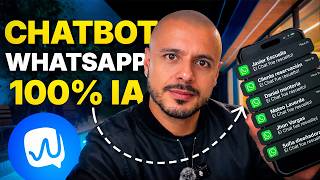

Automate WhatsApp with AI in Minutes
45sQuick value proposition for automating customer service, appealing to business owners seeking efficiency.
▶ Play Clip"Delivers exactly what the title promises—a clear, step-by-step guide to automating WhatsApp with AI, with no fluff."
This video provides a step-by-step guide on automating WhatsApp messages using artificial intelligence. The host demonstrates how to use Waticket, a tool integrated with OpenAI, to create a virtual agent that answers customer queries 24/7, improving response times and customer service efficiency.
The video introduces Waticket, a tool that integrates with OpenAI to automate WhatsApp messages, improving response times and customer service.
Waticket offers a 14-day free trial and is a Meta Business partner, ensuring reliable WhatsApp API integration.
The process begins by connecting WhatsApp via QR code, with options for other channels like Facebook and Instagram.
To configure the AI, you need an OpenAI API key, created by accessing the OpenAI platform and generating a new secret key.
The similarity level for AI responses is recommended at 70%, balancing accuracy and flexibility.
OpenAI credits are required; a minimum of $5 is recommended, which can handle over 10,000 messages.
The knowledge base is built by adding articles to departments, allowing the AI to answer specific questions about products or services.
The AI is tested with various queries, including course details, pricing, and troubleshooting, showing accurate and helpful responses.
Quick replies can be added and integrated into the knowledge base for faster responses.
What is the name of the tool used to integrate WhatsApp with OpenAI?
Waticket
00:08
How long is the free trial for Waticket?
14 days
01:22
What is required to configure the AI in Waticket?
OpenAI API key
04:03
What is the recommended similarity level for AI responses?
70%
05:35
What is the minimum amount to recharge in OpenAI credits?
$5
06:43
What is the estimated cost for 10,000 messages using OpenAI?
Approximately $3.75
07:12
What is the purpose of adding articles in the knowledge base?
To create a knowledge base for the AI to answer questions accurately.
08:19
How do you access quick replies in a conversation?
By pressing the slash key in the chat.
17:50
Configuring OpenAI API Key
Shows the exact steps to create and integrate an OpenAI key, a critical step for the automation.
04:03Cost-Effectiveness of AI
Reveals that 10,000 messages cost only $3.75, making AI automation highly affordable.
07:12Building a Knowledge Base
Demonstrates how to structure a knowledge base with departments and articles for accurate AI responses.
08:19Live Testing of the Chatbot
Provides a real-world demonstration of the AI handling various customer queries, proving its effectiveness.
13:18Scalability for Businesses
Highlights that any business can automate customer service without coding, improving response times and sales.
17:08[00:02] step how to automate your WhatsApp messages using artificial intelligence. Look, the idea of this video is to show you how you can optimize all your WhatsApp responses and escalate conversations in an
[00:16] orderly and efficient way, because we're going to automate all WhatsApp messages using artificial intelligence. And in this case we are going to use Watbot AI from W ticket which is integrated with Open which will take care
[00:29] of answering all the messages for you helping you improve response times, raise customer service and optimize the time of your few clicks you'll have a virtual agent working 24/7 that will take care
[00:43] improving response times and conversations. So stay until the end of this video so you don't miss any of the step-by-step details. And if this is your first time
[00:55] here, my name is Jier and on this channel I teach you about digital businesses, digital products and online sales. So don't forget to subscribe, and if you're already part of this community, leave a like and you'll help me a lot
[01:08] value content. The tool I'm talking about is called Waticket. I'll description, and it's the tool we're going to use to do all this integration with OpenI, who are the creators of CHJPT. If you click on the
[01:22] this video, you will be able to do your 14-day free trial here inside the ticket. The best part is that they are a Metabiness partner, so you won't use the WhatsApp API and create your integrations without any
[01:37] problems. Remember that the free trial is 14 days, so I think that's more than enough time for you to try it out . I even have a Waticket video here on the channel; I'll leave it up here in the
[01:49] cards so you can check it out and see if you can complement it with this specifically on creating a chatbot with artificial intelligence, but it you can create quick responses, different departments—in short,
[02:03] it's a super cool tool. Look, I 'm already here inside UATicket and we're going to see this part called Uaticket II, but I want to show you where you connect your WhatsApp, which in this case would be here in connections. We're going to
[02:15] click on add. I want you to look at all the options we have to automate messages. We obviously have WhatsApp via QR code, which is the one I'm going to use, the WhatsApp API, we also have Facebook,
[02:27] Instagram, TikTok and we can also add a web chat, which is here where it says WhatsApp QR Code. Here I'm going to put Juniier and I'm going to wrote, "Hello, thank you very much for contacting me. I'm Boots,
[02:42] can help you today." Here's a message request. If we place the question mark, it tells us what it is for . Here the departments are the departments that have already been created. So, for example, I have a
[02:57] show you this in a moment. At this moment I would like, for example, to place here the option to speak with an advisor only in that department. Here we can restart the chatbot after a certain number of minutes, and this is basically the
[03:12] chatbot if I receive a new message after the chat has been resolved. about all this, I already made a video about what ticket, I'll leave it here description. Here in the type of display of the options we have
[03:25] numbers or buttons and lists. I'm going to click where it says buttons and list and here I have to put zero in the field to restart chatboot and here in assign have a connection. I'm going to leave it unchecked and click on
[03:38] add. The QR code has already appeared for me. Then I'm going to click there. I'm going link a device as is normally done. I'm going to scan the QR code and with that we'll have the WhatsApp line
[03:50] connected. It's a test line I have, and I'm going to show you how to do it first thing we need to do is go here to W ticket IA. Let's click there and it tells me that the AI is not yet configured. I'm going to click where it
[04:03] says "configure". Here we will use the Open II model, which is created by CHGPT. And here he asks us for a key. To create that key, I 'll leave the OpenEI link below so you can
[04:16] configure it. We're going to click here where it says App Refresh. We're going to come here for authentication. Let's go here to settings and this is where we're to click here where it says create a new key. You're going to click here on
[04:30] service [music] account. Here at the service, you will be given a name, whatever name you want. Jer project. Let's leave it here in default project and click on create the secret key. Here he already created the key for us.
[04:42] Then we're going to click on copy. We're back to Tickets. Here we paste the key and click where it says save. Look. And with that, the key is now inside Ticket. And here are some important settings. The
[04:55] first thing is the level of similarity. I'm going to give you a prompt here, and in fact, I'm down here in the description so you can use them. And basically it says, "You are an organized, multi-agent customer service guide for modern businesses, with a
[05:08] friendly voice. Clear, objective, and well-structured responses. the customer uses as part of a multi-agent system. Collaborate efficiently and in a solution-oriented way, and also use emojis sparingly and
[05:21] empathetically. Now, the similarity level, it says it right here: low values reduce the risk of incorrect answers, but can generate more 'I do make the idea more flexible, but can lead to some
[05:35] test it. I always recommend leaving it here at 70%. Do the automations, and then you can see if you want to make it stricter or more flexible in its responses. The AI's alternative response when it can't
[05:48] find, let's say, an answer to what it's being asked, well, customize it however you want. And this user transfer part is that whenever I talk to a person, a message appears at the bottom
[06:02] that I gave." It says to write one to speak with an advisor. In this case, I'm going to leave it deactivated. And once that's done, I'm going to click save. And with that, we have the OpenEI ticket key configured here. Look, I
[06:17] already have a product knowledge base here so that when people are trained on WhatsApp, the AI can answer them about everything related to access, bonuses, and so on. But look, I have to mention something, and that is that to
[06:30] use this knowledge base, you need credits here within OpenEI. So, I want to show you that I, for example, want to show you that I, for example, have $5 recharged, and with this you can
[06:43] send many messages. If you don't have this part recharged here, then you won't be So it's important to clarify that you must recharge with the minimum, which is $5. But look, the truth is that it's so inexpensive, so very inexpensive,
[06:57] that I have a calculator here. In fact, I'll leave it down here in the how much you need. The messages cost. And let's suppose I need 10,000 messages a month. Look, 10,000 messages. Oops, 10,040, no, 10,000 messages a month.
[07:12] So, the conversations are 10,000 conversations, and it's telling me that an estimated cost is $3.75. It's even telling me here that with $ I can respond to approximately 2.66
[07:25] charge, how much the token is, and all that stuff there in case you want to experiment here. But the truth is, with just one dollar, responding to more than 2,500 messages is absurd. And 10,000 messages would cost me
[07:40] 3.75. So, the truth is, it's too cheap to use. So, having said that, I'm going to go back here to W ticket, and then I'm going to show you delete everything, this entire knowledge base, to do it from scratch, and
[07:54] then I'll show you. Look, now I deleted everything from the knowledge base. Up here we have the AI settings. In fact, I want to show you that I'm on the absolutely everything. So, this is so you can see that you can use it for free.
[08:07] And here in the AI settings is what we configured for the OpenEI APC . This is already configured, we don't need to touch that. And here we're going to add an article and we have to add it to a department. So,
[08:19] look, I'm going to go here to department first because I need to create a department so that when people contact me, it shows what they want to choose the course, CHGPT, talk to an advisor, or file a complaint. So, I'm
[08:32] going to add a new department here and I'm going to put "course" here. In fact, I already have it here. I'm going to delete it and create a new department, CHGPT, for the online course. The color, we're going to choose any color. In this case, I'm
[08:46] going to use orange. And the message "Health Department," I'm going to add it, of course. Tell me what questions you have about the Custom CHGPT assistant for digital product creation . And it's important that you put this
[08:58] in quotation marks or parentheses. Please use only text in your questions. So here we're going to add a step, and in this case, we're going to respond with click save. So I want that when someone writes to me for the first
[09:12] when someone writes to me for the first time, they see this department, which is CHGPT for online courses, and I also want one that says "Talk to an advisor." where it says configure. This is already configured. It says, "Our
[09:26] sales advisors are available Monday to Friday from 9 am to 6 pm." If it's within will respond shortly. If it's outside of these hours, we'll contact you as soon as possible. And here, in this case, I do need to assign this to
[09:39] a user. In this case, I'm going to assign it to myself, which is Jier Gómez. So I'm going to click here where it says automatic assignment, and here I'm going to leave these two boxes selected and click save. So, those will
[09:52] use this so that when people send me a message for the first time, these two options appear. In fact, here in Connections is where you add the departments. Click here where it says Edit, and here in
[10:04] Departments, since I had "Talk to an advisor," but I want the CHG GPT for online course and also the option to talk to an advisor. Once that's done, I'm going to basically, our chatbot is all set up. We just need to configure
[10:18] the AI responses, which is here in Waticket AI, knowledge base. So, I'm going to add the first item, which in this case would be a purchase link, and I'm going to put this: " This is the link to buy the
[10:34] CHG GPT customized digital product course." I'm going to add two dots and sales link, which would be this one here. In this case, it's a product on Hotmart. I'm going to choose the department in this department: CH GPT for online course.
[10:48] The " Improve the item" checkbox will always be activated, and I'm going to here the The idea is to create a knowledge base. I want to tell you that you can create as much of a knowledge base as you want. And if you're
[11:01] what questions my audience is asking," or "I don't really know what people might ask, what options do you have to help me answer them more effectively?" Well, here at CHJPT, I gave him this prompt—in fact, I
[11:15] read it all to you—but basically, it was so he could give me quick answers about how the product works, how much it costs, and so on. And here he'll tell you that he needs all the basics about the product: the name, the
[11:28] results, the offer, and so on. I answered absolutely everything below, I sent him an audio message, and then he started sending me example, it says, "The question I identified was, ' What is a personalized agent for
[11:41] there are people who might ask that. I'll give it to him. Here in " Add Article," I'm going to paste the title. Then, the text will be the knowledge base for the custom GPT chat to answer. So, I'm going
[11:54] to paste it here. We're going to choose the department, which is GPT for online courses, and I'm going to click [music] Add. We're going to go to the next one, and it says, " So, I'm going to press Ctrl+C. I go back here to Guatick, click on "Add
[12:08] Article," paste it here, then I come back here and add the answer. I come back and put it here. I select the department, which would be HGPT for online courses. We leave "Improve Article" enabled and click on "Add."
[12:23] each of the questions. So, I'm going to put them all here, and I'll show you going to put them all here, and I'll show you in a moment how it looks. Look, I've finished adding the entire knowledge base here. I tried to include
[12:38] ask, like whether it has a warranty, if not Access has arrived, what's the price, the bonuses, the experience, what it will achieve, what it contains—I mean, number of things here. And here in departments, look, if I, for example,
[12:52] select, "Oh, I want to know the entire knowledge base of the If I say, "Oh, I want to know the knowledge base, talk to an 're all blank because remember I deleted them all, and I have them all here where it
[13:05] click there, you see they all appear. So, we can also filter it here by department. I'm going to check the connection here. It says it's connected. Here we also have the knowledge base. Now, the
[13:18] next step is to see how this AI-powered bot works, the one that our WhatsApp customer service. So, look, let's do a test. It will say, "Hello, good afternoon." Let's see what it responds. Remember, we're
[13:31] configured... two departments. He tells me, "Hello, thank you very much for Jener's assistant. Tell me how I can help you today." Remember that we have two departments; in this case, CH GPT for online courses and speaking
[13:43] with an advisor. I'm going to click here where it says CH GPT for online courses, which is artificial intelligence. He tells me, "Of course, tell me what questions you have customized for creating digital products." Please use only text in
[13:57] your questions." So, let's ask the first question, which would be, " What is the course about?" Let's see what he answers. And right away he at people who want to create their first digital product, like an ebook,
[14:09] for entrepreneurs looking to sell on Hotmart and those who want to monetize prior experience." put it here in the knowledge base; we gave it some context, and he
[14:23] finished developing it. I'm going to put here that it has some bonuses, some bonuses. ." The first bonus teaches you how to properly use the personalized agent, and the second bonus explains how to create the sales page with
[14:35] as if she were a person. Wow, great. "And how much does the course cost?" She says, "The course costs 19.90." You can pay by credit card, debit card, or cash, and it's done in the local currency." Let's put it here. Okay,
[14:50] local currency." Let's put it here. Okay, let's ask, does the if it's an annual payment, a semi-annual payment, or maybe it's for life. impressive. It doesn't mention if the course expires; however, the
[15:03] product has a 7- day guarantee backed by Hotmart. That's a great answer. I'm going to put it here, could you send me the link to buy it, the link to purchase it, I hope it's useful. Wow. Let's open it here
[15:18] to see if they sent me the correct link. They're going to send me the link—it has to be the create a digital product, and let's click here in dollars to see if it appears in dollars. 19.90. Correct. Very good. Let's suppose we bought it, but
[15:34] something went wrong, and I'm going to tell them here that I didn't receive the Access. I didn't receive the access. What do I do? Look, if you didn't receive the access, I recommend you follow these steps. Open the folder. The problem persists. I'll place it. Ah, okay. It
[15:46] persists. I'll place it. Ah, okay. It was in the spam folder. Thank you very much. I didn't configure anything to say thank you or anything. Let's see what it does here. How nice that you found it. Do you need anything? [laughs]
[15:58] Great. Let's ask it something that it does n't know about. Let's see what I can think of. Let's ask it. I don't know anything about GPT chat. I don't know anything about know anything about GPT chat. I don't know anything about GPT chat or Hotmart. I don't know if that will
[16:14] specifically for this. Let's see what it answers. Look. Wow. Don't precisely for people without experience in creating digital products. It includes... uff... place. Whew! Great. I think I'll
[16:29] buy it then because I really want to learn. Let's see what it answers. learning this course. Wow. No, no, No. I'm impressed with this. Let's see, I'm impressed with this. Let's see, let's put it here. And if I want some
[16:42] let's put it here. And if I want some kind of mentoring or live classes, how do I do that? This is definitely not here in the knowledge base. Let's specific information about mentoring or live classes mentioned in the
[16:54] AI agent is designed to help you with that, so I'm going to put it here. Thank you very much. Wow. I'm impressed, everyone, with this. How well does it work? Any business, person, or company can automate this without any
[17:08] problems whatsoever. If you need more information... Wow, it sent me a... No, no, no, this is... no, this is fantastic, this is wonderful. Look, another thing I want to tell you is that if you're already a What
[17:20] Ticket user, you usually have quick replies, which you can put in the chat. I, for example, could add a quick reply that says " purchase link," that says, "This is the link for you to buy the course." Two colons. Here I
[17:36] department; in this case, for example, it's CHGPT. For an online course, I click here on "Add." So, for example, if I come here to a conversation, and if I go to the chat and press the slash, you'll see
[17:50] the quick replies appear here, and I simply select one of them. these quick replies into a knowledge base, you click where it says "Add
[18:03] to Artificial Intelligence." Everything is already configured here; you enter the department and click " Add." Then, where it says "What Ticket AI," at the end, the purchase link we just
[18:16] added appears. Look, remember that if you need any support or configuration, the Wataticker team is super friendly, 100% in absolutely everything. You simply click here on "Support," obviously during
[18:30] office hours, and you have chat support. You can also go to the help center at the top, where you'll find all the configuration options. So, that's really what makes the difference. It's a matter of switching platforms, and that's
[18:42] the issue of customer service and support, and believe me, they're very good at it. I want to show you the OpenEI credits again. I'm going to click here to refresh. Look, I answered maybe 15 or 20
[18:55] messages, and it hasn't cost me anything. In the tests I did previously, I used up about 150 messages. So, with $5, you can really do a lot. Send more than 10,000 messages, I'd say
[19:07] ticket link will be left below in the description and in the first pinned comment so you can take advantage of your 14-day free trial and automate all the messages you receive on WhatsApp using
[19:21] artificial intelligence. You simply follow these steps, and you'll see that you'll have optimized customer service, you'll greatly improve response times, and this has a huge impact on sales of your product or your
[19:33] improve customer service and optimize your team, or if you 're working alone, you simultaneously thanks to WhatsApp's integrated artificial intelligence. If you
[19:46] enjoyed this video, and especially if it helped you, please That's how you can support me with this 100% free content I provide here so you can learn about
[20:01] digital business, artificial intelligence, and online sales. If leave them in the comments or on my Instagram, where I'm @juniorgómez. See you in the next




⚡ Saved you 0h 20m reading this? Transcribe any YouTube video for free — no signup needed.