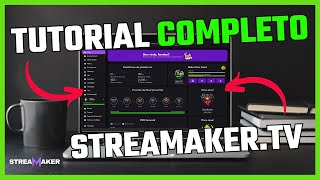

Get More Views on Twitch for Free
45sThis segment introduces the core value proposition of the platform—getting free views on Twitch—which is a highly desirable and controversial topic for streamers.
▶ Play Clip"The title promises a complete tutorial on growing on Twitch with Stream Maker, and the video delivers exactly that."
This video is a comprehensive tutorial on how to use the Stream Maker platform to grow on Twitch. The creator explains the platform's features, including farming, leveling up, using stream tickets and Maker Passes, and the benefits of different subscription plans. The goal is to help viewers understand how to effectively use the platform to increase their Twitch viewership and potentially achieve Twitch Partner status.
The video aims to answer community questions and provide a visual guide to using the Stream Maker platform correctly.
The home screen shows live streamers, online members farming, registered users, current Maker, level prediction, current level, weekly PDM, and current plan.
Users can farm by watching streams via the Stream Maker browser (recommended) or standard browser. The app offers auto-reconnect, auto-refresh, auto-play, auto-volume, and auto-reconnect features.
The platform operates within Twitch's Terms of Service, so users can farm or stream without risking their Twitch channel.
Stream tickets cost 200 Maker Coins each and allow a viewer to enter your live stream for up to 10 minutes. You need at least Silver level to start receiving viewers.
To activate, go to Stream Ticket and click 'Activate Ticket'. You can choose a view multiplier based on your level; higher multiplier means more views but faster ticket consumption.
PDM (Maker Points) are earned by watching streams. Levels range from Bronze (0 PDM, no views) to Challenger (120 PDM, 6x multiplier). Challenger is only achievable with the Ultimate plan.
The level prediction shows what level you will be at midnight based on your farm. The current level is based on the sum of the past six days plus the current day's PDM.
Maker Pass grants access to the second tab for up to 60 minutes or until 600 views. It can only be activated once per day per Maker.
To activate, click the update button on the home screen until a rocket icon appears, then click it. A captcha must be solved to prevent autoclickers.
Free plan: 200/50 Maker Coins per tab. Elite (R$39.90): 250/100. Ultimate (R$59.90): 300/150. Ultimate also unlocks Challenger level and offers fixed PDM bonuses.
Shows daily and monthly views, hours watched, and PDM earned. Also shows stream ticket and Maker Pass activation history.
A ranking by PDM. Users can filter by level. Shows position, PDM, coins, and plan type.
If you change your Twitch nickname, synchronize your account in profile settings to ensure viewers are directed to the correct channel.
Users can open a ticket or join Discord for support. Tickets are typically answered within 24-48 hours.
The Stream Maker platform offers a legitimate way to grow on Twitch by farming views and using tickets or Maker Passes. Understanding the level system and choosing the right plan can maximize your viewership and help you achieve Twitch Partner.
What is the cost of one stream ticket in Maker Coins?
200 Maker Coins.
09:46
What is the minimum level required to start receiving viewers on your live stream?
Silver level.
10:15
How long does a stream ticket allow a viewer to watch your live stream?
Up to 10 minutes.
10:15
What is the maximum number of Maker Pass activations per day per Maker?
Once per day.
22:03
What is the maximum views a Maker Pass can provide?
600 views.
22:03
What is the PDM range for a day from watching live streams?
0 to 144 PDM (plus 2 from daily bonus, total 146).
32:41
What is the view multiplier for Challenger level?
6x.
19:03
Which plan unlocks the Challenger level?
Ultimate plan.
18:21
What happens if you change your Twitch nickname without synchronizing?
Viewers will be sent to the old Twitch channel, which may be non-existent or belong to someone else.
39:05
How is the current level calculated?
It is the sum of the past six days plus the current day's PDM.
20:54
What is the cooldown to reactivate a stream ticket after deactivation?
10 minutes.
34:36
Twitch TOS Compliance
Assures users that using the platform is safe and within Twitch's rules.
06:45Silver Level Requirement
Key threshold for receiving views; motivates users to farm to Silver.
10:15Level System and PDM
Explains the core progression mechanic that drives user engagement.
16:37Maker Pass Exclusive Access
Offers a premium way to get more views, creating a competitive element.
21:51Plan Benefits Comparison
Clearly outlines what each subscription tier offers, helping users decide.
27:36[00:06] folks, I decided to create this video to help the community, which is having a lot of questions, and even with the documentation we made, it can end up being a bit complicated to understand without something
[00:19] visual. So the purpose of this video is to answer questions, or even for able to use the platform correctly. We'll instruct people both on Discord and in the
[00:32] platform's chat, so you can contact us with any questions you have. Okay, I'll quickly go through the home screen, which can be complex to understand at first. And then I'll go through each
[00:47] topic, explaining each one. I'll go back to the home screen and explain better how it to the home screen and explain better how it works. Okay, well, in the platform's statistics, appears, you can already see some information about the platform,
[01:00] such as how many streamers are live on the platform. What are these streamers? They are people who have a Twitch account and registered with Stream Maker and linked their Twitch account to Stream Maker. So
[01:14] when a person does this... So, she becomes a streamer on Stream Maker, right? Then she can connect her live stream to Stream Maker. And then the views that we send to her live stream are directed to her Twitch channel, so this is within the terms of service,
[01:27] which is Twitch's Terms of Service. So there won't be any problem with the Twitch channel of this streamer who uses the platform. of this streamer who uses the platform. The online members are the streamers who
[01:39] are farming on the platform, they are watching these 86 streamers. Why do we use the term "farm"? Because every time you watch a streamer you are rewarded, you receive platform coins and also
[01:52] PDM (Points of Sale) which will influence your level, which I'll explain better later. The coins are displayed here at the top right, which are the Maker coins. You can view
[02:04] go through this menu and you'll be able to understand better. Here, regarding the online members, you can see how many streamers are live on PL (PlayStation League) and are using the platform at the moment. So,
[02:18] using the platform at the moment. So, for example, of the 493 who are live and for example, of the 493 who are live and online, sorry, 88 are... Streaming and 409 are farming. But it's possible that the same person who is
[02:31] streaming is also farming at the same time, that's possible on the platform. Okay. We that's possible on the platform. Okay. We currently have 2062 registered users, so this information updates in real time. So you
[02:43] can follow the growth of the stream. The current Maker is a consumable item that I'll show you in the store how it works. It's nothing more than a way to turn on the live stream. I'll explain more
[02:58] later, but I don't think it will be good to explain now. So there's the current Maker, there's the level prediction for tomorrow. Why this name? Level prediction for tomorrow? It's what will represent your level tomorrow. So this
[03:12] information here is nothing more than you farming and being able to track what level you will drop to when the clock strikes midnight. The current level is the level you are at at the moment, so this will impact an item that I
[03:25] will explain to you in the store. So this influences the views you receive. Weekly PDM is nothing more than your farm, or rather, your farm... This week's farm and the previous week's farm, I'll
[03:39] explain that later too. The current plan is because we have free plan, which is free and allows you to use the platform normally; the Elite plan, which is a paid plan that gives you some
[03:54] extra benefits on the platform; and the Ultimate plan, which also gives you some extra benefits and is also paid, which we call the VIP plan. The VIP plan, just so you understand, is what we put on the platform. Besides
[04:10] rewarding streamers, it's more for the project to continue, so to keep the project going, project to continue, so to keep the project going, we ended up adding the VIP plan. The streamer chat is nothing more than
[04:24] a chat on the platform where you can communicate, create networks, or even where we can provide support. So here, moderators and administrators can provide support, so people who ask questions
[04:39] can communicate through this chat. It's very similar to the Twitch chat. So, chat. It's very similar to the Twitch chat. So, here in the assist streams menu, which is interesting to start explaining, is how
[04:52] you'll farm on the platform. By farming, you'll be able to receive views later. Okay, so how do you farm on the Stream Maker platform? farm: you can farm either through the Stream Maker browser or through the
[05:08] standard browser. The Streaker Browser is simply an app we developed; it has several features, such as auto-reconnect, auto- auto-reconnect, auto- refresh, auto-play, auto-volume, and auto-
[05:22] reconnect. For example, if your internet drops and then comes back, it will try to reconnect to the internet and resume farming. The auto-refresh, in case there's a server update, will try to make a new
[05:36] automatically resume farming. So we highly recommend using the app. And the big recommendation, besides all these features I mentioned, is that the views you get through the app
[05:49] will be directly discovered by Twitch. In other words, this will directly influence your engagement and also your chances of getting Twitch Partner, which averages 75
[06:01] viewers. If you watch the streamer through the standard browser, your views will be redirected, so for example, you'll be redirected from Streaker. PTV will report to Twitch for the person's Twitch channel,
[06:15] so the default browser won't help with these issues. It also doesn't have all the features I mentioned that the app has. Another issue is that you can't use both at the same time; the platform prohibits
[06:30] this, and we even flag it if someone tries to do it. So you can only farm through the app or the default browser. The most interesting thing about all this is that the platform is within the Twitch Terms of
[06:45] Service, so in the same way that you can start a live stream or farm, it will be completely within the terms. You can rest assured about your Twitch channel. And regarding the " Open browser" feature, I'll
[07:00] works. When you click "Open browser," it redirects to the Twitch website. As you can see, it plays the ad, so by playing the ad, you can monetize your Twitch channel. This also helps a lot
[07:16] financially, allowing you to monetize your channel and have extra income. Let me close this now. Okay, so there's also the issue of pop-ups, something that's interesting to point out. He tried to open two live streams, but he
[07:30] couldn't because whenever you're farming through your default browser, you need to allow pop-ups. So here, keep blocking it. You have to here, keep blocking it. You have to
[07:43] allow pop-ups whenever this message appears in any browser. Then, pressing F5 will open the live stream again. Okay, so to use our app, the Streaker Browser, you'll need to download and install it on your computer. To download, just click here on
[07:56] download Windows. The installation is super simple. After installing and this little screen here. In this screen, you can view the platform information, in the case of statistics, you can
[08:10] also see how many coins you have, which account is logged in, and here you have the option to log out. These two pieces of information that appear here in the middle: this first one is one of the consumable items that the streamer is using, which is our
[08:23] stream ticket, and this is the second consumable item, which is another way to access the live stream, which is the Maker Pass. Here we have a timer that runs every... 10 minutes and here are the live streams he opens, so he's going to open two live streams. This
[08:36] streamer here is using Stream Ticket, and this one is already using MakerPass, so he's currently using MakerPass. So we'll explain later how this MakerTicket thing works,
[08:48] you understand how to appear in the first tab and how to appear in the second tab, okay? These are the app's features. Oh, one thing I mentioned about popups, right? You
[09:03] browser, right? So, for example, I'm using Chrome here, allow popups, and from then on you don't need to allow them anymore. The first time you allow it, it's automatic, so the default browser will
[09:17] automatically farm when you allow popups. If you don't allow popups, automatically open a new tab, it will block it and won't automatically farm. The app doesn't have that problem; you just log in and enjoy, it will
[09:31] you just log in and enjoy, it will farm directly. Okay, now we're going to move on to the store. I'll explain both ways. You need to activate your live stream using either a stream ticket or a Maker pass. Let's start with the stream
[09:46] ticket. The stream ticket is a consumable item that you can buy consumable item that you can buy in the store. It costs 200 Maker coins, which are the currency you earn by watching streams. To
[10:00] buy this item, you click on the 200 button, and there's a summary of what the item is and what it does. The live ticket, or stream ticket, when purchased, allows a viewer to enter your live stream for up
[10:15] to 10 minutes. Note: you need to have at least the silver level to start receiving viewers on your live stream. In other words, you bought
[10:27] this ticket, you activated the live stream with the ticket. I'll show you how to activate it, and you'll receive the views. The more tickets you have, the more tickets it will consume as viewers
[10:41] join. The speed at which it 's consumed is another factor influenced by the level, which I'll also show you when we activate the ticket. So, for example, if I want to buy 10 tickets... I
[10:54] come here and put in 10, so it became 2000 Maker Coins. Click on buy. Click on the 2000, right? It will buy. Well, after purchasing the stream ticket, you will be directed to your inventory. So at this moment
[11:08] I have 232 stream tickets that I have already purchased. I don't have any Maker passes, inventory because I don't have one. And if I click on transactions, I can see this purchase I made. So I bought it here at 9:20 today, the
[11:26] I bought it here at 9:20 today, the 28th of 2024. I bought 2000 Maker Coins worth of tickets, so that was a quantity of 10 tickets. Each ticket costs 200, as I said. You can see that it
[11:38] was a purchase here below. You can also see your Farm. So I'll even leave the app open here to help people, and as you farm, each time it runs for 10 minutes, if I watch both tabs,
[11:52] it will reward me. So I will receive, for example, 200 Maker Coins for the first tab. I watched the first tab, and in the same time I... I watched the second tab because you can watch two tabs at a time when you have MakerPad active,
[12:08] tabs at a time when you have MakerPad active, right? So I received 200 watching on the first tab plus 50 watching on the second tab, meaning 250 Maker Coins. Okay, so this is the transactions section.
[12:22] You'll be able to see both your Farm and the purchases you make. If you have a VIP plan, you can also see the redemptions in the transactions section. And also the referral program. You can
[12:36] see the bonus you get on your first registration, which is 8,000 Maker Coins. The referral program, I'll explain quickly, is very simple; it's nothing more than a referral program for new streamers on the platform. So
[12:51] you refer a new streamer, right? If they reach 500 views on the platform, you receive 10,000 Maker Coins. So here you can see how many invitations you've made, how much
[13:04] you have to receive, and how much you've already received. So all new streamers who register through this link can receive up to reach 500 views on the platform. Platform: In other words, when they start
[13:18] farming, when they reach 500 watched live streams, you receive this amount of 10,000 Maker Coins, and here is your referral link. Each account will have its own link here. You can download the banner; it's a customized banner that we made.
[13:32] You can put this banner on your Twitch channel, in the "About" section, in the dashboards. You add the image, download it from the website by clicking on this green icon. Once you download the image, add it to your Twitch dashboard and
[13:46] link it with your referral link. That is, when a new streamer clicks on the banner, they will be directed to the Stream Maker website with your referral link. And then, by registering and
[14:01] linking their Twitch account and watching 500 live streams, you receive this amount of up to 10,000 Maker Coins. Okay, I'll go back to the store just to explain something quickly regarding the quantity you want to buy. Besides
[14:15] typing the number of times you want to buy, you can also click on the plus sign to increase the quantity you want or press the minus sign to decrease it. Clicking on the rocket will set the
[14:27] maximum value you can afford to buy in tickets. So, in this case, it would be the total value of Maker Coins, and here's the maximum number of tickets I'll get if I buy them. Okay, just that one thing I missed. Okay, we
[14:40] Live stream. How do I turn on the Live stream and make it appear in the first tab? As first tab, here's the second tab. We're talking about the stream ticket, first tab. Then we'll go to this other way to turn on the Live stream. Okay, so
[14:54] in the stream ticket I bought, it's in my inventory, we already checked, right? It has 232, and to turn it on, we'll go to stream ticket. In stream ticket, at the top right, there's the activate ticket option. So, stream ticket, first tab. Okay, you'll
[15:10] appear in this queue here, which is based on the level. So I'll click to activate the ticket. It will show me what level I'm at and what view multiplier I have available based on my level. The
[15:23] higher your level, the more multipliers you'll have available when you turn on the Live stream. The higher the multiplier, the more views you 'll receive. The consumption of tickets
[15:37] decreases as the platform makes them available. It depends a lot on how many streamers are live, what multiplier they've set, and how many viewers are online on the platform. So here's the
[15:51] parameter that determines the number of views you'll receive when activating the stream ticket. The higher the view multiplier, the more views you'll get. For live streams, choose the higher multiplier if
[16:05] you want more views on your live stream, but remember that the consumption of stream tickets will be higher. Okay, I have up to 4x here, so I click here, I'll turn on the live stream, I'll go to the queue of live streams, and then I'll appear here in
[16:21] depending on where the viewer is farming. Regarding levels, I'll show you here in the tires section. What are tires? There's even a brief explanation: Maker tires represent the
[16:37] maker level determined by your PDM (Power Data Manager). Watching live streams with PDMs allows you to advance through the levels. To surpass the PDM limit of a level, you... It moves up to the
[16:49] next level which will offer even better rewards. What is PDM? The term stands for Maker Points. We use the abbreviation PDM when you watch a live stream; you receive one PDM. So, for example, when you
[17:05] register on the platform, you start at Silver with 36 PDM. As continue farming, you will level up. If you stop watching other streamers, you will start to drop levels. And here, for example, Bronze doesn't
[17:21] receive views, which is 0 PDM. Silver has 36 PDM, but it has a 1x multiplier. The Ticket I showed you is 36, which means 36 PDM. 36 PDM would be 36 live
[17:34] streams that the person watched. So, watching 36 live streams, each 10 minutes long, you reach Silver. And then you can start your live stream using a Ticket or a Maker Pass. Even if you're
[17:49] Bronze, you can start your live stream normally because there are two ways, right? So, the Ticket... This has to do with the level, and the Maker Pass is another thing I'll explain, which is related to the second tab. So here are all
[18:04] the levels. You can see here, for example, Gold 251, Platinum here, for example, Gold 251, Platinum 401, Diamond 651. My current level is the level I'm at the moment, Master 901, Challenger 120. Something
[18:21] interesting to mention here is that Master is achievable on the free plan, while Challenger is only achievable if you have the Ultimate plan, which is our VIP plan. But the highest level, Elite, you can only reach
[18:36] But the highest level, Elite, you can only reach Master with, okay? So Challenger is only available with the Teammate plan, and with the Free and Elite plans you can normally reach Master. And here the multipliers increase, right? So, for example, as I
[18:50] mentioned, because I'm Diamond, I have up to a 4x multiplier available. So, if I want to go live with a 4x multiplier, I get a maximum number of views based on my level. If I want to go live with a 1x multiplier,
[19:03] I'll get views based on Silver, but I'm in Diamond, you understand? And that's it. The challenger is 5x the master and the challenger is 6x. Okay, I came back
[19:15] here to explain better how the level prediction and the current level work, which is the level I'm at right now. So, for example, tomorrow's level prediction, what would that be? This green bar will always
[19:29] represent the level you will be at when the clock strikes midnight. So when the clock strikes midnight. So you farm during the day, and when the clock strikes midnight, the farm you did here comes here, goes to your
[19:43] current level, and here it generates a new prediction for the next day. So, whenever it strikes midnight here, for example, let's suppose it's example, let's suppose it's midnight now, this 658 PDM would come here and
[19:57] replace this 695 with my current level, which is based on the farm I did in the past six days plus the current day when it hits six days? Because the calculation we do is the weekly PDM, that is, what is
[20:13] the weekly PDM? It's the sum of the seven days of the week based on your daily farm. So, for example, here you can see the week. The week before the current week, so for
[20:25] example, if I want to see the current week, I hover my mouse over Sunday and I can see that I farmed 30 pdm, on can see that I farmed 30 pdm, on Monday 85 pdm, on Tuesday 45, and on
[20:39] Wednesday 90. And so on, and here you can compare the previous week with the current week. If you add up the value of the current week for all the days of the week, it will give you exactly your current level.
[20:54] So, for example, if you add up the 5 days, it will be 695 PDM. Here, the calculation is different; it doesn't take the 7 days of the week, it takes the past six days
[21:07] plus the current day. So, for example, if you farmed for example, if you farmed 146 PDM last Wednesday (16), which is the maximum you can get in a day, and this Wednesday you farm zero, and then at
[21:22] midnight, there will be a decrease of 146 PDM in the final value of your level. So, whenever the day changes and you farm less than the previous week, your level will decrease. If you farm the same amount, your level stays fixed. If you farm more
[21:38] than the previous week on the same day of the week, your level increases. So that's how the level prediction works in relation to the current level. Okay, going back to the store, I'll explain how the Maker
[21:51] Pass works, which is the second method. If you turn on the Live stream and receive views on the platform, and by clicking here to purchase the item, you can see a brief explanation of how the Maker Pass works. When activated,
[22:03] it grants access to the secondary tabs of the Maker stream viewers for up to 60 minutes or until reaching 600 views. Note: the Maker Pass can only be activated once per day for each Maker. Okay, so to buy it, it's the same as with the
[22:18] stream ticket. Once purchased, it goes to your inventory, and when you activate the Maker Pass, you will have exclusive access to the second tab, as described. So here in the app, how will it look? In the
[22:32] first part, the first tab will appear, as I explained. This one is alternate based on the view multiplier that each streamer has set, based on their level. So, the higher the multiplier, the more times it will
[22:46] appear in the first tab. The second tab is exclusive to those who have activated the Maker Pass. So, at this moment, the streamer has activated the Maker Pass, so they will have that Bush on the platform. So, if you look here, for
[23:00] example, at who is using stream tickets, based on how many streamers are live, based on... The multiplier he put in has a little less visibility, right? You can see here that those who used Maker P end up having this
[23:14] boost, but as I said, it goes up to 600 views, and when it hits 600 views, it ends. But we have to remember that it's views, not viewers. So,
[23:26] a person can access your live stream several times during that time. So, let's suppose I can enter the person's live stream three times, and then I'll count that as three views, not three simultaneous viewers, you
[23:40] understand? So there's a difference there. Well, when it reaches 600 views, Maker P ends, and then it becomes available for another person to activate, right? Another Maker, if they bought the other Maker, they
[23:54] can activate it. This Maker that used Maker Pad won't be able to activate it today, only at midnight. If it's another day, they can activate it again. And now I'm going to the home page to show you how to
[24:08] activate Maker Pass. Maker Pass is in this card here; you'll have a captcha to solve. It's a very simple captcha; just press the button, which is different here in the case of an update. Update the information here
[24:23] so you can keep track of how much time is left until the current Maker Pass ends. So, when you click on the update section, it will change location, and it will update the minutes and views. Here you can see that it's at 900
[24:37] views to reach, but that's because of an event we did this month regarding the Elite Ultimate VIPs who have reached Elite Ultimate VIPs who have reached 900 views on the Maker Pass so far. So,
[24:50] 900 views on the Maker Pass so far. So, you'll keep clicking here to update. When you click update, it will update the minutes and views. When it's very close to ending, either the minutes or the views will appear,
[25:03] and the icon will change to a little rocket. If you click on this rocket quickly, you can activate it. But in your inventory. So you have to buy the item in the store; it has to be in your inventory. It does
[25:18] n't matter your level; if you're in Bronze, you can activate it. So you just have to keep an eye on it. When it's close to ending, you have to keep updating. When it's very close, you start updating. And then it will
[25:31] change to this image that... It appears here quickly in the back, and then this icon here comes from your place; instead of your update button, it will be a rocket button. Clicking the rocket button, if you managed to click before other makers,
[25:44] then you enter as the current Maker P, just like this streamer managed to click, and then he entered as the current Maker P. That way, other people will activate, so by clicking here you can update the P and follow
[25:59] let's suppose I clicked here to update and I ended up clicking the x, then you receive this message that the capture was done incorrectly. This is so that in case it
[26:11] goes into this cooldown, gives a game over, and you play again. It only counts a 10-second countdown and then it starts again, you can update. Why did we put it this way? To prevent users from using, for example,
[26:24] autoclickers or macros to benefit themselves. So we so all users will be able to activate normally, regardless of whether they are activate normally, regardless of whether they are free or VIP, everyone can activate. There's just
[26:38] this caveat that I mentioned about this event that's happening, but all users can activate, everyone will have it. Same chance, and the question of the X, right? If you click here on the X, you end it. So, if someone tried to turn on an auto-click
[26:53] here, they would keep falling on this screen, preventing them from using this tool to cheat. Well, the Maker P... So, that's how it activates. You just need to refresh the current Maker P when its progress bar is
[27:08] finishing, either the minutes or the views. Whichever finishes first will end the current Maker P. And then, when the astronaut appears on top of the rocket, just click on the rocket to activate it. But remember, it's not just
[27:21] you trying to activate it; several users with MakerPass will try to activate it. So, by clicking to activate it, you can activate it faster than them. It minigame that keeps things running. Now I'm going to talk about the
[27:36] Stream Maker platform. We have the free plan, for example, which is the free plan; it doesn't generate any charges. It's the plan you start when you register on the platform. And we also have the Elite and Ultimate plans. The Elite costs R$
[27:50] 39.90 and the Ultimate R$ 59.90. These plans were... Created so we so when you subscribe to the VIP plan you help the project continue. In addition, you will receive benefits on the platform. Okay,
[28:06] receive benefits on the platform. Okay, let's go over the benefits: the free plan gives you 200 Maker Coins in the first tab and 50 Maker Coins in the second tab; the Elite plan gives you 250 Maker Coins in the first tab and 100 Maker Coins in the second tab; and the
[28:21] Ultimate plan gives you 300 Maker Coins in the first tab and 150 Maker Coins in the second tab. The daily bonus is the same for the other three plans. The minimum level due to inactivity: If you stop watching other streamers, your level decreases.
[28:36] As I mentioned, your PDMs will decrease. So what happens if you stop watching other streamers? You become active, and as streamers, your PDMs will decrease. As I explained, the free plan has a
[28:53] minimum level due to inactivity of Bronze; the Elite plan has a minimum level due to inactivity of Silver; and the Ultimate plan has a minimum level due to inactivity of Gold. minimum level due to inactivity of Gold. So, Bronze, Silver, Gold, great;
[29:08] standard browser, everyone will have access to farm the app. Okay, so support is also available via ticket, chat, and voice on Discord. Everyone will have
[29:21] performance analysis is available on the mini stream; I'll access it again later to explain better. Here are some differences: the personalized badge in chat is only available in Elite, teammate bonuses, PDM (Points, Tickets, Maker Passes, Maker Coins), and the
[29:37] Challenger level. All this information is only available in Ultimate. I'll just quickly explain how the free PDM works. This PDM here is a fixed PDM that will be added to your weekly PDM, so it
[29:51] helps your level. That's why the inactivity level is silver here and gold here. So in Elite you'll have 130, which generates double, which is 260 130, which generates double, which is 260 fixed PDM, 50 tickets here, 100
[30:05] double here, two Maker Passes, four Maker Passes, 25 Maker Coins, 25 Maker Coins, 50 Maker 25 Maker Coins, 25 Maker Coins, 50 Maker Coins, and Ultimate. It's the only one that reach Challenger. It doesn't mean that by subscribing to Ultimate you become a
[30:21] Challenger instantly. This means that the fixed bonus you get from the Master plan helps you reach the Challenger level, so it unlocks the Challenger level. The Elite plan doesn't allow you to reach the Challenger level, nor does the Free plan. These two
[30:36] plans can only help you become a Master at most, while the Ultimate plan can only reach Challenger. You can redeem these bonuses every 30 days. If you subscribe to, for example, the first subscription you're making,
[30:51] you can already redeem these rewards. From that redemption, it counts 30 days until your next redemption. So the plan is monthly. To redeem, you can redeem the bonus here in Rewards on the
[31:06] right side, and on the left side you can redeem the bonus of the plan, which is related to the B plan. The Elite plan is Ultimate. I can't redeem it here because my account is only on the Free plan, so if I try to
[31:20] redeem it, it will say it's unlocked. And then it gives you the possibility to upgrade to Elite or to Ultimate. There's also the possibility of upgrading to Elite and from Elite to Ultimate, but you just
[31:34] have to... A little attention to the reward issue: if you redeem the reward in Elite, you'll only be able to redeem it after 30 days, even if you upgrade to Ultimate. Okay, let's move on to my
[31:48] stream then. This is a screen I mentioned with some statistics you can check, which is the analysis of your progress while using the platform. Here in Live statistics, you can
[32:02] see how many views you got in a day. So, for example, if you activate a pass, you'll have 600 views counted. You activated the ticket, put the multiplier up there, and it adds up the views. It counts
[32:15] the views for the day, then at midnight it takes that value, resets it, and calculates the monthly view count. So here are the views for the month, and here are the views for the day. You can track the hours obtained by the views. So, the viewers
[32:29] watch you, and it counts how many hours they watched you. Here, the hours they watched you. Here, the same relationship is shown. Here is today, here is the month. In PDM statistics, you can see how much PDM you've made in a day. So, as
[32:41] I mentioned, when midnight comes, you start to accumulate the... PDMs range from 0 to start to accumulate the... PDMs range from 0 to 146, with 144 being from watching live streams and two from the daily bonus. This is from the weekly PDM; it's not related to the PDM from the
[32:57] plan, which is on the right side (in this case, it's marked with an "x" because I'm on the free plan, so I don't have any fixed PDM to add to the final count to reach my level). So, my weekly PDM here is
[33:10] 695. It adds to the PDM from the plan since it's zero (I don't have the fixed PDM from the plan), so it remains 695. If I had the plan bonus, it would be a different value; I would probably be at a different level, or maybe not, you'd have to check
[33:26] at a different level, or maybe not, you'd have to check in Tires. Well, here in the stream ticket, it shows when you activated it. So, for example, the last time I activated the ticket, it will count here with the checkmark showing that I
[33:39] activated it on the day, and here the time, the last time I activated it, and the day. I've never activated a pass, so it won't... Nothing will appear here, but if I had already activated a PZ here, it would also show a checkmark, and it would show the last time
[33:56] I activated it and the last date I activated it. So this helps you, for example, you activated the pass today, you activated it in the morning, and then you get home at night and say, "Hey, I'm going to activate the PZ again." But you have to remember the rule that
[34:10] the PZ can only be activated once a day per Maker. So if you want to try to activate it again, you'll see it here with a checkmark. So you'll have to wait until midnight to activate it again. So this helps you look and say, "Hey, I
[34:23] already activated it today, I'll leave it for the next day," because you can't activate it twice in the same day. With the ticket, you can activate it several times a day, but remember that if you activate it here and deactivate it, you have a 10-
[34:36] minute cooldown to activate it again. One thing that's interesting to mention is that when you activate the PZ, it automatically deactivates your ticket. This is correct, right, so you do n't waste your tickets, as I mentioned, since
[34:50] you'll be exclusive to Monday. If you also appear on the first tab, it will only count as one view for you. Twitch won't count it as two views, right? So the person watching you
[35:03] will see you on the second tab whenever you have PvP active, and you'll at some point because you activated the ticket. This will only count as one view, so it's not ideal; you 'll lose tickets, and you'll only get one
[35:17] view. So we created this logic so that when your PvP is active, you deactivate your ticket, and when your PvP ends, you activate your ticket again. And everything's fine, activate your ticket again. And everything's fine, okay? This screen would be like this. Here's
[35:31] a brief explanation of the information we get from the Twitch app in relation to your Twitch account. So here it shows that my Twitch account is connected and linked to the Stream Maker account. Here it shows the
[35:44] Twitch account nickname, so here it says Stream Maker TV, which is the Twitch account. When you choose to connect your Twitch account, stream.tv collects your email address and integrates it with the Twitch app to obtain information from...
[35:59] Username, photo, account name, account name and account ID. Note: All collected information is kept confidential and is used exclusively for user data collection. We make this information
[36:14] We make this information very specific. Okay, regarding the Twitch account, it's also interesting for you to read the platform's terms and conditions. Here we explain it much more clearly when you use a
[36:27] platform on your first access. You have to read this documentation, which is the Streaker PTV terms of use, and you accept it to be able to use the use, you cannot use the platform, and here it will show the day and
[36:44] platform, and here it will show the day and time you accepted the terms. Okay, well, I'm going to explain now how the leaderboard works. When you access the leaderboard, it will always place you at your current level.
[36:56] So, for example, if I'm in Diamond, it will always place me here in the Diamond filter. So, this leaderboard is nothing more than a ranking that is counted by PDM (Points of Death). You can see all the users
[37:12] who have linked their Twitch account with Streaker. They will appear on the all accounts. You can also see how much PDM each user has and how many coins each one has. The Maker Coins are on
[37:28] the right side, and you'll be able to see what level you're at, as I said, your PDM and your position. So, for example, I'm in position So, for example, I'm in position 112, so it will be in bold,
[37:40] white, and it shows where I am in the ranking, the plan I have. In this case, as I mentioned, I have a free plan, and here we can see the users. When someone has
[37:54] on the side. So, for example, this streamer has VIP Elite. If we scroll up here, we 'll see that as we go up in levels, there are more streamers with plans. So, for example, this one already has
[38:10] VIP Elite, and here we can switch between levels. So, for Challenger, which is the last level. The top rank at the moment is W XP90, the streamer who is... At the top of the ranking, right?
[38:25] He's in first place, and here are the others, the other makers, the streamers who are using the platform. So at this moment we have 33 streamers who are in Challenger, so here you can, for example, change to Master.
[38:38] So here in Master, for example, you can see that there are also you can see that there are also makers who are using the free plan and are in Master. As I said, it's possible to reach Master even
[38:50] said, it's possible to reach Master even being free, but Challenger is only possible with the being free, but Challenger is only possible with the Ultimate plan, it's the only one that allows it. I'll explain now something that can happen. Let's suppose
[39:05] you're using the platform and you already have your Twitch account linked, and you decide to change your Twitch nickname or have some specific information about your Twitch channel, the Twitch nickname, for example, because we
[39:18] direct it to your Twitch channel. We will always send the viewer to the live stream that has the Twitch nickname you linked at the time of the first linking. So if you change your Twitch nickname, always go to your
[39:32] username here and click on synchronize, and when you click on synchronize, it will connect. Again, using the Twitch API, update your user information. Always do this because if you don't update your
[39:46] Stream Maker user information to match your Twitch information, we'll keep sending Twitch information, we'll keep sending viewers to your Twitch channel with your old name when you go live. This could likely lead to
[39:58] a non-existent channel or even someone else's account. So, in your profile settings, you can see, for example, the email linked to your Twitch account ( sorry, Stream Maker account).
[40:13] This is the email you used to register, so if you need to see it, it's here. You can change your password here in your profile. By clicking here, you can synchronize your information with the
[40:25] update your password. Clicking here to change it to a change it to a the Stream Maker platform: you can
[40:39] change the language by clicking above Portuguese. You have the option to select English, meaning you can change the platform's language to English. By clicking here, the platform will be changed to English, but that doesn't mean...
[40:52] translated soon, we're still working on it, so it's not a complete translation yet, but over time we intend to 100%. An interesting screen that you can also use is the support screen here.
[41:08] You can... To open a ticket, state in the case: What request are 's not here, you can go to the " Other" option, where you would describe your problem. By opening a ticket, the moderation or
[41:23] administration team will see it and respond quickly. On average, we take 24 to 48 hours to respond to a ticket, so you can rest assured, we are always looking at the tickets to
[41:36] help you. Another way you can contact us, both for support and to chat or network, is to click on the "Discord" option. You will be directed to the
[41:49] invitation link for our Discord server. There you will enter a rules screen; it is necessary to read all the rules. If you agree with all the rules of our agree with all the rules of our Discord, you mark it with a checkmark reaction (
[42:02] the reaction you'll see people reacting with). This will unlock access to all Discord channels, and you will gain the Maker role and be able to use Discord
[42:17] normally. Well, folks, I'll end the video here. I hope I got the most out of it. I know the video is quite long, so I'll see if I can make more videos later and break them down into parts to make them
[42:30] easier to understand and more direct. I also apologize video, as I do n't have much experience in video editing or production. So this is the first time
[42:45] I'm actually recording a video and even making a sort of tutorial to explain how the platform works, and I intend to continue with these videos if you like them and improve the way I'm making them
[42:59] to answer as many questions as possible whenever you need it. If you have any questions, you can send us a message on Discord or even through the ticket or the streamer chat, and we'll be
[43:11] able to guide you in the best way possible. Okay, so thank you for watching until the end. We're in this together! Thanks everyone!
⚡ Saved you 0h 43m reading this? Transcribe any YouTube video for free — no signup needed.