
Where Are All the Add-Ons?
45sRelatable frustration about missing add-ons hooks viewers, then confidently defends the basic UI, sparking debate.
▶ Play Clip"The title is accurate; the video is a comprehensive guide to the new UI features in WoW Midnight."
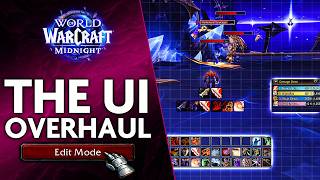
This video provides a comprehensive guide to the new user interface features in World of Warcraft: Midnight. It covers the Edit Mode for customizing UI elements, the Personal Resource Display, Cooldown Manager, built-in damage meter, boss timers, and accessibility features. The creator argues that while not a complete replacement for add-ons, the new UI is a significant improvement and makes the game playable without external tools.
Edit Mode allows repositioning and resizing of all UI elements, including action bars, mini-map, bags, player/target frames, quest objectives, and chat. Layouts can be saved per character or spec.
Party frames can be changed to 'raid style' (colored rectangles) for better information display, especially for healers. Defensive cooldowns show as larger icons.
The Personal Resource Display keeps health and resources visible in the center of the screen. It can be enabled via the options menu search bar.
The Cooldown Manager replaces WeakAuras. It has two tabs (spells and buffs) with categories. Spells and buffs can be dragged and dropped into categories, each movable via Edit Mode.
The built-in damage meter shows damage and healing with ability breakdowns. It has limited features but is sufficient for everyday use. It can be enabled from the game menu.
Boss timers replace DBM/BigWigs. They include boss ability bars (timer or bar style) and warning bars of different sizes. Icons indicate mechanic types (healer, tank, dispel, wipe).
Combat Assistance includes Assisted Highlight (glowing icons for procs) and a Single Button Assistant for simplified rotation. These are aimed at accessibility and casual play.
The creator states the new UI is not sufficient to replace all add-ons but is a necessary step to reduce over-reliance on external tools. The game is playable to a competent level without add-ons.
Where can you access the Edit Mode in WoW Midnight?
From the game menu options.
01:28
What is the purpose of changing party frames to 'raid style'?
To mimic raid frames as colored rectangles.
02:07
What UI element keeps your health and resources visible near the center of the screen?
The Personal Resource Display.
03:56
What feature replaces WeakAuras for tracking cooldowns?
The Cooldown Manager.
04:49
What are the two tabs in the Cooldown Manager?
Spells and buffs.
05:45
What basic information does the built-in damage meter show?
Damage and healing, with a breakdown of abilities.
07:59
What are the two main types of bars in the Boss Timers feature?
Boss ability bars and warning bars.
09:34
What does the Assisted Highlight feature do?
It makes icons and spells glow when important procs are available.
10:42
Where can you find the Single Button Assistant option?
In the spellbook at the top right.
11:29
According to the video, why is the add-on purge considered a 'necessary evil'?
It is a necessary evil to eliminate overdesigned game design that required add-ons to understand what is going on.
12:48
Edit Mode Customization
Explains how to reposition and resize all UI elements, a core skill for personalizing the interface.
01:14Cooldown Manager as WeakAuras Replacement
Confirms that the built-in Cooldown Manager can replace WeakAuras for tracking essential spells and buffs.
04:49Built-in Damage Meter Limitations
Acknowledges that the damage meter is incomplete for high-end optimization but sufficient for most players.
07:47Necessity of Add-On Pruning
Argues that reducing add-on dependency is a necessary step to fix overdesigned game design that required external tools.
12:48Game is Playable Without Add-Ons
States that the game is playable to a competent level without add-ons, countering claims that add-ons are essential.
13:20[00:00] Oh my God. Where are all the add-ons? There they are, right there! Ah, yeah.
[00:14] You know what, I'm just gonna go see what the basic Blizzard UI can do first. Man, you're just a basic UI Andy. In this video, we won't tell you not to use add-ons since, let's be honest.
[00:29] That's not going to accomplish anything, is it? Not to mention, we are using add-ons anyway. But the basic UI can actually accomplish most if not everything you will ever need in the game. If you just want to keep things simple and not have to worry about downloading other programs
[00:46] just to play the game that you already bought and installed. I get it. Let me make you get what the basic UI has in store for you. And at the end of the video, I'll tell you exactly how I feel and what you cannot get out of them
[01:00] at this point during the expansion sound like there are a couple of things. The biggest part of everything you will do with your UI in midnight will be around the edit mode
[01:14] because it is the biggest visual impact that you will have overall. This essentially lets you alter the positioning and style of every single element of your user interface and once we go over all of them, one at a time, you'll understand what is up.
[01:28] In case you took a break from while for a while or you actually never engage with this option before, the edit mode is in the game menu options, easily accessible and readily available to start customizing.
[01:40] You can work your action bars by increasing their size and position, even have them up in the middle like the old weak cars we used to have. But even more importantly, by clicking on one of them,
[01:52] you will get a little window that lets you jump into setting your keybinds or simply adding even more action bars. Should you need them? You don't. Not in midnight. Mini-map, bags, players and target frames, quest objectives, lists, chats,
[02:07] everything can be altered and further customized to suit your own style. Another thing you can do with your party frames after you click on them change their style to mimic the rate frames if you want to see them as colored rectangles
[02:21] instead of the stylized portraits that the game had for years. Although the stylized version is more personal and creative, it doesn't really convey nearly enough information about the state of your party,
[02:33] particularly if you're a healer. Part of the new visual changes midnight brings is a cleaner representation of debuffs that you might need to either interact with or be aware of. You can also see when a party member uses a defensive by it showing up as a larger icon over their frame.
[02:50] All of the changes you will end up making can be saved as a specific layout that you can apply to your own character or have a generic one for certain specs. For instance, I have a specific layout called support that I use on healers
[03:04] and paladin specs since they interact more aggressively with the party frames through healing, dispelling and buffing. I keep my party frames in the middle and move other UI elements away to make room for it.
[03:17] To get your party frames to show up like this, you just need to have the rate style frames enabled and have the horizontal layout checked. Other than this, fiddle at your own leisure with the rest of the options.
[03:29] Edit mode will also be used to alter the position, size or appearance of all of the next UI elements I'll be talking about, which is why I haven't really mentioned them so far. Like how liking and subscribing to this video will instantly improve your performance,
[03:44] skill and loop drop chance. Facts! The personal resource display is one of my favorite ones because it keeps my health bar
[03:56] and resources clean and concise in the middle, preventing the need of dragging my own player frames here instead. You can totally do that though, by the way, and you might even prefer your own frames here rather than the personal resource display.
[04:10] But if you don't, then this option is going to be great to track your own health, mana and other bars, especially since it goes really well with the next UI element. To activate this, make sure you go into the options menu,
[04:23] search for it here, and you will get this option. Remember that your best menu friend is the search bar. If you think something is missing from your UI, simply type the name of it here or one word you think it would be tagged as
[04:37] and you will never miss an option, seeing as how there are quite a few of them now. Not enough someone would say.
[04:49] Moving on to the cooldown manager, this has been the replacement of the Wii chorus that has been in the works for over a year now and right now it can actually get a passing grade. UI try-hards will debate this and pay each their own,
[05:03] but for what it's worth, I played all of the specs in the beta and found the options for it sufficient. Not great, not an upgrade, but it lets you keep track of everything that is essential for your character. Combining it with the creative use of your action bars
[05:17] that can carry over the icons of your cooldowns, so you can just easily track the minimal of the screen, will give you a lot of flexibility in optimizing your UI. But personalizing that is on you. How to use the cooldown manager is what I will be focusing on.
[05:31] By default, this option might not be activated, so you want to go in your options many once again, search for it, and then check to make sure that it has been enabled. Here is where you can go into the details of its functionality as well.
[05:45] When you open them, you will have two tabs with a bunch of icons here. The tabs are four spells and buffs and each is broken down in a few categories, with their names detailed in its editing window.
[05:57] Here you can drag and drop the cooldowns, spells and what not, that you want to track and assign them to whichever one of these categories you prefer. It actually doesn't really matter where you put them,
[06:09] only that each category is its own UI element, that can be moved and resized through the edit mode. So maybe you want basic spells and cooldowns in this section, and crowd control, mobility and other utility in this other section.
[06:23] Doesn't really matter, choose the way it makes sense to you. Similarly in the buffs tab, you'll primarily track buffs and for dot classes debuffs or rather their very own damage over time effects. They come in the icon category where you can simply have a visual icon pop on your screen,
[06:39] when you have a buff that just propped on you, or that you enabled through the use of your spells, or as a bar, if you want a more clear way to depict their remaining duration. As an example, defensive and offensive cooldowns,
[06:53] as well as tanking mitigation abilities such as shield block, are tracked as bars for me, because when they expire, it's an important moment that I need to be aware of, especially for a defensive, so that I'm not just caught off guard by incoming damage,
[07:08] or offensive ones so that I know how much time I have left to pump the damage that I want to pump. Again, you can make your own choice on what to track and where to track it, and if you want details about how I personally have them set up,
[07:21] you can hop on our stream directly and ask me anything you want to know about it. These can also be saved into layouts that are profiles to be shared with people, so if you think for some weird reason, mine is good,
[07:33] I can just share it with you live. Twitch.tv slash Marcelin and Flame, 5 days a week, so see you there! Possibly the most important add-on to have been replaced is the damage meter,
[07:47] despite them going back and allowing certain add-ons like the details to still exist, at least at the time of this video. The game now has a built-in damage meter that shows the basics of your damage output,
[07:59] but also healing, and the breakdown of abilities that are the source of both of these. It is grossly incomplete for high-end game optimization, but very few people actually can use more information or even understand it if it was included in this feature,
[08:14] so for everyday use or for players that just want to get their hands in the game and have minimal fuss with all this, this is actually an incredibly new addition to the UI that was a long time coming. Once enabled from the game menu options, you can position it to your liking with the edit mode.
[08:29] Its limited features include creating more windows, if you want to track more than just your damage done. On whichever window you have already, you can change the information that's displayed from this drop-down menu.
[08:41] You can also check this little button to alter between the overall breakdown of your damage in your current encounter, usually a dungeon run, or the current combat state that measures your DPS in the particular fight that you are in until you drop from combat.
[08:55] So, like a boss fight or a mob pack. As of recording this video, the options are what you can see on the screen, but as someone who has tested this feature since day one on the Alpha and Beta servers, I can tell you for sure they have advanced it quite a lot,
[09:09] and I expect it to be almost unrecognizable by the end of the expansion. Boss timers or boss warnings, as you might find them in the game menu,
[09:21] are the replacement of add-on such as deadly boss mods or big wigs. These are incredibly clean and simplistic. Something that for me is just perfect. Once enabled, you go into the edit mode and fiddle with each bar as you like.
[09:34] The main one is the boss ability section, which you can have as a timer style bar or actual bars for abilities that more visually count down when the mechanics are about to happen. Both accomplish the same thing, and the visual representation is just a personal cosmetic choice.
[09:50] An added bonus to this will be little icons next to the abilities to showcase what type of mechanic it is, whether it affects healers, tanks or everyone, whether it is a dispel mechanic or a wipe mechanic, and so on.
[10:03] The other bars are the warning bars, which by default may show up this way, since I made no changes from the default settings. You can adjust their position and size, and they are of different measurements to signify their importance,
[10:17] at least with the critical warnings being the largest for obvious reasons. The combat assistance lets you do with the visual impact of your UI
[10:29] and more to do with the accessibility and the lack of visual add-ons to push ability notifications on your screen, so you can just play your rotation correctly. In the menu under Gameplay Enhancements, where you will find all of the previous elements as well,
[10:42] you have two main functions for this one. The assisted highlight is just an enable or disable feature, where it will make your icons and spells glow as important procs become available, and the gamer commands you press them.
[10:56] That also highlights a suggested rotational order of which button suppress on your bars. The overall suggestions are more than 90% correct, but the performance you will get out of your character will never be the same as if you were learning it and playing it correctly of your own choice and reaction time.
[11:14] But that's not who the target audience for this feature is anyway. Especially when it comes to the single button assistant, or the one button rotation if you will. If you struggle with accessing all of the key binds necessary to just do combat stuff,
[11:29] you can find this option in your spellbook at the top right. If you click the button, you can see which ability it is trained to use once pressed and most likely will avoid stuff like crowd control options and such.
[11:41] It will streamline the gameplay more, especially for those who want to take it easy and not stress about optimizing rotation while playing the game a lot more casually, at least than others. It can be an incredible asset for those struggling with accessibility issues
[11:55] and has been one of the best additions to the game in the hopes of opening it up for more and more players. Now for the uncomfortable truth that some of you have been thinking throughout this video.
[12:11] These changes to the UI are definitely not sufficient to replace what they are intended to replace and definitely far from being a user experience upgrade worthy of a new expansion.
[12:23] I will not make excuses for the devs, but I will say this. Personally if we could delete all add-ons, I would be fine playing well for the next few expansions. I honestly don't care either way and wish that anyone can enjoy the game as they wish,
[12:36] with or without add-ons. Our personal problem here, Marcellians included, was that the game became something overdesigned that required us to use add-ons, not to compete with the best in the world,
[12:48] but rather to just understand what is even going on. To eliminate that style of world of Warcraft, which was, as much as some would disagree or hate hearing it, objectively bad game design, this add-on war or purge or prune, call it what you like, is a necessary evil.
[13:04] It's not in an ideal state, but as someone that has played with and without add-ons throughout the recent expansions, in mythic raids and mythic plus keys above plus 15, I can tell you with 100% confidence that the game is definitely playable to a competent level without add-ons.
[13:20] Visual aids will always improve efficiency of course, and I'm not denying that. But don't let anyone tell you that the game is dead because add-ons are gone, or that you cannot play it without XOR Y external additions to what should just be a video game
[13:34] that you install and launch to play. I hope that they have to keep iterating on this because if they keep this level of progress on all of these UI changes, I see the game ending up in a much better visual state as far as user experience is concerned.
[13:47] Until that happens, we will still use at least some add-ons and a video on those is on the way. Meanwhile, have you ever wanted to be a big fluffy bear? How about a cat? That and more can be found in our new class spotlight with the Druid right here.
[14:03] Cooook!
⚡ Saved you 0h 14m reading this? Transcribe any YouTube video for free — no signup needed.