
Why CPU video conversion is painfully slow
36sShows immediate contrast between slow CPU and unused GPU, prompting viewers to learn faster method.
▶ Play Clip"The title accurately describes the video's content: converting any video file to MP4 using FFmpeg with GPU vs CPU, and includes a batch script for bulk conversion."
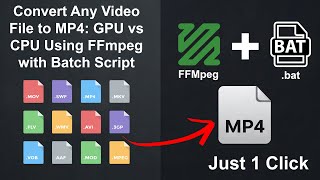
This video demonstrates how to bulk convert video files to MP4 using FFmpeg with GPU acceleration, making the process up to 10x faster than using the CPU. The presenter shows a batch script that automatically scans a folder for various video formats and converts them all into high-quality MP4 files using the NVIDIA GPU.
The video starts by showing a slow method of converting a single AVI file to MP4 using FFmpeg via command line, which uses the CPU and is slow.
The presenter introduces the main topic: how to bulk convert video files to MP4 using FFmpeg with GPU acceleration, making the process up to 10x faster.
The batch script automatically scans a folder for various video file types (AVI, MOOV, MKV, etc.) and converts them all into high-quality MP4 files.
Instead of using the CPU, the script uses the NVIDIA GPU for fast conversion using NVENC, resulting in much faster processing and keeping the computer responsive.
The script creates a folder called 'converted' and saves all converted videos there, keeping original files untouched and everything neatly organized.
The presenter explains key FFmpeg parameters: HWXLC CUDA tells FFmpeg to use the NVIDIA GPU, CVH264 NVC sets the video encoder to NVENC, CQ23 controls quality and file size, and C ab a 128k encodes audio in AAC format at 128 kbps.
The script loops through all video files with common formats and runs the ffmpeg command on each one, keeping the original file name and saving the new mp4 file inside the converted folder.
This method is fast, efficient, and perfect for converting large numbers of videos quickly without sacrificing quality, making full use of GPU power.
Using FFmpeg with GPU acceleration via a batch script is a fast and efficient way to bulk convert video files to MP4, significantly outperforming CPU-based conversion while keeping your system responsive.
What is the main benefit of using GPU acceleration for video conversion with FFmpeg?
It makes the process up to 10x faster than using the CPU.
0:39
What does the FFmpeg parameter '-hwaccel cuda' do?
It tells FFmpeg to use the NVIDIA GPU for hardware acceleration.
1:24
What does the FFmpeg parameter '-c:v h264_nvenc' specify?
It sets the video encoder to NVENC (NVIDIA's GPU encoder).
1:29
What does the FFmpeg parameter '-cq 23' control?
It controls the quality and file size; a higher value gives smaller files.
1:38
What does the FFmpeg parameter '-c:a aac -b:a 128k' do?
It encodes audio in AAC format at 128 kilobits per second.
1:49
Where does the batch script save the converted MP4 files?
In a folder called 'converted'.
1:15
What is the purpose of the batch script described in the video?
To automatically scan a folder for various video file types and convert them all to MP4 using GPU acceleration.
0:50
GPU acceleration makes conversion 10x faster
This is the core value proposition of the video, highlighting the significant performance improvement.
0:39FFmpeg GPU parameters explained
Provides specific, actionable command-line parameters for enabling GPU acceleration.
1:24Organized output with 'converted' folder
Shows a practical way to keep original files untouched and maintain organization.
1:15[00:00] If you want to convert this video from
[00:02] AVI format to MP4, type cmd in the
[00:05] location bar and hit
[00:08] enter. Type fmpg i video title with
[00:12] native file extension and video title
[00:14] withmpp for that we want convert to and
[00:17] press
[00:19] enter. While processing we see the new
[00:21] video file with MP4
[00:26] extension completed. Let's check the
[00:28] result. But this way it's so slow
[00:31] conviran and run too much on CPU GPU
[00:34] sleeping
[00:36] well. Hi everyone. In this video I'll
[00:39] show you how to bulk convert video files
[00:41] to MP4 using ffmpeg with GPU
[00:45] acceleration making the process up to
[00:47] 10x faster than using your CPU. This
[00:50] batch script automatically scans a
[00:51] folder for various video file types like
[00:54] AVI, MOOV, MKV, and more and converts
[00:58] them all into highquality MP4 files.
[01:01] Instead of using your CPU, which is slow
[01:03] and can overload your system, this
[01:05] script uses your Nvidia GPU for fast
[01:08] conversion using VN. That means you'll
[01:10] get much faster processing and keep your
[01:12] computer responsive. It also creates a
[01:15] folder called converted and saves all
[01:17] the converted videos there, keeping your
[01:19] original files untouched and everything
[01:21] neatly organized. HWXLC CUDA tells
[01:24] FFmpeg to use the NVIDIA GPU.
[01:29] CVH264 NVC sets the video encoder to
[01:33] NVENC. The GPU encoder CQ23 controls the
[01:38] quality and file size. A higher value
[01:41] gives smaller files. Preset fast make
[01:44] faster conviran but big file size. C
[01:49] ab a 128k encodes audio in AAC format at
[01:54] 128 kilobits per second. The script
[01:56] loops through all video files with
[01:58] common formats and runs the ffmpeg
[02:01] command on each one. It keeps the
[02:03] original file name and saves the new mp4
[02:05] file inside the converted folder. This
[02:08] method is fast, efficient, and perfect
[02:10] for converting large numbers of videos
[02:12] quickly without sacrificing quality. And
[02:15] the best part, it makes full use of your
[02:17] GPU power. If you have not yet installed
[02:21] FFmpeg, please check the video in the
[02:24] description. If this video helped you,
[02:27] don't forget to like and
[02:29] subscribe. Thanks for watching.
⚡ Saved you 0h 02m reading this? Transcribe any YouTube video for free — no signup needed.