
Batch Resize Images with FFMPEG
45sShows a quick, practical solution for resizing multiple images at once, saving time for creators and developers.
▶ Play Clip"The title accurately describes the content: a batch script to resize images using FFmpeg."
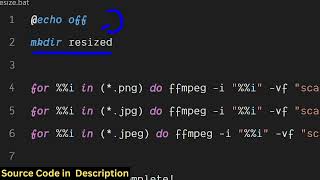
This video demonstrates how to create a batch script using FFmpeg to resize multiple images in a directory to a specified width and height.
The video shows how to write a batch processing script in FFmpeg to resize multiple images in a folder.
The directory contains JPG and PNG images that need resizing.
A simple batch script (resize.bat) is created to automate the resizing process.
The script creates a 'resized' directory, then loops through PNG and JPG files, applying the FFmpeg scale filter to resize to 800x600.
Running the script resizes all images and outputs them to the 'resized' folder.
The resized images are verified to have width 800 and height 600 via properties.
Using a simple batch script with FFmpeg, you can efficiently resize multiple images to a specific dimension in one go.
What command creates a new directory in a batch script?
mkdir
0:45
How do you loop over all PNG and JPG files in a batch script?
for %%i in (*.png *.jpg) do
1:00
What FFmpeg filter is used to resize images?
scale
1:29
What is the syntax to resize an image to 800x600 using FFmpeg in a batch script?
ffmpeg -i "%%i" -vf scale=800:600 "resized/%%i"
1:12
What folder are the resized images saved to?
resized
0:52
Batch script creation
Shows the practical approach to automate image resizing with a simple script.
0:27Scale filter usage
Key FFmpeg filter for resizing images, demonstrated with specific dimensions.
1:29Verification of resized images
Confirms the script works correctly by checking image properties.
2:56[00:00] Uh hello guys uh welcome to this video.
[00:02] So in this video I will show you how to
[00:04] write a batch processing script in
[00:08] ffmppg to resize the multiple images
[00:10] which are present in the directory in a
[00:12] folder. So you can see we have these
[00:15] images present which contains jpg png
[00:19] images. So what I will need to do I need
[00:21] to resize all these images to a
[00:23] particular width and height using
[00:24] ffmppg. For this I will just write a
[00:27] simple batch script which will
[00:30] automatically do the job for us. So we
[00:33] will just create this resize dotbat
[00:37] script. Let's see bat script. So right
[00:41] here I have given the script in the
[00:43] description of this video. So first of
[00:45] all what we will do echo of we will make
[00:48] a new
[00:49] directory. So we make
[00:52] directory resized. We will create this
[00:55] folder and after that we will just run a
[00:58] simple for
[01:00] loop and uh you can see it is giving me
[01:04] suggestions. So first of all we will
[01:06] target all the png files png and then
[01:10] for those we will simply execute this
[01:12] command fmpp i and
[01:17] inside double quotes we will simply
[01:19] write uh percentage
[01:22] sign and for each image we will be
[01:25] applying this video filter which will be
[01:27] the scaling filter
[01:29] scale and inside the scale filter you
[01:32] can actually provide uh whichever
[01:34] dimension
[01:36] uh you want to resize your image. So
[01:38] first of all will be the width. So I
[01:40] will resize to 800 width 600
[01:43] height and then you just need to give in
[01:46] double
[01:47] quotes the name of the output file which
[01:50] will be resized
[01:56] slash. So what I will do I will simply
[01:59] copy paste the
[02:02] script. So this is a script guys. So we
[02:05] first of all make this folder. Once you
[02:07] execute the script, this will create a
[02:09] brand new folder resized inside this. It
[02:12] will actually
[02:14] uh target all the files right here which
[02:17] starts from PNG, JPG, JPG. And for all
[02:21] those files, we will resize it to 800 by
[02:25] 600. And once we will complete, we'll
[02:28] print out this message resizing
[02:30] complete. So now it will detect all
[02:32] these images which are present in the
[02:33] directory which starts from PNG or JPG.
[02:36] You will see that if I execute this uh
[02:39] bat script
[02:41] just you will see it will resize all
[02:44] these images in the command line and it
[02:47] will create this folder resized if you
[02:50] see and you will see all the images are
[02:53] being resized. You can cross check by
[02:56] going to properties going to details.
[02:58] You will see the width is 800 600. You
[03:02] can target any image here. You can go to
[03:05] details. You will see the width and the
[03:08] height is 800 600. So in this easy way
[03:11] guys, you can actually resize the bulk
[03:14] images by this uh bat processing script
[03:17] in ffmpg to resize multiple images to a
[03:20] particular width and height. You can see
[03:22] all your images have been successfully
[03:24] resized. So this is a very important
[03:26] script. I've given the script in the
[03:28] description of this video. You can just
[03:30] do this for all your images which are
[03:32] there.
[03:33] And also check out my website guys
[03:36] freemediattools.com which contains
[03:38] thousands of tools regarding audio
⚡ Saved you 0h 03m reading this? Transcribe any YouTube video for free — no signup needed.