
I Built a Free Adobe Acrobat Clone in React!
55sShows an impressive offline PDF editor built with React, solving a real-world problem and sparking curiosity about the code.
▶ Play Clip"Title promises a build tutorial but delivers only a product demo and sales pitch — pure bait-and-switch."
The video demonstrates a pre-built offline PDF editor clone of Adobe Acrobat, built with React and MuPDF.js. It showcases features like text addition, highlighting, removal, page insertion/deletion, and export options, but does not provide a step-by-step tutorial — the project is available for purchase.
Presents a ready-made offline PDF editor project built with React, MuPDF.js, and TypeScript, intended as an Adobe Acrobat clone.
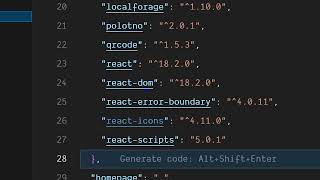
Uses MuPDF library (MUP PDF) and the latest React version. The project is fully customizable with TypeScript components.
Users can browse and select a PDF file. All pages appear in a live preview section with editing options on the side.
Select the text tool to add text fields; adjust size, color, and font size easily.
Includes a select tool for picking elements and a print option that opens the system print dialog.
Highlight text or add images to the PDF. Works fully offline as processing happens in the browser.
Tools to remove text permanently, insert or delete pages, and zoom in/out controls.
Save the edited PDF or export as PNG, Text, HTML, SVG, WEBP — multiple formats supported.
The video showcases a functional offline PDF editor available for purchase, but does not teach how to build it. It highlights the tool's offline capability and export features.
What libraries are used to build the offline PDF editor?
React, MuPDF.js, and TypeScript.
00:29
Does the PDF editor require an internet connection?
No, all processing takes place in the browser, making it fully offline.
02:39
What export formats does the editor support?
Text, HTML, SVG, WEBP, and PNG.
04:10
What is the purpose of the 'select' tool?
To select and manipulate elements on the PDF page.
01:39
How can users add text to a PDF?
By using the text tool, then adjusting size, color, and font.
01:12
Offline Processing
Highlights that the editor works entirely offline, a key differentiator from cloud-based editors.
02:39Multiple Export Formats
Demonstrates versatility by supporting several image and document formats for export.
04:10[00:02] in this video I'll show you I built out a offline PDF editor something like a offline PDF editor something like Adobe Acrobat clone in ReactJS using MU Adobe Acrobat clone in ReactJS using MU PDFJS library. So we are running this
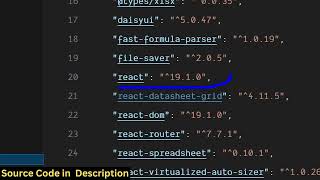
[00:14] project local locally just to show you the demo of this application. Uh this is the readym made project here as you can see if I show you the package.json JSON file. We using this library MUP PDF
[00:29] and we are also using the latest version of React. So [snorts] if you're interested in purchasing this project, the link is given in the description. After purchasing it, you will get the full source code. Each component as you
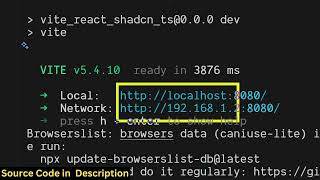
[00:42] can see is divided into its appropriate TypeScript file here. So it's fully customizable. You can easily customize this. and we are running this project on local host. It's also very easy for you to deploy this as well. So once you
[00:57] click the browse file button, you simply select whichever PDF file that you want to edit. After selecting that, both the pages will show right here. All the pages in the live preview section. And here you can easily have all the options
[01:12] right here on the left hand right hand side. If you want to add something, you basically select this tool. And here you have the text field. And here you
[01:24] simply add it's you can just see here how easy it is. You can adjust the size as well. The color, phone size, everything. So it's every tool is there. Uh this is a select
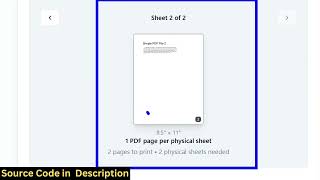
[01:39] tool. So here you can actually select anything. You can also directly print. This is a print option which is given if you want to print your PDF document. So this print window will open and it will
[01:53] actually allow you to directly select which PDF document that you want to print out. All these options are also there. So as you click the print button the printing will start. So as you can just see
[02:10] apart from that we also have the option to highlight add images as well. So if you want to highlight your text, you simply select this tool simply select this tool and here you can
[02:25] and here you can select any page. Uh so it does this editor doesn't require
[02:39] internet. That's the main thing. So once you actually deploy this it all the processing directly takes place in the browser. So you select this tool and you can easily highlight anything. So as you can just see here this is the
[02:55] highlighting tool and if you want to remove any text from the PDF document you use this tool and this will actually remove everything. So you will see the remove everything. So you will see the permanently removed from PDF.
[03:14] you can insert a page, delete a specific page as well. This is the total number easily read your PDF file. We have the easily read your PDF file. We have the zoom in zoom out control. So this is a
[03:28] tool here. If you want to hide something, you simply select and this magically will remove everything. So now you can't see the text. Similarly, you go to the next page. Simply select the portion that you don't
[03:41] want to and easily it removes everything. all the features of this if you are interested in this. And then after that
[03:56] interested in this. And then after that you can save Everything is saved. You can even export this to a PNG file as well. Image file.
[04:10] So we have all the format here. Text, HTML, SVG, WEBP. So all the export options are there. So if you're interested in this project guys, the link is given in the description. It will download a zip file which will
[04:25] contain both the images. So it's a complete PDF editor and viewer where you can read your PDF files and also at the same time edit them as well similar to Adobe Acrobat. So we are using this library MU PDF and React.
[04:42] So if you're interested in this project the link is given you can directly the link is given you can directly purchase it.
⚡ Saved you 0h 04m reading this? Transcribe any YouTube video for free — no signup needed.