
Batch convert all MP4 to MP3 with one command
45sSaves time by showing a single command to process multiple videos, appealing to users with large media libraries.
▶ Play Clip"Title accurately describes the content: a batch FFmpeg command to convert MP4 to MP3."
This video demonstrates a simple one-line command to batch convert all MP4 videos in a directory to MP3 files using FFmpeg on Windows. The script uses a for loop to process each video, extracting audio and saving it as an MP3 file in the same folder.
The video shows a script to process multiple videos at once, converting them to MP3.
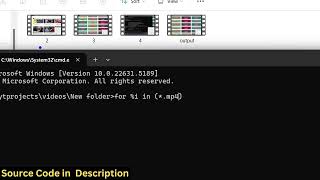
The presenter has four MP4 videos in a directory and will convert them all to MP3.
The command is: for %i in (*.mp4) do ffmpeg -i "%i" "%~ni.mp3"
The for loop iterates over all .mp4 files, using %i as a placeholder for each filename.
After running the command, four MP3 files are created in the same directory.
The command works on Windows; the description includes a link to a Stack Overflow article with Linux/Mac commands.
This simple FFmpeg batch command saves time when converting many videos to MP3, and the same approach can be adapted for other formats.
What is the Windows command to batch convert all MP4 files in a directory to MP3 using FFmpeg?
for %i in (*.mp4) do ffmpeg -i "%i" "%~ni.mp3"
1:12
What does the %~ni variable represent in the batch command?
It represents the filename without extension (e.g., video1 from video1.mp4).
3:05
Does the provided command work on Linux or Mac?
No, it only works on Windows; the description includes a link to a Stack Overflow article with Linux/Mac commands.
4:34
One-line batch command
Provides a simple, reusable command for bulk conversion.
1:12Time-saving demonstration
Shows how the command processes multiple files quickly.
3:20Cross-platform reference
Points to a resource for Linux/Mac users, increasing the video's usefulness.
4:17[00:00] Uh hello guys uh welcome to this video.
[00:02] So in this video I will show you a
[00:04] ffmppg batch processing script or
[00:08] command that you can actually run to
[00:10] process multiple videos at a single
[00:12] time. So if let's suppose if you have a
[00:15] directory containing multiple videos
[00:17] let's suppose it can contain either 10
[00:20] videos or it can contain 100 videos as
[00:23] well.
[00:24] So using this ffmppg script or command
[00:27] that I will show you, it will process
[00:29] and convert all these videos into MP3.
[00:32] So it will extract all the sound from
[00:34] this videos and save it as a MP3 file.
[00:37] So just go to your command line and as
[00:40] you can see we have four videos present
[00:42] in my directory. So this is first,
[00:45] second, third, fourth. All these videos
[00:47] are in MP4 format MP4. So what I will do
[00:51] is that I will convert all these four
[00:53] videos into MP3. So just go to the
[00:56] directory wherever your videos are
[01:00] present. So simply open the command line
[01:03] right here. So I just open command line
[01:06] in the directory where all the videos
[01:09] are present. So once you open it, this
[01:12] is actually a very simple oneline
[01:15] command that you simply write here for
[01:18] and then you write percentage
[01:22] sign I. So we are simply running a for
[01:26] loop right here in the command line. So
[01:28] for percentage sign I after that we just
[01:32] need to say in and then parenthesis and
[01:36] then we just need to write
[01:38] here asterric sign right here and then
[01:43] MP4. So this is essentially what it is
[01:46] doing right here. It is looping through
[01:47] all the videos which are present in this
[01:49] folder. It is saying for and we have put
[01:52] this placeholder variable I in and this
[01:56] parenthesis is doing it
[01:59] is MP4. So we are not providing names
[02:02] right here. Names can be anything but we
[02:05] just provided this extension that
[02:07] ismpp4. So it is essentially it is
[02:09] saying that if all the videos are
[02:12] present in this folder is MP4. So one by
[02:15] one it is uh do the processing of each
[02:17] video and after that we just need to
[02:20] execute the command here. So we simply
[02:22] write
[02:23] do
[02:25] ffmppg dash i. So we take each video and
[02:29] we execute this simple command ffmpg- i
[02:32] and after that we just say in double
[02:35] quotes percentage sign i. We take the
[02:40] video and after that again we write uh
[02:43] double quotes and we convert that video
[02:46] into MP4. So we simply write here this
[02:49] symbol which
[02:52] is right in the keyboard right here. You
[02:54] throw just put shift key you will see
[02:58] this is actually the key right here and
[03:01] then you
[03:03] can
[03:05] ni.mpp3. So I have given the command in
[03:07] the description of this video. So you
[03:09] can copy this command. So you just need
[03:12] to write this
[03:13] command in double quotes percentage sign
[03:18] ni.mpp3. So as soon as I execute this
[03:20] command right here, you will see it will
[03:22] process each video and it will create
[03:24] this MP3 file for each video in the same
[03:27] directory. So you can see it will save
[03:31] you a lot of time because if you have
[03:33] thousands of videos present and if you
[03:35] just want to convert videos into MP3 you
[03:38] can just execute the script in the
[03:40] command line and you will see the
[03:43] processing has been complete and the
[03:45] four MP3 videos have been created
[03:47] automatically. So you can see if I so in
[03:51] this video I will show you variable by
[03:54] these three. So see it is extracted all
[03:58] the sound. Here it
[04:01] is dot
[04:06] up do machine W6. So all the four videos
[04:11] sound has been extracted which comes
[04:14] right here four different MP3 files. So
[04:17] I have given this command uh with a
[04:20] little bit detailed article as well of
[04:22] stra overflow.com where I got this
[04:24] command.
[04:26] So they have explained each option in
[04:29] detail and after that they have also
[04:31] given command from Linux. This command
[04:34] will only work for Windows machine but
[04:36] if you are on Mac or Linux they have
[04:38] also given command from for that as
[04:40] well. So you can refer this article.
[04:44] I've given this article in the
[04:45] description of this video. So if you are
[04:47] on Linux or Mac, you basically copy this
[04:49] command and it will do the same task for
[04:52] you. So thank you very much for watching
[04:54] this video and also check out my website
[04:56] freemediattools.com
[04:58] uh which contains thousands of tools
[05:00] regarding audio, video and image.
⚡ Saved you 0h 05m reading this? Transcribe any YouTube video for free — no signup needed.